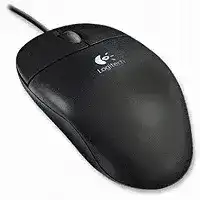
Here you will get the latest Logitech Optical Wheel USB driver and software that support Windows and Macintosh Operating Systems.
Logitech Optical Wheel USB Windows Driver Download
SetPoint
SetPoint lets you customize your mouse buttons, keyboard F-keys and hot-keys, control tracking speed, and configure other device-specific settings. It can also notify you of your device’s battery status, and whether Caps Lock and Num Lock are on.
Smart Installer – Faster setup time, installation starts while components are downloading. Internet connection required during installation. If you’re having trouble with the Smart Installer, try downloading the Full Installer package.
Supported OS: Windows 7 (32-bit ,64-bit) Windows Vista (32-bit ,64-bit) Windows XP (32-bit ,64-bit)
Logitech Optical Wheel USB SetPoint Smart Installer for Windows 7, Windows Vista, Windows XP (79.87 MB)
The Logitech Optical Wheel USB driver is a crucial component that allows your computer to communicate effectively with your Logitech Optical Wheel USB mouse. This driver is designed to enhance the device’s functionality across various operating systems, including Windows Vista, Windows XP, and Windows 7. The software supports various mouse features such as the optical sensor, scroll wheel functionality, and customizable buttons. The driver installation ensures that the mouse performs optimally, offering seamless tracking, acceleration, and scroll capabilities. Additionally, Logitech’s software can help users customize mouse settings to improve their usability according to individual preferences, further enhancing the overall computing experience.
Download Logitech Optical Wheel USB Driver and Software Download Software
Once you have the Logitech Optical Wheel USB driver installer saved on your computer, it’s time to proceed with the installation. Ensure you check the location of the file, typically found in your computer’s Downloads folder. Having the correct file ready is essential for the installation process which will configure the connection between your operating system and the Logitech Optical Wheel USB mouse, thereby enabling all of its features.
How to install Logitech Optical Wheel USB Driver and Software Download Software on Windows and Mac OS?
Installing the Logitech Optical Wheel USB driver on your computer can enhance your device’s functionality greatly. The installation process varies slightly between Windows and Mac operating systems, but the core steps remain largely similar. Here’s a general overview of how to proceed: First, locate the installer file you saved previously. Next, you will open the file, which will initiate the installation wizard. Follow the on-screen prompts to install the driver. Make sure to read and accept any license agreements when prompted, and select any custom installation options you may prefer.
Installing Logitech Optical Wheel USB Driver and Software Download Software on Windows 11, 10…
- Locate the downloaded installer file: Open your computer’s Downloads folder or the specific location where you saved the installer.
- Run the installer executable: Double-click on the installer file to begin the installation process.
- Follow on-screen prompts: The installation wizard will guide you through the setup process. It may ask you to accept the license terms, so read carefully and proceed accordingly.
- Select installation preferences: You may be provided with options to customize your installation. Choose the settings that best suit your needs.
- Complete the installation: Once the installation is finished, you might need to restart your computer for the changes to take effect.
- Test the mouse: After rebooting, ensure your Logitech Optical Wheel USB mouse is functioning correctly.
Installing Logitech Optical Wheel USB Driver and Software Download Software on Mac OS
- Locate the downloaded file: Find the installer in your Downloads folder or wherever it was saved.
- Open the installer file: Double-click on the installer icon to launch it.
- Follow the installation wizard: The prompts will lead you through the process. Make sure to read any agreements presented to you.
- Authorization requirements: Mac users may need admin privileges to complete the installation. Enter your password when prompted.
- Customize settings if needed: You can choose specific settings during the installation process to optimize your mouse’s features.
- Finish and verify: Upon completion, check your system preferences to ensure the mouse is recognized and functioning.
Why choose our website for Logitech Optical Wheel USB Driver and Software Download Drivers Downloads?
Choosing our website for your Logitech Optical Wheel USB driver needs ensures a reliable and secure experience. We focus on providing the most up-to-date and compatible driver versions tailored specifically for your hardware. Our platform is designed for user convenience, offering straightforward download processes, detailed installation guides, and troubleshooting tips. Additionally, our commitment to security safeguards your device against any potential threats during the installation. We strive to keep technology accessible and smooth for our users.
Uninstalling the Logitech Optical Wheel USB Driver and Software Download Software
If you experience issues with the Logitech Optical Wheel USB driver or wish to replace it with an updated version, uninstalling the existing driver is straightforward. For Windows, navigate to Control Panel, select ‘Programs and Features’, find the Logitech driver, then click ‘Uninstall’. On Mac, go to ‘Applications’, find the Logitech folder, and drag it to the Trash. After uninstalling, remember to restart your device to finalize the changes. Checking for any residual files may also help ensure that the new driver can be installed without conflicts.
Conclusion about Logitech Optical Wheel USB Driver and Software Download Driver
When users encounter problems like lagging functionality or unresponsiveness with their Logitech Optical Wheel USB mouse, resolving these issues can be crucial for productivity. Here are some effective troubleshooting tips:
- Check Connections: Ensure your USB connection is secure and functional.
- Update Software: Look for any available updates to the driver that may enhance functionality.
- Adjust Settings: Review your mouse settings in your system preferences for any configuration errors.
The optical tracking feature increases precision for various tasks. Regularly inspect your computer’s settings and maintain your driver to optimize performance. This vigilance helps prevent future technical issues and enhances your user experience.