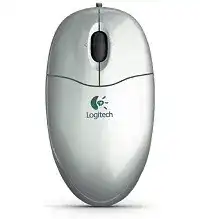
A red sensor light with no pointer response can make a simple wired mouse look completely dead. The Logitech Optical USB Mouse Driver normally comes from the operating system because this plug-and-play model connects through a low-speed USB interface. It uses visible optical tracking, a regular scroll wheel, three controls, and a fixed cable rather than Bluetooth or a wireless receiver.
Windows, macOS, ChromeOS, and Linux can operate the mouse through standard USB human-interface support. Logitech does not provide a separate product download for the B100 Optical USB Mouse, so a large control application is usually unnecessary. The useful work happens at the USB port, inside the operating system’s mouse entry, and around the sensor, wheel, buttons, and cable.
Logitech Optical Mouse USB Windows Driver Download
| Driver Name | Description | Supported OS | File Size | Download |
|---|---|---|---|---|
| Logitech MouseWare | Provides the legacy mouse software needed to manage supported button functions and pointer behavior. | Windows 10 32-bit/64-bit, Windows 8 32-bit/64-bit, Windows 7 32-bit/64-bit | 4.07 MB |
Logitech Optical Mouse USB Mac OS Driver Download
| Driver Name | Description | Supported OS | File Size | Download |
|---|---|---|---|---|
| Logitech Control Center | Enables mouse button assignments, scrolling preferences, pointer settings, and other device-specific controls. | Mac OS X 10.13.x | 16.63 MB | |
| Logitech Control Center | Adds configurable controls for supported Logitech mouse functions and system-level input preferences. | Mac OS X 10.11.x | 17.06 MB | |
| Logitech Control Center | Manages compatible mouse buttons, tracking behavior, scrolling options, and model-specific settings. | Mac OS X 10.7.x | 17.73 MB | |
| Logitech Control Center | Installs legacy Logitech controls for adjusting supported mouse actions and pointer response. | Mac OS X 10.5.x | 18.7 MB | |
| Logitech MouseWare | Supplies older Mac mouse support with access to compatible button and movement settings. | Mac | 3.75 MB |
The optical light turns on but nothing moves
Power and data travel through different USB contacts. The red light may glow even when Windows cannot exchange movement data with the mouse. Unplug it, shut down the computer fully, wait several seconds, and connect it after startup. Try another direct port next. This separates a failed USB socket from a damaged cable or mouse controller.
Watch the cable near the plug and where it enters the body while moving the pointer. If the device repeatedly connects and disappears when the wire bends, the fault is physical. Stop using a cable that has exposed conductors, sharp kinks, or an unstable plug. Software cannot restore a broken data line.
Windows shows an unknown USB device
Open Device Manager with the keyboard and check the Human Interface Devices, Mice, and USB controller sections. Remove only the failed or unknown entry that appears when this mouse is attached, then restart Windows. Reconnecting afterward makes the system enumerate the hardware again instead of recycling an incomplete record.
A dock, KVM switch, monitor socket, or unpowered hub can add another failure point. Connect the mouse straight to the computer during diagnosis. When it works there, test the intermediate device separately. A wired optical mouse needs little power, but poor contacts or repeated hub resets can still interrupt its low-speed USB connection.
Rebuild the Plug-and-Play Entry Without Extra Logitech Software
The Logitech Optical USB Mouse Driver should appear automatically after the USB hardware is detected. Windows generally lists it as a HID-compliant mouse rather than by a detailed retail name. That generic label is expected and does not mean the wrong package loaded. Pointer movement, two main clicks, wheel scrolling, and middle-click should work through the system driver.
The mouse fails after a Windows update
Start with a complete restart rather than a quick sign-out. Updates can leave USB controllers in a transitional state until Windows reloads them. If the problem remains, check whether another wired mouse works in the same port. One working device points toward this mouse or its cable; two failures point toward Windows, the port, or the computer’s USB controller.
Use Windows Update for chipset and USB-controller corrections supplied for the computer. Avoid driver-download utilities that claim to find a special B100 package. The product does not need a gaming suite, receiver utility, pairing program, or firmware updater. Adding unrelated software can complicate a connection that should remain plug and play.
The cursor disappears only after sleep
Disconnect and reconnect the cable once. If that wakes the device, review the computer’s USB power-management behavior rather than installing another mouse program. Laptops and desktops may suspend a hub during sleep and fail to resume one attached device. Updating the computer’s chipset package and power firmware often matters more than changing the mouse entry.
Test a port on a different USB controller when the machine provides front and side connections. Avoid assuming that every socket follows the same internal path. A repeatable sleep failure on one group of ports can expose a controller or power-state issue, while the mouse continues working normally elsewhere.
Clicks work but pointer movement does not
Button input and sensor data share the device but can fail separately. Turn the mouse over and confirm that nothing blocks the visible optical opening. Hair, lint, and a small paper fibre can disturb tracking without stopping clicks. Clear loose debris with a dry soft brush or gentle air, and keep liquid away from the sensor window.
Place the mouse on plain paper or a matte pad. Glass, mirrors, polished stone, glossy laminate, and strongly repeating patterns can confuse visible-light optical tracking. A quick surface change gives a better answer than adjusting pointer speed. If the cursor returns on paper, the sensor is working and the desk surface caused the symptom.
Separate Wheel Settings From Mechanical Scroll Failure
Scroll complaints often begin after an application update, yet the wheel itself may still be healthy. Test several places: a browser page, Windows Settings, a document, and a long folder. When only one program scrolls badly, review that program’s zoom, smooth-scrolling, accessibility, or input options before changing the Logitech Optical USB Mouse Driver.
Scrolling runs in the wrong direction
Check the operating system’s scroll-direction preference first. macOS can reverse wheel movement through its natural-scrolling setting, while desktop environments on Linux may offer a similar option. Windows applications can also interpret wheel input differently. A direction that changes consistently across every notch usually comes from software preference, not reversed wiring inside the mouse.
The page jumps up while scrolling down
Irregular reverse steps, missed notches, or movement without deliberate wheel rotation usually point to dirt or encoder wear. Disconnect the USB cable and rotate the wheel while clearing dry debris from the gap. Do not pour cleaner into the opening. After reconnecting, test slowly in a long page where each notch is easy to observe.
If the wheel still alternates directions on another computer, the fault has followed the mouse. Changing the number of lines per notch may make scrolling feel faster or slower, but it cannot correct unstable electrical pulses. Replacement becomes more practical when the encoder has worn rather than merely collected dust.
Middle-click stops while scrolling remains normal
The wheel contains a separate switch for middle-click. Test it in more than one application because some programs assign no action to that button. A browser tab provides an easy check: middle-clicking a link should normally open it in a new tab, while clicking an existing tab often closes that tab.
When rotation works everywhere but pressing the wheel never registers on a second computer, the switch has probably failed. Increasing pressure may produce a temporary response, but it also confirms wear rather than a missing driver. The standard three-control design offers no software remapping requirement for basic middle-click operation.
Diagnose Pointer Speed, Dragging, and Repeated Clicks
This model uses typical 1000 dpi optical resolution, so unusually fast or slow movement usually comes from operating-system sensitivity or display scaling. Open the mouse controls and adjust pointer speed gradually. Keep acceleration changes separate from speed changes; modifying both at once makes it difficult to identify why short movements feel inaccurate.
The pointer jitters while the mouse stands still
Clean the optical opening and move away from a reflective or patterned surface. Also inspect the cable for tension. A stretched lead can pull the lightweight body slightly, creating movement that resembles sensor jitter. Give the cable enough slack to rest on the desk without dragging against another object or hanging from the table edge.
Try the mouse on another computer with the same plain surface. Jitter that follows it after cleaning suggests sensor or cable deterioration. Jitter limited to one computer may involve scaling, accessibility software, remote-desktop input, or another pointing device. Disconnect extra mice and temporarily disable the touchpad to narrow the cause.
Dragging releases before the button is lifted
Open a folder and drag an item slowly without letting go. If the object drops repeatedly, the main switch may be losing electrical contact. Check the same behavior on another machine before blaming Windows. Adjusting double-click speed does not repair interrupted hold input, because dragging depends on an uninterrupted button-down signal.
Dust around the button edge can affect travel, so disconnect the mouse and clear the seam gently. Do not force the shell or strike the button. When normal pressure still produces broken drags, replacement is safer than relying on increasingly hard clicks that may damage the plastic actuator.
One click opens items twice
First check the operating system’s double-click speed and the folder option that controls single-click opening. A very slow threshold can interpret two deliberate clicks as one double-click, while single-click-to-open changes normal file behavior entirely. Restore familiar settings and test with the mouse-properties double-click sample.
A genuine switch fault produces two signals from one physical press and usually appears on another computer. The Logitech Optical USB Mouse Driver cannot filter every unstable switch pulse without harming deliberate double-clicks. When the symptom follows the hardware, replacing the mouse gives a more dependable result than repeated reinstallations.
Right-click opens and closes instantly
Press the right button once on an empty desktop area. If the context menu flashes and disappears, the switch may be sending an extra press or release. Keyboard software, overlay utilities, and remote-access applications can also dismiss menus, so repeat the test after closing those programs and on another computer.
Use the Cable and Surface as the Final Test
Before downloading anything, confirm the physical path from USB plug to optical sensor. Test a direct port, a matte surface, the cable at both strain-relief points, all three controls, and the wheel in several applications. This sequence reveals more than installing a customization suite that does not officially support the basic wired model.
The Logitech Optical USB Mouse Driver is normally the built-in HID package supplied by the operating system. Once the computer recognizes the USB device, no pairing or wireless utility belongs in the process. A fault that follows the mouse across systems and surfaces indicates worn buttons, wheel hardware, sensor electronics, or cable damage rather than a missing download.