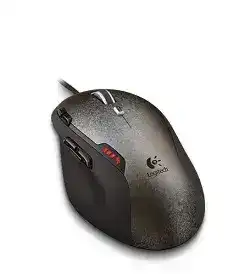
When Windows moves the pointer but ignores saved sensitivity levels or game commands, the Logitech Optical Gaming Mouse G500 Driver restores access to the older SetPoint controls made for this wired model. The mouse does not need pairing, batteries, Bluetooth, or a wireless receiver. Its advanced functions depend on a direct USB connection, compatible Logitech software, and a profile written correctly to onboard memory.
Windows supplies standard Human Interface Device support for ordinary movement and clicking. That built-in support does not expose every G500 feature. SetPoint can change DPI stages, pointer acceleration, report rate, button assignments, and application profiles. It can also store up to five profiles inside the mouse, letting selected configurations travel to another computer without leaving the control application running.
Logitech Optical Gaming Mouse G500 Windows Driver Download
| Driver Name | Description | Supported OS | File Size | Download |
|---|---|---|---|---|
| Logitech Gaming Software 64-bit | Customizes mouse buttons, pointer tracking, profiles, macros, sensitivity levels, and other gaming-specific controls. | Windows 11, Windows 10 64-bit | 119.96 MB | |
| Logitech Gaming Software 64-bit | Provides the complete 64-bit package for offline installation, including button assignments, DPI adjustment, profiles, and macro controls. | Windows 10 64-bit, Windows 8 64-bit, Windows 7 64-bit | 120.04 MB | |
| Logitech Gaming Software 32-bit | Installs the 32-bit gaming control suite for configuring tracking speed, programmable commands, onboard profiles, and mouse sensitivity. | Windows 10 32-bit, Windows 8 32-bit, Windows 7 32-bit | 109.04 MB |
Logitech Optical Gaming Mouse G500 Mac OS Driver Download
| Driver Name | Description | Supported OS | File Size | Download |
|---|---|---|---|---|
| Logitech Gaming Software Full Installer | Contains the complete Mac installation package for managing gaming profiles, programmable buttons, pointer response, and sensitivity settings. | macOS 10.15, macOS 10.14, macOS 10.13, macOS 10.12 | 204.99 MB | |
| Logitech Gaming Software | Enables button programming, profile selection, DPI control, macros, and device-specific gaming adjustments on compatible Mac systems. | Mac OS X 10.11, Mac OS X 10.10, Mac OS X 10.9, Mac OS X 10.8 | 202.81 MB |
SetPoint opens without showing the G500
Disconnect the mouse before repairing the software. Remove incomplete or conflicting Logitech gaming utilities, restart Windows, and install a SetPoint release intended for the G500. Connect the device only after installation finishes. A direct motherboard USB port is preferable during detection because keyboard hubs, monitor ports, and unpowered extensions may identify the mouse as a generic HID device without exposing its configuration interface.
Do not expect Logi Options+ to replace the original gaming controls. The G500 belongs to an older software generation and uses SetPoint rather than the current productivity-mouse application. G HUB also targets later gaming hardware. Running several Logitech control packages together can leave duplicate services competing for the same device, even though ordinary clicks continue to work.
Settings return to defaults after SetPoint closes
Check whether you edited a software-controlled profile or one of the onboard slots. A change made only to an application profile may disappear when its program is not running. Open the profile manager, choose the intended memory slot, apply the DPI levels and commands, and write that configuration to the mouse. Test it after closing SetPoint to confirm that onboard storage received the changes.
The Logitech Optical Gaming Mouse G500 Driver can manage as many as five stored profiles, but profile cycling needs an assigned control. If the profile button has been replaced with another command, the mouse may stay on an unexpected slot. Restore a profile-cycle assignment temporarily and watch the DPI indicator while switching slots. Remove unused profiles when several nearly identical configurations make testing confusing.
Fix USB Detection Before Adjusting Game Sensitivity
The pointer freezes or reconnects during movement
A brief disconnect often begins at the cable, plug, or USB controller rather than inside the profile. Connect the G500 to another direct port and gently reposition the cord near the front of the mouse without pulling it sharply. If Windows repeatedly plays its USB disconnect sound when the cord moves, software changes will not repair an intermittent conductor or worn strain-relief area.
Test the mouse on another computer with no Logitech package installed. Basic movement should begin through Windows HID support. A failure on both systems points toward the cable, plug, or internal hardware. When the second computer works normally, return to the first one and remove the failed mouse entry from Device Manager, restart Windows, and reconnect through a different USB controller.
Windows reports an unknown USB device
Shut the computer down fully instead of performing another quick restart. Disconnect unnecessary USB accessories, start Windows, and attach only the G500. This clears temporary controller faults and makes power or enumeration conflicts easier to spot. Avoid front-panel sockets during the first test, especially when those sockets share an internal cable with card readers or other case hardware.
If the mouse appears correctly after changing ports, leave it on that controller while installing SetPoint. Moving it repeatedly between sockets can create several stored HID entries and make an old configuration appear active. Once detection remains steady, reconnect other peripherals one at a time. A failing hub or heavily loaded USB branch can otherwise reproduce the problem.
Games feel delayed after changing the report rate
The G500 offers selectable USB report rates. A higher value sends updates more frequently, but an older game, overloaded USB controller, or unstable system may behave better at a lower rate. Change the report rate inside SetPoint, apply it to the active profile, and retest the same game scene. Do not alter DPI, Windows speed, and report rate together because the combined change hides which value caused the difference.
Correct G500 Tracking Without Hiding the Cause
Despite the supplied product wording, the original G500 uses a laser tracking system with software-adjustable resolution from 200 to 5700 DPI. Surface choice, dust near the sensor opening, acceleration options, and profile switching can all change how that tracking feels. Begin with one fixed DPI stage before judging whether the hardware has developed a fault.
The cursor jumps on a particular desk or pad
Move the mouse to a plain, non-reflective pad and clean the sensor opening with dry air. Highly polished glass, mirrored finishes, deep surface patterns, and debris can disturb laser tracking. Avoid inserting tools into the opening. If movement becomes consistent on another pad, keep the proven surface and return Windows pointer speed to a neutral value before rebuilding game sensitivity.
Pointer acceleration can also make slow and fast movements cover different distances. SetPoint offers its own acceleration control, while Windows has an Enhance Pointer Precision option. Disable one or both during diagnosis and compare repeated sweeps across the same distance. A changing response caused by acceleration may feel like sensor inconsistency even when the hardware reads the surface normally.
DPI changes unexpectedly in the middle of a game
The G500 has dedicated DPI increase and decrease controls plus indicator lights. An accidental press can move to another stored level without opening SetPoint. Reduce the active profile to two or three clearly separated DPI stages, or reassign a button that you keep hitting. Save the revision to the profile actually used by the game, not merely the general desktop profile.
Application detection can switch profiles when a game executable starts. Launchers, anti-cheat components, and alternate executable names may prevent the expected profile from loading. Point SetPoint at the executable that remains active during play. For a quick diagnosis, use one onboard profile with a fixed DPI and disable automatic switching. Reintroduce application profiles only after the sensitivity remains steady.
Low-speed movement feels uneven at very high DPI
Set the mouse to a moderate native DPI and lower in-game sensitivity rather than forcing the maximum 5700 DPI for every title. Extremely high sensitivity magnifies tiny hand movement, surface texture, and frame-time variation. Compare several DPI values with Windows speed unchanged. The goal is consistent control, not the largest number shown by the software.
Restore the Hyper-Fast Wheel and Thumb Commands
The wheel spins freely when stepped scrolling is needed
The G500 has a mechanical wheel-mode control that changes between free-spinning and ratcheted movement. Press the mode switch once and test the wheel again. This control changes the physical mechanism; SetPoint does not repair a wheel left in the wrong mode. Free-spin suits long pages, while the ratcheted position gives clearer individual notches for weapons, menus, and document scrolling.
When ratcheted movement skips several lines, test another application before changing the hardware profile. Browsers, games, and document viewers can apply different scroll amounts. Return the Windows wheel setting to a modest number of lines, remove any unusual wheel macro, and compare vertical scrolling in two unrelated programs. A fault limited to one program belongs in that program’s controls.
Wheel tilt or middle click has stopped responding
The scroll assembly supports middle click and horizontal tilt input. Assign simple commands to those controls in SetPoint, then test them outside the game. Some titles do not recognize horizontal scrolling and may ignore a generic tilt command. Mapping each direction to an ordinary keyboard key provides a clearer test than relying on an application that has no horizontal action.
Dust can restrict the wheel’s side movement or prevent the centre switch from returning. Disconnect the mouse and use short bursts of dry compressed air around the wheel gap. Rotate and tilt the wheel gently while cleaning. Do not apply oil or liquid cleaner, since residue can reach the encoder and create further scrolling errors.
Thumb buttons work on the desktop but not in a game
The three thumb controls can hold keyboard commands, navigation functions, or profile actions. Replace browser back and forward with ordinary unused keyboard keys, then bind those keys inside the game. This avoids software that rejects navigation commands. Confirm that the game-specific SetPoint profile points to the correct executable and that another profile does not take over after the launcher closes.
Some older games read mouse buttons only when both applications run at comparable permission levels. Avoid launching the game as administrator unless it genuinely needs that access. If elevated mode is required, start SetPoint with matching permission and test again. Return both programs to normal access afterward when the buttons respond without elevation.
Separate Mechanical Click Faults from Profile Errors
One press produces two clicks
Remove custom click macros first and test the primary button in several ordinary windows. Adjust the Windows double-click speed slightly toward the slower side, then repeat single presses. If one physical press still opens items twice on another computer, the switch may be bouncing electrically. No DPI profile, report-rate change, or Logitech software reinstall can correct a worn switch contact.
Disconnect the G500 and clear loose dust from the button gap with compressed air. Do not drip alcohol or lubricant through the shell. A temporary improvement followed by returning double clicks still suggests mechanical wear. Professional switch replacement or another mouse is safer than repeatedly opening the body without suitable soldering and repair experience.
Dragging releases before the button is lifted
Premature drag release often shares the same switch problem as missed clicks. Hold the button while moving a file, selecting text, or drawing a continuous line. Repeat the test on a second computer with SetPoint absent. A break that appears in both places confirms that the operating system and stored profiles are not causing the release.
If only one application drops the drag, reset its mouse bindings and disable any macro assigned to the primary control. Also inspect accessibility options that modify clicking or dragging. Hardware failure tends to cross applications, while a profile conflict usually follows one program or one stored configuration.
Balance the G500 Without Creating a Tracking Problem
The weight cartridge sticks or changes the glide
The underside cartridge accepts up to six tuning weights in mixed 1.7-gram and 4.5-gram sizes. Eject it while the mouse rests upside down and keep the weights seated evenly. An incompletely closed cartridge can rub the pad or alter balance. Do not force a jammed tray with a metal tool; press the release again and remove sideways pressure before sliding it out.
Begin with an empty cartridge, then add equal weights around the tray rather than loading one edge immediately. Uneven balance may feel like poor tracking because the shell twists during fast movement. The sensor remains unchanged, but grip pressure and lift angle do not. Test each weight arrangement with the same DPI and pad.
A dependable profile for an older wired gaming mouse
Finish by creating one conservative onboard configuration: a moderate DPI, a stable report rate, ordinary primary clicks, working wheel commands, and simple thumb assignments. Store it through the Logitech Optical Gaming Mouse G500 Driver, close SetPoint, and restart the computer. That profile becomes a useful reference whenever an application-specific configuration behaves strangely.
Keep software troubleshooting separate from physical evidence. Settings that change with a game usually belong to profile detection, DPI stages, or button assignments. Faults that follow the G500 to another computer point toward the cable, switches, wheel, or sensor area. This distinction prevents an old but functional wired mouse from being buried under unnecessary modern Logitech applications.