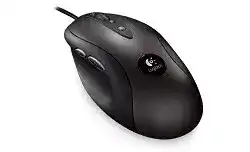
A cursor that trembles, freezes, or moves differently after a game starts can make the Logitech Optical Gaming Mouse G400 Driver seem faulty even when Windows still detects the USB device. The G400 is a wired optical gaming mouse whose advanced DPI, report-rate, acceleration, and profile controls come through Logitech Gaming Software rather than a wireless utility or a modern G HUB configuration.
Begin by connecting the mouse directly to a computer USB port. Remove it from a keyboard socket, monitor hub, docking station, or passive extension while diagnosing movement. Windows should first load ordinary USB input support. Logitech Gaming Software can then add the model-specific controls without replacing its normal left click, right click, wheel, or pointer functions.
Logitech Optical Gaming Mouse G400 Windows Driver Download
| Driver Name | Description | Supported OS | File Size | Download |
|---|---|---|---|---|
| Logitech Gaming Software 64-bit | Customizes gaming mouse buttons, pointer tracking, sensitivity levels, profiles, and device-specific settings through a complete 64-bit package. | Windows 11, Windows 10 64-bit | 119.96 MB | |
| Logitech Gaming Software 64-bit | Provides the full 64-bit LGS installation for configuring programmable controls, tracking speed, game profiles, and mouse performance offline. | Windows 10 64-bit, Windows 8 64-bit, Windows 7 64-bit | 120.04 MB | |
| Logitech Gaming Software 32-bit | Installs the 32-bit LGS package for assigning mouse commands, adjusting pointer response, managing profiles, and changing supported gaming settings. | Windows 10 32-bit, Windows 8 32-bit, Windows 7 32-bit | 109.04 MB |
Logitech Optical Gaming Mouse G400 Mac OS Driver Download
| Driver Name | Description | Supported OS | File Size | Download |
|---|---|---|---|---|
| Logitech Gaming Software | Offers a full macOS installer for adjusting gaming mouse buttons, pointer behavior, sensitivity, profiles, and compatible device functions. | macOS 10.15, macOS 10.14, macOS 10.13, macOS 10.12 | 204.99 MB | |
| Logitech Gaming Software for Mac | Enables button assignments, tracking adjustments, application profiles, and supported gaming mouse controls on earlier Mac OS X releases. | Mac OS X 10.11, Mac OS X 10.10, Mac OS X 10.9, Mac OS X 10.8 | 202.81 MB |
The cursor shakes while the mouse stays still
Clean the optical sensor opening with dry air and inspect the desk surface under the mouse. Hair, lint, glossy patterns, glass, and strongly reflective material can make an older optical sensor read movement that never occurred. Test on a plain cloth mouse pad before changing software values. A steady result there points to the original surface rather than the USB package.
Return acceleration and separate X-axis and Y-axis values to neutral settings inside Logitech Gaming Software. Unmatched axis values can make diagonal movement feel unusual, while acceleration changes the distance travelled according to hand speed. Test one DPI level with Windows pointer acceleration disabled, then restore other levels only after movement feels predictable.
Movement pauses for a second and then returns
Watch whether Windows plays its USB disconnect sound when the freeze occurs. A sound, notification, or disappearing device entry suggests an interrupted wired connection rather than sensor tracking. Try another direct port and gently reposition the cable near the front of the mouse without pulling it. Repeated dropouts during slight cable movement usually indicate wear inside the cable or strain-relief area.
Open Device Manager when the pauses occur and inspect the USB and mouse sections for a device that repeatedly vanishes. Restart the computer after removing only the affected mouse entry, then reconnect the G400. Do not delete unrelated keyboard or touchpad entries. If the same interruption appears on another computer, software removal is unlikely to cure the physical connection.
Fast movement causes skipping in games
Lower the report rate temporarily from 1000 reports per second to 500 or 250 inside Logitech Gaming Software. The G400 permits values from 125 to 1000 reports per second. A lower value can identify a USB controller, processor-load, or game-engine conflict that appears only at the highest rate. It does not reduce the selected DPI automatically.
Also close overlays and recording tools while testing. If skipping occurs in one title but not on the desktop or in another game, keep the hardware configuration unchanged and examine that title’s raw-input and sensitivity options. Combining game acceleration, Windows acceleration, and Logitech acceleration can produce erratic aiming even though the optical sensor is reading normally.
DPI Changes That Do Not Match the Selected Profile
The Logitech G903 article required wireless and firmware checks, but the wired G400 has a different failure pattern. Its DPI buttons can continue changing sensitivity even when Logitech Gaming Software has opened the wrong profile. The Logitech Optical Gaming Mouse G400 Driver supports up to five DPI levels from 200 through 3600 DPI in 50-DPI increments, along with profile-specific pointer values.
DPI buttons appear to do nothing
Open the pointer configuration page and confirm that more than one DPI level remains enabled. When every active slot contains the same value, pressing DPI Up or DPI Down creates no visible change. Set two widely separated test values, apply them, and move the pointer after each press. Restore smaller increments once the buttons clearly switch levels.
Check the assignments for the sensitivity controls as well. A profile can replace a DPI command with another keystroke or leave the control unassigned. Return the affected button to its default DPI action before reinstalling anything. If the command still fails in every profile, test the physical button through a temporary keyboard assignment.
Sensitivity changes when a game opens
Logitech Gaming Software can store different pointer behaviour for different executable profiles. Confirm which profile becomes active when the game launches. A launcher, anti-cheat process, or alternate executable may trigger a different configuration from the one you edited. Attach the profile to the actual game process or use one persistent profile while diagnosing the switch.
Do not compensate by repeatedly changing Windows pointer speed. That adjustment affects desktop movement and can hide the original profile mismatch. Keep Windows at one known value, disable enhanced pointer precision during the test, and compare desktop movement with the active game profile. This leaves the DPI change inside the application where it began.
The software saves changes but later restores old values
Close Logitech Gaming Software through its tray icon after applying a temporary test configuration, then reopen it and inspect the same profile. If old values return, create a fresh profile instead of copying the damaged one. Run the application with sufficient permission to write its configuration, especially when the game itself runs with elevated rights.
A damaged installation can also leave its interface working while its background service fails to store settings. Remove Logitech Gaming Software, restart Windows, and install a G400-compatible release. The model requires Logitech Gaming Software 8.01 or later. G HUB is not the appropriate replacement for configuring this older mouse.
Clicks, Wheel Input, and Side Controls
One press creates two clicks
First verify that no button assignment converts a single press into a double-click command. Swap the left and right button functions temporarily in Windows or Logitech Gaming Software. If the duplicate action follows the physical switch rather than the assigned function, the switch has probably worn. Changing double-click speed may reduce mistaken folder openings, but it cannot repair repeated electrical activation.
Disconnect the mouse and use short bursts of dry compressed air around the affected button gap. Avoid liquids, oils, or improvised contact cleaner. Test the click on another computer without Logitech Gaming Software. Continued duplicate presses there indicate hardware deterioration, so replacement or professional switch repair is more sensible than cycling through more driver versions.
Back and forward buttons stop responding
Assign each side control to a plain keyboard character and test it in a text field. This reveals whether Logitech Gaming Software receives the physical press without relying on a browser’s navigation behaviour. If the character appears, restore Back and Forward and inspect the application itself. Some games and browsers use their own control maps instead of accepting the default mouse command.
When neither side button produces the temporary character, open the active profile and remove any duplicate assignment. Test a new persistent profile before uninstalling the program. A side control that fails on two computers with default assignments may have a worn switch or internal mechanism, particularly when the main buttons and pointer continue working.
The wheel skips, reverses, or stops scrolling downward
Test scrolling in a long local document and in several applications. Direction changes inside only one program usually come from that program’s scrolling behaviour. Skips in every program call for a hardware check. Disconnect the G400, rotate the wheel while blowing dry air around both sides, and reconnect it after loose debris has cleared.
Do not disassemble the mouse merely to clean a minor wheel problem. Opening an older unit can damage the wheel spring, feet, cable routing, or internal connectors. If the wheel repeatedly scrolls opposite to its rotation after external cleaning and testing on another computer, the encoder has likely worn and needs qualified repair or replacement.
Middle click works only with heavy pressure
Remove any unusual wheel-button assignment and restore the middle-click default. Test by opening links in new browser tabs and by pressing the wheel in another simple application. When the command works only at a particular angle or with excessive force, the issue points toward the wheel switch or mechanism rather than the scrolling configuration.
When Logitech Gaming Software Shows No G400
The Logitech Optical Gaming Mouse G400 Driver may be installed while the control program still displays no compatible device. Confirm the model in Windows before changing profiles. The G400 commonly appears under standard mouse or Human Interface Device categories because basic pointer operation uses built-in USB input support. That normal entry does not mean the advanced software has identified it.
Windows detects the mouse but the utility does not
Exit Logitech Gaming Software, unplug the G400, and restart Windows. Connect it to a different direct port before reopening the utility. Remove conflicting remnants of much older SetPoint or unrelated Logitech gaming installations when they launch alongside LGS. The G400 does not need receiver software, Bluetooth pairing, Logi Bolt, Unifying Software, or a wireless connection tool.
If detection failed after an operating-system upgrade, uninstall Logitech Gaming Software while leaving ordinary Windows mouse support intact. Restart before installing the compatible package again. Connect the G400 only after Windows has settled at the desktop. This sequence lets the operating system enumerate the USB hardware before the Logitech service tries to identify its gaming controls.
Programmable controls fail after a Windows update
Check whether Logitech Gaming Software still starts with Windows and whether its background process remains active. Basic movement can continue without that process, while custom assignments and application profiles may disappear. Reopen the utility manually and test a persistent profile. Reinstall only when the service refuses to start or the device page remains unavailable.
Also update the computer manufacturer’s USB chipset driver when the G400 behaves correctly on another machine. A generic USB controller issue can affect detection, wake behaviour, or programmable controls without damaging the mouse. Avoid third-party driver download tools because they may install an unrelated HID package and make the original problem harder to isolate.
The mouse stops responding after sleep
Unplug the USB connector for several seconds and reconnect it after Windows fully resumes. If this restores input, inspect USB power management rather than changing DPI profiles. Temporarily prevent Windows from turning off the relevant USB hub to save power, then repeat the sleep test. Leave unrelated hubs unchanged unless the Device Manager connection view identifies them.
Match the Final Test to the G400 Wired Design
Finish by testing the Logitech Optical Gaming Mouse G400 Driver with one DPI level, one persistent profile, a moderate report rate, and default button commands. Confirm movement on a plain mouse pad, then check every click, both side controls, wheel rotation, and middle click. Add game-specific assignments only after the stripped-back configuration works without freezes or duplicate input.
A fault that follows the mouse across computers usually belongs to its cable, sensor, wheel encoder, or button switches. A fault that stays with one computer points toward USB power, chipset software, an LGS installation, or an application profile. That distinction matters more on this older wired model than trying newer Logitech utilities that were not built to configure it.