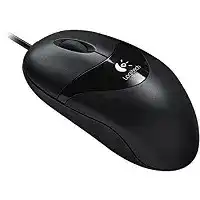
A dead pointer, an unlit sensor, or repeated USB errors can make a simple wired mouse surprisingly difficult to diagnose. The Logitech Optical Mouse Driver works with the operating system’s mouse support to handle pointer movement, left and right clicks, wheel scrolling, and the middle-button press. This three-button optical model uses a direct cable connection, so it needs no batteries, wireless receiver, or Bluetooth pairing.
Most current systems identify the mouse as a standard USB Human Interface Device. Basic operation therefore may begin as soon as the plug enters a working port. An additional Logitech package is mainly relevant to older operating systems or installations where the normal device record has become damaged. Start with the cable and USB path before changing software.
Logitech Optical Mouse Windows Driver Download
| Driver Name | Description | Supported OS | File Size | Download |
|---|---|---|---|---|
| Logitech MouseWare | Provides the core mouse software needed for button operation, pointer control, and compatible device settings. | Windows 10 32-bit/64-bit, Windows 8 32-bit/64-bit, Windows 7 32-bit/64-bit | 4.07 MB |
Logitech Optical Mouse Mac OS Driver Download
| Driver Name | Description | Supported OS | File Size | Download |
|---|---|---|---|---|
| Logitech Control Center | Enables mouse button assignments, scrolling preferences, pointer adjustments, and model-specific controls on supported Mac systems. | Mac OS X 10.13.x | 16.63 MB | |
| Logitech Control Center | Manages programmable controls and tracking behavior while providing access to compatible Logitech mouse preferences. | Mac OS X 10.11.x | 17.06 MB | |
| Logitech Control Center | Adds configuration tools for supported mouse buttons, cursor movement, wheel response, and application-specific functions. | Mac OS X 10.7.x | 17.73 MB | |
| Logitech Control Center | Installs legacy Mac controls for adjusting mouse actions, movement preferences, and available device-specific features. | Mac OS X 10.5.x | 18.7 MB | |
| Logitech MouseWare | Supplies legacy Mac mouse support for basic button functions, cursor movement, and compatible configuration options. | Mac | 3.75 MB |
No sensor light after connection
Plug the mouse directly into another port on the computer. Skip monitor sockets, keyboard pass-through ports, docking stations, and external hubs during this test. An optical sensor that remains dark usually is not receiving power, although some sensor lights may appear faint from certain viewing angles. Check the pointer rather than relying only on the visible glow.
Next, inspect the cable where it enters the mouse body and near the plug. Gentle movement should not make the device connect and disconnect. A damaged conductor can interrupt power whenever the cable bends. Stop using the mouse if the insulation has split or exposed wire appears; software cannot make a physically damaged lead safe.
Windows repeatedly plays the disconnect sound
Frequent connection tones often come from a loose socket, worn cable, unstable hub, or USB power problem. Leave the mouse still and lightly change the cable position. If Windows reacts immediately, test it on another computer without bending the lead further. The comparison separates a computer-side fault from an intermittent cable connection.
When the mouse remains stable elsewhere, shut down the original computer and reconnect it after startup. Try ports on a different side of a laptop or a different USB controller group on a desktop. Several adjacent sockets may share the same internal controller, so moving only one position may not provide a meaningful test.
The device appears as unknown hardware
Open Device Manager and locate the failed USB or HID entry that appeared after plugging in the mouse. Remove that entry, disconnect the mouse, and restart Windows. Reconnect it only after the desktop finishes loading. Windows can then build a new device record instead of returning to an incomplete configuration left by an interrupted installation.
Install the Logitech Optical Mouse Driver only when the download specifically lists the installed Windows release. A legacy package may not understand a much newer system, even though standard HID operation still works. Running several old mouse utilities rarely improves detection and can add unnecessary services to startup.
Separate Pointer Trouble from Sensor Trouble
Optical tracking depends on repeated images of the surface beneath the sensor. The Logitech Optical Mouse software cannot correct reflections, blocked optics, or erratic movement caused by a damaged cable. A plain mouse pad and a second computer provide quicker answers than repeated installation attempts. They also reveal whether the fault follows the hardware.
The cursor freezes on glass or polished furniture
Move the mouse onto a matte, evenly textured pad. Clear glass, mirrors, glossy paint, and highly reflective desks can prevent an early optical sensor from reading movement accurately. The buttons may continue to work because clicking does not depend on surface tracking. That combination often makes the frozen pointer look like a driver failure.
A sheet of plain paper can provide a temporary comparison, though it may slide during use. Avoid patterned material with sharp color changes if the pointer jumps across the screen. Once movement becomes steady on a suitable pad, no software repair is necessary. The surface, not Windows, caused the loss of tracking.
Movement remains rough on a suitable pad
Turn the mouse over and examine the sensor opening. Hair, lint, or a small fiber across the lens can interrupt tracking in one direction. Disconnect the USB plug, then remove loose debris with a dry soft brush or gentle air. Keep liquids away from the opening because residue can blur the sensor window.
Check the glide feet as well. A missing or deeply worn foot can tilt the shell enough to change the sensor’s working distance. Thick dirt around one foot creates a similar effect. Clean the underside without scraping the plastic, then retest slow diagonal movement and small circles across the middle of the pad.
The pointer moves too far or feels unusually slow
Open the operating system’s pointer controls and return the speed slider toward its middle position. Disable acceleration temporarily when precise movement matters, then compare the result. A high speed value can exaggerate tiny hand motions, while a very low value can make the sensor seem unresponsive across a large display.
Application-specific sensitivity can also change behavior. Remote desktop tools, virtual machines, drawing programs, and games may process movement separately from Windows. Test the mouse on the desktop before adjusting those programs. When ordinary desktop movement feels normal, change the application preference rather than reinstalling the device package.
The pointer jumps only during heavy computer activity
A busy system may delay input even when the mouse itself works. Watch whether the keyboard, audio, or screen also pauses when the cursor stalls. Close the program consuming processor or disk resources and repeat the test. Input delays that affect several devices at once usually do not originate in the optical sensor.
USB power management can create a different pause after sleep. In the computer’s power settings, review whether Windows may suspend USB devices to conserve energy. Change that option only after ordinary port and cable tests, since disabling power saving will not repair a worn connector or broken wire.
Wheel and Click Symptoms Need Different Tests
The Logitech Optical Mouse Driver can pass normal wheel and button signals to Windows, but each mechanical control can wear independently. Scrolling may fail while middle-click still works, or one button may bounce while pointer movement remains perfect. Testing each action in several programs prevents an application preference from being mistaken for damaged hardware.
The wheel skips lines or reverses direction
Disconnect the mouse and rotate the wheel slowly while clearing loose dust around its edges with a soft brush. Debris inside the wheel opening can disturb the encoder and produce missed or reversed steps. Do not drip alcohol, water, or household cleaner into the shell. Fluid can carry dirt deeper and damage internal contacts.
After cleaning, compare scrolling in a browser, a settings window, and a long document. If every program skips at the same wheel positions, the rotary encoder is probably worn. Changing the number of lines per notch can alter scroll distance, but it cannot make unstable hardware pulses consistent.
Scrolling works in one program but not another
Some applications capture wheel input only when the pointer rests over their active area. Others use separate smooth-scrolling or navigation options. Click inside the affected window, place the pointer over its content, and try again. Restart that application before changing system-wide mouse values that already work elsewhere.
Browser extensions, remote-control programs, and accessibility tools can also intercept scrolling. Temporarily close the utility most likely to change pointer behavior. When the wheel returns immediately, review that program’s input options or remove its mouse-related feature. Reinstalling the Logitech package would leave the conflicting program unchanged.
Middle-click no longer opens links or tabs
Press the wheel in an application that clearly recognizes the middle button. Browsers often use it for opening or closing tabs, while other programs assign no action at all. Confirm the function in more than one place before calling it defective. A program may also replace the action with panning or autoscroll.
When the wheel rotates normally but its click fails everywhere, the small switch beneath it may have worn out. Operating-system controls cannot restore a switch that no longer closes electrically. Avoid pressing harder, since extra force can damage the wheel support without improving the contact.
One click opens an item twice
First adjust the double-click timing in the system mouse panel. Choose a pace that lets two deliberate presses register without requiring rapid movement. This setting can correct missed manual double-clicks, but it rarely explains two activations from a single physical press.
Test the suspect button on another computer. Repeated double activation across both systems points to contact bounce inside the switch. The Logitech Optical Mouse Driver cannot filter every unstable signal without also delaying normal clicks. For an inexpensive wired model, replacement is usually safer than opening the shell and attempting switch repair.
Resolve Startup, Sleep, and Port Conflicts
A wired mouse should return as Windows starts, but firmware handoff, power-saving behavior, or a damaged HID record can delay it. These cases differ from total hardware failure because unplugging and reconnecting often restores operation. Use that clue to narrow the fault before removing software or changing several system options together.
The mouse works only after unplugging it
Shut down the computer fully rather than choosing restart, disconnect unnecessary USB equipment, and start again with only the keyboard and mouse attached. A device that then works from the login screen may have been competing with another USB peripheral during startup. Reconnect the remaining equipment one item at a time.
Desktop firmware may also initialize some ports later than others. Move the plug to a direct motherboard socket and check whether the mouse becomes available before Windows loads. When the problem appears even in firmware menus or recovery screens, the operating-system driver is unlikely to be the cause.
The pointer disappears after sleep
Wake the computer with the keyboard, wait a few seconds, and then reconnect the mouse. If that action restores it every time, update the computer’s chipset and USB-controller software from the computer manufacturer. The mouse uses standard USB signaling, while the system controller manages suspension and wake recovery.
Review USB selective-suspend settings only after those updates and direct-port tests. Turning suspension off may prevent repeated wake failures, but it also increases power use on a laptop. Keep a note of the original value so it can be restored when the change has no effect.
The mouse works in firmware but stops in Windows
Operation in the firmware screen proves that the USB plug, basic cable connection, and primary buttons can communicate outside Windows. Start Windows with minimal startup services or use its recovery environment to check for a software conflict. Recently installed input utilities, remote-access tools, or USB-filter software deserve attention first.
Remove only the application linked to the beginning of the problem. Avoid deleting unrelated system drivers or editing the registry. Windows normally supplies the required HID components automatically. After uninstalling the conflicting utility, restart and let the operating system rediscover the mouse without additional customization software.
Another mouse works in the same port
This comparison strongly narrows the fault to the Logitech device, especially when the Logitech mouse also fails on a second computer. Recheck the plug, cable, sensor opening, and buttons before assuming software remains responsible. A working replacement mouse confirms that Windows can already process normal USB pointer input.
Near the end of testing, reinstall the Logitech Optical Mouse Driver once if the package officially matches the operating system. Then repeat the direct-port and second-computer checks without hubs or input utilities. Continued failure across both computers indicates hardware wear, and another installation cycle is unlikely to change the result.
Judge the Mouse by What Fails Together
Several symptoms occurring at once usually reveal more than one isolated control test. Loss of light, clicks, wheel input, and movement together points toward the cable, plug, or USB power. A moving pointer with one failed button indicates a local switch issue. Normal clicks with erratic tracking lead back to the optical opening or working surface.
Keep the test sequence narrow: direct USB connection, suitable pad, clean sensor, another port, and a second computer. Those checks cover the main failure points of this wired optical design without introducing wireless or battery instructions that do not apply. Once the same fault follows the mouse to another system, hardware replacement becomes the practical answer.