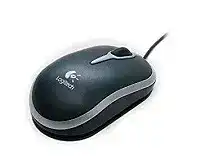
When a laptop ignores the mouse after the USB plug goes in, the Logitech NX50 Notebook Laser Mouse Driver can restore compatible software support and normal pointer controls. The NX50 is a compact wired USB model with 1000 dpi laser tracking, three-button operation, a scroll wheel, and built-in cable management. It needs no wireless receiver, Bluetooth pairing, charging routine, or replaceable batteries.
The fixed cable makes diagnosis more direct than it is with a cordless device. Power and movement data travel through the same USB connection, so a loose port, damaged lead, incomplete Windows entry, or blocked sensor can stop the mouse. Start with the physical connection before changing several system settings or installing unrelated Logitech applications.
Logitech NX50 Notebook Laser Mouse Windows Driver Download
| Driver Name | Description | Supported OS | File Size | Download |
|---|---|---|---|---|
| SetPoint Software | Full SetPoint package for offline setup, with controls for mouse buttons, tracking speed, device settings, and battery status. | Windows 10 32-bit/64-bit, Windows 8 32-bit/64-bit, Windows 7 32-bit/64-bit | 79.86 MB |
The USB plug produces no response
Disconnect the NX50 and insert it into another USB port on the notebook. Use a port built directly into the computer during testing rather than a hub, docking station, monitor, or keyboard socket. Watch for the Windows connection sound and check whether the laser sensor or pointer becomes active. A second port quickly separates a mouse fault from one damaged notebook socket.
Restart the computer with the mouse unplugged when neither port reacts. Connect it after the desktop has fully loaded. This forces Windows to perform a fresh USB detection instead of continuing an incomplete startup connection. If another wired USB device also fails in those ports, examine the notebook’s USB controller or power management rather than the NX50 package.
The cable works only at certain angles
Movement that cuts out when the lead bends near the plug or mouse body usually indicates internal wire damage. Lay the cable loosely across the desk and test it without pulling, twisting, or wrapping it around the housing. If tiny cable movements repeatedly disconnect the pointer, software changes will not repair the broken conductor.
The integrated storage shape lets the USB connector clip beneath the mouse for transport, but tight winding can place repeated stress on the lead. Leave a broad loop instead of drawing the cable firmly around the base. Avoid closing a notebook lid or carrying case on the wire, since one sharp pinch may create an intermittent connection that becomes worse over time.
Windows shows an unknown USB device
Open Device Manager and inspect the mouse, human-interface, and USB sections after connecting the NX50. Remove only the failed or unknown entry associated with the current port, then restart Windows. Reconnect the mouse once the desktop returns. Windows should create a new HID record and load its standard pointer support without reusing the damaged device entry.
If the warning returns immediately on several computers, the fault probably sits in the plug, cable, or mouse electronics. A driver cannot correct a USB device that no longer sends valid identification data. Testing on a second machine remains the clearest way to distinguish a Windows configuration problem from failing hardware.
Choose Software That Fits This Older Wired Mouse
The Logitech NX50 Notebook Laser Mouse Driver should match the operating system and architecture shown beside the download. The model originally targeted older Windows releases, including Windows 2000, Windows XP, and Windows Vista. Later Windows versions may run its basic left-click, right-click, wheel, and pointer functions through built-in HID support even when the original control package is unavailable.
Do not install Logi Options+, Unifying Software, Bolt software, or a receiver-pairing utility for this device. Those programs serve newer product families or wireless hardware. The NX50 has a direct USB cable and no pairing process. Installing unrelated utilities can add background services while doing nothing for recognition, wheel movement, or laser tracking.
The installer says the operating system is unsupported
Check whether the mouse already moves before forcing an old setup program onto a recent Windows release. Standard USB mouse support may provide every function available from this three-button design. An unsupported installer often fails because its components were written for earlier Windows security, service, and control-panel systems, not because the NX50 cannot perform basic navigation.
Use compatibility settings only when the downloadable package specifically applies to the installed Windows edition and merely has an older installer wrapper. Run the file with administrator permission, complete the restart, and reconnect the mouse afterward. Avoid downloading modified packages or unofficial patches that replace signed system files.
Logitech software installs but adds no controls
This model has a straightforward three-button layout rather than a group of programmable side controls. Windows already manages pointer speed, double-click timing, wheel line count, primary-button choice, and pointer trails. An older Logitech panel may add little beyond those system options, so an empty or limited control screen does not automatically indicate failed detection.
Remove duplicate mouse utilities when several programs attempt to manage the same buttons. Keep the Windows control panel and one compatible Logitech package at most. After uninstalling unused utilities, restart the computer and test the NX50 in a browser, folder window, and document. This reveals whether the earlier problem came from software conflict or from the hardware itself.
The pointer works before login but stops afterward
A startup application may take control once the user account loads. Temporarily close third-party mouse remappers, gaming peripheral suites, remote-control tools, and accessibility programs that alter pointer input. Reconnect the NX50 and test again. When the device remains active after one program closes, remove that program’s mouse profile or disable its automatic launch.
Also inspect USB power-saving options when the failure appears after sleep or account login. Windows can turn off a USB hub to conserve power, then fail to wake an older peripheral cleanly. Disable that option only for the affected hub, restart the notebook, and check whether the mouse now survives sleep and sign-in transitions.
Laser Tracking Problems on Travel and Office Surfaces
The NX50 uses a 1000 dpi laser sensor, which gives this small notebook mouse more precision than older ball designs. That sensor still depends on a readable surface and an unobstructed lens. Pointer jumps, diagonal drift, sudden pauses, or excessive speed often come from the desk material or Windows sensitivity rather than from the Logitech NX50 Notebook Laser Mouse Driver.
The pointer jumps across a glossy desk
Move the mouse onto a plain, matte pad before changing sensitivity. Reflective glass, polished stone, lacquered wood, and highly repetitive printed patterns can confuse tracking. A surface may look suitable while returning an uneven laser image. Consistent movement on a basic pad confirms that the desk finish, not the USB connection, caused the jumps.
Clean the sensor opening with a dry, soft swab or gentle air. A hair crossing the lens can redirect the tracking beam and create abrupt movement. Do not pour cleaner into the opening or scrape it with a hard tool. Residue and scratches can make the original problem permanent.
Movement feels too fast on a small screen
A 1000 dpi sensor can feel quick when moving from an older low-resolution mouse, especially on a compact notebook display. Open the Windows pointer controls and lower the speed one step at a time. Leave enhanced pointer precision unchanged during the first comparison, since altering speed and acceleration together makes the result harder to judge.
Test slow movements around small icons and text selection rather than sweeping the mouse across the whole desktop. When precise work improves but long travel feels tiring, increase the setting slightly. The aim is not the highest cursor speed; it is a distance that matches the available desk space and the user’s hand movement.
The cursor pauses after lifting the mouse
A short pause can occur when the sensor loses the surface during repositioning and then needs a moment to read it again. Keep the mouse level as it returns to the pad. If the delay lasts several seconds, inspect the USB cable and port because the device may be reconnecting rather than merely reacquiring the surface.
Listen for repeated Windows connection sounds while lifting or turning the mouse. Those sounds point to cable movement or a loose plug. A tracking issue produces bad cursor movement but normally does not make Windows remove and rediscover the entire USB device.
Scroll Wheel and Three-Button Response
The wheel skips lines or reverses direction
Test scrolling in more than one program before changing the driver. A browser, file window, and plain document provide a useful comparison because each handles wheel input differently. If only one program jumps, reset that application’s scrolling or zoom preferences. When every program shows the same missed steps, dust or wheel-encoder wear becomes more likely.
Disconnect the mouse and clear loose debris around the wheel with a soft brush or gentle air. Rotate the wheel during cleaning so dirt trapped along one edge can escape. Do not drip alcohol or water into the opening. Liquid may spread onto the encoder and turn occasional missed movement into constant erratic scrolling.
Pressing the wheel does nothing
The scroll wheel also serves as the third button. Its action depends on the program: a browser may open a link in another tab, while a document editor may enable automatic scrolling or ignore the press. Test it where a middle-click function clearly exists before deciding that the switch has stopped working.
Review Windows or compatible Logitech button settings if middle-click previously worked and then changed after software installation. Restore the wheel press to its normal middle-button action. When scrolling still works but the press fails on another computer, the separate switch beneath the wheel may be worn.
One click opens an item twice
Lower the Windows double-click speed slightly and repeat the test with several folders. A setting that is too fast can make deliberate double-clicking difficult, but it does not usually create two electrical presses from one physical click. If files continue opening twice after one press, test the NX50 on another computer.
The internal left-button switch can develop unstable contact after long use. This produces duplicate clicks, failed drag operations, or a selection that releases while the button remains held. Reinstalling software cannot repair that mechanical wear. Replace the mouse or use a qualified repair service rather than attempting an unsafe switch modification.
Protect the NX50 During Notebook Travel
Portable storage is one of the NX50’s defining details. The USB connector snaps against the underside, while the cable can sit around the specially shaped base. Use that arrangement gently. The compact body travels well, but repeated tight wrapping can fatigue the lead near its fixed entry point and eventually cause the connection failures that look like a driver problem.
The plug no longer stays under the mouse
Inspect the underside holder for packed dust or a bent edge. Clear debris with a dry brush and press the connector into place without forcing it. When the holder has loosened, carry the mouse in a small pouch rather than stretching the cable to keep the plug attached. Cable tension places more strain on the wire than a loose connector during transport.
The feet drag after long storage
Check the bottom pads for adhesive residue, grit, or curled edges. Wipe them with a lightly dampened cloth, then dry the base before use. Do not cover the laser opening. A damaged foot can tilt the mouse enough to change tracking height, particularly on uneven desks, and may make movement feel rough even when Windows receives every input.
Confirm the fault before another installation
Use the Logitech NX50 Notebook Laser Mouse Driver only after checking the direct USB connection, cable condition, sensor opening, wheel, and test surface. Then compare the mouse on a second computer. Failure on both machines points toward the cable, switch, wheel encoder, or sensor rather than an operating-system package.
For continued travel, store the USB plug without pulling the lead tight, keep sharp objects away from the sensor window, and avoid crushing the mouse inside a packed notebook bag. Those small habits protect the feature most likely to fail on a compact wired model: the cable that carries both its power and every pointer command.