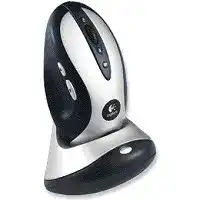
A dead pointer, flashing battery light, or unresponsive charging cradle often makes the Logitech MX700 Cordless Optical Mouse Driver seem like the missing part. This older cordless model depends on its combined receiver and rapid-charge base, two rechargeable AA NiMH batteries, and a successful radio connection. Software matters for its extra controls, but power and base-station faults usually deserve attention first.
The charging stand performs two jobs. It supplies power to the batteries while the mouse rests in the cradle, and it receives the mouse’s radio signal during use. Its USB or PS/2 connection must reach the computer, while the separate power adapter runs the charging circuit. A working USB connection alone does not prove that the batteries are receiving power.
Logitech MX700 Cordless Windows Driver Download
| Driver Name | Description | Supported OS | File Size | Download |
|---|---|---|---|---|
| Logitech MouseWare | Mouse configuration software for adjusting button functions, pointer movement, and device-specific controls. | Windows 10 32-bit/64-bit, Windows 8 32-bit/64-bit, Windows 7 32-bit/64-bit | 4.07 MB |
Logitech MX700 Cordless Mac OS Driver Download
| Driver Name | Description | Supported OS | File Size | Download |
|---|---|---|---|---|
| Logitech Control Center | Mac software for configuring mouse buttons, scrolling behavior, pointer response, and model-specific controls. | macOS 11, macOS 10.15, macOS 10.14, macOS 10.13 | 17.76 MB | |
| Logitech Control Center | Customization package for assigning mouse actions and managing movement, wheel, and click preferences. | Mac OS X 10.13, Mac OS X 10.12, Mac OS X 10.11 | 17.15 MB | |
| Logitech Control Center | Legacy Mac utility for changing button assignments, tracking speed, scrolling settings, and supported mouse functions. | Mac OS X 10.11, Mac OS X 10.10, Mac OS X 10.9, Mac OS X 10.8 | 17.06 MB |
The mouse sits in the cradle but does not charge
Clean the exposed metal contacts on the underside of the mouse and the matching contacts inside the base. Skin oil and light oxidation can stop charging even when the device appears to sit correctly. Use a dry lint-free cloth or a small amount of electronics-safe cleaner applied to the cloth, not poured into the cradle.
Set the mouse down carefully and check whether the charge indicator reacts. The body must settle far enough for both contacts to meet. If pressing the mouse gently into the stand starts charging, inspect the contacts for dirt or reduced spring pressure. Do not bend them aggressively, because the older metal tabs can break.
The indicator stays red after hours in the base
A constant red or low-battery warning commonly points to exhausted rechargeable cells. The MX700 was built around two rechargeable AA nickel-metal hydride batteries. Replace both as a matched pair rather than combining one old cell with one new cell. Ordinary alkaline batteries must not be charged in the cradle.
Confirm that the base’s power adapter is connected to a live outlet and firmly seated. The receiver section may continue sending data through USB even when the adapter has failed, which can make the cradle look partly functional. Known-good NiMH cells and a verified power supply help separate battery wear from a failed charging circuit.
Battery life has fallen to a few hours
Rechargeable NiMH cells gradually lose capacity, especially after years of shallow charging and long storage. Replace both cells when a full overnight charge no longer lasts through normal work. Let the new pair charge completely before judging performance. Repeatedly docking the mouse for only a few minutes can hide a weak cell without restoring useful capacity.
An external NiMH charger can help test the batteries independently. If externally charged cells run normally but never recover in the MX700 cradle, the base or its contacts are the likely problem. Continue using only rechargeable NiMH cells that fit correctly and follow the battery markings inside the compartment.
Restore the Radio Link Without Treating It Like a Modern Receiver
The Logitech MX700 Cordless Optical Mouse Driver does not turn this device into a Unifying, Bolt, or Bluetooth mouse. Its original base station uses an older dedicated radio connection. Modern Logitech pairing applications will not convert an unrelated receiver into a replacement. Keep the matching base whenever possible, since it handles both communication and charging.
The pointer remains still after the batteries charge
Reconnect the mouse through the physical buttons rather than reinstalling software immediately. Press the Connect button on the base station, wait briefly, and then press the Connect button on the underside of the mouse. Move the device after several seconds. The receiver and mouse may need this sequence after battery removal, a computer change, or a long period without power.
Check the base cable at both ends before repeating the connection process. Plug USB directly into the computer rather than through an uncertain hub. Older systems may also use the supplied USB-to-PS/2 adapter, but a current computer should normally use USB. Restart after changing ports so the operating system can enumerate the receiver again.
The base works for charging but Windows detects nothing
Charging and computer communication follow separate paths. The power adapter can charge the batteries even when the data cable is loose, damaged, or connected to a failed port. Test another direct USB socket and inspect Device Manager for an unknown USB or pointing device. A second computer provides a fast way to check whether the receiver still communicates.
A PS/2 connection behaves differently from USB because many computers only detect it during startup. When using the adapter, shut the computer down before connecting the base, then start it again. Do not unplug and reconnect a PS/2 device while the machine is running. USB offers the simpler test when both methods are available.
Movement breaks up across the desk
The original radio range is modest compared with newer cordless hardware. Keep the base within a reasonable distance and avoid hiding it behind a metal computer case. Positioning the receiver beside a monitor, power brick, wireless router, or crowded cable bundle can also reduce consistency. A clear path across the desk often improves response without any software change.
Test with the base closer to the mouse before replacing batteries again. When the pointer behaves normally at short range but skips farther away, radio placement is the main suspect. Move other wireless equipment temporarily and compare. Heavy interference or an aging receiver can produce pauses that resemble an optical tracking fault.
SetPoint, MouseWare, and Extra MX700 Controls
The original Logitech MX700 Cordless Optical Mouse Driver software exposed more than left-click, right-click, and wheel movement. The mouse carries thumb buttons, Cruise Control scrolling buttons around the wheel, and a Quick Switch control for moving between active programs. Older Logitech MouseWare releases served early systems, while later compatible Windows installations commonly used SetPoint.
Current operating systems may load the MX700 as a standard USB pointing device through its base. Basic movement and main clicks can work without the original control package. The extra controls may remain inactive, copy unexpected keyboard commands, or use fixed browser actions when no compatible Logitech utility recognizes the model.
SetPoint installs but shows no MX700
Confirm that the base appears in Windows and that the pointer already moves before troubleshooting customization. SetPoint cannot configure a receiver that the operating system has not detected. Remove incomplete Logitech installations, restart, and install one compatible release rather than layering several generations of MouseWare and SetPoint on the same computer.
Very recent SetPoint packages may omit profiles for hardware from the MX700 era, while very old packages may refuse to run on a newer 64-bit Windows release. In that situation, built-in mouse support may be the practical choice. Compatibility mode can sometimes start an old installer, but it cannot add kernel support that the operating system removed.
The thumb buttons do nothing
Open the Logitech mouse control panel and inspect the assignments for the forward and back controls. Choose ordinary browser navigation first, apply the changes, and test in a browser window with several visited pages. Some applications ignore these commands even when the buttons work elsewhere, so testing one program is not enough.
When the buttons worked before a software update, reset their assignments instead of repairing the whole installation. Select another action, apply it, then return to the intended command. This forces the utility to write the mapping again. If every extra control fails together, check whether the Logitech background service is running.
Quick Switch opens the wrong program or does nothing
The Quick Switch button relies on Logitech software to translate its input into an application-switching command. Reassign it inside SetPoint or MouseWare when that option appears. On systems where the original utility no longer supports the mouse, the button may fall back to no action because standard USB mouse support does not understand its special function.
Do not assume Logitech Options or Logi Options Plus supports this model merely because it supports newer MX products. The MX700 predates those applications by many years. Installing a current control app may leave the device invisible while basic pointer input continues through Windows.
Wheel Direction, Click Wear, and Optical Tracking Problems
The wheel scrolls only one way
First test the wheel in several programs. A game, remote session, or older application may interpret wheel messages differently from a browser or file window. Reset custom wheel assignments in the Logitech control panel and return the standard vertical scroll function. Incorrect Cruise Control mappings can also make the buttons above and below the wheel behave like ordinary wheel movement.
If upward or downward scrolling fails everywhere, dust or encoder wear may be involved. Rotate the wheel quickly in both directions and clear loose debris around its opening with dry air. Avoid spraying liquid into the housing. A direction that never registers on another computer usually points to hardware rather than the driver package.
The wheel click no longer acts as a middle button
Check the wheel-button assignment in the Logitech utility and choose Middle Button or AutoScroll, depending on the intended program. Some software updates can replace that action with scrolling or application switching. Apply the assignment, close the affected program, and open it again before testing.
A wheel that scrolls correctly but never clicks may have a worn internal switch. Increase neither double-click speed nor pointer speed to compensate, since those settings do not control the middle switch. Testing on another system with no Logitech utility installed quickly shows whether the computer or the physical button owns the fault.
One left click becomes two
Reduce the operating system’s double-click speed from an extreme setting and test file selection again. When a single press still opens folders twice, drags release unexpectedly, or selections flicker, the left switch may be worn. This became a frequent age-related complaint on heavily used MX700 units and cannot be corrected through repeated driver installation.
Compare the left and right buttons in a basic window. If only one control produces duplicate signals across two computers, software is unlikely to be responsible. Internal switch replacement requires disassembly and soldering, so users without suitable repair experience should avoid forcing the shell apart or modifying the circuit board.
The optical pointer shakes or misses movement
Wipe the sensor window underneath the mouse and test on a plain matte surface. Reflective desks, clear glass, deep grooves, and repeating patterns can confuse the optical engine. A basic mouse pad or sheet of plain paper makes a useful comparison. Consistent movement there means the original surface caused the tracking problem.
Battery voltage and radio reception can also affect response. Charge or replace the NiMH pair, bring the base closer, and reconnect through the physical Connect buttons. When the cursor still jumps on several surfaces at short range, the sensor, receiver, or aging internal components may be failing.
Decide Whether the Fault Belongs to the Cradle, Software, or Mouse
Separate the MX700 into three test areas. The batteries and charging contacts control power, the base and connection buttons control the radio link, and Logitech software controls the special buttons. Testing them in that order prevents an unsupported application from distracting from a dead adapter, exhausted NiMH cells, or an unpaired receiver.
Use the Logitech MX700 Cordless Optical Mouse Driver only after Windows can see the base and the pointer responds. Then check the thumb controls, Cruise Control buttons, wheel click, and Quick Switch function. When those extras remain unsupported on a modern operating system, basic built-in mouse handling may be the most workable result for this discontinued hardware.
A base that charges but never appears on another computer likely has a data-side failure. A receiver that appears but never links after known-good batteries and the correct Connect sequence may have lost radio functionality. When both sections work but clicks repeat or scrolling loses one direction, mechanical wear inside the mouse becomes the stronger explanation.