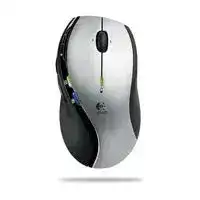
The pointer may still move even when the volume, e-mail, messaging, and navigation controls no longer respond. The Logitech MX610 Laser Cordless Mouse Driver adds the SetPoint functions that ordinary Windows mouse support does not load. This distinction matters because the MX610 has ten buttons, a tilting wheel, and application shortcuts built around older Logitech software.
The MX610 uses a dedicated 2.4 GHz USB receiver and does not connect through Bluetooth. It also predates Logitech Unifying and Logi Bolt hardware. Bluetooth instructions, modern receiver apps, and current Options software therefore belong to different products. Begin with the original MX610 receiver, two working AA batteries, and a direct USB connection before changing any control assignments.
Logitech MX610 Laser Mouse Windows Driver Download
| Driver Name | Description | Supported OS | File Size | Download |
|---|---|---|---|---|
| SetPoint Software 64-bit | Full offline package for configuring mouse buttons, tracking speed, hot-keys, battery status, and device-specific settings. | Windows 64-bit | 68.13 MB | |
| SetPoint Software 32-bit | Complete offline installer for adjusting pointer behavior, button assignments, device controls, Caps Lock, and Num Lock notifications. | Windows 32-bit | 65.59 MB | |
| Logitech Connection Utility | Repairs the wireless link between the mouse and a compatible Logitech receiver on newer Windows systems. | Windows 11, Windows 10 32-bit/64-bit, Windows 8 32-bit/64-bit, Windows 7 32-bit/64-bit | 1.04 MB | |
| Connection Utility | Restores communication between the mouse and its receiver when pairing or device detection stops working. | Windows XP, Windows Vista | 2.08 MB |
Only the standard clicks and pointer work
Windows can recognize the receiver as a normal input device without exposing every MX610 control. Left-click, right-click, pointer movement, and basic wheel scrolling may appear immediately, while the thumb buttons and media controls remain inactive. Install SetPoint when those additional commands are missing. Restart Windows afterward so its background service can identify the complete button layout.
Open SetPoint and check whether it names the MX610 rather than displaying only a generic mouse. A generic entry usually means the receiver has reached Windows, but the Logitech component has not attached to the product profile. Disconnect the receiver, close SetPoint, reconnect it directly, and reopen the program after Windows finishes detecting the hardware.
SetPoint shows no mouse configuration tabs
An adapter can create this odd result. The receiver may move the pointer through a USB-to-PS/2 converter, yet SetPoint cannot obtain the information needed for its MX610 pages. Remove the converter and attach the receiver to a native USB port. This change has restored the missing tabs on systems where repeated software installation made no difference.
A passive hub or extension arrangement can cause a similar split between basic movement and full recognition. Test the receiver alone before reconnecting other devices. Once SetPoint identifies the MX610, return accessories one at a time. That comparison reveals whether the problem comes from the software package or from the path between the receiver and computer.
A newer Logitech app cannot find the device
Logitech Options and Options Plus target later product families. They are not substitutes for SetPoint on the MX610. Installing several Logitech control programs can leave duplicate startup processes without adding support for this older model. Remove utilities that do not apply, restart the computer, and keep the SetPoint release that actually displays the MX610 controls.
Restoring E-Mail, Messaging, and Media Buttons
The MX610 was unusual because it used two-way communication with the computer. Its illuminated e-mail and instant-message buttons could announce incoming messages, while separate controls handled volume and application navigation. The Logitech MX610 Laser Cordless Mouse Driver must load its SetPoint notification components before these functions can operate as originally intended.
The e-mail button opens the wrong program
SetPoint may follow the default mail application registered in Windows rather than a program chosen inside the mouse panel. Set the preferred mail client as the operating system default, then close and reopen SetPoint. On older Windows versions, the relevant choice may appear under default-program access. Changing only a desktop shortcut does not alter the application launched by the mouse.
Modern webmail can complicate this control because the MX610 came from an era of installed mail clients. Assigning the button to a browser or a custom keystroke may work better than relying on its original mail command. SetPoint permits button reassignment, so the physical control can remain useful even when the original notification integration no longer matches current software.
The notification lights never illuminate
Pointer movement does not prove that message notification is active. SetPoint needs the related notification feature, a compatible messaging or mail program, and permission to run in the background. Check the e-mail and messaging area inside SetPoint. Confirm that the selected program is open and that Windows has not disabled the Logitech startup entry.
Several services once recognized by the notification feature have changed or disappeared. In that case, no driver reinstall can restore integration with an unsupported service. Reassign the illuminated buttons to practical commands instead. They can launch programs, send keystrokes, or perform other SetPoint actions without retaining their original e-mail and instant-message roles.
Volume buttons react in one program but not another
Test the controls while audio is actively playing. A media application may capture its own shortcuts, while another follows the Windows master volume. Review each button assignment in SetPoint and choose a system volume command when you want broader behavior. An application-specific assignment will naturally fail after that program closes or loses focus.
When pressing a volume control produces two changes, another keyboard or media utility may be handling the same command. Exit those utilities temporarily and test again. Duplicate shortcut software can make one press register twice, mute unexpectedly, or reverse a carefully chosen SetPoint assignment.
Forward and Back controls do nothing
Try the thumb controls inside a browser with several pages already opened. Some applications ignore browser-style navigation commands, so failure in one program does not establish a hardware fault. If neither button works anywhere, select the MX610 in SetPoint and restore the default Forward and Back actions before creating application-specific profiles.
A custom profile can override the general assignment only while its associated program runs. Delete an outdated profile when the controls stop working after an application update or executable-name change. Recreate the profile using the program that currently launches, then test both buttons before adding more custom commands.
Receiver Synchronization and Wireless Dropouts
The receiver is detected but the MX610 remains idle
Use the connection control on the bottom of the mouse when the receiver and device have lost synchronization. Start the Logitech connection process, then press the mouse connection button when prompted. Power-cycle the MX610 first if the utility cannot see it. The original receiver must remain attached throughout this process.
A receiver from another Logitech product may look nearly identical without using the same pairing system. The MX610 arrived years before the Unifying standard, so the orange Unifying logo does not indicate compatibility. Keep the matched receiver whenever possible. Before buying a replacement, verify that it belongs to the same cordless technology and can pair with this exact model.
Movement turns choppy near other USB equipment
Place the receiver where the computer case, monitor stand, and dense cable bundles do not surround it. A USB extension cable can improve reception when it simply moves the original receiver into open space. Do not combine that extension with a PS/2 converter, since the converter can block SetPoint recognition even when pointer movement survives.
Compare ports on different sides of a laptop or different USB groups on a desktop. Wireless noise and poor receiver position often produce short pauses rather than total failure. Keep high-traffic USB storage devices and wireless adapters away during the test. Once movement settles, reconnect them individually and watch for the symptom returning.
The mouse stops responding after sleep
The MX610 exchanges power information with the computer and can reduce its activity when the system becomes dormant. A short wake delay is normal, but it should recover after movement or a click. When it stays inactive, unplug the receiver briefly, reconnect it, and switch the mouse off and on.
Windows USB power saving may also suspend the receiver too aggressively. Compare the behavior with another port and after a full restart. If the receiver repeatedly disconnects only after sleep, review the computer’s USB power-management choices rather than reinstalling the Logitech MX610 Laser Cordless Mouse Driver after every occurrence.
Wheel, Laser Tracking, Battery, and Click Problems
Tilt scrolling works vertically but not sideways
The MX610 uses a Tilt Wheel Plus Zoom control, so left and right wheel movement depends on both SetPoint and the active application. Test it in a wide spreadsheet or document containing a horizontal scroll bar. A narrow webpage offers nothing to move sideways and can make a working tilt action appear broken.
Open the wheel assignment in SetPoint if horizontal movement fails everywhere. Restore the default tilt commands, then remove application-specific overrides for comparison. Zoom behavior can also vary because some programs expect a keyboard modifier with the wheel. Choose one action at a time instead of assigning several competing commands to the same movement.
The middle button will not pan in design software
Some programs expect an ordinary middle-click, while SetPoint may assign zoom, universal scrolling, or another wheel command. Change the wheel press to Middle Button and restart the affected application. Test panning before restoring any custom wheel feature. The command must reach the program as a standard middle-click for its built-in pan tool to engage.
Application profiles can silently replace that assignment. Inspect the profile for the affected design program rather than changing only the general mouse page. Remove the profile temporarily when the wheel press works on the desktop but fails inside one application.
The laser pointer jumps or drifts
Wipe loose dust from the sensor opening with a soft, dry brush or a brief burst of air. Then test the MX610 on a plain, non-glossy surface. Laser tracking handles many desks well, but transparent glass, mirrors, polished patterns, and uneven reflective finishes can still produce sudden jumps or missing movement.
SetPoint also contains pointer speed and acceleration controls. Reduce acceleration and use a moderate speed while checking the sensor. The MX610 does not need a resolution-switching profile for ordinary operation, so avoid treating every tracking problem as a missing DPI setting. Surface choice, receiver placement, and battery condition usually provide clearer clues.
Battery warnings appear too often
The mouse uses two AA batteries and can report low power through SetPoint. Replace both cells as a pair, even when one still measures stronger than the other. Mixed charge levels can cause early warnings, short dropouts, or a device that starts normally and then fades during movement.
Switch the MX610 off before removing the cells. Check the polarity marks and inspect the contacts for dust or residue. Clean only with a dry cloth unless corrosion requires professional attention. A loose spring contact can interrupt power when the mouse moves, creating a fault that resembles a receiver dropout.
A button clicks twice or misses presses
Adjust the Windows double-click speed before judging the hardware. An extreme timing choice can make deliberate clicks fail the test, although it rarely explains random double-clicking from one physical button. Close SetPoint and compare the same button with standard Windows handling to rule out an unusual assignment.
Test the MX610 on another computer with its matched receiver. When one button duplicates clicks in every program and on both systems, its internal switch has probably worn. Cleaning around the button edge may remove external debris, but software cannot repair a failing switch. Avoid risky liquid cleaners or forceful attempts to reshape the mechanism.
Making the ten controls useful on current systems
The MX610 works best today when its old functions are adapted rather than recreated exactly. SetPoint can turn the e-mail, messaging, media, navigation, wheel, and thumb controls into ordinary shortcuts that current programs understand. Begin with one general assignment set, then add application profiles only where they solve a real workflow need.
Keep the original receiver paired, connect it through native USB, and retain one working SetPoint installation. Those choices protect the features that distinguish this model from a generic wireless mouse. When the Logitech MX610 Laser Cordless Mouse Driver still exposes its control pages, careful reassignment can preserve most of the hardware’s value even after its original messaging integrations have aged out.