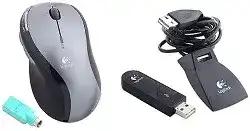
When the pointer works but the volume, mute, navigation, or wheel-tilt commands do nothing, the Logitech MX600 Laser Cordless Mouse Driver gives Windows access to the controls beyond ordinary clicking and scrolling. This older 800 dpi laser model communicates through its dedicated radio-frequency receiver and uses two AA batteries. It does not rely on Bluetooth, a Unifying receiver, or Logi Bolt.
Windows can operate the left and right buttons through its standard HID support, yet that basic profile may ignore the additional controls. The MX600 has a tilting wheel for vertical and horizontal movement, browser navigation buttons, and extra keys that SetPoint can assign to supported actions. Installing the matching package matters most when those functions disappear after an operating-system change or software removal.
Logitech MX600 Laser Cordless Mouse Windows Driver Download
| Driver Name | Description | Supported OS | File Size | Download |
|---|---|---|---|---|
| SetPoint Software 64-bit | Full offline package for configuring mouse buttons, tracking speed, device-specific settings, and battery status on 64-bit Windows systems. | Windows 64-bit | 68.13 MB | |
| SetPoint Software 32-bit | Complete offline installer for adjusting button assignments, pointer response, hot-keys, and supported device settings on 32-bit Windows systems. | Windows 32-bit | 65.59 MB | |
| Logitech Connection Utility | Restores communication between the cordless mouse and its compatible Logitech wireless receiver. | Windows 10 32-bit/64-bit, Windows 8 32-bit/64-bit, Windows 7 32-bit/64-bit | 1.06 MB | |
| Legacy Connection Utility | Reconnects the mouse with a supported receiver on older Windows XP and Windows Vista computers. | Windows Vista 32-bit/64-bit, Windows XP 32-bit/64-bit | 2.08 MB |
SetPoint detects a mouse but shows limited controls
Open SetPoint and check the selected product before changing any assignments. A computer that previously used another Logitech device may display a different profile, leaving the MX600 controls unavailable or incorrectly named. Disconnect unrelated Logitech receivers temporarily, restart SetPoint, and confirm that the MX600 appears in the mouse tab before editing its button functions.
Restore the default profile when an assignment page looks incomplete. Old application-specific settings can override the general configuration and make one key appear dead only inside a certain program. Test the command on the Windows desktop or in another application before assuming the physical button has failed.
Volume and mute keys no longer control audio
The media controls depend on SetPoint and the active Windows audio device. Reassign the affected buttons to volume up, volume down, and mute, then apply the change before closing the panel. When Windows has switched to HDMI, a headset, or another sound output, verify that the expected playback device is active because the buttons follow the system volume target.
If the on-screen volume indicator reacts but the speakers remain unchanged, the mouse is sending the command correctly. The problem then sits with the selected audio output or the application’s separate volume control. When no indicator appears, reload the default SetPoint profile and restart its background service by rebooting Windows.
Browser forward and back buttons do nothing
Assign the side controls to Back and Forward rather than a program-specific keystroke. Some applications interpret custom key combinations differently, while the standard browser commands usually work across common browsers and file windows. Close and reopen the browser after applying the new assignment because an existing session may retain the old control mapping.
A button that works in one browser but not another rarely needs another driver installation. Check the affected browser for extensions or navigation shortcuts that capture the command. If neither side button responds anywhere, remove the custom profile, return both controls to their defaults, and test again after restarting SetPoint.
Recover the MX600 Wireless Link Without Using the Wrong Receiver
The MX600 predates Logitech Unifying technology and normally depends on the receiver supplied with the mouse or its original desktop set. A newer dongle may fit the USB socket but cannot pair through Unifying Software. The Logitech MX600 Laser Cordless Mouse Driver also cannot turn an incompatible receiver into a matching one, so receiver identity should be checked before repeated installation attempts.
The receiver is recognized but the cursor remains frozen
Start with the connection buttons rather than Device Manager. Plug in the original receiver, press its Connect button, and then press the connection button on the underside of the mouse within the receiver’s listening period. Move the mouse after a few seconds. Repeating only the mouse-side press may fail when the receiver has already left connection mode.
Take both AA batteries out for roughly half a minute when the link will not return. Reinsert them according to the polarity marks and repeat the connection sequence. This power break clears the mouse electronics and often resolves a state where Windows sees the receiver but receives no movement or button data.
The mouse disconnects after the computer wakes
Wake failures often come from USB power management rather than lost pairing. Try the receiver in another direct computer port and restart Windows before reconnecting it. On systems that repeatedly power down USB devices, open the receiver or USB hub properties in Device Manager and check whether Windows may turn off that hardware to save power.
Weak batteries make the same symptom more noticeable because the mouse may not resume transmission cleanly. Install two matched AA cells with a similar charge level. Avoid combining an old battery with a new one, since the weaker cell can pull the pair below the voltage needed for consistent wake behavior.
Windows reports an unknown USB device
Move the receiver away from an unpowered hub, keyboard socket, or monitor USB connection. A direct port gives the older hardware a steadier electrical connection and removes several possible failure points. If Windows still reports an unknown device, unplug the receiver, restart the computer, and reconnect it only after the desktop has fully loaded.
Remove the failed USB entry through Device Manager when Windows keeps restoring the same error. A new detection cycle can rebuild the receiver record, although it cannot repair a damaged dongle. Testing the receiver on another computer separates a Windows configuration problem from receiver hardware failure without altering the mouse itself.
Movement breaks up beside other wireless equipment
The MX600 uses an older radio link that can suffer when the receiver sits among external drives, wireless adapters, cable bundles, or metal surfaces. Place the dongle in a more open position and test at a shorter distance. A brief USB extension cable can change its location without moving the whole computer.
Turn off nearby cordless devices for a temporary comparison. If the pointer becomes steady, restore those devices one at a time or keep the receiver farther from them. Software cannot remove physical radio noise, so changing SetPoint versions will not solve a problem that disappears whenever the receiver position changes.
Repair Tilt-Wheel Scrolling and Application Conflicts
The MX600 wheel rolls vertically, presses as a middle button, and tilts sideways for horizontal movement. Those three actions can behave differently because Windows and individual programs interpret them separately. The Logitech MX600 Laser Cordless Mouse Driver supplies the SetPoint controls, but the final response may still depend on smooth-scrolling options or application-specific navigation rules.
Horizontal scrolling moves only a small step
Some programs handle wheel tilt as repeated left or right commands instead of continuous horizontal movement. Confirm that SetPoint assigns Scroll Left and Scroll Right to the tilt actions, then test a wide document or spreadsheet. If the movement works there but feels restricted in another application, that program controls the size and repetition of each sideways step.
Older and newer SetPoint releases can also behave differently with specialist software. When horizontal movement changed immediately after an update, remove the current package cleanly and install the compatible version supplied for this mouse and operating system. Preserve the working version once the tilt wheel behaves correctly instead of updating it without a specific need.
Vertical scrolling reverses or jumps
Open SetPoint and disable Smooth Scrolling as a diagnostic test. Some Windows applications react poorly when both Logitech smoothing and the program’s own scrolling system process the wheel. Apply the change, close the affected program completely, and reopen it before judging the result.
Erratic movement in every application points toward dirt or encoder wear instead. Turn the mouse off, remove the batteries, and clear loose debris around the wheel with gentle air or a soft brush. Do not drip cleaning fluid through the wheel opening because residue can make the mechanism less consistent.
Middle-click starts horizontal scrolling instead
A slight sideways wheel movement during a press can trigger a tilt action before the middle click reaches the program. Press the wheel from directly above and test again. In SetPoint, return the wheel press to the normal middle-button command and remove any application profile that assigns a different action.
When horizontal scrolling is not needed, disabling or reassigning the tilt commands can make the centre press easier to diagnose. If middle-click still fails in every program while vertical and sideways scrolling remain responsive, the wheel switch may have worn independently of the scrolling mechanism.
Scrolling fails in only one program
Do not reinstall the entire Logitech package for a symptom limited to one application. Check that program’s navigation, zoom, or horizontal-scroll options first. Some design, music, and editing tools capture wheel input for zooming or panning, while ordinary documents continue to use the same wheel normally.
SetPoint application profiles can produce another mismatch. Delete the profile for the affected program and let the general mouse settings apply. Recreate a custom assignment only after the standard wheel and middle-click actions work, since several changes made together make the source of the conflict harder to identify.
Separate Laser Tracking, Battery, and Mechanical Faults
Reinstalling the Logitech MX600 Laser Cordless Mouse Driver cannot correct a weak battery contact, unsuitable desk surface, dirty sensor opening, or worn button switch. This model has now been in use for many years, so software and aging hardware often create similar symptoms. A few controlled tests can show which side actually needs attention.
The cursor drifts or pauses on the desk
Move the mouse to a plain, non-reflective pad. Laser tracking handles many surfaces, but clear glass, mirrors, highly polished material, and strong repeating patterns can still cause missed movement or sudden jumps. Clean dust and hair from around the sensor opening with a dry soft swab without pressing into the lens area.
Adjust Windows pointer speed only after the tracking test. Speed and acceleration can change how movement feels, yet they do not repair lost sensor readings. When the cursor behaves badly on several suitable surfaces and on another computer, the sensor or internal electronics may be deteriorating.
Battery life becomes unexpectedly short
Check whether the mouse remains active after the computer shuts down or sleeps. A receiver or system that does not enter its expected power state can leave the mouse waking frequently. Use the underside power switch during long periods away from the computer, and install two batteries of the same type and charge level.
Inspect the battery terminals for dust or light oxidation. Wipe accessible contacts with a dry lint-free cloth, but do not bend or scrape them aggressively. A loose contact can interrupt power during movement and imitate a radio dropout, while contamination increases resistance and wastes energy before the cells are actually empty.
One click opens items twice
Test the Windows double-click speed before blaming SetPoint. Lower the speed slightly and try several folders or desktop icons. When one physical press still produces two actions on another computer, the left-button switch has probably developed mechanical bounce rather than a software timing problem.
Removing dust around the button edge may help when debris prevents a complete release. Avoid pouring cleaner into the shell or following risky switch-bending tricks. Persistent duplicate clicks usually require professional switch replacement or another mouse, because no assignment or driver version can rebuild a worn electrical contact.
macOS keeps movement but loses customization
The MX600 can retain core pointer, click, middle-button, and wheel functions through normal macOS input support, but Logitech Control Center no longer customizes this model on recent macOS releases such as Ventura and later. Installing Options or Options+ does not add support for this legacy hardware.
Use the operating system’s standard mouse controls when only movement and ordinary scrolling are required. For the extra media, navigation, and tilt assignments, keep the mouse on a compatible system that still runs the appropriate Logitech software. That avoids replacing working core input with unsupported utilities that cannot identify the MX600.
Keep the working combination unchanged
Once the original receiver, SetPoint release, wheel assignments, and USB position all behave as expected, record that combination before changing the operating system or Logitech package. Legacy hardware often remains useful for years when its matching software stays intact, while an unnecessary update can remove controls that modern Logitech applications no longer cover.
Store the receiver with the MX600 if the mouse is moved or packed away. Check the two AA cells before chasing connection errors, and test unusual wheel or button behavior outside the affected program. These final checks preserve the features that make this model different from a basic three-button wireless mouse.