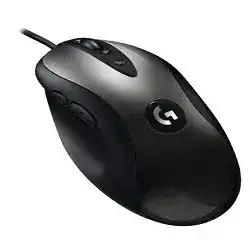
The pointer may respond as soon as the USB cable is connected, yet the sensitivity keys and custom commands can remain incomplete without the Logitech MX518 Gaming Mouse Driver. The original MX518 is a wired optical gaming mouse with dedicated sensitivity controls, a scroll wheel, thumb buttons, and programmable functions. Windows handles ordinary movement and clicks through its standard HID support, while Logitech software adds deeper control.
This older model should not be confused with the later MX518 Legendary. They share a familiar shape, but they use different sensors and software generations. Check the label beneath the mouse before downloading anything. The original MX518 commonly carries model number M-BS81A and was built around legacy Logitech configuration software rather than the current G HUB platform.
Logitech MX518 Gaming Mouse Windows Driver Download
| Driver Name | Description | Supported OS | File Size | Download |
|---|---|---|---|---|
| Logitech Gaming Software 64-bit | Full 64-bit package for configuring mouse buttons, sensitivity levels, profiles, lighting, and other gaming settings offline. | Windows 11, Windows 10 64-bit | 119.96 MB | |
| Logitech G HUB | Customizes mouse assignments, DPI stages, onboard profiles, macros, and game-specific controls on current Windows systems. | Windows 11, Windows 10 32-bit/64-bit | 67.08 MB | |
| Logitech G HUB | Manages programmable buttons, tracking sensitivity, profiles, and gaming commands on supported older Windows releases. | Windows 8 32-bit/64-bit, Windows 7 32-bit/64-bit | 39.22 MB |
Logitech MX518 Gaming Mouse Mac OS Driver Download
| Driver Name | Description | Supported OS | File Size | Download |
|---|---|---|---|---|
| Logitech G HUB | Provides button mapping, pointer sensitivity, profile management, macros, and device settings for recent macOS versions. | macOS 26, macOS 15, macOS 14 | 11.36 MB | |
| Logitech G HUB | Adjusts mouse controls, DPI behavior, shortcuts, profiles, and application-specific assignments on macOS 13. | macOS 13 | 10.43 MB | |
| Logitech G HUB | Supports customization of programmable controls, tracking performance, game profiles, and stored device preferences on macOS 11. | macOS 11 | 5.02 MB | |
| Logitech Gaming Software | Configures gaming profiles, mouse commands, sensitivity settings, macros, and compatible device features on earlier macOS releases. | macOS 10.15, macOS 10.14, macOS 10.13, macOS 10.12 | 204.99 MB |
Windows detects the mouse but Logitech software does not
Begin with a direct USB connection. Disconnect the MX518, restart the computer, and attach it after Windows reaches the desktop. Give the operating system time to create its HID-compliant mouse entry before opening Logitech software. If the utility still shows no supported device, its version may be too new, too old, or intended for a different MX518 release.
The original model was commonly configured through SetPoint or older Logitech gaming software supplied during its support period. G HUB targets newer gaming hardware and may ignore this version completely. Do not assume that a successful G HUB installation means it can manage every Logitech gaming mouse.
The installer finishes but no configuration page appears
Windows can retain an earlier software service after an incomplete upgrade. Uninstall the existing Logitech mouse utility, restart the computer, and remove only its remaining application folder after confirming the program has gone. Install one suitable package and restart again. Running several Logitech control programs together often leaves the MX518 working as a plain USB mouse while none of them exposes its advanced controls.
A newer MX518 package rejects the original mouse
Software listed for the MX518 Legendary does not automatically support the 2005 optical version. A package may install normally and still display no device because it expects newer hardware identification. Match the download to the exact product name and model number. When Logitech no longer offers a current package for the original release, Windows HID support remains the safest choice for basic operation.
Recover On-the-Fly Sensitivity Without Breaking Pointer Control
The two buttons above and below the wheel change sensitivity on the original MX518. Factory behavior provides hardware-level DPI switching even when no configuration utility is open. Legacy Logitech software can add more sensitivity stages and alter how those buttons behave. Problems usually begin when an application profile replaces the expected commands or Windows pointer acceleration changes the feel between games.
The DPI buttons suddenly perform another action
Open the Logitech control panel and inspect the assignments for the sensitivity increase and decrease buttons. Restore their original DPI functions before testing them in a game. An application-specific profile may have converted one key into a keyboard command, document action, or generic button. Disable that profile temporarily to see whether the normal sensitivity change returns on the desktop.
The Logitech MX518 Gaming Mouse Driver should manage the exact device rather than a generic profile copied from another mouse. Rebuild the assignments manually when an imported configuration contains controls that the original MX518 does not expose. A default profile provides a better starting point than trying to repair several conflicting game entries.
Pointer speed changes after Windows starts
Two different controls can affect the cursor: the mouse DPI level and the Windows pointer-speed slider. Keep the Windows slider near its normal midpoint while testing the hardware sensitivity keys. Disable enhanced pointer precision when a game requires direct, predictable movement. Otherwise, acceleration can make the same DPI stage feel different according to how quickly you move the mouse.
A game ignores the selected sensitivity
Some games read raw mouse input and bypass part of the desktop pointer configuration. Set the intended DPI with the MX518 buttons, then adjust the game’s own sensitivity. Avoid compensating for an extreme in-game value by repeatedly changing Windows speed. Keeping each control within a sensible range makes aiming easier to reproduce after updates or profile resets.
DPI switches correctly until the computer restarts
A legacy software profile may load only after its background service starts. Check whether the Logitech utility launches with Windows and whether security software has blocked it. If custom levels never return, save the profile again and close the application normally before restarting. Factory sensitivity steps can still operate when the software profile fails, which explains why the buttons work but produce different values.
USB Detection, Sensor Tracking, and Sudden Freezes
The MX518 receives both power and data through its fixed USB cable. It has no wireless receiver, rechargeable battery, Bluetooth mode, or pairing process. Connection faults therefore come from the cable, plug, USB controller, software layer, or the mouse itself. Treating it like a wireless model wastes time and introduces utilities that cannot communicate with it.
The light turns on but the pointer does not move
Move the plug to another direct USB port and wait for the Windows connection sound. Avoid an unpowered hub during diagnosis. If clicks work but movement does not, clean the optical sensor opening with dry air and test the mouse on a plain, non-reflective surface. Glass, glossy material, and strongly patterned desks can prevent an older optical sensor from reading movement consistently.
Open Device Manager when the cursor remains still. Remove the warning-marked HID mouse entry associated with the MX518, unplug the device, and restart Windows. Reconnect it after login so the system can rebuild the standard USB records. Do not remove laptop touchpad entries or unrelated Logitech keyboard devices.
The mouse repeatedly disconnects and reconnects
A recurring USB sound often points to a damaged cable, loose plug, unstable hub, or worn internal connection. Test several ports and gently change the cable position near the mouse body without pulling it. If movement cuts out whenever the cable bends at one particular point, software replacement will not correct the physical interruption.
Also review USB power management. Windows may turn off a USB hub to conserve energy, especially after sleep. Open the hub properties in Device Manager and temporarily clear the option that permits Windows to switch it off. Apply this only to the controller serving the mouse, then check whether the disconnect cycle stops.
The pointer skips during quick movement
Clean the sensor lens and use a conventional cloth mouse pad before changing software. Dust near the optical opening can cause abrupt jumps, while reflective or uneven surfaces can make tracking fail during fast swipes. Reduce the sensitivity one stage and compare the result. If skipping occurs at the same physical point on several surfaces, inspect the cable and USB connection next.
Background load can create a similar symptom. Close capture tools, overlays, hardware monitors, and other utilities that poll input devices. Connect the mouse directly rather than through a keyboard or monitor. The original MX518 belongs to an older USB generation, so stable controller access matters more than adding a modern gaming application that does not support it.
Movement feels delayed after upgrading Windows
Remove any custom polling modification before blaming the hardware. Unofficial USB-rate patches and filter drivers can conflict with newer Windows builds. Return the mouse to ordinary HID operation, restart, and test it without enhancement tools. The Logitech MX518 Gaming Mouse Driver or its compatible legacy utility should not require a patched system USB driver for normal use.
Scroll Wheel, Thumb Buttons, and Click Problems
The original MX518 places browser-style forward and back buttons under the thumb, along with the main clicks, wheel click, application button, and sensitivity controls. Their behavior depends on both hardware condition and software assignment. Testing each control under a default profile quickly separates a worn switch from an incorrect command.
Forward and back buttons work in a browser but not in a game
Browser navigation confirms that Windows receives the button presses. The game may not recognize generic forward and back commands, so assign unused keyboard keys through the compatible Logitech utility and bind those keys inside the game. Run the control software and game at the same permission level. A normally launched utility may fail to send commands into a game running as administrator.
The application-switch button does nothing
This button can lose its expected task after a Windows interface change or software reset. Reassign it to a supported keystroke or application command rather than relying on an outdated task-switch action. Test the new assignment in a basic desktop program before opening a game. When the input works there, any remaining failure belongs to the game profile or permission level.
The wheel scrolls backward or misses steps
Disconnect the mouse and clear loose dust from the wheel opening with gentle air. Rotate the wheel while cleaning, but do not force it sideways or pour liquid into the shell. Reconnect the MX518 and compare scrolling in several programs. One application may apply unusual scroll behavior, while reverse steps across every program usually point to a dirty or worn wheel encoder.
Reset the Windows wheel setting to a modest number of lines per notch. Extremely high values exaggerate one missed or reversed signal. When the wheel still behaves incorrectly on another computer with no Logitech package installed, reinstalling software has little value. The result indicates a hardware problem inside an aging mouse.
One press registers as a double click
Return the affected control to a standard click assignment and check the Windows double-click speed. A macro or duplicated command can imitate switch bounce, so test without custom profiles first. If one physical press continues to produce two inputs on another computer, the microswitch has probably worn. Avoid scripts that merely hide rapid clicks, particularly in games where they may delay genuine input.
Middle click works only when pressed at an angle
Remove custom wheel-button commands and test its ordinary middle-click function. Uneven response usually comes from wear, debris, or movement in the wheel assembly rather than the Logitech package. Gentle external cleaning is reasonable, but opening the shell requires removing the feet and can damage an otherwise usable device. Hardware service or replacement becomes the practical answer when pressure direction changes the result.
Build a Working Profile Around the Original MX518
Start from ordinary USB operation, not from a large collection of imported profiles. Confirm pointer movement, primary clicks, wheel scrolling, thumb inputs, and both sensitivity keys before assigning game commands. Then add one application profile and test it fully. This method reveals exactly which change removes a function instead of leaving several possible causes.
Keep the distinction between the original optical model and the later Legendary edition clear whenever you search for software. The Logitech MX518 Gaming Mouse Driver must match the hardware identification shown beneath the device. A modern package cannot repair cable wear, a failing wheel encoder, or a bouncing switch, while a compatible legacy utility cannot compensate for an unsupported Windows environment indefinitely.
For an older MX518 that tracks accurately and has healthy controls, standard Windows HID operation may be more dependable than forcing unsupported software onto a current system. Configure sensitivity through the hardware buttons, set game commands inside each title, and retain legacy Logitech software only when it detects the mouse without crashes or USB conflicts.