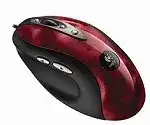
When Windows moves the pointer but ignores the extra controls, the Logitech MX510 Performance Optical Mouse – Red Mouse Driver can restore the original button functions on compatible systems. This wired optical model uses a direct computer connection and has eight controls, including thumb buttons and cruise-scroll buttons. Basic clicks often work without Logitech software, while the extended layout may need its older control package.
The MX510 comes from the MouseWare generation rather than the current Logitech Options family. Installing a modern Logitech application usually leaves this model outside its device list. Older software can expose more assignments, but current Windows releases may run only the standard USB functions because Logitech no longer provides an active download package through the product support page.
Logitech MX510 Performance Optical Mouse Red Windows Driver Download
| Driver Name | Description | Supported OS | File Size | Download |
|---|---|---|---|---|
| MouseWare | Provides mouse configuration and device controls for compatible Windows systems. | Windows | 3.87 MB |
Logitech MX510 Performance Optical Mouse Red Mac OS Driver Download
| Driver Name | Description | Supported OS | File Size | Download |
|---|---|---|---|---|
| Logitech Control Center | Customizes supported mouse controls and device settings on newer macOS releases. | macOS 11, macOS 10.15, macOS 10.14, macOS 10.13 | 17.76 MB | |
| Logitech Control Center | Manages mouse button assignments and model-specific preferences on supported Mac OS X versions. | Mac OS X 10.13, Mac OS X 10.12, Mac OS X 10.11 | 17.15 MB | |
| Logitech Control Center | Enables configurable mouse functions and control settings for earlier Mac OS X installations. | Mac OS X 10.11, Mac OS X 10.10, Mac OS X 10.9, Mac OS X 10.8 | 17.06 MB |
Windows detects the mouse but only three controls work
Start by testing left-click, right-click, wheel rotation, wheel press, both thumb controls, and the two buttons beside the wheel. Working movement with only the standard controls usually means Windows has loaded its general HID profile. It does not necessarily indicate damaged hardware.
On an operating system compatible with MouseWare, remove unrelated Logitech customization programs before installing the matching package. Restart after removal, attach the MX510 directly to the computer, and install the utility with administrator access. Reboot once more before checking assignments. Newer applications such as Logitech Options or Logi Options+ were not created for this model.
A game cannot see the thumb buttons
Some older games read the two side controls as browser commands, keyboard actions, or MouseWare functions rather than independent mouse inputs. Open the Logitech control panel and assign generic mouse-button actions when that choice appears. Close the game before making changes because many titles inspect the available controls only while starting.
Check the same buttons in a browser or file manager. Working back and forward actions outside the game show that the switches and USB connection are responding. The game may accept only a limited number of mouse inputs, so assigning unused keyboard keys can be a practical alternative when the software permits it.
Assignments return to their defaults after restarting
Saved commands may disappear when MouseWare cannot start its background component, Windows blocks an old control-panel extension, or another Logitech service takes over. Remove duplicate Logitech packages and confirm that the selected settings remain visible after a restart. Avoid running two generations of mouse software together.
Modern Windows security and compatibility changes can also prevent legacy profiles from loading consistently. In that situation, use the built-in USB support and configure ordinary buttons inside each game or application. Repeatedly reinstalling the same unsupported utility rarely makes its older service compatible with a newer operating system.
Separate USB Trouble from Logitech MX510 Software Trouble
A failed customization panel and a failed physical connection can look similar. Before changing software, watch how Windows reacts when the cable is inserted. A normal connection should create one stable HID mouse entry. Repeated connection sounds, an unknown USB item, or an entry that vanishes during movement points toward the port, plug, or cable.
The pointer freezes when the cable moves
Connect the mouse to a different port, then gently move the cable near the USB plug and where it enters the shell. A pointer that stops at a particular bend usually reveals a fatigued conductor. The MX510 is old enough for cable strain to become more likely than a missing software file.
Do not attempt to compensate with faster pointer speed or repeated driver removal. Test the device on another computer using only the operating system’s normal mouse support. If cable movement causes the same interruption there, software changes will not solve it.
The device appears as unknown USB hardware
Disconnect the mouse and shut down the computer fully rather than performing only a quick restart. Start Windows, wait for the desktop, and reconnect the MX510 through a direct port. Avoid monitor sockets, keyboard pass-through connections, docking stations, and unpowered hubs during this test.
If Device Manager still shows an error, remove only the failed USB or HID entry associated with the mouse. Disconnect it before restarting, then let Windows identify it again. Do not download a random replacement driver from an unofficial archive; the standard USB mouse component already handles the principal controls on newer Windows versions.
The mouse stops working after removing its driver
Windows may temporarily retain an incomplete device record after manual removal. Leave the MX510 unplugged during the next restart and connect it only after Windows finishes loading. Trying another physical USB port forces a fresh enumeration and often brings back basic movement and clicking.
If the mouse works in firmware menus, another operating system, or another computer, the USB hardware remains functional. Return to Device Manager and check for disabled HID entries or USB-controller warnings. When several USB devices fail together, repair the computer’s chipset or controller installation rather than searching for a model-specific MX510 file.
Correct Pointer Speed Without Hiding Sensor Problems
The MX510 uses an 800 DPI optical sensor developed for fast pointer response. Its behavior can feel very different from a current high-resolution gaming mouse. Windows acceleration, game sensitivity, display resolution, and the desk surface all change the result. Set a neutral baseline before deciding that the sensor has become inaccurate.
The pointer feels too fast or accelerates unpredictably
Open the Windows pointer options and place the speed near the middle. Compare movement with pointer precision enabled and disabled instead of changing several values at once. Games that use raw input may ignore Windows acceleration, so adjust their sensitivity separately after the desktop movement feels controlled.
Older MouseWare releases may add their own acceleration or game-detection behavior. If movement becomes inconsistent only after installing the Logitech MX510 Performance Optical Mouse – Red Mouse Driver, return the utility to default pointer values. Keep either Windows or the Logitech panel responsible for acceleration rather than applying strong changes in both places.
Slow movement produces skips or short jumps
Test the optical sensor on a plain cloth mouse pad with a consistent, non-reflective pattern. Glass, polished desks, glossy printed images, and highly reflective surfaces can confuse this generation of optical tracking. Clean the sensor opening gently with dry air and a lint-free material, without pressing against the lens.
Then draw slow horizontal, vertical, and diagonal movements on the screen. Failure only on one desk surface suggests a tracking condition. Repeated gaps in the same direction across several suitable pads and computers make sensor aging, cable damage, or an internal connection more plausible.
The cursor stutters only while the computer is busy
Close hardware-monitoring tools, overlays, recording utilities, and background programs that hook mouse input. An old MouseWare process may also compete with game software or newer Logitech services. Test the MX510 with only the standard Windows HID entry before adding customization again.
Connect it directly rather than through a crowded USB hub. Although the mouse does not use a wireless signal, an unstable hub or overloaded controller can delay input from several attached devices. Moving it to a port on another controller can distinguish computer-side USB congestion from a fault inside the mouse.
The shell drags even though tracking looks accurate
Worn or dirty glide feet can make movement feel hesitant while the pointer remains technically accurate. Disconnect the mouse and remove debris from the feet and the surrounding edges. Clean the pad as well, since dirt can create uneven resistance beneath this heavier performance-mouse shape.
Do not confuse physical drag with low sensor resolution. If the shell glides smoothly after cleaning but movement still feels slow, raise application sensitivity gradually. Replacement feet must match the original contact areas and thickness; an uneven substitute can make the body rock during clicks.
Wheel and Click Symptoms That a Driver Cannot Repair
The extra controls make software testing important, yet the MX510’s age also makes mechanical wear a realistic cause. Compare each failing control on another computer before editing assignments. A problem that follows the mouse under basic HID operation usually comes from the wheel assembly, a switch, or the cable rather than Windows.
One click sometimes registers twice
Adjust the Windows double-click speed first and test single presses in several programs. A setting that is too slow can make two deliberate clicks behave unexpectedly, but it normally does not turn one physical press into two events. Use a mouse-button test or select files one at a time to confirm the symptom.
If a single press repeatedly opens folders or selects and releases items on different computers, the internal switch is likely worn. Reinstalling MouseWare cannot correct contact bounce. Avoid opening the mouse unless you understand small electronic components and accept the risk of damaging the shell, feet, or circuit board.
The wheel scrolls in the wrong direction
First test more than one program. A browser extension, spreadsheet, remote-desktop session, or game can process wheel input differently from Windows. Return the lines-per-scroll setting to a moderate value and temporarily disable any smooth-scrolling feature added by third-party software.
Disconnect the MX510 and turn the wheel while applying short bursts of dry air around its edges. Hair and dust can interfere with an older encoder. Do not pour cleaner through the opening. Direction reversals that continue on another computer usually indicate encoder wear, not a missing Logitech control panel.
Wheel rotation works but the middle press does not
Check whether MouseWare assigned the wheel press to application switching, automatic scrolling, or another command. Change it to a normal middle-button action and reopen the affected program. Design applications and games often require a true middle click for panning, orbiting, or alternate commands.
A wheel that rotates correctly yet never produces a press under standard Windows support may have a failed switch beneath it. Press near the center without leaning the wheel sideways. If it responds only with unusual force, continued heavy pressing can make the mechanism worse.
Cruise-scroll controls do nothing in current applications
The buttons above and below the wheel were created for faster document movement through Logitech software. Current programs may treat them as repeated wheel actions, ignore them, or receive no command when MouseWare is absent. Their behavior therefore depends more on the legacy assignment layer than ordinary wheel rotation does.
Test them after assigning simple keystrokes such as Page Up and Page Down on a compatible system. That approach can work where an application does not understand the original cruise-scroll command. If neither button registers after several assignments, compare them on another older system before treating both switches as faulty.
Choose a Practical Role for This Older Performance Mouse
The Logitech MX510 Performance Optical Mouse – Red Mouse Driver is most valuable on a period-correct Windows computer that can run MouseWare and use the full eight-control layout. A modern computer may still handle movement, primary clicks, wheel rotation, and some extra buttons through its built-in USB support, but complete legacy customization is not guaranteed.
Keep the configuration appropriate to the machine. Use one compatible Logitech utility on an older system, or rely on standard HID operation and in-application assignments on a current one. Direct USB detection should remain steady before any software enters the picture. This distinction prevents a worn cable, switch, wheel encoder, or optical sensor from being mistaken for an installation failure.
For the red MX510 that still tracks accurately, careful sensitivity tuning and sensible button assignments can preserve much of its original character. When the same click, wheel, or connection fault follows it across computers, accept the hardware evidence. Legacy software can restore commands, but the final test is whether every physical input remains consistent without a customization layer.