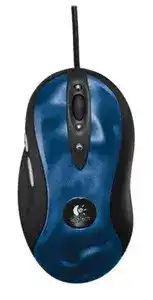
A game may recognize pointer movement and normal clicks while ignoring the thumb controls or the buttons around the wheel. The Logitech MX510 Performance Optical Mouse – Blue Mouse Driver adds the legacy control layer needed for assignments on compatible older systems. Without that software, the operating system may treat this corded USB model as an ordinary three-button mouse.
The MX510 is an eight-button wired optical mouse with an 800 dpi sensor. Its USB cable supplies both data and power, so there is no wireless pairing, receiver, battery, or charging process to troubleshoot. Most current computers can load standard pointing functions automatically, although the original advanced controls may require Logitech MouseWare on an operating system that still accepts it.
Software choice causes many MX510 problems. This model predates SetPoint, Logitech Options, Logi Options+, G HUB, and modern gaming profiles. Those applications may install successfully yet never display the device. Use normal USB support on a current operating system, or install a MouseWare release that explicitly lists the MX510 when working with compatible legacy Windows versions.
Logitech MX510 Performance Optical Mouse Blue Windows Driver Download
| Driver Name | Description | Supported OS | File Size | Download |
|---|---|---|---|---|
| Logitech MouseWare | Provides mouse button configuration, pointer controls, scrolling options, and device-specific settings for compatible Logitech mice. | Windows | 3.87 MB |
Logitech MX510 Performance Optical Mouse Blue Mac OS Driver Download
| Driver Name | Description | Supported OS | File Size | Download |
|---|---|---|---|---|
| Logitech Control Center | Customizes mouse buttons, scrolling behavior, pointer response, and other supported device controls on newer Mac systems. | macOS 11, macOS 10.15, macOS 10.14, macOS 10.13 | 17.76 MB | |
| Logitech Control Center | Manages programmable mouse controls and device-specific preferences across supported Mac OS X releases. | Mac OS X 10.13, Mac OS X 10.12, Mac OS X 10.11 | 17.15 MB | |
| Logitech Control Center | Adjusts button assignments, pointer movement, wheel functions, and application-based mouse settings on older Mac computers. | Mac OS X 10.11, Mac OS X 10.10, Mac OS X 10.9, Mac OS X 10.8 | 17.06 MB |
A game sees left and right click only
First test every control outside the game. Open a browser and check the forward and back thumb buttons, then test the wheel press and the controls above and below the wheel. When those commands work on the desktop but not inside a game, the hardware and USB connection are probably intact. The problem sits with the game’s input handling or the assigned command.
Open MouseWare on a supported system and change the affected controls from browser commands to generic mouse buttons or keyboard keystrokes. Close the game completely before making the change, then launch it again. Many older titles read available controls only during startup and will not detect a new assignment while already running.
Every additional button appears as the same command
Incorrect MouseWare assignments can make several controls behave like left click, right click, or browser navigation. Return each button to its default command before creating custom bindings. Test one change at a time. Assigning every control at once makes it difficult to identify whether MouseWare, the game, or an individual switch caused the failure.
Mac applications from the MX510 era could also interpret additional controls inconsistently through Logitech Control Center. When several buttons produce identical actions, reset the Logitech preference panel and rebuild the assignments. Modern macOS releases may provide only basic USB mouse behavior because the original control software no longer matches current system requirements.
Bindings disappear after leaving a game
Some titles capture a keyboard command assigned through MouseWare and leave it active after the game closes unexpectedly. Open the Logitech panel and apply the profile again, or disconnect and reconnect the USB plug. Avoid assigning system-wide commands that conflict with shortcuts used by browsers, editors, or the Windows desktop.
What to Install for the MX510 on Old and New Windows Systems
The Logitech MX510 Performance Optical Mouse – Blue Mouse Driver is mainly relevant to legacy button control. Windows 10 and Windows 11 can usually handle movement, primary clicks, wheel rotation, and middle click with their included HID components. They may not provide a compatible panel for all eight controls, and forcing very old MouseWare onto them can create more trouble than it solves.
MouseWare installs but no Logitech panel appears
An old installer may finish copying files even though Windows rejects its control-panel component or background service. Restart once and inspect the normal Mouse settings. If no Logitech page appears, do not keep running the same installer over itself. Remove it, restart again, and return to the system’s standard USB mouse support.
On an older supported Windows version, connect the MX510 directly before starting MouseWare. Launch the installer with administrator access and allow it to replace any generic configuration only when the package names this model. A successful installation should expose controls for its additional buttons rather than merely showing a completion message.
Newer Logitech software cannot detect the device
Options, Options+, and G HUB target later product generations. Failure to find the MX510 does not prove that the USB port or sensor has failed. Remove software that serves no other connected Logitech device, restart Windows, and test the mouse again without it. The standard HID entry should return automatically after reconnection.
Installing several Logitech packages together can also create competing services and control panels. Keep MouseWare only on a system where it genuinely operates and provides the needed assignments. On a modern computer, the built-in driver often gives a cleaner result for basic use than a mixture of unsupported legacy and current utilities.
The installer reports that no mouse is connected
Move the cable from a hub, monitor, keyboard socket, or docking station to a direct computer USB port. Older detection routines sometimes miss a mouse behind an intermediate USB device even when Windows can move the pointer. Disconnect other unnecessary USB input devices during installation, then reconnect them after the MX510 appears correctly.
Check Device Manager when the installer still fails. A normal HID-compliant mouse entry means Windows can communicate with the hardware, while an unknown device or a constantly disappearing entry suggests a USB connection fault. Software cannot complete model detection while the physical link repeatedly drops.
When Movement Feels Wrong Rather Than Completely Broken
The MX510’s optical sensor works best on an opaque surface with visible texture. Glass, polished stone, mirrors, and highly reflective desks can produce wandering, sudden jumps, or dead areas. Before changing software, place the device on a conventional cloth or matte mouse pad and clean the sensor window with dry air and a soft cloth.
The pointer travels too slowly at 800 dpi
High-resolution modern displays can make the original 800 dpi tracking feel slow. Increase the pointer-speed control in Windows gradually instead of using unofficial USB patches. Test fine movement after every adjustment. Raising acceleration too far may make short motions unpredictable even though large movements become faster.
Legacy MouseWare may add its own speed or acceleration setting on top of Windows. Avoid setting both panels near their maximum values. Begin with moderate Windows speed, disable exaggerated acceleration, and then make a small change in the Logitech panel if it remains available.
Fast movement causes skipped tracking
Clean the sensor opening and change the surface first. Dust, hair, or a glossy pattern can interrupt the image read by an older optical sensor. Use broad movements across a plain mouse pad while watching for skips in the same direction. Consistent failure during rapid swipes on several computers can indicate sensor aging rather than a driver error.
Do not assume that altering the USB polling rate will repair every tracking complaint. Unsupported polling modifications can destabilize older USB devices or behave differently after a Windows update. Return modified USB settings to their defaults before judging the sensor, cable, or port.
Movement freezes when the cable shifts
Watch the device entry or listen for the Windows USB connection sound while gently moving the cable near both ends. A freeze that follows a particular bend usually points to an internal wire break. The Logitech MX510 Performance Optical Mouse – Blue Mouse Driver cannot restore data flow through a damaged cable.
Try one other direct port and another computer before reaching that conclusion. When the failure follows the mouse, the cable or its internal connection needs attention. When it stays with one port, inspect that computer’s USB socket and chipset drivers instead.
Clicks and Scrolling Can Reveal Mechanical Wear
Age-related switch and wheel faults often look like software problems at first. One press may register twice, a held button may release during dragging, or the wheel may reverse direction. Comparing the same action on another computer separates a system configuration problem from wear inside the mouse.
A single press produces two clicks
Lower the double-click speed temporarily in the operating system and test with several files or folders. This setting can help when two deliberate presses are not being recognized correctly, but it will not cure a switch that generates two electrical signals from one physical press. Repeated double-clicks across different computers indicate switch wear.
Do not download click filters or unofficial repair programs. They can hide some unwanted signals while creating delays in games and drag operations. Professional switch replacement may restore the button, but opening and soldering this older mouse requires suitable tools and experience.
Dragging releases before the button is lifted
Draw continuous lines in a basic graphics program or drag a window slowly around the screen. If the object drops while finger pressure remains steady, test the same button on another computer. A consistent early release points toward worn switch contacts rather than an application profile.
Check that the plastic shell returns freely and that dirt has not collected around the button edge. Clean only the external gap with the cable disconnected. Do not pour alcohol or other liquid through the button opening, since it can spread residue inside the housing.
The right button needs extra pressure
Reset any left-handed or swapped-button setting first, because Windows can exchange the primary and secondary actions. When the right control responds only under heavy pressure, sometimes clicks by itself, or fails on another computer, its microswitch has probably deteriorated. Reinstalling MouseWare will not change the physical contact.
The wheel reverses or misses notches
Compare scrolling in a browser, a document, and the Windows settings page. Failure in only one program often comes from that program’s scroll behavior. Reversal and missed movement everywhere suggest dirt or wear around the wheel encoder. Disconnect the cable and use brief dry air around the wheel edges while rotating it.
Set the number of lines per notch to a moderate value after cleaning. Very high values can make a missed input look more dramatic. When the direction continues to reverse on another computer, the encoder has likely reached the end of its dependable life.
Work Through the Eight Controls Without Guessing
The wheel press opens an unexpected command
MouseWare can map the wheel press to application switching, automatic scrolling, or another shortcut. Set it to a standard middle-button command when a game, browser, design program, or three-dimensional application expects middle click. Reopen the affected program after applying the assignment.
A wheel that rotates normally but never registers a press may have a separate switch failure. Test the press through an online-independent local application or operating-system control panel rather than relying on one game.
The cruise buttons scroll too far
The controls above and below the wheel were made for rapid document movement. Their behavior can feel excessive when a program already applies scroll acceleration. Reduce the application’s scrolling speed or assign ordinary wheel-up and wheel-down commands through MouseWare. Some games will not expose these controls as separate buttons at all.
Thumb controls go backward and forward but will not bind
Browser navigation proves that the thumb switches respond, but it does not guarantee that a game reads their default commands. Change them to generic extra-button inputs where the legacy control panel permits it. When the title still ignores them, assign unused keyboard keys and bind those keys inside the game.
Keep those keyboard assignments unique. Reusing keys already attached to chat, menus, or movement can create actions that seem random. Write down the original commands before changing them so the desktop behavior can be restored later.
One additional button has no response anywhere
Reset that control to its default assignment, reconnect the cable, and test another computer. When every other control works but one remains silent, the individual switch or plastic actuator may have failed. Driver replacement rarely affects only one physical button.
The MX510 remains practical when its cable, sensor, wheel, and main switches are sound. Match its software to the age of the operating system, test custom controls within the program that needs them, and treat failures that follow the mouse between computers as hardware evidence. That approach prevents an unsupported installer from hiding the actual fault.