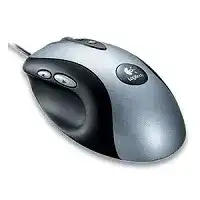
The pointer may move normally while the thumb controls, wheel click, cruise buttons, or application-switch button do nothing. The Logitech MX500 Optical Mouse Driver restores access to the original button functions on compatible older Windows systems. This corded USB model can still provide basic pointing and clicking through the operating system’s standard HID support, but its additional controls may need Logitech MouseWare.
The MX500 is an older eight-button optical mouse built around a direct USB connection. It does not use Bluetooth, a wireless receiver, replaceable batteries, charging software, Logitech Options, Logi Options+, or receiver-pairing tools. Installing utilities intended for newer Logitech products will not add support and may leave the device visible only as a standard USB mouse.
Start by deciding what functionality you actually need. Modern Windows versions often recognize left-click, right-click, pointer movement, and wheel scrolling without a separate package. The original software matters mainly when an older compatible system needs button assignments, application switching, cruise scrolling, or other MouseWare controls.
Logitech MX500 Optical Mouse Windows Driver Download
| Driver Name | Description | Supported OS | File Size | Download |
|---|---|---|---|---|
| Logitech MouseWare | Provides mouse configuration controls and device-specific settings for the Logitech MX500 Optical Mouse. | Windows | 4.07 MB |
Logitech MX500 Optical Mouse Mac OS Driver Download
| Driver Name | Description | Supported OS | File Size | Download |
|---|---|---|---|---|
| Logitech Control Center | Enables button assignments, tracking adjustments, scrolling preferences, and other mouse controls on supported Mac systems. | Mac OS X 10.13, Mac OS X 10.12 | 16.63 MB | |
| Logitech Control Center | Manages pointer behavior, programmable buttons, scrolling functions, and device settings across several Mac OS X releases. | Mac OS X 10.11, Mac OS X 10.10, Mac OS X 10.9, Mac OS X 10.8 | 17.06 MB | |
| Logitech Control Center | Adds configurable mouse controls and model-specific preferences for compatible older Mac OS X installations. | Mac OS X 10.9, Mac OS X 10.8, Mac OS X 10.7, Mac OS X 10.6 | 17.73 MB | |
| Logitech Control Center | Supplies legacy mouse customization features for button functions, pointer response, and scrolling on Mac OS X 10.5.x. | Mac OS X 10.5.x | 18.7 MB | |
| Logitech MouseWare | Installs legacy Mac mouse support with access to basic button, movement, and device configuration options. | Mac OS | 3.75 MB |
Pointer works but the additional controls remain inactive
This symptom usually means Windows loaded its normal HID profile rather than the complete legacy Logitech configuration. Check whether the wheel, middle click, two thumb buttons, application-switch control, and the buttons above and below the wheel respond. Missing functions across several controls point toward a software limitation rather than several simultaneous switch failures.
On a supported older Windows installation, remove unrelated Logitech control programs before installing the matching MX500 MouseWare package. Restart the computer after removal, reconnect the mouse directly, and then install the software with administrator access. Mixing MouseWare with packages written for newer M-series or MX Master devices can produce confusing button assignments.
Button assignments change inside games
Some older games interpret the MX500 thumb controls as keyboard commands instead of Mouse 4 and Mouse 5. Others detect only the main buttons and wheel. Open MouseWare and review any game-detection or advanced button options. Assign plain mouse-button commands where possible, then close and reopen the game so it reads the revised input profile.
If a title still ignores a control, compare its behavior outside the game. A thumb button that works in a browser but not in the game usually has an application-level mapping problem. A button that fails everywhere may have an incorrect MouseWare assignment or a worn internal switch.
Install the Logitech MX500 Optical Mouse Driver Without Mixing Software Generations
The Logitech MX500 Optical Mouse Driver belongs to the MouseWare era, so software age matters more than download size or version number. The mouse first appeared long before current Logitech customization applications. Select a package that explicitly lists the MX500 and the operating system you intend to use rather than assuming the newest Logitech utility offers broader compatibility.
Use normal USB support on current Windows systems
Windows 10 and Windows 11 may operate the basic controls through their built-in USB mouse driver even when legacy MouseWare will not install. Connect the cable directly to the computer and allow Windows to finish device detection. Test pointer movement, both primary clicks, wheel rotation, and wheel click before adding any older software.
Do not force an obsolete installer through repeated compatibility changes merely to obtain one missing command. Legacy utilities can fail because their services, installer components, or control-panel extensions were written for much older Windows releases. Basic HID operation is usually the safer choice when the original package does not support the installed system.
Remove conflicting Logitech programs first
A computer that has hosted several Logitech products may contain MouseWare, SetPoint, Logitech Options, Logi Options+, gaming software, or leftover services from earlier installations. The MX500 does not gain features from those newer applications. Uninstall packages that do not recognize this model, restart Windows, and reconnect the device before testing the intended legacy software.
Check the Windows mouse control panel after installation. A standard Microsoft panel with no Logitech-specific pages may indicate that MouseWare did not load. When Logitech pages appear but changes have no effect, reconnect the cable and restart once more before reinstalling anything.
The installer completes but cannot find the mouse
Connect the MX500 before launching an old installer if the package expects attached hardware during detection. Use a direct motherboard or laptop USB port rather than a keyboard pass-through, monitor port, docking station, or unpowered hub. Older detection routines sometimes miss a device that modern Windows can otherwise use normally.
Also confirm that the computer sees the mouse in Device Manager. An unknown USB device, repeated connection sound, or disappearing HID entry suggests a port, cable, or power problem. MouseWare cannot correct an unstable physical connection.
USB Detection, Freezing, and Uneven Pointer Movement
A corded mouse removes pairing and battery variables, which narrows troubleshooting considerably. Problems usually come from the USB port, cable, optical surface, Windows device state, or aging hardware. Test these areas before replacing software that already recognizes the device.
The MX500 disconnects or freezes during movement
Plug the cable into another direct USB port and gently move the wire near the mouse body and connector. If Windows repeatedly plays its disconnect sound or the pointer stops when the cable bends, the cable may have an internal break. Software installation will not repair an intermittent conductor or strained plug.
Remove the mouse from Device Manager only when the USB entry remains present but input has stopped. Disconnect it, restart Windows, and reconnect it after the desktop appears. This clears a damaged HID enumeration without introducing a second Logitech utility.
Pointer movement becomes jumpy on certain surfaces
The MX500 uses an early optical sensor, so surface texture matters. Test it on a plain, non-reflective mouse pad with a consistent pattern. Glass, glossy desks, mirrors, and strongly reflective finishes can prevent the sensor from reading movement accurately. Clean the sensor opening with dry air and a soft lint-free cloth.
Pointer speed can also make normal movement feel erratic. Open the Windows pointer settings and return speed and acceleration options to moderate values. Test slow diagonal movement across the screen. Skips that occur in the same physical direction on several computers suggest a sensor or cable fault rather than a Windows preference.
The pointer moves but clicks stop temporarily
When movement continues while every click fails, test the mouse on another USB port and another computer. If all buttons recover after reconnecting, Windows may have lost part of the HID state. If only one control fails on every computer, focus on that switch rather than the driver.
Scroll Wheel, Cruise Buttons, and Thumb Controls
The MX500 places two cruise-scrolling buttons around the wheel and includes additional controls near the thumb. These features made the model distinctive, but they also create more places where software assignments and worn components can appear similar. Test each control separately before deciding whether the problem comes from MouseWare or the hardware.
The wheel scrolls in Windows but not in an older game
Older titles sometimes read Logitech scrolling differently from normal Windows applications. In MouseWare, try the Microsoft Office-compatible scrolling option when it is available, while leaving normal scrolling enabled. Restart the affected game after changing the option because many titles read mouse capabilities only during launch.
If removing MouseWare restores the wheel inside the game, the title probably conflicts with the Logitech scroll layer. You may need to choose between standard wheel behavior and custom button functions for that particular application. Avoid installing unrelated modern software as a substitute.
Wheel rotation jumps, reverses, or misses lines
First compare several programs because one application may use unusual scroll increments. Adjust the number of lines per wheel notch in Windows and return it to a modest value. If the direction changes unexpectedly in every program, debris or wear around the wheel encoder becomes more likely.
Disconnect the mouse before cleaning. Rotate the wheel while directing brief dry air around its edges, then reconnect it and test again. Do not spray liquid cleaner into the wheel opening. Persistent reverse scrolling on multiple computers usually points to encoder wear rather than a missing Logitech MX500 Optical Mouse Driver.
The middle click performs the wrong command
MouseWare can assign application switching, scrolling, or another action to the wheel click. Open its button configuration and set the wheel press to Middle Button when a browser, design program, or game expects a normal middle click. Apply the change, close the target application, and reopen it.
Test the wheel press separately from wheel rotation. A wheel that scrolls correctly but never registers a press may have a worn click switch. A press that works after remapping points to software assignment rather than mechanical damage.
Cruise scrolling buttons do not work independently
The buttons above and below the wheel were intended for accelerated document movement, but some programs treat them as ordinary wheel-up and wheel-down commands. MouseWare may also bind them to scrolling rather than expose them as separate game controls. Review their assignments before assuming the buttons have failed.
Games with limited mouse-button support may never recognize these controls individually. Assigning keyboard commands can work in some titles, though it may interfere with normal scrolling elsewhere. Keep application-specific changes limited to the program that needs them whenever the legacy utility offers that option.
Thumb buttons work only in browsers
Forward and back commands are understood by many browsers but not by every desktop program or older game. Change the thumb assignments to generic mouse buttons when an application accepts Mouse 4 and Mouse 5. Reopen the application after applying the change.
When both thumb buttons fail together, verify that MouseWare still recognizes the MX500. When only one fails across multiple computers, the switch or internal mechanism may have worn out. Avoid risky switch repairs unless you have suitable electronics experience.
Decide Whether the Fault Is Software or Aging Hardware
The Logitech MX500 Optical Mouse Driver can restore legacy assignments, but it cannot correct a damaged cable, worn click switch, failing wheel encoder, or weak optical sensor. A second computer provides the clearest comparison. Use it without extra Logitech software first, then test every physical control in the same order.
Basic functions that work on the second computer point back to Windows configuration or a conflicting utility on the original machine. The same failure on both systems usually indicates hardware wear. Double-clicking from a single press, a button that requires unusual force, and scrolling that reverses everywhere are especially strong hardware signs.
Keep the final arrangement matched to the computer’s age. Older supported Windows releases can use MouseWare for the full button layout, while current systems may be best left with standard USB HID operation. Direct USB connection, a suitable optical surface, sensible pointer settings, and carefully chosen button assignments give this classic corded model its best chance of remaining usable.