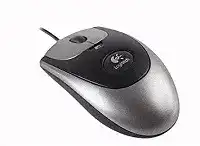
The round top control may stop changing between open programs even though pointer movement and normal clicks still work. The Logitech MX300 Optical Mouse Driver supplies the original MouseWare functions used for Quick Switch, programmable commands, scrolling adjustments, and button control on compatible systems. Without that software, a newer operating system may treat this corded device as an ordinary USB mouse.
The MX300 has a four-button layout, a clickable scroll wheel, an 800 dpi optical sensor, and a dedicated Quick Switch Program Selector. It connects through USB and originally included a USB-to-PS/2 adapter. There is no wireless receiver, Bluetooth mode, battery, charging circuit, side-button pair, adjustable DPI control, or support for current Logitech customization applications.
Basic movement, left-click, right-click, and wheel scrolling often remain available through the computer’s standard HID support. The special top button needs a suitable assignment before it can change programs or perform another command. This difference explains why the device can appear fully detected while one of its most recognizable features remains inactive.
Logitech MX300 Optical Mouse Windows Driver Download
| Driver Name | Description | Supported OS | File Size | Download |
|---|---|---|---|---|
| MouseWare | Provides mouse configuration and device control features for compatible Windows systems. | Windows 8 32-bit/64-bit, Windows 7 32-bit/64-bit | 4.07 MB |
Logitech MX300 Optical Mouse Mac OS Driver Download
| Driver Name | Description | Supported OS | File Size | Download |
|---|---|---|---|---|
| Logitech Control Center | Adjusts mouse buttons, scrolling behavior, pointer response, and model-specific controls on supported Mac systems. | Mac OS X 10.13, Mac OS X 10.12 | 16.63 MB | |
| Logitech Control Center | Manages button assignments, tracking preferences, scrolling options, and other mouse settings. | Mac OS X 10.11, Mac OS X 10.10, Mac OS X 10.9, Mac OS X 10.8 | 17.06 MB | |
| Logitech Control Center | Enables configurable mouse functions and pointer settings across several earlier Mac OS X releases. | Mac OS X 10.9, Mac OS X 10.8, Mac OS X 10.7, Mac OS X 10.6 | 17.73 MB | |
| Logitech Control Center | Adds mouse customization controls and device preferences for Mac OS X 10.5.x. | Mac OS X 10.5.x | 18.7 MB | |
| MouseWare | Installs legacy Logitech mouse support and basic configuration tools for classic Mac OS. | Mac OS | 3.75 MB |
The top button does nothing
First test the button while several ordinary desktop programs remain open. Quick Switch cannot show much when only one application is running, and some full-screen programs capture input before the switching command reaches the desktop. Open a browser, a folder, and a text program, then press the control again.
On an older compatible Windows installation, open MouseWare and confirm that the fourth control uses the Quick Switch or program-selection command. Apply the change and restart the affected programs. If the button works with another assignment but not Quick Switch, the physical switch is functioning and the problem lies in the selected command or operating-system compatibility.
Quick Switch opens the wrong item
An inherited MouseWare profile can attach a different action to the top control, especially after another Logitech mouse has used the computer. Return that button to its original program-selector role or choose a plain keystroke that the current system understands. Remove application-specific profiles that override the main assignment when they no longer serve a purpose.
The control works once and then stops
Close background utilities that remap mouse buttons, keyboard shortcuts, or window switching. Two programs can react to the same press and leave the result looking inconsistent. Test with only MouseWare active, then add other input tools back one at a time. A repeatable result after one utility closes identifies a software conflict rather than an intermittent button.
Choose Software That Matches This MouseWare-Era Model
The Logitech MX300 Optical Mouse Driver comes from a much earlier software generation than SetPoint, Logitech Options, Logi Options+, or G HUB. Installing a newer package because it carries a later version number does not make it suitable for this model. Those applications may ignore the MX300 entirely while Windows continues to provide ordinary pointer functions.
MouseWare will not install on a current Windows release
The original system requirements covered Windows 95, 98, Me, NT 4.0, 2000, and XP, with USB operation beginning at Windows 98. That age creates installer and control-panel problems on Windows 10 or Windows 11. Use the built-in HID support for normal operation when the legacy package refuses to run rather than forcing obsolete services into the system.
Compatibility mode sometimes launches an old installer, but a successful progress bar does not prove that its control panel or background components loaded correctly. After restarting, test the fourth button and look for actual MouseWare controls. If only the ordinary Windows mouse panel appears, rely on standard functions or use a compatible older computer for the original programmable features.
Several Logitech utilities appear in installed programs
Remove programs that do not recognize the MX300 before testing MouseWare. A machine may contain remnants from wireless mice, gaming devices, or newer productivity models, and their background services can compete for button events. Restart after removal so Windows releases those components before you reconnect the corded mouse.
Avoid replacing one unsupported utility with another. This model does not need receiver software, pairing software, Options+, or G HUB. Its original enhancement package was MouseWare, while the operating system handles ordinary USB mouse input without a separate modern download.
The Logitech panel opens but changes never apply
Connect the mouse before opening MouseWare, then make one obvious temporary change to the fourth button. Apply it and test immediately. If nothing changes, restart Windows and try a direct USB connection. A control panel that opens from an old installation may remain present even when its device service no longer communicates with current Windows.
USB and PS/2 Connection Problems Before Windows Starts
The MX300 can use USB directly or operate through its supplied USB-to-PS/2 adapter on appropriate older computers. These connection paths behave differently. Troubleshooting becomes easier when you select one method, shut the computer down where PS/2 requires it, and avoid switching back and forth during the same test.
The mouse is absent after connecting through PS/2
PS/2 hardware normally needs to be attached before startup. Shut down the computer completely, fit the proper adapter securely, connect it to the mouse port, and then power the machine on. Hot-plugging a PS/2 connection can fail to detect the device and may not be safe on older hardware.
Confirm that the adapter belongs to this type of Logitech mouse. A physically similar passive adapter from another brand or device may use different internal wiring. When USB works but PS/2 never does, the adapter, port, or motherboard support is a more likely cause than the optical sensor.
Windows repeatedly connects and disconnects the mouse
Move the cable gently near the USB plug and where it enters the shell while watching the pointer. Repeated connection sounds or brief freezes at the same cable position suggest an internal wire break. No driver package can correct a conductor that opens whenever the cord bends.
Try another direct port before blaming the cable. Avoid an unpowered hub, monitor socket, keyboard pass-through, or loose front-panel connector during diagnosis. If the mouse remains stable in one port but not another, continue using the working port and inspect the failing connection separately.
The optical light appears but the pointer stays still
Sensor illumination only confirms that some power reaches the device. Disconnect it, restart the computer, and reconnect it after the desktop loads. Check Device Manager for a normal HID mouse entry or an unknown USB device. Remove only the failed entry, then reconnect the MX300 so Windows can enumerate it again.
Test on another computer before reinstalling MouseWare. If the light appears but movement fails on both systems, examine the cable and sensor area. When the second computer tracks normally, the first system likely has a damaged USB entry, port problem, or software conflict.
Tracking, Wheel, and Click Symptoms That Software Cannot Always Fix
The MX300’s optical engine was rated at 800 dpi and intended to follow quick hand movement without a mechanical ball. Age, desk material, debris, and worn switches can still alter its response. Separate these physical symptoms from button-assignment trouble before changing the Logitech MX300 Optical Mouse Driver again.
The pointer accelerates more than expected
Older MouseWare acceleration and current Windows pointer enhancement can combine, making movement begin slowly and then travel too far. Return MouseWare speed and acceleration controls to moderate values, then review the Windows pointer options. Test one acceleration layer at a time instead of adjusting both panels together.
Use long and short movements across a plain mouse pad. If the cursor response becomes predictable after disabling one enhancement, keep that arrangement. A fixed 800 dpi sensor will not change resolution through software, so speed controls alter cursor behavior rather than the hardware’s native sensing rate.
Movement breaks up on a glossy desk
Place the mouse on a matte pad with an even, non-reflective texture. Glass, polished surfaces, mirrors, and bold repeating patterns can confuse an early optical sensor. Wipe the sensor opening with a dry lint-free cloth and remove hair or dust without pushing tools into the lens area.
Compare slow diagonal movement on two different surfaces. Tracking that improves immediately on the pad indicates a surface-reading problem. Skips that occur in the same direction everywhere, including another computer, point more strongly toward the sensor or cable.
Wheel scrolling moves in the wrong direction or misses lines
Check several programs before treating the wheel as defective. One application may use unusual scroll increments while browsers and folders remain normal. Restore the Windows wheel setting to a modest number of lines and disable any duplicate scrolling enhancement left by another input utility.
Disconnect the device and clear loose debris around the wheel with short bursts of dry air or a soft brush. Turn the wheel while cleaning its edges. Reversing or erratic movement that continues across multiple systems usually indicates wear in the wheel encoder rather than a downloadable software fault.
The wheel rotates normally but middle click fails
MouseWare can assign a different command to the wheel press, so set it to a standard middle-button action before judging the switch. Reopen the program that needs middle click after applying the change. Some older design and browsing applications read this input only when they start.
If an input test detects wheel rotation but never sees the press on any computer, the click mechanism may have worn out. The scroll encoder and wheel switch are separate parts, which is why one function can remain healthy while the other stops responding.
A single press becomes a double-click
Lower or raise the Windows double-click speed slightly and test again. A setting at an extreme can make normal timing feel wrong, but it does not usually create repeated electrical presses. When one physical click opens files twice on several computers, switch wear is the stronger explanation.
Also test left and right buttons separately. A fault isolated to one control does not justify repeated software removal. Internal switch replacement requires soldering and safe disassembly, so replacement of the mouse may be more practical unless the hardware has personal or historical value.
The fourth button works inconsistently in games
Some older games recognize only the two main buttons and wheel, while others accept a keyboard command assigned through MouseWare. Change the top control from Quick Switch to an unused keystroke and relaunch the game. Keep the desktop assignment separate when the software provides application-specific profiles.
A game that still ignores the command may bypass the MouseWare layer or restrict extra input. Confirm that the button works in another program before altering more software. This avoids mistaking an application limitation for a failed MX300 control.
Preserve the Functions That Still Suit the MX300
Use the Logitech MX300 Optical Mouse Driver only where the operating system and MouseWare generation genuinely match. On a current computer, standard USB support may provide the most dependable route for movement, primary clicks, middle click, and scrolling, even though Quick Switch customization remains unavailable.
Keep the cable free from sharp bends near both ends, use a non-reflective surface, and clean dry debris from the sensor and wheel openings. Test unusual click or scroll behavior on a second machine before changing software. That comparison quickly separates a Windows configuration problem from wear inside a mouse first built for much older computers.
The best outcome depends on which feature matters most. An older supported system can preserve MouseWare assignments and the original program-selector control. A newer system may offer fewer custom functions but steadier basic HID operation. Choosing between those two paths is more effective than layering modern Logitech utilities onto hardware they were never written to manage.