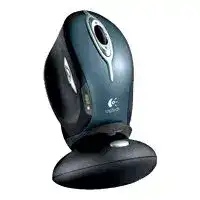
The Logitech MX1000 Laser Cordless Mouse Driver becomes relevant when the receiver appears connected, yet the mouse no longer moves or its extra controls disappear. This older rechargeable model uses its own cordless USB receiver and charging station rather than Bluetooth, Unifying, or Logi Bolt. Its connection, charging contacts, internal battery, and SetPoint software therefore need separate checks.
The receiver and cradle belong to the original MX1000 system. A modern Logitech receiver cannot replace them, even when it fits the same USB port. Before changing software, inspect the receiver cable, cradle connection, power adapter, and USB plug. A loose cable can leave the charging station lit while the computer receives no mouse data.
Logitech MX1000 Laser Cordless Mouse Windows Driver Download
| Driver Name | Description | Supported OS | File Size | Download |
|---|---|---|---|---|
| SetPoint Software 64-bit | Full offline package for configuring mouse buttons, tracking speed, hot-keys, device settings, and battery status. | Windows 11, Windows 10 64-bit, Windows 8 64-bit, Windows 7 64-bit | 80.45 MB | |
| SetPoint Software 32-bit | Complete offline installer for adjusting mouse controls, pointer tracking, hot-keys, and device-specific preferences. | Windows 11, Windows 10 32-bit, Windows 8 32-bit, Windows 7 32-bit | 78.04 MB | |
| SetPoint Smart Installer | Compact setup tool that requires an internet connection to download the needed mouse customization components. | Windows 11, Windows 10 32-bit/64-bit, Windows 8 32-bit/64-bit, Windows 7 32-bit/64-bit | 4.61 MB |
Logitech MX1000 Laser Cordless Mouse Mac OS Driver Download
| Driver Name | Description | Supported OS | File Size | Download |
|---|---|---|---|---|
| Logitech Control Center | Controls mouse button assignments, scrolling behavior, pointer settings, and other device-specific functions on newer Mac systems. | macOS 11, macOS 10.15, macOS 10.14, macOS 10.13 | 17.76 MB | |
| Logitech Control Center | Enables configurable mouse buttons, navigation controls, pointer response, and model-specific preferences on supported Mac OS X releases. | Mac OS X 10.13, Mac OS X 10.12, Mac OS X 10.11 | 17.15 MB | |
| Logitech Control Center | Adds access to button mapping, cursor movement, scrolling adjustments, and compatible mouse controls on earlier Mac OS X versions. | Mac OS X 10.11, Mac OS X 10.10, Mac OS X 10.9, Mac OS X 10.8 | 17.06 MB |
Receiver and mouse have lost their cordless link
Reconnect the hardware before reinstalling anything. Press the connection button on the receiver, then press the connect button underneath the mouse while both units remain close together. The order matters because the receiver must first listen for the identification signal sent by the MX1000.
If the link fails, disconnect the receiver’s USB plug for several seconds and reconnect it directly to the computer. Repeat the two-button connection process after Windows finishes detecting the USB device. Do not press both buttons repeatedly at random; begin a fresh connection cycle each time.
The USB receiver vanishes after a restart
A powered hub or keyboard USB socket may not initialise the receiver consistently during startup. Connect the MX1000 receiver to a direct computer port and restart again. On a desktop, try another port if the first one shares power with several demanding devices. Windows should recognise the receiver before SetPoint attempts to find the mouse.
Check Device Manager when the receiver remains absent. An unknown USB entry or warning symbol points to the port, chipset software, or receiver rather than the laser sensor. Remove only the failed USB entry, restart the computer, and let Windows detect the hardware again. Avoid deleting unrelated keyboard or Bluetooth devices.
The pointer freezes until the receiver is unplugged
Intermittent freezes often clear when the USB connection resets, but that does not prove the mouse itself has failed. Test a second direct USB port and keep the receiver cable away from power bricks, crowded hubs, and bundles of monitor cables. The original cordless system can become less tolerant of electrical noise as its components age.
When unplugging the receiver restores movement only briefly, reconnect the mouse with the buttons on both units. A receiver that repeatedly loses its paired identity may be deteriorating. Test the complete cradle and mouse together on another computer before changing Windows files or buying an incompatible replacement receiver.
Charging Faults Need Hardware Checks Before Another Software Install
The MX1000 contains an internal rechargeable lithium-ion battery and rests in its cradle for charging. The Logitech MX1000 Laser Cordless Mouse Driver does not control dirty contacts, poor cradle alignment, or a battery that can no longer retain energy. These physical faults often look like connection failures because the device may light briefly and then stop transmitting.
The mouse sits in the cradle but does not charge
Lift the mouse and place it back slowly, making sure it settles against the charging points. The indicator should react when contact begins. If it does not, disconnect the cradle’s power adapter, inspect both sets of metal contacts, and remove dry residue with a clean lint-free cloth. Do not pour cleaner into the cradle or battery compartment.
The charging pins in the base must rise freely and touch the pads underneath the mouse. A pin that remains pressed down can break the circuit even though the power adapter works. Gently check for equal movement without bending the pins. Repositioning the cradle on a level desk can also improve contact.
Charging starts only after several attempts
Repeated docking usually points to alignment or oxidised contact surfaces. Clean the accessible pads, confirm that the cradle is not twisted by its cable, and lower the rear of the mouse into position without forcing it. A small movement that changes the indicator from off to charging is evidence of a contact problem, not a missing package.
Check the power adapter separately from the USB receiver connection. The station needs its external power supply for dependable charging, while USB carries receiver data. A working pointer does not prove that the charging circuit has power, and a glowing charging indicator does not prove that Windows can see the receiver.
The charge indicator reaches full but runtime is very short
An aged internal battery may accept a surface charge and then lose voltage quickly. Charge the MX1000 fully, remove it from the base, and note how long it operates before the battery indicator falls. A dramatic drop after a short session usually indicates battery wear rather than excessive pointer activity or an incorrect Windows preference.
The battery was not intended as a routine slide-out replacement. Opening the mouse introduces risks to its wiring, charging circuit, and plastic clips. Use professional repair assistance when battery replacement is justified. Installing SetPoint again cannot restore the capacity of a worn lithium-ion cell.
SetPoint Controls the Buttons That Windows Treats as Ordinary Inputs
Basic movement and main clicks can work through Windows mouse support while the thumb controls, wheel tilt, cruise buttons, or application-switch function remain inactive. The Logitech MX1000 Laser Cordless Mouse Driver package used SetPoint to identify those model-specific inputs and assign commands. Logitech Options and Options Plus target newer product generations and should not be assumed to recognise this device.
Use a SetPoint release intended for the operating system and the MX1000’s hardware period. Very old installers may refuse to run on current 64-bit Windows editions. Compatibility mode sometimes starts an installer, but it cannot guarantee that its background service or control panel will communicate with a modern Windows input system.
SetPoint opens but shows a generic mouse
Confirm that the original receiver is connected and that the pointer already responds. SetPoint cannot identify model-specific controls through an unrelated receiver. Restart its service by rebooting Windows after installation, then open the mouse control panel again. Connecting the receiver only after SetPoint starts may leave the program with a generic device profile.
Remove conflicting Logitech mouse packages when several generations appear in installed applications. Retain installers before making changes so rollback remains possible. Uninstall only mouse utilities you recognise, restart, and install the selected SetPoint version once. Do not remove keyboard software blindly when the computer also uses a Logitech keyboard.
Thumb buttons work in one program but fail in another
Application-specific assignments can override the general SetPoint profile. Open the button page and inspect whether the affected program has its own configuration. Assign a standard Back, Forward, or Generic Button action for testing. Some older games and design programs respond more consistently to generic mouse commands than to specialised SetPoint functions.
Run the application and SetPoint at the same permission level. An elevated program may ignore commands from a utility running with normal rights. Rather than keeping every program as administrator, return both to normal access where possible. This avoids weakening everyday security merely to recover a mouse shortcut.
The wheel scrolls but tilt or cruise controls do nothing
Windows can recognise vertical wheel movement without understanding every additional MX1000 control. Check SetPoint assignments for horizontal scrolling and the buttons positioned around the wheel. Restore their default actions first. Custom keystrokes make diagnosis harder because the target program may reserve or reject the chosen key combination.
When one program zooms instead of scrolling, inspect that program’s own mouse and modifier-key preferences. SetPoint mappings such as Universal Scroll can behave differently from a generic wheel command. Changing the affected control to a normal wheel or generic-button action often produces better results in older games, drawing tools, and remote sessions.
Laser Tracking and Click Problems Can Continue After the Software Looks Correct
The MX1000 was built around an early laser tracking engine, so its surface behaviour differs from a modern optical office mouse. It can read many desks well, but reflective glass, glossy coatings, and certain repeating patterns may cause hesitation or sideways jumps. Test the device on a plain mouse pad before changing pointer speed or acceleration.
The cursor jumps after the mouse leaves its cradle
Clean the area around the laser opening with a dry, soft swab while the mouse remains switched off. Hair or dust crossing the sensor window can make movement erratic. Do not press against the lens or apply liquid directly. Once clean, reconnect the cordless link and test at a moderate Windows pointer speed.
A nearly exhausted battery can produce similar pauses, especially when movement resumes after idle time. Dock the mouse until charging completes, then test again close to the receiver. If tracking improves only while the charge is high, the internal battery may no longer maintain stable voltage through an ordinary work session.
One click becomes two or dragging releases early
Set the Windows double-click speed near the middle and test folder opening. An extreme value can make normal clicks seem inconsistent, but it will not usually explain a drag that releases while the button remains held. Test the same action on another computer using the original receiver to separate software behaviour from switch wear.
Double clicks that follow the mouse between computers normally come from an ageing button switch. Compressed-air cleaning around the button gap may remove loose debris, but avoid spraying liquid or forcing the shell. A permanent repair requires careful switch replacement, which is better left to someone familiar with small electronic soldering.
The pointer wakes slowly after long inactivity
Allow a moment for the cordless link to resume before pressing several controls. If the pointer never returns, place the mouse in the cradle briefly and remove it, then reconnect it through the receiver buttons. Repeated failure after idle time may involve the battery, receiver connection, or USB power management rather than the laser surface.
Windows can turn off USB hardware to conserve energy. Open the relevant USB hub properties in Device Manager and review its power-management option when every long idle period disables the receiver. Change only the hub associated with the mouse, then restart and test. Disabling power saving across all USB controllers can increase energy use and create unrelated problems.
Use the Cradle, Receiver, and Software as One Matched System
The most useful Logitech MX1000 Laser Cordless Mouse Driver test begins with the original hardware chain. Power the cradle, attach its receiver lead directly to the computer, reconnect the receiver and mouse, charge the internal battery, and confirm ordinary movement before opening SetPoint. Add custom button actions only after the base connection remains steady.
Keep the original receiver with the mouse because newer Logitech wireless standards do not pair with it. When charging remains unreliable after contact cleaning, the battery empties rapidly, and the link fails on another computer, age-related hardware wear is the stronger explanation. At that stage, preserving the old installer or changing USB preferences will not repair the cradle, battery, or receiver electronics.