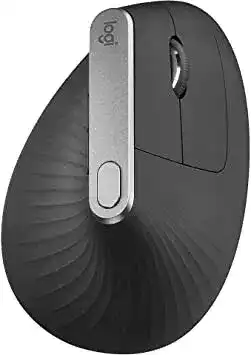
Changing from a conventional mouse to the MX Vertical often exposes two separate questions: whether the computer can see it and whether its extra controls work as intended. The Logitech MX Vertical Advanced Ergonomic Mouse Driver provides access to cursor-speed adjustment, button assignments, scrolling preferences, and application profiles. The mouse can connect through Bluetooth, its Unifying USB receiver, or the supplied USB-C charging cable.
Its 57-degree vertical shape changes how the hand rests, but that physical design does not require a special Windows pointer component. Normal movement may begin as soon as the operating system detects the device. Logi Options+ adds the model-specific controls that a standard HID connection cannot display, including custom actions for the forward, back, and cursor-speed buttons.
Logitech MX Vertical Advanced Ergonomic Mouse Windows Driver Download
| Driver Name | Description | Supported OS | File Size | Download |
|---|---|---|---|---|
| Logi Options+ Software | Customizes mouse buttons, pointer behavior, scrolling, shortcuts, gestures, and device settings. | Windows 11, Windows 10 32-bit/64-bit | 43.21 MB |
Logitech MX Vertical Advanced Ergonomic Mouse Mac OS Driver Download
| Driver Name | Description | Supported OS | File Size | Download |
|---|---|---|---|---|
| Logi Options+ Software | Configures mouse buttons, scrolling behavior, pointer movement, shortcuts, gestures, and application profiles. | macOS 26, macOS 15, macOS 14 | 19.56 MB | |
| Logi Options+ Software | Provides button remapping, gesture assignments, pointer controls, scrolling adjustments, and device customization. | macOS 13, macOS 12, macOS 11, macOS 10.15 | 19.56 MB | |
| Logi Options+ Software | Manages customizable controls, pointer response, scrolling preferences, gestures, and mouse-specific settings. | macOS 13 | 19 MB | |
| Logi Options+ Software | Enables personalized button functions, scrolling options, pointer tuning, shortcuts, and gesture controls. | macOS 12 | 18.65 MB | |
| Logi Options+ Software | Supports mouse button customization, pointer adjustments, scrolling preferences, gestures, and device configuration. | macOS 11 | 17.51 MB |
Logi Options+ shows no device
Start by checking which connection the mouse currently uses. A Bluetooth entry, Unifying receiver channel, and USB cable can each present the device differently. Turn the mouse off, close Logi Options+, and disconnect the charging cable. Turn it on again through the connection you intend to keep, then reopen the software after the pointer begins moving.
On Windows, remove an incomplete Logi Options+ installation through Apps, restart, and install the current package with administrator permission. Do not keep Logitech Options and Logi Options+ running together while diagnosing detection. Their background components may compete for the same device controls or leave an older service active after an upgrade.
macOS detects movement but ignores custom actions
macOS may permit ordinary pointing while withholding access needed for button assignments and background control. Open Privacy and Security and review Accessibility, Input Monitoring, and Bluetooth permissions for Logi Options+ and its background process. Turn the relevant permission off and on again when it already appears enabled, then quit and reopen the application.
A reinstall alone may not restore a permission entry that macOS retained from an older version. Remove the stale entry from the privacy panel where possible, restart the Mac, and launch the newly installed application. Accept its requests as they appear rather than dismissing them and trying to add every component manually afterward.
Three Connection Paths Can Point to Different Channels
The Easy-Switch control on the underside stores up to three device connections. A mouse that appears dead may simply be sitting on a channel paired with another computer. Press the button briefly to change the numbered channel. Holding it for about three seconds starts pairing, so avoid a long press when you only want to return to an existing connection.
Bluetooth pairing never lists MX Vertical
Unplug the USB-C cable before beginning wireless pairing. Select the intended Easy-Switch number, then hold the channel button until its light flashes rapidly. Remove an older MX Vertical entry from the computer’s Bluetooth list before searching again. A slow flash or steady light usually means the channel has not entered discovery mode.
Windows can retain a failed pairing record even after the mouse disappears from the visible list. Turn Bluetooth off, restart the computer, turn it back on, and add the device again. On a Mac, delete the former connection, restart Bluetooth, and keep the mouse close during discovery. Pair only one computer to that channel.
The Unifying connection vanishes after switching devices
A numbered channel must contain the receiver pairing you expect. Select the channel previously assigned to the Unifying receiver before assuming the dongle has failed. When that pairing was overwritten, use the Unifying pairing utility to associate the MX Vertical with the receiver again. Keep the charging cable unplugged during this process.
Plug the receiver directly into a working USB-A socket. Metal desks, docks, crowded hubs, and nearby high-speed USB equipment can shorten the wireless path. A short extension cable can place the receiver away from a noisy dock without changing the pairing. Confirm the mouse works there before restoring other USB devices.
The cable charges but the pointer stays wireless
The MX Vertical can communicate through its USB-C charging cable, but the mouse must remain switched on. Some charge-only replacement cables carry power without data, which makes the battery indicator react while the computer detects no wired input. Test the supplied cable or another cable known to transfer files, and connect it directly to the computer.
Do not pair a new Bluetooth channel merely because cable mode failed. First inspect the USB-C plug for an incomplete fit and try another computer port. If wireless operation remains normal but several data-capable cables provide only charging, the port or its internal data connection may need service.
Cursor Speed, Buttons, and Profiles Behave Differently by Application
The Logitech MX Vertical Advanced Ergonomic Mouse Driver lets the top cursor-speed button change sensitivity within the sensor’s adjustable range. It can also replace that button’s default role with another command. When pressing it produces no visible speed change, inspect its assignment before treating the button as faulty.
The cursor-speed button seems inactive
Open the point-and-scroll controls and place the two speed values farther apart. Small differences can feel almost identical on a high-resolution display. Test the button with one monitor and a moderate Windows or macOS pointer-speed value. Once the change becomes obvious, refine both levels for precision work and wider movement.
Application profiles can replace the global assignment after a particular program opens. Check whether the button changes behaviour only in a browser, design program, or spreadsheet. Remove that application-specific command or make its assignment match the general profile. This also explains why the control may work on the desktop but fail inside one program.
Forward and back buttons do nothing
Restore both thumb controls to their standard forward and back actions, then try them in a browser with several pages in its history. A newly opened tab has nowhere to go back, so it provides a poor test. When browser navigation works, the hardware and software assignment are functioning even if another application ignores those commands.
For programs that do not understand browser navigation, assign recognised keyboard shortcuts through Logi Options+. Create an application profile only after the global controls behave normally. This prevents an incorrect general mapping from being hidden beneath several program-specific profiles.
Assignments reset or change after an update
First verify that Logi Options+ still identifies the mouse on the same channel and connection. Bluetooth and Unifying entries may receive separate software associations after re-pairing. Recreate one simple button action, close the utility, and reopen it. If the change remains, rebuild the remaining assignments instead of importing a profile from an uncertain device entry.
When every custom action disappears at login, check that the Logi Options+ background service may run at startup. On macOS, revisit its background-item and input permissions. On Windows, repair or reinstall the application if its service repeatedly stops. Ordinary clicks can continue even while the customization process is absent.
Mechanical Symptoms Need a Different Diagnosis
Software adjustments can correct reversed scrolling, unsuitable speed values, and mistaken commands. They cannot repair a worn wheel encoder or button switch. Test a suspicious click or scroll action on another computer before changing several profiles. The same physical symptom through Bluetooth, Unifying, and cable mode strongly points to the mouse itself.
The wheel scrolls backward or misses notches
Check the scrolling direction and line count in both the operating system and Logi Options+. Conflicting natural-scrolling preferences can reverse the expected direction, but they do not normally create random jumps. Test a long document with application profiles disabled. If one downward turn produces upward movement or blank notches, clean around the wheel with a dry soft brush.
Use compressed air sparingly while the mouse is off, and keep the nozzle at a safe distance. Do not pour cleaner into the wheel opening. Persistent erratic movement on another computer usually indicates contamination inside the mechanism or encoder wear. Repeated software installation will not change that mechanical signal.
One click becomes two
Adjust the operating system’s double-click speed and use its test area first. A difficult speed value can confuse testing, although it cannot explain broken drag operations. Next, turn off custom click assignments and try selecting text, moving a window, and dragging a file while holding the left button steadily.
Unexpected releases during a drag, missed presses, or duplicate clicks across multiple computers suggest switch wear. Power cycling may briefly alter the symptom but does not repair the contact. Avoid unsupported dismantling while the product remains covered by warranty. Record the behaviour and seek hardware support when the fault survives every connection method.
The pointer hesitates after waking the computer
Give the active wireless channel a few seconds to reconnect after sleep. When it remains unresponsive, switch to another channel and back without holding the button. For Bluetooth, toggle the computer’s Bluetooth connection or remove and pair the channel again. For Unifying, reconnect the dongle or try another direct port.
If scrolling suddenly zooms or buttons produce strange commands after wake, press and release the computer’s Ctrl, Alt, Shift, and Command keys as applicable. A stuck modifier state can transform ordinary wheel movement into zooming. Lock and unlock the session again before rebuilding the mouse profile.
Charging Problems Should Be Separated from Pairing Problems
The rechargeable battery can run for an extended period, and a brief charge can provide several hours of operation. When the mouse shuts down soon after unplugging, leave it connected long enough for a meaningful charge rather than judging the battery from a momentary LED response. Keep the power switch on when using the cable for wired control.
No charging response appears
Try another USB power source and a known working USB-C cable. Remove any dust that prevents the plug from seating fully, using only a dry non-metallic tool around the outer opening. A dock may stop powering its ports during sleep, so charge directly from an active computer port or suitable USB supply during testing.
Logi Options+ may show the battery level after the device reconnects, but that reading can lag immediately after charging begins. Disconnect and reconnect the mouse after several minutes. When it works only while attached and switches off immediately after cable removal, the battery or charging circuit may have deteriorated.
Build the MX Vertical Around One Connection per Channel
The Logitech MX Vertical Advanced Ergonomic Mouse Driver works best when each Easy-Switch number has a clear purpose. Keep one channel for the Unifying receiver, use another for Bluetooth on a second computer, and reserve the third only when needed. Re-pairing the same number for different systems repeatedly makes connection failures difficult to trace.
Finish by testing pointer speed, the thumb controls, middle click, and wheel movement with application profiles temporarily disabled. Then restore program-specific commands one at a time. This separates a profile mistake from a Bluetooth record, receiver pairing, macOS permission, charging cable, worn switch, or failing wheel mechanism.
The vertical shape may require an adjustment period, but erratic input does not come from ergonomics alone. Keep the forearm supported, avoid gripping the shell tightly, and set a sensitivity that reduces unnecessary lifting. Once the connection and controls behave consistently, refine the Logitech MX Vertical Advanced Ergonomic Mouse Driver configuration around the programs you use most.