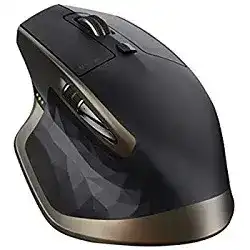
A Logitech MX MASTER Mouse Driver page should start with the switching problem, because this mouse can work through a Logitech Unifying receiver or Bluetooth Smart and can move between three paired devices. If the channel, receiver, or Bluetooth record is wrong, the mouse may look charged and alive but still refuse to control the computer in front of you. Use the software and fixes below for pairing recovery, wheel behavior, thumb controls, gesture actions, charging, and pointer movement.
Logitech MX Master Mouse Windows Driver Download
| Driver Name | Description | Supported OS | File Size | Download |
|---|---|---|---|---|
| Logi Options+ Smart Installer | Installs Logitech Options+ for customizing mouse buttons, scrolling, pointer behavior, shortcuts, and device settings. | Windows 11, Windows 10 32-bit/64-bit | 43.09 MB |
Logitech MX Master Mouse Mac OS Driver Download
| Driver Name | Description | Supported OS | File Size | Download |
|---|---|---|---|---|
| Logi Options+ Installer | Provides Logitech Options+ support for adjusting mouse button actions, scroll controls, shortcuts, and device preferences. | macOS 13 | 19 MB | |
| Logi Options+ Installer | Adds Options+ controls for button customization, pointer settings, scrolling behavior, gestures, and supported mouse features. | macOS 26, macOS 15, macOS 14 | 19.44 MB | |
| Logi Options+ Smart Installer | Downloads and installs Options+ components for managing mouse shortcuts, scrolling options, gestures, and device configuration. | macOS 11 | 17.51 MB | |
| Logi Options+ Smart Installer | Sets up Options+ on supported Mac systems for pointer tuning, button assignments, scroll settings, and mouse controls. | macOS 12.0 | 18.65 MB | |
| Logi Options+ Smart Installer | Installs Options+ features for supported MX Master mouse customization, including gestures, shortcuts, scrolling, and device settings. | macOS 13, macOS 12, macOS 11, macOS 10.15 | 19.44 MB |
Logitech MX MASTER Mouse Driver When Easy-Switch Lands on the Wrong Computer
The MX Master uses Easy-Switch technology, so one button under the mouse can cycle between three saved channels. That is useful at a desk with several computers, but it also creates a simple failure: the mouse may be connected to channel two or three while you are trying to use channel one. Before reinstalling anything, press the Easy-Switch button and watch which channel light reacts.
If the channel light changes but the pointer stays still, pair that channel again. For a Unifying receiver setup, plug in the receiver and add the mouse through Logitech pairing software. For Bluetooth Smart, remove the old MX Master entry from the operating system Bluetooth list, hold the Easy-Switch button until the channel flashes quickly, and pair it again from the computer.
Bluetooth shows paired but nothing moves
A stale Bluetooth record can leave the mouse listed as paired without giving it a working input path. Delete the saved Bluetooth entry, restart Bluetooth on the computer, and put the same Easy-Switch channel back into pairing mode. Do not pair a different channel by mistake, because each channel keeps its own connection memory.
On Windows, the original Bluetooth Smart support requirement matters for older systems. If the computer does not offer a working Bluetooth mouse path, use the included Unifying receiver instead. That gives the MX Master a direct Logitech wireless route without depending on the computer’s Bluetooth stack.
Unifying receiver works on one port but not another
The MX Master includes a Logitech Unifying receiver, and that receiver should sit in a stable USB port during pairing. A loose hub, dock, or port crowded by other wireless devices can make pairing fail halfway. Try a direct USB port first, then open the Unifying pairing tool and power-cycle the mouse only when the utility asks for it.
Scroll Wheel Mode, Thumb Wheel, and Missing Side Movement
The main wheel on this model uses smart speed-adaptive scrolling. Slow movement should feel controlled, while a fast flick can shift into hyper-fast scrolling for long pages. If that shift feels wrong, open the Logitech software and check the wheel mode rather than changing only the Windows scroll-lines setting.
The thumb wheel is a separate control for side-to-side scrolling and other assigned actions. It will not behave the same in every program. A spreadsheet, timeline, photo editor, or wide document gives a better test than a short web page. If it works in one program but not another, the application may not accept horizontal scroll input from that control.
Wheel jumps too far after one flick
A free-spinning wheel can look like a fault when the auto-shift point is too sensitive for the way you scroll. Reduce the scroll speed or change the smart-shift behavior in Logitech Options or the compatible Logitech control app. Then test a long document with both slow finger movement and a fast flick.
Dust around the wheel can also make the switch between click-to-click and fast movement feel uneven. Turn the mouse off and clean around the wheel with a dry, soft brush or cloth. Avoid liquid near the wheel opening, because the scroll mechanism and buttons sit close together.
Thumb wheel does not scroll sideways
The thumb wheel needs software support for its best behavior. If the Logitech MX MASTER Mouse Driver package is missing or the control app cannot see the mouse, the thumb wheel may do nothing or only send a limited command. Reconnect the mouse, reopen the Logitech utility, and check whether the thumb wheel has a task assigned.
Some programs reserve horizontal scrolling for specific panels. Test the thumb wheel inside a wide spreadsheet or editing timeline before assuming the mouse has failed. If it works there, create an app-specific assignment only for the program where you need a different action.
Gesture Button and Custom Controls That Block Normal Use
The MX Master has a gesture button near the thumb area, plus customizable functions through Logitech software. When that button has a system action assigned, holding it while moving the mouse can trigger gestures instead of normal pointer movement. If the cursor stops only while your thumb rests near that area, check the gesture button first.
A stuck or constantly pressed gesture area can create a confusing symptom: clicks and scrolling may still react, but the pointer movement feels locked or badly restricted. Gently release pressure around the thumb rest, clean the edge of the button area, and test the mouse without gripping the thumb side tightly.
Back, forward, or gesture actions open the wrong command
Custom actions can change after a software update, profile change, or migration to a new computer. Open the Logitech app, select the MX Master, and review each button assignment. Keep one simple global profile while testing. After the buttons behave normally, add app-specific commands again one program at a time.
On macOS, button and gesture features may need permission for the Logitech app to control accessibility or input actions. If pointer movement works but gestures do not, check the privacy permissions, restart the Logitech app, and test Mission Control or desktop switching again.
Charging, Battery Level, and USB Cable Confusion
The MX Master uses a rechargeable Li-Po battery and charges through a micro-USB cable. A weak charge can cause delayed wake, failed pairing, or random disconnects before the battery looks completely empty. Charge the mouse from a working USB power source, then watch the battery indicator in Logitech software after reconnecting.
Not every micro-USB cable behaves well for charging. Some old cables fit loosely or were made mainly for power with poor connector contact. If the mouse does not charge, try another known-good micro-USB cable and another USB port or charger. Leave the mouse connected long enough to rule out a drained battery state.
Mouse works only while plugged in
A short test while charging can hide a battery or connection problem. Unplug the cable after the battery has had time to charge, switch the mouse off, then back on, and check whether it reconnects on the selected Easy-Switch channel. If it fails only when unplugged, treat power and pairing as separate checks.
The cable does not turn the MX Master into a normal wired USB mouse for daily use. It charges the battery while the wireless connection still matters. Keep the receiver or Bluetooth connection active during charging tests.
Pointer Tracking on Glass, Glossy Desks, and Mixed Wireless Setups
Darkfield laser tracking lets this model work on many difficult surfaces, including glass that meets the required thickness. That does not mean every shiny, dusty, or uneven desk surface will feel perfect. If the cursor drifts, slows, or shakes, test the mouse on plain paper or a simple mouse pad before changing speed settings.
The Logitech MX MASTER Mouse Driver can expose pointer speed and device status options, but it cannot fix a blocked sensor window or a confused wireless connection. Wipe the sensor area gently, remove dust from the desk, and keep the Unifying receiver away from crowded adapters when you use the receiver connection.
Pointer speed changes after switching computers
Each computer can keep different pointer speed, acceleration, and Logitech app settings. When Easy-Switch moves the mouse to another machine, the movement can feel too fast or too slow even though the hardware has not changed. Adjust the pointer speed on that computer instead of resetting every channel.
If one computer uses Bluetooth and another uses the Unifying receiver, test them separately. A receiver issue should not be diagnosed from the Bluetooth channel, and a Bluetooth reconnect problem should not be blamed on the receiver.
Leave the MX Master Set Up Around the Connection You Actually Use
The best setup for this mouse is the one that matches your desk. Use the Unifying receiver when Bluetooth is unreliable, use Bluetooth Smart when you need the USB port free, and keep Easy-Switch channels labeled in your own mind so you do not repair the wrong channel. The Logitech MX MASTER Mouse Driver should be installed after that choice, not before it.
Once the connection is steady, tune only the controls you use every day: smart scrolling, the thumb wheel, gesture button, back and forward buttons, and pointer speed. Charge it with a firm micro-USB cable, keep the sensor clean, and avoid stacking multiple Logitech utilities that fight for the same device. That gives the MX Master a more predictable setup than repeated pairing resets.