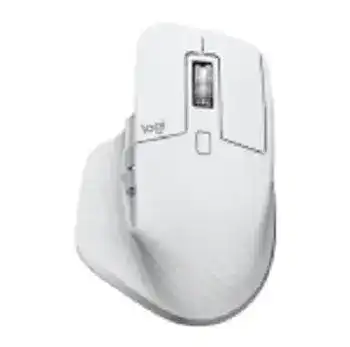
A wheel that skips lines, switches modes at the wrong moment, or behaves differently from one program to another can make this productivity mouse feel harder to control than a basic model. The Logitech MX Master 3S Wireless Mouse Driver adds the Logi Options+ controls needed for MagSpeed scrolling, the thumb wheel, application profiles, button assignments, pointer sensitivity, and multi-computer features.
Logitech MX Master 3S Wireless Mouse Windows Driver Download
| Driver Name | Description | Supported OS | File Size | Download |
|---|---|---|---|---|
| Logi Options+ Software | Customizes mouse buttons, pointer behavior, scrolling modes, application shortcuts, gestures, and device settings. | Windows 11, Windows 10 32-bit/64-bit | 43.21 MB |
Logitech MX Master 3S Wireless Mouse Mac OS Driver Download
| Driver Name | Description | Supported OS | File Size | Download |
|---|---|---|---|---|
| Logi Options+ Software | Provides button customization, pointer controls, scrolling adjustments, gesture assignments, shortcuts, and device preferences. | macOS 26, macOS 15, macOS 14 | 19.56 MB | |
| Logi Options+ Software | Enables mouse button mapping, scrolling configuration, pointer adjustments, workflow shortcuts, and gesture controls. | macOS 13 | 19 MB | |
| Logi Options+ Software | Manages device-specific settings, programmable controls, pointer movement, scrolling behavior, and application actions. | macOS 12 | 18.65 MB | |
| Logi Options+ Software | Supports custom button functions, gesture commands, pointer preferences, scrolling controls, and productivity shortcuts. | macOS 11 | 17.51 MB |
Logitech MX Master 3S Wireless Mouse Driver for Unsteady MagSpeed Scrolling
The electromagnetic wheel can work in ratchet mode for measured steps or free-spin mode for long pages. Press the wheel-mode button once before changing software values. If the wheel has entered free-spin unexpectedly, the page may continue moving after your finger stops. If ratchet mode misses small movements, compare its response in a browser, a document, and the operating system’s file window.
SmartShift changes the wheel mode too easily
Logi Options+ can switch the wheel automatically according to how quickly it turns. Open the point-and-scroll controls and adjust the SmartShift sensitivity when a light flick sends the wheel into free-spin. Lower sensitivity requires a stronger turn before the mode changes. Turn SmartShift off temporarily when you need the wheel to remain in one mode while checking its physical response.
Ratchet scrolling ignores occasional steps
Return scrolling speed to a moderate value and compare ratchet mode with free-spin mode. A high software value can make one missed step look worse because the next movement travels farther. Also disable any separate scrolling extension or gesture utility for the first test. Two programs processing the wheel at once may create jumps, reversed movement, or inconsistent line counts.
Dust around the wheel opening can interfere with light movements. Switch the mouse off and clear loose debris with clean, dry air while rotating the wheel slowly. Do not add oil, cleaner, or water near the MagSpeed mechanism. When the same missed steps appear on several computers with default values, the fault is more likely inside the wheel assembly than in its profile.
The page continues moving after the wheel stops
Check whether free-spin remains active before treating this as lag. Press the mode button to restore ratchet movement, then turn off smooth scrolling inside Logi Options+ for comparison. Some applications add their own animation after receiving wheel input. If the delay occurs in only one program, alter that application’s profile rather than weakening the mouse configuration everywhere.
Rebuild Logi Options+ Controls Without Losing the Wireless Link
Normal movement may continue even when Logi Options+ cannot detect the device. Windows and macOS can load standard pointer functions without the full control app, but the gesture button, application actions, SmartShift choices, thumb-wheel commands, and Flow configuration may disappear. The Logitech MX Master 3S Wireless Mouse Driver should display the mouse as active before those features can be edited.
The app shows an inactive device
Look at the Easy-Switch number underneath the mouse. The active channel may belong to another computer even though the device remains powered on. Tap the channel button to return to the connection stored for the current machine. Holding that button has a different purpose: it makes the selected channel ready for pairing, shown by a rapidly blinking channel light.
If the channel is right, quit Logi Options+ completely and restart its background service by reopening the application. A computer restart can also restore detection after an app update. Reinstall only when the program itself fails to open or continues omitting the mouse. Repeated pairing will not solve a background process that has stopped loading.
Assignments change in one application only
Application profiles override the general button layout whenever their program has focus. Open the affected profile and compare each control with the global configuration. Delete and recreate a damaged profile when its commands no longer match what appears on screen. This is often faster than resetting every assignment, especially when back, forward, copy, paste, or gesture actions still work elsewhere.
After editing a profile, close and reopen the affected program. Some applications keep the previous input state until their next launch. Check the command in a second program as well. That comparison shows whether Logi Options+ has lost the assignment or whether the first application is intercepting the shortcut.
The thumb button no longer opens gestures
The gesture control sits under the thumb rest and combines a press with pointer movement. Restore its default assignment before testing custom directions. Press without moving first, then try each direction with a deliberate motion. A command that works while pressed but fails during movement may have an overlapping application shortcut or a profile that uses different gesture actions.
Separate Logi Bolt Trouble from Bluetooth Delay
The MX Master 3S can connect through Bluetooth Low Energy or a Logi Bolt USB receiver and can store three device channels. Logi Bolt is not the same as Logitech Unifying, so an older Unifying receiver cannot pair with this model. Use the Bolt pairing function when replacing the supplied receiver, and place one chosen Easy-Switch channel into fast-blinking pairing mode.
The Bolt receiver is detected but nothing moves
Plug the receiver directly into another USB-A port before opening the pairing utility. A dock, monitor, or adapter may supply power while interrupting reliable receiver communication. Keep the mouse near the receiver during pairing and verify that the Easy-Switch light stops flashing afterward. A receiver that carries the Unifying symbol instead of the Bolt mark will not become compatible through software.
Pointer stutter can also begin when the dongle sits beside an external drive, crowded dock, or several active wireless devices. Change its physical position and compare the result before altering DPI. A short USB extension can place the receiver away from the noisy equipment while keeping the computer in its usual location.
Bluetooth wakes slowly after idle time
Remove the saved mouse from the computer’s Bluetooth list, restart Bluetooth, and pair the intended channel again. Merely switching Bluetooth off for a moment may reconnect the same damaged record. On Windows, inspect the Bluetooth adapter’s power-management option when the delay starts only after sleep. Preventing the system from powering down that adapter can shorten wake time.
On a Mac, disconnect other Bluetooth accessories briefly when the pointer becomes irregular only while headphones or several peripherals are active. Re-pairing may help, but crowded radio traffic can remain the real cause. Compare Bluetooth with the Bolt receiver on the same desk to find out whether the delay follows the mouse or the wireless route.
The Logitech MX Master 3S Wireless Mouse Driver does not need to change when you move between Bluetooth and Bolt. Each wireless method does need a valid connection on the selected channel. Keep a simple channel arrangement, such as one number per computer, so a channel change does not look like a software failure.
Fix Thumb-Wheel, Side-Button, and macOS Permission Faults
The horizontal thumb wheel and the back and forward buttons depend heavily on application behavior. A spreadsheet may use the thumb wheel for sideways movement, while another program may ignore it until Logi Options+ supplies a custom command. Check the general layout first, then inspect any profile attached to the program where the control fails.
The thumb wheel scrolls in the wrong direction
Open the thumb-wheel controls and reverse its direction rather than changing the main wheel. The two wheels have separate values. When the direction changes after moving between computers, compare the Logi Options+ profile on both machines. Device assignments do not always feel identical when each computer keeps its own local application configuration.
Back and forward commands stop working
Reset the two side controls to their standard browser actions and try them in more than one browser window. A web application, remote desktop session, or extension may capture those commands. If the buttons work outside that environment, create a specific profile for the affected program instead of assigning keyboard shortcuts globally.
When a side control feels held down, switch the mouse off and wipe around its edge with a dry, lint-free cloth. Press it several times and confirm that it returns normally. Avoid pushing liquid into the gap. A physically stuck control can continuously send an action and make scrolling, dragging, or application switching appear broken.
macOS accepts clicks but ignores custom commands
Open Privacy & Security and grant Logi Options+ access under Accessibility and Input Monitoring. Enable its Bluetooth permission as well when the app needs to detect a direct Bluetooth connection. Quit and reopen the software after changing these switches. macOS may continue using the previous permission state until the Logitech background components start again.
If the privacy entries already appear enabled, turn them off, restart the Mac, and grant them again when prompted. Keep the existing profiles during this process. Removing the application first can erase useful assignments without repairing a permission record that macOS still retains.
Match 8K Tracking and Charging to the Way the Mouse Is Used
The Darkfield sensor can reach 8000 DPI and can track on many surfaces, including glass that meets the required thickness. High sensitivity is useful across large or high-resolution displays, but it can magnify small hand movement. Lower the pointer value in Logi Options+ when the cursor overshoots icons, then compare the result with the operating system’s pointer acceleration enabled and disabled.
The pointer jumps on only one desk surface
Clean the sensor window gently and remove dust, hair, or reflective residue beneath the mouse. Test a plain matte surface before changing wireless components. Glass thickness, strong reflections, and an uneven transparent surface may affect tracking even though Darkfield performs better on glass than a conventional optical sensor.
If movement fails on every surface, change from Bluetooth to Bolt or from Bolt to Bluetooth for one comparison. A tracking problem that disappears with the connection change is not a dirty sensor. A cursor that jumps through both wireless methods on several surfaces needs a DPI reset, another computer test, or hardware service.
Charging works but wireless movement does not
The USB-C cable charges the internal battery; it does not turn the device into a wired USB mouse. Keep Bluetooth or the Bolt receiver connected while charging. When the battery indicator does not rise, try another powered USB port and a known working USB-C cable, then leave the mouse connected long enough to recover from a deeply discharged state.
A single click becomes two clicks
Change the operating system’s double-click speed and retest both primary buttons. That adjustment can correct an unsuitable timing threshold, but it cannot repair switch wear. Drag a window slowly and select text on another computer. If the mouse releases the drag, misses presses, or repeats clicks in both places, software replacement is unlikely to change the result.
Use the Logitech MX Master 3S Wireless Mouse Driver one final time to restore default button, wheel, and pointer values before deciding that the hardware has failed. Then compare separate Easy-Switch channels, both wireless methods, and another computer. A symptom that follows every connection points toward the wheel, click switch, sensor, or battery system rather than an application profile.