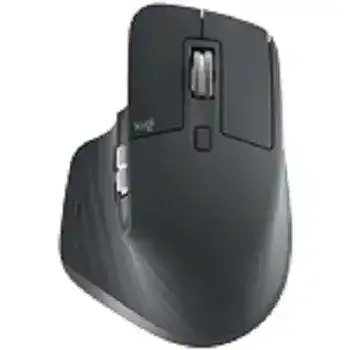
A MagSpeed wheel that changes mode at the wrong moment, a thumb wheel that stops responding, or missing custom actions can make this productivity mouse feel partly disabled. The Logitech MX Master 3 for Business Mouse Driver connects its advanced controls with Logitech software on Windows and macOS. Normal pointing may continue without the control app, but Flow, application profiles, gesture actions, pointer tuning, and button changes depend on the software layer.
Logitech MX Master 3 for Business Mouse Windows Driver Download
| Driver Name | Description | Supported OS | File Size | Download |
|---|---|---|---|---|
| Logitech Options | Customizes mouse buttons, pointer behavior, scrolling, shortcuts, gestures, and device settings. | Windows 11, Windows 10 32-bit/64-bit | 277.51 MB | |
| Logi Options+ Beta | Provides beta controls for button assignments, scrolling preferences, pointer adjustments, and application-specific shortcuts. | Windows 11, Windows 10 32-bit/64-bit | 23.64 MB | |
| Logi Bolt Installer | Installs the Logi Bolt software used to connect and manage compatible devices through a Bolt receiver. | Windows 10 32-bit/64-bit | 33.11 MB | |
| Script DFU | Updates supported device firmware through Logitech’s scripted device firmware upgrade utility. | Windows 11, Windows 10 32-bit/64-bit, Windows 7 32-bit/64-bit | 5.47 MB |
Logitech MX Master 3 for Business Mouse Mac OS Driver Download
| Driver Name | Description | Supported OS | File Size | Download |
|---|---|---|---|---|
| Logitech Options | Manages mouse button functions, pointer movement, scrolling behavior, gestures, shortcuts, and other device preferences. | macOS 11.2, macOS 11.1, macOS 11, macOS 10.15 | 274.42 MB | |
| Logi Options+ Beta | Adds preview customization features for gestures, buttons, scrolling, pointer response, and software-specific commands. | macOS 11.2, macOS 11.1, macOS 11, macOS 10.15 | 12.86 MB | |
| Logi Bolt Installer | Sets up Logi Bolt support for pairing and administering compatible Logitech hardware on a Mac. | macOS 11.2, macOS 11.1, macOS 11, macOS 10.15 | 54.96 MB | |
| Script DFU | Applies available firmware revisions to supported Logitech devices using the DFU update process. | macOS 11.2, macOS 11.1, macOS 11, macOS 10.15 | 2.72 MB |
Logitech MX Master 3 for Business Mouse Driver for MagSpeed and Thumb Wheel Faults
The electromagnetic MagSpeed wheel offers ratchet scrolling for measured movement and free-spin mode for long pages. Press the mode-shift button behind the wheel to compare both modes. When one mode feels wrong, switch modes once before changing software. A wheel left in free-spin can race through a document, while ratchet mode may feel much heavier and more deliberate.
Ratchet mode changes without warning
Logitech software can control SmartShift, which changes from ratchet to free-spin when the wheel reaches a chosen speed. Lower sensitivity triggers free-spin with a lighter flick; higher sensitivity keeps the ratchet feel longer. Open the scrolling controls and move the SmartShift point rather than repeatedly pressing the physical mode button. Turn SmartShift off when you want the selected wheel mode to remain fixed.
An application-specific profile may override the general wheel choice. This explains why scrolling behaves normally on the desktop but changes inside a spreadsheet, browser, or editing program. View the profile for the affected application and compare it with the global profile. Remove the application entry temporarily when its scroll behavior no longer matches the task.
The main wheel misses lines or reverses
First compare several programs. When only one application scrolls poorly, inspect its own scrolling preferences and its Logitech profile. When every program misses movement, turn the mouse off and clear loose debris around the wheel with dry air. Rotate it in both modes afterward. Do not apply liquid through the wheel opening or force the electromagnetic mechanism.
Check the operating system’s scroll direction as well. macOS natural scrolling and application-specific Logitech choices can produce an unexpected direction after an update or profile change. Set the direction in one place, close the affected application, and reopen it. Changing several scroll options together makes the original conflict difficult to identify.
The horizontal thumb wheel does nothing
The side wheel commonly handles horizontal movement, but the active program must contain content wider than its window. Try it in a large spreadsheet, timeline, or wide document before treating it as defective. Some programs ignore horizontal wheel input, while others need the pointer positioned over the panel that can move sideways.
Open the Logitech control app and inspect the thumb-wheel assignment. A profile may have changed it to zoom, volume, tab navigation, or another action. Restore horizontal scrolling in the global profile, then add a separate assignment only for the program that needs it. This keeps one unusual profile from affecting unrelated work.
Restore Profiles, Gestures, and Logitech Flow
The Logitech MX Master 3 for Business Mouse Driver should identify the mouse before customized buttons can follow their saved actions. If Logi Options+ opens without showing the device, close the application and its background processes, restart the computer, and launch it again with the mouse already connected. Reinstall the current package when detection disappeared after an interrupted installation or software update.
Buttons work, but custom commands do not
Standard left and right clicks can remain active while the back, forward, gesture, or mode-shift controls lose their assignments. Open the mouse view and check both global and application profiles. Reset one affected control to its default action, test it, and then build the custom command again. This separates a hardware failure from a broken shortcut or outdated application profile.
Applications may change their keyboard shortcuts after an update. A button assigned to the previous shortcut will still send that command, but the program no longer responds. Confirm the current shortcut inside the target application and recreate the assignment. Use a direct keyboard command before adding a more complex multi-key action.
macOS accepts movement but blocks advanced controls
Review Privacy and Security when the pointer moves but gestures, Flow, or customized actions fail. Logi Options+ may require Accessibility, Input Monitoring, and Bluetooth access for different functions. Enable the Logitech entries that macOS requests, quit the app completely, and reopen it. A computer restart may be necessary after changing Input Monitoring permissions.
Major macOS upgrades can retain the program while removing or invalidating part of its access. Remove a duplicate or outdated Logitech permission entry when two versions appear, then let the current app request access again. When the control program enters a launch loop or suddenly loses all profiles, install Logitech’s current macOS package rather than depending on a stalled in-app update.
Flow cannot cross to the next computer
Flow requires the mouse to have a working connection with each participating Windows or macOS computer. Logi Options+ must run on both systems, and both computers must communicate through the same local network. Connect each machine independently first. Enable Flow only after Easy-Switch can reach both computers without losing pointer control.
A guest network, corporate network isolation, VPN, or firewall can stop device discovery between the computers. Temporarily disconnect a VPN and confirm that both machines share the same local network segment. Allow the Logitech service through the firewall where company policy permits it. Flow cannot repair an unpaired Bluetooth channel or an inactive Logi Bolt connection.
Separate Logi Bolt Pairing from Bluetooth Problems
This business model offers two wireless paths: the included Logi Bolt USB receiver and Bluetooth Low Energy. It does not use a Logitech Unifying receiver. A receiver carrying the orange Unifying symbol will not pair with the mouse, even though both products come from Logitech. Identify the receiver logo before spending time on software changes.
The included Logi Bolt receiver is not detected
Insert the receiver directly into an available USB port and turn the mouse on. The factory receiver normally arrives pre-paired, so pointer movement should begin without manual pairing. When it does not, try another direct port and remove a dock or monitor hub from the path. Restart the computer with the receiver attached if the operating system failed to enumerate it during the first connection.
To restore a lost pairing, open Logi Options+ and add a Logi Bolt device. Keep the mouse close to the receiver and select the intended Easy-Switch channel before starting. The Logitech MX Master 3 for Business Mouse Driver package provides the software path for configuration, while the pairing process must still use a compatible Logi Bolt receiver.
Bluetooth finds the mouse but will not reconnect
Delete the existing MX Master 3 for Business record from the computer’s Bluetooth list. Choose an Easy-Switch channel on the underside, then hold its button until that channel indicator flashes rapidly. Search again from the operating system and complete a new pairing. An old encryption record can keep reconnecting attempts in a loop even though the mouse remains visible.
A short press changes channels. Holding the button starts pairing and replaces the connection stored on that channel. Accidentally holding it while switching computers can erase a working pairing. Return to the affected computer, remove its old Bluetooth record, and pair that channel again rather than changing all three positions.
One computer disappears after adding another
Easy-Switch stores up to three paired computers, one on each numbered channel. Assign each machine its own number. Pairing a new system on an occupied number replaces the earlier system instead of creating a fourth connection. Note the channel used by the Logi Bolt receiver and the channels used for direct Bluetooth before reorganizing them.
Corporate Bluetooth restrictions may also make one connection method unavailable. In that case, use the included Bolt receiver and pair it through the supported utility. Because Bolt and direct Bluetooth create different connection paths, removing a Bluetooth record will not repair a receiver pairing, and receiver software will not clear an expired Bluetooth record.
Correct Pointer Lag, Charging, and Wake Behaviour
The cursor stutters near a dock or busy workstation
Test the receiver in a port that places it away from storage drives, display adapters, and densely packed USB hardware. A metal computer enclosure or dock can also sit between the receiver and the mouse. Use a short USB extension when necessary to place the Bolt receiver in a clearer position on the desk.
Compare Bolt and Bluetooth rather than assuming both will behave identically in the same room. Office Wi-Fi, nearby wireless devices, docking hardware, and the host computer’s radio can affect them differently. Keep the method that remains steady, then remove and rebuild only the unstable connection. Constantly switching paths can hide which one actually has the fault.
Darkfield tracking feels uneven
The 4000 DPI Darkfield sensor tracks on many surfaces, including suitable glass, but contamination beneath the mouse can still disturb movement. Wipe the sensor opening with a dry lint-free cloth and remove hair from the base. Test on a plain mouse pad to decide whether the desk finish or the wireless connection causes the uneven cursor.
Open the pointer controls and choose a moderate DPI value before testing. Very high sensitivity magnifies small hand movements, especially across multiple high-resolution displays. Adjust the operating-system pointer speed and Logitech DPI separately. Keep one value fixed while changing the other so the result remains easy to judge.
The battery will not charge through USB-C
Connect a known working USB-A to USB-C cable and try another powered USB port. The mouse can operate while charging, so pointer movement does not prove that the battery has started accepting power. Check the battery indicator and the level shown in Logitech software after several minutes. A charge-only fault may come from the cable, port, connector, or internal battery.
Clear visible lint from the USB-C opening with the mouse switched off, using only a dry, non-metal tool and gentle movement. Do not push deeply into the connector. When the battery percentage never rises with another cable and power source, stop repeating software installations; charging hardware does not depend on button profiles or Flow configuration.
The mouse fails to wake after inactivity
Move it, click once, and confirm that the underside power switch remains on. If it stays inactive, switch it off for several seconds and power it on again. Then press Easy-Switch briefly to return to the expected computer. The device may be awake on another channel while the current computer waits for its former connection.
For repeated Bolt wake failures, test another USB port and review the computer’s USB power-saving behaviour. For Bluetooth, remove and recreate only the affected channel after checking operating-system updates. Near the end of diagnosis, use the Logitech MX Master 3 for Business Mouse Driver to confirm the battery level, selected profiles, pointer value, wheel mode, and button assignments without disturbing connections that already work.