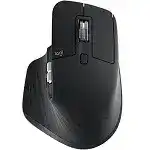
The pointer can remain active while the thumb wheel, gesture pad, back button, forward button, or wheel-mode control stops following its assignment. The Logitech MX Master 3 Mouse Driver gives compatible Windows and macOS systems access to the model’s configurable controls, scrolling modes, application profiles, and Logitech Flow features. Basic movement may continue through normal system support even when the control software has stopped communicating with the mouse.
This rechargeable wireless model can connect through Bluetooth Low Energy or its included Unifying USB receiver. Three Easy-Switch channels let it retain connections to separate computers. It also has a MagSpeed wheel, a horizontal thumb wheel, a gesture button, two thumb buttons, USB-C charging, and a Darkfield sensor. Those confirmed features make software detection more important than it is for a basic two-button mouse.
Use Logitech Options when working with the original software released for this model. Logi Options+ may also recognize the MX Master 3 on supported current systems, but running both control packages together can create duplicated services, lost assignments, or a device that appears in only one application. Keep the package that recognizes the mouse and remove the unused one before rebuilding profiles.
Logitech MX Master 3 Mouse Windows Driver Download
| Driver Name | Description | Supported OS | File Size | Download |
|---|---|---|---|---|
| Logitech Options Software | Customizes mouse buttons, pointer behavior, scrolling, shortcuts, gestures, and other device-specific settings. | Windows 11, Windows 10 32-bit/64-bit | 245.76 MB | |
| Logi Options+ Software | Manages button assignments, scrolling controls, pointer preferences, application shortcuts, and supported mouse gestures. | Windows 11, Windows 10 32-bit/64-bit | 43.21 MB |
Logitech MX Master 3 Mouse Mac OS Driver Download
| Driver Name | Description | Supported OS | File Size | Download |
|---|---|---|---|---|
| Logi Options+ Software | Adjusts mouse buttons, pointer movement, scrolling actions, gestures, shortcuts, and device preferences on newer macOS releases. | macOS 26, macOS 15, macOS 14 | 19.56 MB | |
| Logitech Options Software | Provides button customization, scrolling adjustments, gesture controls, pointer settings, and application-specific shortcuts. | macOS 15, macOS 14, macOS 13, macOS 12, macOS 11 | 238.52 MB | |
| Logi Options+ Software | Configures supported mouse controls, navigation gestures, scrolling behavior, pointer response, and personalized shortcuts. | macOS 13 | 19 MB | |
| Logi Options+ Software | Enables device settings, button remapping, gesture commands, scrolling preferences, and pointer adjustments on macOS 12. | macOS 12 | 18.65 MB |
Options opens but shows no connected mouse
First check whether the pointer and main clicks still work. Normal movement proves that Bluetooth or the receiver connection remains active, but it does not prove that the Logitech background service can read the device. Close the application fully, restart its supporting service by rebooting the computer, and open the utility again after the desktop has finished loading.
If detection still fails, remove the unused Logitech control program rather than repeatedly reinstalling both. Reconnect through one method only during testing. A mouse paired over Bluetooth while an old Unifying entry remains active can leave the utility looking at a connection that is no longer being used.
Assignments return to their defaults
Application-specific profiles may appear broken when the foreground program changes its executable name after an update. Open the Logitech utility and check whether the affected application still has its own profile. Remove that profile, add the current application again, and recreate only the controls you need. Test the same button under the general profile to separate a profile problem from a hardware fault.
Cloud synchronization or imported settings can also restore an older layout. When assignments keep changing, build a small local profile first instead of importing every previous customization. Confirm that it survives a restart before adding more applications.
Connection Recovery Across Bluetooth, Unifying, and Easy-Switch
The MX Master 3 can remember three device channels, but each channel holds its own pairing. Selecting a channel that belongs to another computer makes the mouse appear unresponsive even though nothing has failed. Press the Easy-Switch button briefly and watch the numbered light before changing software, Bluetooth settings, or USB ports.
Bluetooth pairing never reaches completion
Select the intended Easy-Switch channel, then hold its button for about three seconds until the channel light flashes rapidly. A slow flash or steady light does not indicate active discovery. Remove the old MX Master 3 entry from the computer’s Bluetooth list before pairing again, especially after reinstalling the operating system or moving that channel from another machine.
Turn Bluetooth off and back on when the entry reappears but connection stalls. On laptops, also confirm that airplane mode has not disabled the Bluetooth radio. Pair near the computer with other unused Bluetooth accessories temporarily disconnected when the device list has become crowded or unstable.
The mouse reconnects slowly after sleep
A delayed wake can come from Bluetooth power management rather than the Logitech MX Master 3 Mouse Driver. Switch the mouse off for several seconds, turn it on, and select the same channel again. If wake delays continue, remove that Bluetooth pairing and recreate it instead of adding a duplicate entry with a similar name.
Compare the behavior through the Unifying receiver. Quick wake through the receiver but repeated delay through Bluetooth points toward the computer’s Bluetooth adapter, its driver, or power-saving behavior. Similar delay through both methods makes battery level, Logitech services, or the mouse itself more relevant.
The Unifying receiver is present but input stops
Move the receiver from a dock, display, keyboard hub, or crowded adapter to a direct USB port. Nearby high-speed USB devices and poorly shielded hubs can disturb a 2.4 GHz connection. A short USB extension can place the receiver away from storage drives and metal computer cases without stretching the mouse-to-receiver distance.
If the mouse no longer belongs to that receiver, open the supported Logitech pairing function and add it again. The MX Master 3 uses a Unifying receiver, not a Logi Bolt receiver. A Bolt dongle will not become compatible through software, even though the connectors look similar.
Easy-Switch selects the wrong computer
Each numbered channel can hold either a Bluetooth pairing or a compatible receiver connection. Write down which number belongs to each computer before rebuilding anything. When a channel contains an obsolete pairing, select it, enter discovery mode, and pair the intended machine over that slot. This is clearer than placing the same computer on several channels.
MagSpeed Scrolling, SmartShift, and the Thumb Wheel
The electromagnetic main wheel can alternate between precise ratcheted movement and free-spinning travel. SmartShift changes the mode automatically when wheel speed passes a chosen threshold, while the mode-shift button can switch it manually. Incorrect software values may feel like mechanical failure because the wheel’s resistance changes without a conventional ratchet mechanism.
The main wheel misses lines or reverses direction
Compare scrolling in a browser, a plain document, and the operating system settings window. Problems limited to one application usually come from that program’s scroll handling or its Logitech profile. Remove the application-specific profile temporarily and test with the global wheel configuration.
For inconsistent movement everywhere, turn SmartShift off and use ratchet mode for a direct comparison. Then try free-spin mode. A problem that appears only under one mode may involve its threshold or wheel control, while missed movement in both modes can indicate debris, software communication trouble, or a hardware defect.
SmartShift activates too easily
Open the Logitech software and adjust the SmartShift sensitivity rather than disabling every wheel feature. A low threshold makes a modest flick enter free-spin mode, which may feel uncontrolled in spreadsheets or short pages. Raise the threshold until normal scrolling stays ratcheted while a deliberate fast spin still releases the wheel.
The wheel-mode button should also retain a clear assignment. If pressing it launches another command, check the global and application-specific profiles. One program may have replaced mode switching with a shortcut that remains active only while that program is in front.
Fast scrolling disconnects the entire mouse
A brief disconnection triggered specifically by rapid wheel movement or the wheel-mode button is not normal profile behavior. Disable SmartShift and avoid the mode switch long enough to see whether the rest of the mouse remains connected. This temporary test separates an ordinary wireless dropout from a fault tied to the wheel assembly.
Update the supported Logitech package and power-cycle the mouse. If the same action causes shutdown over Bluetooth and the Unifying receiver, the problem is unlikely to come from either wireless method. Do not open a mouse that remains under warranty; an internal wheel connection or power fault needs service rather than repeated software installation.
The horizontal wheel stops working
The thumb wheel may perform horizontal scrolling, tab movement, zooming, or another assigned command depending on the active profile. Check its global action first. Delete the affected application profile when horizontal scrolling works elsewhere but fails in one program.
Some applications do not accept horizontal wheel input in every panel. Test a wide spreadsheet, an image editor with an enlarged canvas, or another window that visibly has horizontal content. A page without sideways overflow cannot confirm whether the wheel sends input.
Gesture Button, Flow, Tracking, and Charging Problems
The thumb-rest gesture control works as a press and can add directional actions when held while the mouse moves. It depends heavily on the Logitech background process and operating-system permissions. When gestures vanish together with the thumb wheel and custom buttons, investigate the control application before treating several physical controls as damaged.
The gesture button opens the wrong system view
Open its assignment and switch to another action, apply the change, then restore the preferred gesture set. This forces the profile to rewrite the command. On macOS, verify that the Logitech application and its supporting components have the requested Accessibility, Input Monitoring, and related control permissions after a system or software update.
Restart the Logitech process by restarting the computer when permissions already look correct. A gesture that works once and then disappears may come from a stalled background service. A button that feels permanently depressed or prevents normal pointer behavior may instead have a mechanical problem in the thumb rest.
Flow cannot move the pointer to another computer
Logitech Flow requires compatible software on each computer and a working network connection between them. Pair the MX Master 3 separately with both machines, assign different Easy-Switch channels, and confirm that ordinary switching works before enabling Flow. The Logitech MX Master 3 Mouse Driver cannot send the pointer between systems that cannot see each other on the local network.
Firewalls, guest Wi-Fi isolation, virtual private networks, and separate wired or wireless subnets can block discovery. Pause Flow and test normal network visibility between the computers. Re-enable it only after both copies of the Logitech application show the expected machines.
The pointer lags despite a strong connection
Test the Darkfield sensor on a clean, plain surface before changing pointer speed. Although the sensor can track on many materials, dust on the sensor opening or a highly uneven reflective surface can still affect movement. Wipe the opening gently with a dry lint-free cloth and compare another desk area or mouse pad.
When lag appears only through the receiver, change its physical position. When it appears only through Bluetooth, update the computer’s Bluetooth driver and remove the old pairing. Lag through both methods may come from heavy system load, a nearly depleted charge, extreme pointer settings, or sensor trouble.
USB-C charging works but the mouse remains wireless
The charging cable supplies power, but it does not turn the MX Master 3 into a normal wired USB mouse. Keep Bluetooth or the Unifying receiver active while charging. If the pointer stops when the battery is low, reconnect the wireless method rather than expecting the cable alone to carry input.
Try another known working USB-C cable and power source when no charging indication appears. Inspect the port for lint without inserting metal tools. Allow a deeply discharged battery some charging time before repeatedly switching the mouse on and off.
Battery level falls unusually quickly
Confirm the reported level after the mouse has charged from a dependable source. A stale value in the Logitech application may refresh after a power cycle or reconnection. Compare several days of normal use instead of judging battery condition from one sudden percentage change.
Persistent rapid loss after a complete charge can indicate battery aging or a process that prevents normal sleep. Switch the mouse off overnight as a comparison. Continued loss while fully powered down points more strongly toward battery condition than Bluetooth activity or software.
Back and forward buttons work in one app only
Check whether the program has its own Logitech profile. Assign the buttons under the global profile, close the target application, and reopen it. Browsers usually accept back and forward commands, while creative tools may replace them with application shortcuts.
Test each button with a simple global action before creating complex keystrokes. If one thumb button fails over all three Easy-Switch channels and under both connection methods, no pairing change will correct it. That pattern suggests physical switch wear.
Match the Fix to the Feature That Failed
Do not erase every pairing or profile when only one function has changed. Lost gestures and application commands point toward Logitech software or permissions. Slow Bluetooth wake belongs to pairing and adapter checks. Receiver-only lag calls for better dongle placement, while irregular MagSpeed behavior deserves separate ratchet, free-spin, and SmartShift tests.
Keep each Easy-Switch channel assigned deliberately, retain one working Logitech customization package, and test global controls before rebuilding application profiles. When the Logitech MX Master 3 Mouse Driver recognizes the device but the same physical action fails through Bluetooth, Unifying, and several computers, further software changes have little value. That cross-check provides a much clearer boundary between configuration trouble and worn hardware.