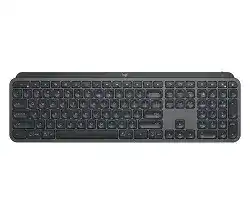
Repeated letters, missed keystrokes, a flashing Easy-Switch light, or a keyboard that vanishes after sleep can turn a normal work session into constant reconnecting. The Logitech MX Keys Wireless Illuminated Keyboard Driver gives Windows and macOS access to Logitech software for function-key behaviour, connection status, backlight notices, device switching, and Flow features.
This full-size rechargeable keyboard can connect through Bluetooth Low Energy or its included Unifying receiver. Three Easy-Switch keys hold separate computer or device connections. Before changing software, note which numbered channel you normally use and whether that channel connects through Bluetooth or the receiver.
Logitech MX Keys Wireless Illuminated Keyboard Windows Driver Download
| Driver Name | Description | Supported OS | File Size | Download |
|---|---|---|---|---|
| Logi Options+ Software | Customizes keyboard shortcuts, device settings, key assignments, and other supported controls. | Windows 11, Windows 10 32-bit/64-bit | 43.21 MB |
Logitech MX Keys Wireless Illuminated Keyboard Mac OS Driver Download
| Driver Name | Description | Supported OS | File Size | Download |
|---|---|---|---|---|
| Logi Options+ Software | Manages keyboard shortcuts, supported key functions, device preferences, and customization settings. | macOS 26, macOS 15, macOS 14 | 19.56 MB | |
| Logi Options+ Software | Adjusts compatible keyboard actions, application shortcuts, function keys, and connected-device preferences. | macOS 13 | 19 MB | |
| Logi Options+ Software | Configures key assignments, shortcut behavior, supported gestures, and device controls across compatible Mac systems. | macOS 13, macOS 12, macOS 11, macOS 10.15 | 19.56 MB | |
| Logi Options+ Software | Controls supported keyboard settings, custom shortcuts, key behavior, and application-specific assignments. | macOS 12 | 18.65 MB | |
| Logi Options+ Software | Sets up compatible key commands, function-row preferences, shortcuts, and other device-specific options. | macOS 11 | 17.51 MB |
The Easy-Switch light keeps flashing
A rapidly blinking channel light means that channel is waiting for a new connection. A short press only selects a stored device, while holding the same Easy-Switch key for about three seconds starts pairing mode. Release the key after the light begins flashing quickly, then complete the connection from Bluetooth settings or the Logitech pairing utility.
Do not hold a channel key during every startup. Doing so can replace a working pairing with a new one. When the computer no longer recognises the old connection, remove the keyboard from its Bluetooth list, restart Bluetooth, and pair that channel again.
A channel opens the wrong computer
Each numbered key remembers its own host. The keyboard does not identify machines by their physical position on the desk. Test channels one, two, and three with short presses, wait a moment after each change, and write down which device responds. Re-pair only the channel that contains the unwanted computer.
Switching too quickly can make the lights appear confusing because the previous host may still be releasing the connection. Press one channel once and allow several seconds for the change. Repeated tapping may send the keyboard back to a different stored host before the intended system becomes active.
Choose Bluetooth or the Unifying Receiver for the Logitech MX Keys Software
The Logitech MX Keys Wireless Illuminated Keyboard Driver works with both supported wireless paths, but connection problems often require different fixes. Bluetooth depends on the computer’s radio, power management, and operating-system pairing record. The included Unifying receiver uses a direct USB connection and may work better on systems with unreliable Bluetooth hardware.
Bluetooth reconnects slowly after sleep
A short delay after inactivity is normal because the keyboard saves battery while idle. Trouble begins when the first keystroke takes several seconds, several characters arrive together, or the connection never returns. Update the computer’s Bluetooth driver, remove outdated keyboard entries, restart the system, and create a new pairing on the same Easy-Switch channel.
On Windows, Bluetooth power saving can cause longer wake delays. Open Device Manager, inspect the Bluetooth adapter and relevant Human Interface Device entries, and review their power-management options. Prevent Windows from switching off the adapter when that option appears. Restart before testing sleep and wake again.
Typing lags or repeats over Bluetooth
Keep the keyboard away from crowded wireless equipment while testing. Busy 2.4 GHz Wi-Fi channels, USB 3 devices, docks, and several nearby Bluetooth accessories can increase interference. Move the computer or Bluetooth antenna into a clearer position and compare performance with the Unifying receiver.
Repeated characters may also come from a stalled application rather than the keyboard. Type for several minutes in a plain document, then compare the result in the program where the fault usually appears. When only one application repeats keys, disable its keyboard extensions, remote-control tools, or unusual accessibility features.
The Unifying receiver no longer finds the keyboard
Use the Logitech Unifying pairing utility rather than a Bolt pairing application. MX Keys belongs to the Unifying generation, and the receiver types are not interchangeable. Plug the receiver directly into the computer, open the matching utility, switch the keyboard off and on when requested, and complete the connection on the selected channel.
A receiver hidden behind a desktop tower or connected through a busy dock may produce delays even though pairing succeeds. Try another direct USB socket or a short extension that places the receiver above the desk. Keep it away from external drives, wireless routers, and metal obstructions.
Backlighting That Turns Off, Stays On, or Drains the Battery
MX Keys uses an ambient-light sensor and hand-proximity detection to control its illuminated keys. The lighting does not behave like a permanently lit wired keyboard. Room brightness, battery level, hand movement, and the selected brightness stage all affect when the keys illuminate.
The backlight will not turn on
First move the keyboard into a dimmer area. Its ambient-light system may prevent lighting in a bright room because the printed legends remain visible without it. Press the backlight brightness key several times, then place both hands near the keyboard rather than touching only one key.
Low battery power also disables illumination. Connect the USB-C charging cable and wait before testing again. The cable charges the battery and permits continued typing, but it does not turn MX Keys into a normal wired USB keyboard. Its active data connection still uses Bluetooth or the Unifying receiver.
The lights switch off while typing
The proximity sensor responds to nearby hand movement. Very still hands, unusual desk angles, or objects near the sensor area can make the light fade sooner than expected. Remove papers, a wrist rest, or other items that cover the upper keyboard area, then test with the keyboard resting flat.
Clean the top surface with a soft dry cloth. Dust, residue, or an object placed close to the keyboard may affect proximity behaviour. Do not pour cleaner between the keys or around the charging port. Persistent lighting changes with a fully charged battery may justify a keyboard reset and fresh software detection.
The backlight keeps waking by itself
Movement near the desk can trigger the hand-detection system. A fan, hanging cable, pet, reflective object, or repeated movement close to the keyboard may wake the lights without a keypress. Clear the nearby area and watch whether the lighting remains off when nobody approaches.
Reduce the illumination level when battery life matters more than maximum brightness. Higher stages consume noticeably more power. A keyboard that requires charging far more often than usual should be tested with the backlight reduced or disabled. This separates lighting consumption from a worn battery or charging fault.
Function Keys, Shortcuts, and Operating-System Layout Problems
Logi Options+ can change how the top row behaves and can expose device information and supported customisation. The Logitech MX Keys Wireless Illuminated Keyboard Driver should be installed on each Windows or macOS computer where you want the same function-key behaviour. Mobile devices can use the keyboard without the desktop control application.
F1 to F12 perform media actions instead
The top row can operate as brightness, media, and system shortcuts or as standard function keys. Press Fn and Esc to toggle the function-key mode, then test F1 or another known shortcut. Logi Options+ may also provide a setting that keeps standard function keys active without holding Fn.
Some programs capture F-keys for their own commands, while the operating system reserves others for display or audio functions. Confirm the keyboard mode in a second application before changing an assignment. A working F-key in one program points to software-specific shortcut handling rather than a connection failure.
Windows and Mac symbols do not match the result
MX Keys carries legends for more than one operating system. The active system decides how modifier keys behave. Check the selected keyboard layout in Windows or macOS and remove layouts you never use. An accidental language switch can change punctuation and symbol positions while letters continue to look normal.
When moving the same Easy-Switch channel between different systems, forget the keyboard and pair it again on the intended host. Separate channels are clearer for separate computers because each connection keeps its own operating-system relationship and reduces accidental switching.
Copy, paste, or modifier shortcuts feel reversed
Confirm whether the active application expects Control, Command, Option, or Alt. Remote desktop software and virtual machines may translate modifier keys differently from the local computer. Test the shortcut outside the remote session. When it works locally, adjust the remote application’s keyboard mapping instead of resetting the entire keyboard.
Battery Charging and Keyboard Detection in Logi Options+
The rechargeable battery receives power through the USB-C port at the upper-right edge. Charging trouble can come from the cable, power source, connector, or battery rather than the wireless connection. Use a known working cable and a powered USB port or ordinary USB charger, then leave the keyboard connected long enough for the battery level to rise.
The keyboard types but Logi Options+ cannot see it
Close the application completely, switch MX Keys off, and restart the computer. Turn the keyboard on after the desktop has loaded, then reopen Logi Options+. If the operating system still accepts typing but the app remains blank, update or reinstall Logi Options+ and remove an older Logitech Options installation that may be competing with it.
Security software can also prevent the Logitech background service from starting. Check whether the app opens normally after a restart and whether its service remains active. On macOS, grant the requested accessibility, input-monitoring, and Bluetooth permissions. Without those permissions, the keyboard may type while advanced functions remain unavailable.
The charge level does not increase
Try another USB-C cable and another power source before judging the battery. Some damaged or charge-limited cables fit the port but fail to deliver steady power. Inspect the connector for lint and remove loose debris gently with the keyboard switched off. Avoid metal tools or liquid inside the port.
The keyboard may continue working while charging, which can hide a weak power source. Check the battery percentage after a longer charging period rather than relying only on continued typing. Rapid loss after a full charge becomes more meaningful when backlighting has already been reduced and the wireless connection remains stable.
Nothing happens after switching the keyboard on
Charge it first, then confirm that at least one Easy-Switch indicator responds. If no light appears, test a different cable and charger. When the indicators work but the computer receives no keys, select the expected channel and reconnect that channel rather than pairing all three again.
Reset the Connection Only After Isolating the Fault
A full reset removes stored Easy-Switch relationships, so reserve it for persistent channel corruption, failed pairing across several computers, or software that repeatedly identifies the keyboard incorrectly. Try one connection type, one channel, and one host first. This keeps a backlight concern, Bluetooth delay, receiver problem, or application shortcut fault from becoming a three-device pairing exercise.
After resetting, rebuild the connections slowly. Pair the main computer to channel one, confirm several minutes of typing, then add the next host. Install the Logitech MX Keys Wireless Illuminated Keyboard Driver where custom controls, Flow, battery notices, or backlight information are needed. Leave each channel clearly assigned so the illuminated keyboard returns to the intended computer with one deliberate press.