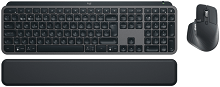
When the keyboard starts repeating letters, the MX Master 3S pauses between movements, or Logi Options+ cannot see both devices, the Logitech MX Keys S Combo Driver setup needs more than another quick reinstall. This performance set combines the MX Keys S keyboard, MX Master 3S mouse, Logi Bolt connectivity, Bluetooth Low Energy, Easy-Switch, rechargeable batteries, and Logi Options+ controls, so the fault can sit in several different places.
Logitech MX Keys S Combo Windows Driver Download
| Driver Name | Description | Supported OS | File Size | Download |
|---|---|---|---|---|
| Logi Options+ Software | Customizes supported mouse buttons, keyboard shortcuts, scrolling, gestures, pointer behavior, and device settings. | Windows 11, Windows 10 32-bit/64-bit | 43.1 MB |
Logitech MX Keys S Combo Mac OS Driver Download
| Driver Name | Description | Supported OS | File Size | Download |
|---|---|---|---|---|
| Logi Options+ Software | Provides customization for keyboard shortcuts, mouse controls, scrolling, gestures, and supported device preferences. | macOS 26, macOS 15, macOS 14 | 19.54 MB | |
| Logi Options+ Software | Manages configurable shortcuts, button assignments, pointer behavior, gestures, and other compatible Logitech device settings. | macOS 13 | 19 MB | |
| Logi Options+ Software | Adjusts supported mouse and keyboard functions, including scrolling behavior, shortcuts, gestures, and device-specific controls. | macOS 13, macOS 12, macOS 11, macOS 10.15 | 18.65 MB | |
| Logi Options+ Software | Enables supported Logitech customization such as keyboard actions, mouse buttons, scrolling options, gestures, and shortcuts. | macOS 12.0 | 18.65 MB | |
| Logi Options+ Software | Offers controls for compatible device shortcuts, mouse button functions, pointer preferences, scrolling, and gesture assignments. | macOS 11 | 17.51 MB |
Logitech MX Keys S Combo Driver When Input Starts Lagging
Short freezes can affect typing and pointer movement even though both devices still look connected. First decide whether the keyboard, mouse, or both are affected. If both pause together while using the Logi Bolt receiver, move the receiver to another USB port and remove nearby USB devices temporarily. A shared interruption points toward the wireless path or USB connection rather than two hardware failures happening at once.
Typed characters arrive in bursts
The MX Keys S can appear to hold a key after your finger has already moved away, producing several letters at once. Test the keyboard on another computer and also compare Bluetooth with Logi Bolt. If the problem disappears on the second machine or with the other connection method, investigate the original computer instead of assuming the key mechanism has failed.
Logi Options+ is worth checking when delayed typing begins after a software change. Close the app completely and compare typing before making more changes. Restart the computer, update Logi Options+, and reconnect the keyboard only if the delay continues. Avoid running several Logitech control utilities for the same devices, because the MX Keys S Combo is intended to use Logi Options+ for its added functions.
Mouse movement feels uneven beside the keyboard
The included MX Master 3S can connect by either Logi Bolt or Bluetooth. When movement becomes jerky through the receiver, change its USB location and compare the result with Bluetooth. A desktop computer hidden under a desk, a dock crowded with USB devices, or another piece of hardware close to the receiver can alter the wireless path enough to make pointer motion feel inconsistent.
The mouse also has an 8000 DPI Darkfield sensor, so pointer speed can become uncomfortable if a high value was selected in Logi Options+. Reset the pointer speed to a moderate level before judging tracking quality. This is especially useful after importing settings or changing profiles for a high-resolution display.
Pairing Both Devices Without Mixing Receiver Types
The MX Keys S and MX Master 3S in this combo work with the included Logi Bolt receiver and can also connect directly through Bluetooth Low Energy. A Unifying receiver is not a substitute for Logi Bolt. If an older Logitech receiver remains in the computer, do not assume the newer keyboard and mouse will pair with it simply because the connector looks similar.
The Logi Bolt receiver sees only one device
Open Logi Options+ and use its add-device process for the Logi Bolt receiver. Put the missing keyboard or mouse into pairing mode by selecting the intended Easy-Switch channel and holding its Easy-Switch control for about three seconds until the channel light flashes quickly. Complete pairing before moving to another channel. A quick press changes channels; a longer press prepares the selected channel for a new connection.
The Logitech MX Keys S Combo Driver environment works best when each Easy-Switch position has a clear purpose. If channel one already belongs to another computer, pairing it again can replace that connection. Use an unused channel when adding another machine, or deliberately re-pair the existing one when you want to replace its saved connection.
Bluetooth shows the device but connection never finishes
Remove the failed keyboard or mouse entry from the computer’s Bluetooth list, then start pairing again from the chosen Easy-Switch channel. Confirm that its LED is flashing rapidly before scanning. If the light is steady rather than flashing, the device is usually sitting on an existing channel instead of waiting for a new Bluetooth connection.
When Bluetooth repeatedly drops but Logi Bolt remains steady, keep the receiver connection for that computer while checking its Bluetooth adapter and operating-system updates separately. The reverse test also works: if Bluetooth stays responsive while Bolt does not, focus on receiver placement, the USB port, and the pairing state.
Logitech MX Keys S Combo Software Controls That Suddenly Stop Working
Normal typing, clicking, and pointer movement can continue without every advanced function working. Logi Options+ adds the deeper controls for this set, including keyboard customization, Smart Actions, mouse gestures, button assignments, scroll behaviour, pointer adjustments, and Flow. If those extras disappear while basic input remains intact, concentrate on the application rather than repeatedly pairing the hardware.
Options+ opens but does not detect the keyboard or mouse
Quit Logi Options+, power the affected device off and back on, then reopen the application after confirming that ordinary input still works. If Bluetooth or Logi Bolt itself is functioning, removing the working operating-system connection should not be the first move. Update Logi Options+ and restart the computer before rebuilding pairings that are otherwise healthy.
Older Logitech Options is no longer the preferred application for this combo. Use Logi Options+ for supported MX Keys S and MX Master 3S controls. Keeping an outdated utility beside the newer app can make troubleshooting harder because it becomes unclear which program owns a shortcut, notification, or customized control.
Custom buttons work in one program but not another
The MX Master 3S supports app-specific assignments for controls such as its thumb wheel and configurable buttons. Check whether Logi Options+ has a separate profile for the program where the function fails. A button that performs one command in a browser may intentionally perform something different in another application, so compare the global assignment with the application-specific one.
On macOS, advanced mouse controls may also depend on permissions granted to Logi Options+. If ordinary clicking works but gestures or customized actions do not, inspect the relevant system privacy permissions and reopen the application after making a change. That is more targeted than deleting a working Bluetooth connection.
Flow stops at the edge of one computer
Logitech Flow requires Logi Options+ on both computers. The MX Master 3S moves the cursor between machines, and the MX Keys S can follow the mouse when the feature is configured on both systems. If the cursor no longer crosses over, confirm that both computers are active on the same network and that Flow remains enabled in each Logi Options+ installation.
Also confirm that the keyboard and mouse are paired to appropriate Easy-Switch channels on both machines. Flow cannot repair a missing connection to the second computer. Establish normal keyboard and mouse control on each system first, then return to Flow configuration.
Backlight, Charging, and Scroll Behaviour Need Different Fixes
Keyboard backlight refuses to turn on
The MX Keys S has smart illumination with several backlight levels, but it does not keep the lights on under every condition. Bright surroundings can make the keyboard disable illumination because extra light is unnecessary. Low battery can also prevent the backlight from operating. Test it in a dimmer room and charge the keyboard before treating the missing light as a hardware fault.
Logi Options+ can change backlight duration and brightness behaviour. If illumination goes out sooner than expected, inspect those controls before resetting anything else. Automatic brightness can also be changed to manual adjustment. A backlight complaint therefore may come from room light, battery state, or a saved Options+ preference rather than failed LEDs.
Battery drains much faster with illumination enabled
Backlighting has a major effect on MX Keys S battery life. Reducing the brightness level or switching the light off when it is unnecessary can extend the interval between charges considerably. The keyboard uses a rechargeable battery and charges through USB-C, so a very short runtime should first be compared with the chosen backlight behaviour before battery failure is assumed.
The MX Master 3S is rechargeable as well. If its battery indicator remains low, try another suitable charging cable or USB power source and inspect the USB-C port for debris. A charging problem is separate from Logi Bolt or Bluetooth pairing; rebuilding the wireless connection will not correct a cable or power-delivery fault.
MagSpeed wheel changes feel unexpectedly
The MX Master 3S MagSpeed wheel has line-by-line and free-spinning modes. Its speed-adaptive behaviour can move between them automatically, while the top mode-shift button can change modes manually. A wheel that suddenly feels almost frictionless may therefore be in free-spin mode rather than damaged.
Logi Options+ lets you disable SmartShift or change its sensitivity. If the wheel enters free-spin too easily, raise the threshold so faster movement is required before the change. If you prefer predictable ratchet scrolling, turn SmartShift off and use the manual mode button. The thumb wheel has separate controls, including scrolling direction and app-specific functions.
Rebuild Only the Part of the Combo That Failed
The Logitech MX Keys S Combo Driver setup becomes easier to diagnose when the keyboard and mouse are treated as two independent wireless devices that can share the same software environment. A repeating keyboard does not require resetting the mouse, and a MagSpeed problem does not justify deleting the keyboard pairing. Test the failing part through its alternate connection method whenever possible.
If both components fail together on Logi Bolt, inspect the receiver path first. If one device alone disappears, put only that device back into pairing mode. When ordinary input works but Smart Actions, gestures, Flow, custom keys, or application profiles fail, concentrate on Logi Options+ instead of disturbing healthy wireless connections.
The final check should match the original symptom. Verify several minutes of uninterrupted typing for keyboard lag, long pointer movements for mouse pauses, repeated Easy-Switch changes for multi-computer work, and both MagSpeed modes for wheel complaints. That targeted test shows whether the fix actually addressed the problem instead of merely making the Logitech MX Keys S Combo Driver appear normal for a few seconds.