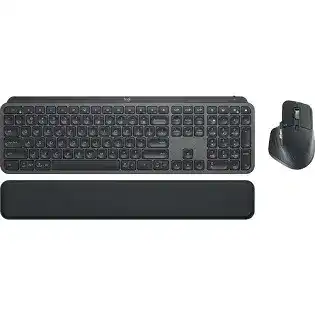
Typing pauses, delayed pointer movement, and missing custom controls often appear even though both devices still show as connected. The Logitech MX Keys Combo Driver uses Logi Options+ to manage the MX Keys keyboard and MX Master 3 mouse, while the combo can connect through its Logitech Unifying USB receiver or Bluetooth Low Energy. Start by identifying which connection each device currently uses before changing software.
The keyboard and mouse do not need separate Windows hardware drivers for ordinary input. Their advanced functions come through Logitech software. These include keyboard key customization, mouse button assignments, gesture controls, scrolling preferences, application profiles, Easy-Switch channels, and Logitech Flow. USB-C cables charge both devices but do not turn them into wired input devices.
Logitech MX Keys Combo Windows Driver Download
| Driver Name | Description | Supported OS | File Size | Download |
|---|---|---|---|---|
| Logi Options+ Software | Customizes keyboard shortcuts, device settings, scrolling behavior, gestures, and supported mouse button actions. | Windows 11, Windows 10 32-bit/64-bit | 28.68 MB | |
| Logitech Options Software | Manages keyboard functions, application shortcuts, pointer behavior, scrolling, and other device-specific controls. | Windows 11, Windows 10 32-bit/64-bit | 277.51 MB | |
| Logi Tune Software | Provides device configuration, firmware access, status monitoring, and settings for compatible Logitech equipment. | Windows 11, Windows 10 32-bit/64-bit | 183.14 MB | |
| Logi Bolt App | Pairs and manages compatible Logitech devices connected through a Logi Bolt USB receiver. | Windows 11, Windows 10 32-bit/64-bit | 33.11 MB |
Logitech MX Keys Combo Mac OS Driver Download
| Driver Name | Description | Supported OS | File Size | Download |
|---|---|---|---|---|
| Logi Options+ Software | Adjusts keyboard shortcuts, gestures, scrolling, pointer behavior, and device controls on supported Mac systems. | macOS 13, macOS 12.0, macOS 11.2, macOS 11.1, macOS 11, macOS 10.15 | 16.75 MB | |
| Logi Tune Software | Controls supported Logitech device settings, firmware functions, operating status, and connected hardware preferences. | macOS 13, macOS 12.0, macOS 11.2, macOS 11.1, macOS 11, macOS 10.15 | 233.88 MB | |
| Logitech Options Software | Configures keyboard functions, shortcuts, gestures, scrolling preferences, and device-specific settings on Mac. | macOS 12.0, macOS 11.2, macOS 11.1, macOS 11, macOS 10.15 | 295.69 MB | |
| Logi Bolt App | Connects and administers compatible Logitech keyboards and mice paired through a Logi Bolt receiver. | macOS 12.0, macOS 11.2, macOS 11.1, macOS 11, macOS 10.15 | 54.96 MB |
Both devices pause through the Unifying receiver
When the keyboard misses letters at the same time the pointer stutters, inspect the receiver path first. Plug the Unifying receiver directly into the computer rather than a monitor, dock, passive hub, or keyboard port. A short USB extension can also place the receiver away from metal computer cases and crowded USB equipment.
Wireless disruption often increases near USB 3 devices, external drives, docking stations, and wireless network adapters. Separate the receiver from those components and test the combo at a shorter distance. Reinstalling Logi Options+ will not correct interference between the receiver and both peripherals.
Only one part of the combo reconnects
The keyboard and mouse can use different Easy-Switch channels, so one may remain on the computer while the other points to a previous device. Check the illuminated channel number on each product. Select the channel assigned to the current computer before starting another pairing process.
If the expected channel will not reconnect, hold its Easy-Switch button until the indicator flashes quickly. Pair that channel again through Bluetooth or the compatible Unifying utility, depending on the connection you intend to keep. Do not pair the keyboard over Bluetooth while repeatedly trying to repair its old receiver entry.
Input stops after sleep or screen lock
Wake the computer with its built-in controls, then switch the affected Logitech device off and back on. If this restores operation, update the Bluetooth adapter or USB controller through the computer manufacturer and install current operating-system updates. Sleep failures may come from the host radio rather than the keyboard or mouse.
For receiver connections, disable aggressive USB power saving only when the receiver repeatedly vanishes after sleep. Open the power-management properties for the relevant USB hub and prevent Windows from turning it off to save power. Leave unrelated USB devices unchanged.
Pairing the Combo Without Mixing Receiver Types
The Logitech MX Keys Combo Driver setup works best when each saved channel has a clear purpose. The included receiver belongs to Logitech’s Unifying system. It is not a Logi Bolt receiver, and Bolt pairing software cannot add these exact combo devices to a Bolt dongle. Bluetooth remains a separate connection choice.
The Unifying utility cannot find the keyboard
Charge the keyboard, turn it off, and connect the receiver before opening the pairing utility. Start pairing, switch the keyboard on, and hold the selected Easy-Switch key until its light flashes rapidly. A slow light or steady light usually means that channel has not entered pairing mode.
Remove other nearby Logitech receivers during this process when the utility selects the wrong dongle. After pairing succeeds, reconnect the remaining receivers one at a time. The keyboard can remember multiple computers, but each channel must point to only one active Bluetooth or receiver connection.
The mouse works over Bluetooth but not through the dongle
Select an unused mouse channel and place it in rapid-flashing mode before opening the Unifying pairing utility. The channel already used for Bluetooth may continue reconnecting to the saved computer, which makes receiver pairing appear unsuccessful. Assign the dongle to a different channel or remove the old Bluetooth entry first.
Confirm that the receiver carries the Unifying symbol. A visually similar Bolt or non-Unifying receiver will not pair with the MX Master 3 included in this combo. Receiver compatibility depends on the Logitech wireless system, not simply the shape of the USB plug.
Bluetooth asks for a keyboard code
During keyboard pairing, the computer may display a numeric code. Type that number on the MX Keys and press Enter on the keyboard itself. Do not enter the code through an on-screen keyboard. If the prompt closes too quickly, remove the incomplete Bluetooth listing and begin again with the channel light flashing rapidly.
Bluetooth discovery can also fail when a channel remains linked to another nearby computer. Turn Bluetooth off temporarily on the old device or remove the keyboard from its saved list. Then restart pairing on the intended computer.
Logi Options+ Cannot See the MX Keys Combo
Both peripherals may type, point, and click while Logi Options+ stays on an initializing screen or displays only one device. The operating system can handle standard input without the Logitech service, so working basic controls do not prove that the control app has loaded its background components correctly.
The app shows the mouse but not the keyboard
Quit Logi Options+ completely, restart its background service by restarting the computer, and open the app after both devices have connected. Avoid launching an older Logitech Options installation at the same time. Two generations of the software can compete for device access or leave incomplete configuration data.
If the keyboard remains absent, test its other connection method. Pair it temporarily through Bluetooth when it normally uses the receiver, or reconnect it through Unifying when Bluetooth is the failing path. Detection through one method confirms that the keyboard itself still communicates and narrows the fault to the saved connection.
Options+ remains on downloading or initializing
Remove the application normally, restart, and install a newly downloaded package. Security software, restricted corporate networks, and damaged background services can interrupt the first device-information download. Allow the Logitech processes through the local firewall and complete installation from an administrator account when company policy permits it.
Do not remove working Bluetooth pairings or receiver links before checking the app service. Pairing and customization are separate layers. Rebuilding every connection can create duplicate entries without repairing an Options+ process that never started.
Custom assignments disappear after an update
Open each device inside Options+ and check its global assignments before reviewing individual applications. An update may preserve the app profile while changing the default action underneath it. Recreate one affected control, apply it, and verify that the action remains after closing and reopening the software.
Cloud backup can restore supported settings after signing in, but it should not replace a quick manual check. Application names and executable locations can change during software updates, leaving an old profile attached to a file that no longer launches.
Backlight, Typing, and Keyboard Function Problems
The MX Keys uses illuminated keys, ambient-light awareness, and hand-proximity sensing. Its lighting therefore does not behave like a fixed lamp. Brightness can change with the room, and the backlight turns off after inactivity to preserve the rechargeable battery.
The backlight switches on with nobody typing
Move phones, charging cables, metal objects, and other electronics away from the keyboard’s upper edge, then clean the surface around the sensors with a dry cloth. Nearby movement or changing light can trigger the proximity system. Power-cycle the keyboard and update its firmware through Logi Options+ if the lighting continues to activate repeatedly.
Lower the brightness with the keyboard controls while testing. Turning illumination off prevents unnecessary battery loss, but it does not repair a sensor that triggers constantly. Repeated activation in an empty room after firmware and environmental checks may indicate a hardware fault.
The keys stay dark in a bright room
The keyboard may reduce illumination automatically when room light makes it unnecessary. Covering the sensor briefly or moving to a dimmer area can confirm that automatic brightness still responds. Increase the level with the backlight keys, and charge the keyboard if the indicator shows a low battery.
Logi Options+ may expose lighting preferences for supported software and firmware versions. Reset those preferences before assuming the LEDs have failed. If no key illuminates during startup or charging tests, check the USB-C charging source and try another cable.
One press produces several letters
Test the keyboard over both Bluetooth and the Unifying receiver. Repeated characters through only one connection suggest radio disruption or a host-side problem. The same key repeating across different computers and both connection methods points more strongly to debris, liquid damage, or switch failure.
Turn off Windows Filter Keys and other accessibility features during diagnosis. Also close text-expansion and macro utilities that can duplicate input. Use a plain typing field to separate keyboard output from application shortcuts, document automation, and browser extensions.
Function keys perform the unexpected command
The top row can work as media and productivity controls or as standard F-keys. Press Fn and Esc to change the default mode, then test the affected key again. Logi Options+ can also control this preference and create application-specific assignments.
Windows and macOS labels share several keycaps, so the printed symbol may depend on the operating-system mode. Confirm the computer layout inside the Logitech software before remapping individual keys. An incorrect platform layout can make Option, Command, Alt, and Start functions appear swapped.
Mouse Scrolling, Gestures, and Pointer Control
The MX Master 3 adds a MagSpeed wheel, thumb wheel, gesture control, back and forward buttons, and adjustable tracking. When one feature fails while ordinary pointing remains normal, examine its Options+ assignment before rebuilding the wireless connection.
The main wheel jumps between line and free-spin modes
Press the wheel-mode button to choose ratchet or free-spin behaviour. SmartShift can also change modes according to wheel speed, which may feel like an unwanted mechanical switch. Open the scrolling page in Options+ and lower SmartShift sensitivity or disable automatic switching while testing.
Clean around the wheel with a dry brush and rotate it several times. Do not pour cleaner into the mechanism. Direction changes or missed movement that continue on another computer with SmartShift disabled may come from physical wear rather than software.
The thumb wheel does nothing
Horizontal scrolling appears only where the active window has sideways content. Test the thumb wheel in a wide spreadsheet, timeline, or editing workspace. Then inspect its global assignment and any application profile that may have replaced horizontal movement with zoom, tab switching, or another command.
Gestures stop when Options+ closes
The gesture button relies on Logitech’s background software for customized actions. Restart the Options+ service and confirm that the app can run at login. Standard clicks may continue without it, while directional gestures and application profiles remain unavailable.
The Logitech MX Keys Combo Driver should now show both products separately and retain their chosen controls. Test one gesture before adding several custom actions. This makes it easier to identify whether the background service, an application profile, or a specific assignment has failed.
The pointer feels uneven on glass or a desk mat
The Darkfield sensor can track on many surfaces, including glass that meets its surface requirements, but dust, glare, and uneven coatings still affect movement. Wipe the sensor opening and test a plain mouse pad. Adjust pointer speed in one place at a time rather than changing Windows and Options+ together.
Charging and Easy-Switch Checks Before Rebuilding Everything
Charge the keyboard and mouse separately when either product disconnects, dims, or refuses pairing mode. A USB-C cable supplies power but does not carry typing or pointer input for these wireless devices. Leave each product switched on during charging unless diagnosing a power-switch problem.
Use another cable and USB power source when no charging indicator appears. Inspect the port for lint without inserting metal tools. A brief charge can restore pairing, but a device that shuts down immediately after cable removal may have a worn battery.
Finish by assigning each computer to a matching Easy-Switch channel on both products. Keep the Unifying receiver on one shared channel and reserve the others for Bluetooth devices. That arrangement makes switching predictable and avoids repairing a connection that was merely waiting on another channel.