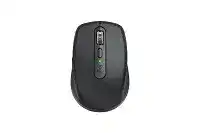
A wheel that suddenly free-spins, ignores precise notches, or stops following saved preferences can make the Logitech MX Anywhere 3 Wireless Mouse Driver seem faulty. This compact model uses a MagSpeed wheel with line-by-line and free-spin modes, plus SmartShift for automatic changes between them. Logi Options+ controls those advanced behaviors, while ordinary pointing and clicking can continue through standard operating-system support.
Begin with the wheel mode button behind the scroll wheel. Press it once and check whether the wheel changes between ratchet and free-spin movement. When the physical button works but the preferred mode later returns to another setting, open Logi Options+ and inspect SmartShift rather than repeatedly pairing the mouse.
Logitech MX Anywhere 3 Wireless Mouse Windows Driver Download
| Driver Name | Description | Supported OS | File Size | Download |
|---|---|---|---|---|
| Logi Options+ Software | Customizes mouse buttons, pointer behavior, scrolling, shortcuts, gestures, and device settings. | Windows 11, Windows 10 32-bit/64-bit | 43.21 MB | |
| Logitech Options Software | Adjusts button assignments, pointer speed, scrolling preferences, application shortcuts, and other mouse controls. | Windows 11, Windows 10 32-bit/64-bit | 245.76 MB |
Logitech MX Anywhere 3 Wireless Mouse Mac OS Driver Download
| Driver Name | Description | Supported OS | File Size | Download |
|---|---|---|---|---|
| Logi Options+ Software | Configures mouse buttons, scrolling modes, pointer movement, gestures, shortcuts, and device preferences. | macOS 26, macOS 15, macOS 14 | 19.56 MB | |
| Logitech Options Software | Manages button functions, pointer response, scrolling behavior, gesture commands, and application-specific settings. | macOS 15, macOS 14, macOS 13, macOS 12, macOS 11 | 238.52 MB | |
| Logi Options+ Software | Provides button remapping, pointer adjustments, scrolling controls, gesture setup, and personalized shortcuts. | macOS 13 | 19 MB | |
| Logi Options+ Software | Changes mouse controls, pointer preferences, scroll settings, gesture actions, and supported application commands. | macOS 12 | 18.65 MB |
SmartShift turns itself off or changes unexpectedly
SmartShift automatically releases the wheel when scrolling speed passes the selected threshold. A low sensitivity can make the change happen too easily, which feels like the mouse has abandoned ratchet mode. Raise the SmartShift sensitivity in the Point and Scroll panel, apply the change, and test with both slow document movement and a faster wheel flick.
When the preference resets after sleep or a restart, confirm that Logi Options+ remains active and still detects the device. Close duplicate Logitech utilities, restart the app, and save the wheel preference again. Reinstall the current package only when the control app repeatedly loses the mouse or refuses to retain any customization.
The wheel stays in free-spin mode
Turn SmartShift off temporarily, then use the mode button to select ratchet movement manually. This separates an automatic switching problem from a mechanical mode problem. If the wheel never develops distinct steps even though the software shows ratchet mode, power the mouse off for several seconds and test it on another paired computer.
Debris around the wheel can also reduce the expected MagSpeed feel. Switch the mouse off and use brief dry air around the wheel opening while rotating it gently. Do not add oil or spray cleaner. A wheel that remains loose or resistant across different computers may have internal wear that software cannot correct.
Vertical scrolling stops in several applications
First quit Logi Options+ and test normal wheel movement without its custom profile. If scrolling returns, reopen the utility and remove any unusual application-specific assignment for the wheel or side buttons. A profile created for one program can sometimes produce confusing behavior when that program updates or its executable changes.
When vertical scrolling fails through both Bluetooth and the USB receiver on separate computers, the fault likely sits in the mouse rather than the connection. Test wheel rotation, middle click, and horizontal movement separately. That comparison shows whether the entire wheel assembly has failed or only one command has stopped registering.
Pair Each Easy-Switch Channel With the Connection You Intend to Use
The Logitech MX Anywhere 3 Wireless Mouse can remember connections for as many as three computers. The Easy-Switch button underneath selects channels one, two, or three, but changing the number does not automatically copy an existing pairing. Each channel must already contain a Bluetooth connection or a compatible receiver connection for its chosen computer.
The channel light blinks but the computer finds nothing
Select the intended channel, then hold the Easy-Switch button for about three seconds until its indicator flashes rapidly. A slow flash usually means the channel is selected but not actively waiting for a new pairing. Open the computer’s Bluetooth panel only after the rapid blink begins, then select MX Anywhere 3 from the discovered devices.
If the name appears but pairing does not complete, remove the previous MX Anywhere 3 entry from the Bluetooth list. Turn Bluetooth off and back on, restart the mouse, and begin pairing again on the same channel. Avoid pressing Easy-Switch during the process because that moves the mouse away from the channel being configured.
Bluetooth reconnects slowly after sleep
Give the computer a moment to restore Bluetooth before changing channels. Repeated clicks on Easy-Switch can make a normal wake delay look like a failed connection. Move the mouse, wait briefly, and confirm that the correct channel indicator lights before deleting its pairing.
Persistent wake delays deserve a comparison with the included USB receiver. If receiver operation remains immediate while Bluetooth repeatedly stalls, update the computer’s Bluetooth driver and remove unnecessary old peripherals from its saved list. On a laptop, also test with aggressive Bluetooth or USB power-saving options disabled.
The included receiver does not control the mouse
The standard MX Anywhere 3 uses a Logitech Unifying receiver, not a Logi Bolt receiver. These receiver families are not interchangeable. Plug the supplied Unifying receiver directly into a USB port and select the channel previously assigned to it. A receiver from another Logitech device may need pairing through the matching Unifying setup function.
Use the Logitech MX Anywhere 3 Wireless Mouse Driver package and its supported pairing option rather than a Bolt-only utility. If the receiver appears in Windows but the pointer remains still, try another USB port and run the pairing process again with the mouse close to the receiver.
Pointer lag appears only through the receiver
Move the Unifying receiver away from crowded USB equipment, external drives, docks, and high-speed USB hubs. A short extension cable can place it nearer the mouse without forcing the computer into an awkward position. This often improves an uneven wireless path around metal cases or densely connected desks.
Compare a direct USB port with the hub or dock normally used. When the pointer becomes steady through a different port, leave the receiver there rather than changing pointer sensitivity to hide connection drops. Bluetooth provides another useful comparison because it bypasses the Unifying receiver entirely.
Restore Side Buttons, Horizontal Movement, and App Commands
The back and forward controls work as ordinary navigation buttons in many Windows applications, while macOS commonly needs Logitech software for their full behavior. Logi Options+ can also assign different commands by application. That flexibility creates problems when a saved profile overrides the general assignment or when macOS has not granted the required control permissions.
Back and forward do nothing on a Mac
Install Logi Options+ and check the privacy permissions requested by the app. macOS may require Accessibility or related input-control access before custom button actions reach other programs. After granting permission, quit and reopen both Logi Options+ and the application where the buttons failed.
Confirm that the side controls still carry Back and Forward assignments in the general profile. Then inspect the profile for the affected browser or document app. An application-specific command takes priority while that program is active, even when the main profile looks correct.
Horizontal scrolling will not start
This model does not have a separate thumb wheel. Hold either side button and rotate the main wheel to move horizontally. A quick side-button press still performs back or forward after release, while holding it changes the wheel’s direction of travel in compatible documents, spreadsheets, and timelines.
Some advanced long-press assignments disable this combination. Gesture, modifier, advanced-click, or pointer-speed actions can occupy the same hold behavior needed for horizontal movement. Return at least one side button to a regular assignment, then test that button while turning the wheel.
A custom command works in one program only
Logi Options+ can store separate profiles for browsers, office software, creative tools, and other applications. Open the profile selector and compare the affected program with the general configuration. Remove an unwanted profile or copy the intended command into that application’s own button page.
When an app was updated or reinstalled, its old profile may no longer attach to the current executable. Delete that profile and add the program again. Test the command after restarting the app rather than assuming the physical side button has developed an intermittent fault.
Charging, Pointer Tracking, and Click Problems Need Separate Tests
The MX Anywhere 3 contains a rechargeable battery and charges through its USB-C port. The cable supplies power, but connection to the computer still uses Bluetooth or the wireless receiver. Plugging in the cable should not be treated as a third wired-data mode when diagnosing pairing or pointer problems.
The battery indicator changes but the mouse dies unplugged
Try another suitable USB-C cable and a different powered USB source. Leave the mouse connected long enough to charge, then switch it off and back on before testing wirelessly. Logi Options+ can display the reported battery level, though a high reading does not prove that an aging battery can hold power.
If the mouse works only while receiving USB power, fails on all three channels, and shows no useful activity after disconnection, the internal battery or charging hardware may have failed. Software removal will not restore a battery that no longer retains a charge.
The pointer becomes slow or inaccurate on a new surface
The Darkfield sensor can track on many surfaces, including glass of sufficient thickness, but dirt beneath the mouse still affects movement. Wipe the sensor window and the desk with a dry lint-free cloth. Test on a plain mouse pad to determine whether the original surface contributes to the problem.
Open Logi Options+ and review pointer speed after confirming the surface. Windows or macOS pointer acceleration can also change the feel, especially when moving between computers with different system preferences. Match one speed control at a time instead of making large changes in both the operating system and Logitech software.
Bluetooth movement feels delayed
Compare Bluetooth on another Easy-Switch channel with the Unifying receiver. If only Bluetooth lags, remove and pair that channel again, update the computer’s Bluetooth software, and disable Enhance pointer precision temporarily on Windows. This test can distinguish actual radio delay from acceleration that makes small movement feel inconsistent.
Keep busy wireless equipment away from the computer when comparing connections. Bluetooth headphones, nearby hubs, and crowded wireless environments can alter the result. Choose the receiver for the affected computer when it produces clearly better response at the same desk.
One click creates two actions
Reduce the double-click test speed in the operating system and try the primary button on another computer. A single press that becomes two clicks across Bluetooth and receiver connections usually indicates switch wear rather than a pairing failure. Also check whether the problem appears during dragging, text selection, and window movement.
Turn the mouse off and clean around the button edge with dry air. Avoid liquids and hard impact. When duplicate clicks continue on several systems, reinstalling the Logitech MX Anywhere 3 Wireless Mouse Driver will not change the switch signal, so warranty or professional hardware service becomes the practical route.
The middle click requires unusual pressure
Verify that the wheel press still carries a middle-button command in Logi Options+. The mode-shift button behind the wheel is separate and should not be confused with pressing the wheel itself. Test middle click in several programs, since some applications assign it to panning while others appear to ignore it.
A wheel press that works only when forced, regardless of connection or computer, points toward mechanical wear. Light dry cleaning around the wheel may remove loose dust, but continued heavy pressure can worsen the switch. Preserve the working scroll function and arrange service rather than repeatedly striking the wheel.
Match the Final Configuration to Each Computer
Use one Easy-Switch channel for every computer and record whether it relies on Bluetooth or the Unifying receiver. Keep wheel sensitivity, side-button profiles, and pointer speed appropriate to that system. The Logitech MX Anywhere 3 Wireless Mouse Driver adds the most value when Logi Options+ recognizes the device consistently and its app profiles remain intentional.
When a symptom survives another channel, both connection methods, and a second computer, stop treating it as a software problem. Scroll encoder wear, weak clicks, charging failure, and a damaged battery will follow the mouse. Connection lag, missing macOS permissions, incorrect profiles, and SmartShift changes usually stay with one computer or one software configuration.