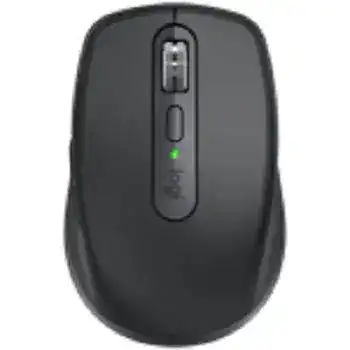
When the pointer works but the wheel modes, side controls, or application shortcuts do not, the Logitech MX Anywhere 3 for Business Mouse Driver gives Logi Options+ access to those advanced functions. This compact rechargeable model connects through Bluetooth Low Energy or its Logi Bolt USB receiver, and three Easy-Switch channels let it move between computers. The best repair depends on which connection and channel the mouse currently uses.
Logitech MX Anywhere 3 for Business Mouse Windows Driver Download
| Driver Name | Description | Supported OS | File Size | Download |
|---|---|---|---|---|
| Logitech Options 64-bit | Full 64-bit software package for customizing mouse buttons, pointer behavior, scrolling, shortcuts, and device settings. | Windows 11, Windows 10 64-bit | 245.76 MB | |
| Logi Options+ | Customization software for adjusting button assignments, scrolling behavior, pointer controls, gestures, and application shortcuts. | Windows 11, Windows 10 32-bit/64-bit | 43.21 MB | |
| Options Beta | Beta customization release for testing mouse controls, shortcut assignments, scrolling options, and pointer settings. | Windows 11, Windows 10 32-bit/64-bit | 277.51 MB | |
| Logi Tune | Logitech device management utility for accessing supported hardware controls and configuration features. | Windows 11, Windows 10 32-bit/64-bit | 183.14 MB | |
| Logi Bolt Installer | Installs the Logi Bolt components required to manage a compatible Bolt receiver connection on Windows 10. | Windows 10 32-bit/64-bit | 33.11 MB | |
| Script DFU | Compact device firmware update utility for supported Logitech hardware on the listed Windows versions. | Windows 11, Windows 10 32-bit/64-bit, Windows 7 32-bit/64-bit | 5.47 MB |
Logitech MX Anywhere 3 for Business Mouse Mac OS Driver Download
| Driver Name | Description | Supported OS | File Size | Download |
|---|---|---|---|---|
| Logi Options+ | Current customization package for configuring mouse buttons, pointer behavior, scrolling, shortcuts, gestures, and device preferences. | macOS 26, macOS 15, macOS 14 | 19.56 MB | |
| Logitech Options | Mac software for assigning mouse controls, refining pointer movement, changing scrolling options, and creating useful shortcuts. | macOS 15, macOS 14, macOS 13, macOS 12, macOS 11 | 238.52 MB | |
| Logi Options+ | Device customization release for managing button actions, scrolling preferences, pointer response, and application-specific commands. | macOS 13 | 19 MB | |
| Logi Options+ | Mouse configuration software for changing shortcuts, gestures, button functions, pointer controls, and scrolling behavior. | macOS 12 | 18.65 MB | |
| OptionsPlus Beta | Beta driver package for testing OptionsPlus device support and mouse configuration features on compatible Mac systems. | macOS 12, macOS 11.2, macOS 11.1, macOS 11, macOS 10.15 | 12.86 MB | |
| Logi Options+ | Earlier Options+ release for modifying mouse buttons, pointer settings, scrolling controls, gestures, and productivity shortcuts. | macOS 11 | 17.51 MB | |
| Logi Tune | Mac device utility that provides access to available Logitech hardware management and configuration controls. | macOS 13, macOS 12, macOS 11.2, macOS 11.1, macOS 11, macOS 10.15 | 233.88 MB | |
| Logi Bolt Installer | Sets up the Logi Bolt software components used with a compatible Bolt receiver and supported Logitech devices. | macOS 11.2, macOS 11.1, macOS 11, macOS 10.15 | 54.96 MB | |
| Script DFU | Lightweight firmware update helper for supported Logitech devices running the listed macOS releases. | macOS 11.2, macOS 11.1, macOS 11, macOS 10.15 | 2.72 MB |
Logitech MX Anywhere 3 for Business Mouse Driver When Logi Options+ Shows It as Inactive
Install the current Logi Options+ package on Windows or macOS before changing button assignments, pointer speed, or MagSpeed wheel behavior. The operating system can handle ordinary movement and clicking without the app, which explains why the pointer may respond while custom actions remain missing. Open the utility after installation and confirm that it displays the exact mouse rather than an inactive or disconnected image.
If the device disappears from the app after an update, close Logi Options+ fully, restart the computer, and power the mouse off for several seconds. Turn it on again while the chosen Easy-Switch channel remains active. Reinstall the application only when reopening and restarting do not restore detection. Repeated installation rarely repairs a mouse that is actually connected through another channel.
The active Easy-Switch channel belongs to another computer
The button underneath the mouse selects one of three stored connections. A brief press changes the channel, while a longer press prepares that channel for new pairing. Check the numbered light before troubleshooting the software. When the mouse is communicating with a different computer, Logi Options+ on the current machine may display it as inactive even though the hardware has no fault.
Use a channel that already belongs to the current computer or place an unused channel into pairing mode. Avoid pairing several channels to one machine unless there is a specific reason. Duplicate connections can make channel switching confusing and leave old Bluetooth records that no longer match the channel you expect to use.
Custom actions work only while the control app runs
Back, forward, gestures, application profiles, and horizontal scrolling depend on the Logitech background components. If those controls return to ordinary clicks after startup, check that Logi Options+ can run as a login item. Security tools and aggressive startup managers may stop its background process while leaving normal pointer movement untouched.
The Logitech MX Anywhere 3 for Business Mouse Driver should show the battery state, connection status, pointing options, wheel controls, and assignable buttons. Reset the device configuration inside the app when a broken profile follows the mouse across programs. Recreate only the assignments you need rather than importing an uncertain profile again.
Choose Between Logi Bolt and Bluetooth Without Mixing Their Pairings
This business version uses a Logi Bolt receiver, not a Logitech Unifying receiver. The two receiver systems are not interchangeable. A spare receiver must carry the Logi Bolt mark, and the mouse must be paired to it through the compatible Logitech utility. Plugging in an older Unifying dongle will not create a connection, even when it came from another Logitech product.
The Logi Bolt receiver appears but the pointer stays still
First try another direct USB-A port. Hubs, docks, monitor ports, and adapters can complicate receiver detection, especially during initial pairing. Once the computer recognizes the receiver, open the Logi Bolt pairing function and place the selected mouse channel into pairing mode by holding the Easy-Switch button until its light flashes quickly.
Keep the device near the receiver while pairing. After the connection completes, return it to the normal desk position and check movement, clicks, and wheel response. When a replacement receiver refuses to pair, confirm that it is genuinely Logi Bolt rather than a visually similar Unifying or basic nano receiver.
Bluetooth connects, then becomes slow or erratic
Remove the existing mouse record from the computer’s Bluetooth list before making another connection. Select the intended Easy-Switch channel, hold the channel button until the light flashes rapidly, and add the mouse again. Merely turning Bluetooth off and on may reconnect the damaged record instead of creating a new pairing.
On Windows, Bluetooth power management can cause delayed wake-up or intermittent movement on some computers. Open the Bluetooth adapter properties in Device Manager and inspect its power-management option. Prevent Windows from switching off the adapter when the stutter begins after idle periods. Also compare pointer behavior with Enhance pointer precision enabled and disabled, since that setting can feel like lag on some systems.
The Logitech MX Anywhere 3 for Business Mouse Driver can remain installed whether the device uses Bluetooth or Logi Bolt. Changing the wireless method does not require a second software package. It does require a valid pairing on the selected channel, so note which channel belongs to each computer before switching between them.
Movement breaks near docks and crowded USB equipment
A receiver beside a busy dock, external drive, or dense cable cluster may produce uneven pointer response. Test a different USB position or use a short extension that places the receiver away from the cluster. Do not assume that every pause comes from the tracking sensor. A clear wireless path often fixes movement that becomes worse only at one workstation.
Repair MagSpeed Scrolling Before Changing Pointer Settings
The metal MagSpeed wheel switches between precise ratchet scrolling and free-spinning movement. Press the wheel-mode button behind the wheel to compare both modes. A document that barely moves in one mode but races in the other may need a scroll adjustment in Logi Options+, while a wheel that fails in every program may need cleaning or a hardware inspection.
Vertical movement changes into horizontal scrolling
MX Anywhere 3 can scroll sideways when a side button is held while the wheel turns. If every wheel movement suddenly travels left or right, press and release both side buttons several times. One may be physically held down by dirt around its edge. Wipe around the button gaps with the mouse switched off and confirm that each button returns freely.
After freeing the button, restore the mouse defaults in Logi Options+ and check vertical scrolling again. Then reapply any application-specific assignments. This symptom can look like a damaged wheel profile, but a held side control may continuously activate the horizontal-scroll command.
Scrolling works in system windows but fails in one program
Open that program’s profile in Logi Options+ and compare it with the general configuration. Remove and add the application profile again when only one program ignores the wheel or side controls. An outdated profile may continue referencing actions created by an earlier software release. Keep the utility open during the first test so the new assignment reaches the active application.
Also check the program’s own scrolling extensions, accessibility tools, and gesture utilities. Two applications attempting to alter wheel input can cause jumps, excessive speed, or no response. Disable the extra utility briefly rather than changing every system-wide mouse value at once.
The wheel jumps or misses individual steps
Turn the mouse off and clear loose dust from the wheel opening with short bursts of clean compressed air. Rotate the wheel slowly during cleaning, but do not pour liquid into the opening. Next, test ratchet and free-spin modes in several documents. Missed steps that occur on multiple computers and in both modes point more strongly toward physical wear than a software profile.
Logi Options+ includes pointing and scrolling controls, so return those values to default before judging the hardware. Extremely high scroll speed can exaggerate small changes from the MagSpeed mechanism. Update the app as well, since earlier releases received fixes for scrolling speed and device-detection faults.
Restore Buttons, Flow, and macOS Control Access
The two side buttons normally handle back and forward actions, but Logi Options+ can assign different commands globally or for individual applications. When a button performs the wrong action, inspect both levels. An application profile overrides the general assignment whenever that program has focus, which can make one button seem inconsistent across browsers, office programs, and creative tools.
macOS permits movement but blocks advanced functions
macOS requires permission for the Logitech app to control scrolling, gestures, back and forward actions, and other assignments. Open Privacy & Security and enable Logi Options+ under Accessibility and Input Monitoring. When macOS asks to quit and reopen the app, accept the prompt. A permission change may not take effect while the old process continues running.
Bluetooth permission also matters when the app must detect a mouse that is not actively connected to that Mac, particularly during Flow use. Enable Logi Options+ in the Bluetooth privacy panel, then reopen it. If a permission switch already appears enabled but controls still fail, turn it off, turn it on again, and allow the requested restart.
Flow cannot find the second computer
Pair the mouse directly with both computers on separate Easy-Switch channels before configuring Flow. Install Logi Options+ on each machine, sign in only when the selected Flow configuration requires it, and place both computers on the same local network. Firewall rules or network isolation can prevent discovery even when the mouse changes channels normally.
Flow should come after each independent connection works. Test movement and the side controls on computer one, switch channels, and repeat the test on computer two. Then enable Flow. This order separates a pairing fault from a network-discovery problem and avoids rebuilding working Bluetooth or Bolt connections unnecessarily.
Clicks repeat while dragging or selecting text
Adjust the operating system’s double-click speed and test again. A faster threshold may reduce accidental double-click recognition, but it cannot repair a worn switch. Compare the left and right buttons on another computer with Logi Options+ closed. Repeated clicks, broken dragging, or released selections across both systems usually indicate a physical click mechanism rather than the software.
Avoid opening the casing or applying liquid to an internal switch. Those repairs can damage the rechargeable device and interfere with warranty service. Record the behavior, test both Bluetooth and Logi Bolt connections, and seek hardware support when the duplicate clicks remain unchanged across computers.
Charge, Reconnect, and Retest the Three Work Channels
This model uses an internal USB-C rechargeable battery. When it will not wake, connect the charging cable, leave the power switch on, and allow a short charging period before testing. Try another cable or powered USB port if no battery indication appears. Charging and wireless communication are separate, so the cable does not replace Bluetooth or Logi Bolt pairing.
Near the end of troubleshooting, open the Logitech MX Anywhere 3 for Business Mouse Driver controls and check the reported battery and connection state. Assign one Easy-Switch channel to each computer, remove abandoned Bluetooth records, and keep the matching Logi Bolt receiver with the device. This channel map prevents most reconnection confusion when the mouse travels between office, home, and mobile systems.
Finish by testing the MagSpeed wheel in both modes, the side controls in two different applications, and pointer movement on the surface normally used. When one symptom follows the mouse across every channel and computer after defaults are restored, treat it as a hardware fault. When it stays with one machine, concentrate on that computer’s Bluetooth adapter, USB position, permissions, or application profile.