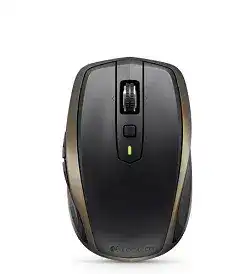
A mouse that connects on one computer but disappears on another usually points to a channel, receiver, Bluetooth, or software detection problem, and the Logitech MX ANYWHERE 2 Mouse Driver should be chosen with that connection path in mind. This model can work through a Logitech Unifying receiver or Bluetooth Smart, and it also has Easy-Switch channels, a rechargeable battery, hyper-fast scrolling, back and forward buttons, and Logitech software support for deeper controls.
Logitech MX Anywhere 2 Mouse Windows Driver Download
| Driver Name | Description | Supported OS | File Size | Download |
|---|---|---|---|---|
| Logi Options+ Smart Installer | Installs Options+ for mouse button customization, pointer behavior, scrolling, shortcuts, and device settings. | Windows 11, Windows 10 32-bit/64-bit | 43.09 MB | |
| Logitech Options Software | Provides control for mouse buttons, pointer speed, scrolling actions, gestures, and shortcut assignments. | Windows 11, Windows 10 32-bit/64-bit | 245.76 MB |
Logitech MX Anywhere 2 Mouse Mac OS Driver Download
| Driver Name | Description | Supported OS | File Size | Download |
|---|---|---|---|---|
| Logi Options+ for macOS 12 | Customizes mouse buttons, pointer movement, scroll direction, gestures, and app-specific device actions. | macOS 12.0 | 18.65 MB | |
| Logi Options+ for macOS 13 | Enables device settings for shortcut controls, button functions, pointer response, and scrolling preferences. | macOS 13 | 19 MB | |
| Logi Options+ for macOS 26, 15, 14 | Adds Options+ support for configuring buttons, gestures, scrolling behavior, shortcuts, and connected device settings. | macOS 26, macOS 15, macOS 14 | 19.44 MB | |
| Logitech Options for macOS | Manages mouse button assignments, gesture features, pointer behavior, scrolling options, and shortcut profiles. | macOS 15, macOS 14, macOS 13, macOS 12, macOS 11 | 238.52 MB |
Logitech MX ANYWHERE 2 Mouse Driver for a Mouse That Pairs to the Wrong Place
The MX Anywhere 2 can remember more than one device, so a failed setup is not always a broken connection. The channel button on the underside decides which saved device the mouse tries to reach. If the pointer does nothing after pairing, the device may be talking to another computer, tablet, or receiver channel instead of the machine in front of you.
Press the Easy-Switch button until the channel you want is selected, then hold the connect button long enough to start pairing again. Use one channel for the Unifying receiver and another for Bluetooth if you move between two computers. Mixing both methods on the same channel can make the mouse look unpredictable.
Bluetooth shows the mouse but does not finish pairing
Remove the old MX Anywhere 2 entry from the Bluetooth list before pairing again. Then select the intended Easy-Switch channel, start pairing mode, and add the mouse again from the operating system Bluetooth menu. This matters after the mouse has been tested with a phone, tablet, or another laptop because the old pairing can stay saved.
If Windows does not show a Bluetooth switch at all, use the Unifying receiver instead or check the computer’s Bluetooth adapter first. The mouse cannot create Bluetooth hardware inside the computer. The Logitech software can manage the mouse after the connection exists, but it cannot replace a missing Bluetooth radio.
The Unifying receiver works only after re-pairing
A replacement receiver must be paired with the mouse. Plugging in a different Unifying receiver may not bring the pointer back until the Logitech pairing utility adds the MX Anywhere 2 to that receiver. Select the right Easy-Switch channel first, open the pairing utility, and follow the power-cycle prompt when the software asks for it.
Do not treat every small Logitech receiver as interchangeable. The MX Anywhere 2 uses the Unifying system, so the receiver should be a compatible Unifying receiver. If another Logitech device already uses the same receiver, the pairing utility can still add this mouse, but the channel and device list must be managed deliberately.
Connection Mode Decides Which Fix Works
The Logitech MX ANYWHERE 2 Mouse Driver setup should not begin with random reinstall attempts. First decide whether the mouse is using Bluetooth or the Unifying receiver. The repair path changes depending on that choice. Bluetooth problems usually involve saved pairings, discovery, or the computer’s wireless adapter. Receiver problems usually involve pairing, USB position, or receiver compatibility.
For receiver use, connect the receiver directly to a stable USB port and keep it away from large metal surfaces or crowded adapters while testing. For Bluetooth use, remove stale entries and pair again on a clear Easy-Switch channel. Only after that should you adjust pointer speed, button assignments, and scroll behavior in Logitech software.
Pointer jumps or pauses on a busy desk
The MX Anywhere 2 has a Darkfield sensor that can track on many surfaces, including glass of a minimum supported thickness, but wireless placement still matters. A poor receiver position can create cursor pauses even when the sensor is working well. Try a clearer USB position and test movement on a plain desk area before changing advanced settings.
If the same pause happens over Bluetooth, remove the pairing, restart Bluetooth on the computer, and pair the mouse again. Also make sure the selected Easy-Switch channel is not still attached to a nearby device that wakes and steals the connection.
The mouse works after sleep but buttons do not
After a sleep or wake cycle, the pointer may return before the button customization service is ready. Open the Logitech control app and check whether it still sees the mouse. If the app does not detect it, switch the mouse off, wait a few seconds, switch it on, and give the software time to reload the device profile.
On macOS, button customization and gesture controls may also need privacy permissions for the Logitech background service. When custom actions stop after an update, check Input Monitoring and Accessibility permissions, then restart the Mac. Basic movement can work without those permissions, but custom controls may not.
Scroll Wheel Mode, Middle Click, and Button Confusion
The MX Anywhere 2 wheel has two scroll modes. Pressing the wheel changes between fast free-spin scrolling and click-to-click scrolling. That surprises many users because they expect the wheel press to behave like a normal middle click. On this model, middle-click behavior is handled separately, so the wheel press may feel wrong until the layout is understood.
Use Logitech software to review the assigned actions for the middle button and back or forward buttons. If a browser goes back when you expected middle click, or the wheel changes scroll mode when you expected to open a new tab, the issue is usually assignment and button location rather than a missing system driver.
Wheel suddenly scrolls too fast
Press the wheel once to change from hyper-fast mode back to click-to-click mode. In fast mode, a small spin can move through a long page quickly, which feels like a fault if it was triggered by accident. Click-to-click mode gives more controlled movement for forms, menus, and short pages.
If the wheel changes mode too easily, avoid pressing straight down while scrolling. Use a lighter finger roll, then test the mode in a long document. Reinstalling the Logitech MX ANYWHERE 2 Mouse Driver will not fix a normal wheel-mode switch unless the software itself cannot detect the mouse.
Back and forward buttons do nothing
The side buttons are intended for navigation and can be customized through Logitech software. If they do nothing, test them in a browser history session first. Open a few pages in one tab, then press back and forward. If they work there but not in another program, that program may not use browser-style navigation commands.
If the buttons fail everywhere, open the Logitech app and check the assignments. Reconnect the mouse using the active channel if the app does not show the device. On macOS, confirm the needed permissions because the pointer can move while extra button actions remain blocked.
Charging, Battery LED, and USB Cable Misunderstandings
The MX Anywhere 2 has a built-in rechargeable battery and charges through a micro USB port. A low charge can cause pairing failures, delayed wake behavior, or short disconnects. Charge the mouse before diagnosing software, especially if the battery LED warns or the device has been unused for a long time.
The charging cable is for power. Depending on the setup, users may still need Bluetooth or the Unifying receiver for normal wireless use. If the mouse does not move just because a cable is plugged in, check that the wireless connection is still active and the Easy-Switch channel points to the computer you are using.
Mouse charges but will not reconnect
Leave the mouse charging long enough to rule out a deeply low battery, then turn it off and back on. Select the correct channel and reconnect using the same method as before. For the receiver path, open the Unifying pairing utility if the receiver no longer responds. For Bluetooth, remove the saved entry and pair again.
A cable swap can also help when the battery LED does not respond. Some old micro USB cables charge poorly or sit loosely in the port. Use a known working cable and a direct USB power source before assuming the battery has failed.
Logitech MX ANYWHERE 2 Mouse Software for Custom Controls
Logitech Options was the original customization software for this mouse, while Logitech now directs many supported devices toward its newer customization software. The useful goal is simple: install the Logitech utility that detects the MX Anywhere 2 on your system and exposes the controls you need. Do not keep several Logitech mouse utilities running just to test one device.
Once the app detects the mouse, check pointer speed, scroll direction, button actions, and application-specific behavior. If custom actions behave differently in two programs, review app-specific settings before resetting the whole device. The Logitech MX ANYWHERE 2 Mouse Driver is most useful when the connection is already stable and the remaining problem is control behavior.
Software opens but the device stays missing
Start by confirming that the mouse actually moves in the operating system. If it does not, fix the Bluetooth or Unifying connection first. If the pointer works but the app still misses the device, restart the computer, reconnect the receiver or Bluetooth pairing, and reopen the app after the mouse wakes.
Remove old Logitech entries only when they create detection confusion. For example, if several MX devices were used on the same computer, the app may show another saved product or no active product at all. A cleaner device list makes the current MX Anywhere 2 easier to identify.
Make the MX Anywhere 2 Behave Like One Mouse Again
The best repair sequence for this model is to stop switching fixes halfway through. Choose the active Easy-Switch channel, choose Bluetooth or the Unifying receiver, confirm battery charge, and then open the Logitech utility for control settings. That order keeps connection faults separate from button and scroll assignments.
Use the Logitech MX ANYWHERE 2 Mouse Driver as the software layer after the hardware path is clear. If the pointer moves, focus on wheel mode, side-button actions, and macOS permission checks. If the pointer does not move, focus on the selected channel, pairing method, receiver compatibility, Bluetooth availability, and charge state before changing customization settings.