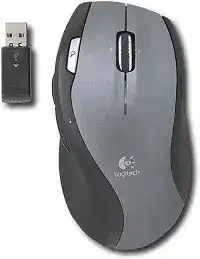
A search button that does nothing, a wheel that flies through pages too quickly, or a receiver that no longer wakes the pointer can make the Logitech MX 620 Cordless Laser Mouse Driver worth checking before you replace the mouse. The MX 620 is a 2.4 GHz cordless laser model with a micro-receiver, two AA batteries, a dual-mode wheel, forward and back buttons, and a dedicated search control.
This is not a Bluetooth mouse, and it is not a Unifying or Bolt device. That detail saves time. A newer Logitech receiver will not automatically bring it back, and modern Logitech software may not expose the older controls. The useful repair path starts with the original receiver, battery power, SetPoint-style control software, and the wheel mode switch.
Many MX 620 problems look like a driver issue because the pointer may still move while the special controls fail. Basic USB detection only proves that the computer can see a mouse-like device. It does not prove that the search button, browser buttons, or wheel behavior have the Logitech control layer they need.
Logitech MX620 Cordless Laser Mouse Windows Driver Download
| Driver Name | Description | Supported OS | File Size | Download |
|---|---|---|---|---|
| SetPoint 64-bit Software | Full SetPoint package for offline setup with mouse button settings, tracking speed, hot-key controls, and device status options. | Windows 11, Windows 10 64-bit, Windows 8 64-bit, Windows 7 64-bit | 80.45 MB | |
| SetPoint 32-bit Software | Full SetPoint installer for offline setup with mouse button customization, tracking adjustments, battery status, and keyboard lock indicators. | Windows 11, Windows 10 32-bit, Windows 8 32-bit, Windows 7 32-bit | 78.04 MB | |
| SetPoint Smart Installer | Small SetPoint web installer for mouse settings and device-specific controls; internet access is required during installation. | Windows 11, Windows 10 32-bit/64-bit, Windows 8 32-bit/64-bit, Windows 7 32-bit/64-bit | 4.61 MB | |
| Logitech Connection Utility | Utility for reconnecting supported Logitech wireless devices when the mouse does not respond correctly through its receiver. | Windows 11, Windows 10 32-bit/64-bit, Windows 8 32-bit/64-bit, Windows 7 32-bit/64-bit | 1.04 MB |
Logitech MX620 Cordless Laser Mouse Mac OS Driver Download
| Driver Name | Description | Supported OS | File Size | Download |
|---|---|---|---|---|
| Logitech Control Center Software | Mac control software for configuring supported Logitech mouse buttons, scrolling behavior, and device-specific settings. | macOS 11, macOS 10.15, macOS 10.14, macOS 10.13 | 17.76 MB | |
| Logitech Control Center Software | Logitech mouse management package for Mac OS X with button assignment support and device preference controls. | Mac OS X 10.13, Mac OS X 10.12, Mac OS X 10.11 | 17.15 MB | |
| Logitech Control Center Software | Older Mac OS X control package for adjusting supported Logitech mouse functions and maintaining model-specific preferences. | Mac OS X 10.11, Mac OS X 10.10, Mac OS X 10.9, Mac OS X 10.8 | 17.06 MB |
When the Original Micro-Receiver Goes Missing or Stops Linking
The strongest MX 620 failure starts with the receiver, not the software. This mouse was sold with its own 2.4 GHz micro-receiver, and replacement choices are limited because the MX 620 belongs to an older Logitech cordless generation. A Unifying receiver or Bolt receiver should not be treated as a direct substitute.
A newer Logitech receiver does not bring the mouse back
If the original receiver is lost, installing the Logitech MX 620 Cordless Laser Mouse Driver will not make a different receiver compatible by itself. The mouse needs a receiver from the same older cordless system. When a computer shows a USB receiver but the MX 620 never responds, the mismatch may sit between the mouse and dongle rather than between the driver and Windows.
Check the receiver markings and avoid assuming that all Logitech USB receivers work together. The MX 620 came before Logitech’s later receiver families became common, so pairing expectations from newer mice can lead you in the wrong direction. Keep the receiver stored with the mouse if you still have the original part.
The receiver appears in Windows but the pointer stays still
Use a direct USB port during the first test and remove crowded hubs from the chain. Then switch the mouse off, remove both AA batteries, wait briefly, refit the cells, switch it on, and let Windows settle after the receiver is plugged in. This resets power and USB detection without changing every mouse setting.
If the receiver has been moved to a new desk or dock, test it closer to the working area. Older 2.4 GHz devices can suffer when the dongle sits behind metal, under a table, or beside several active USB devices. A short extension lead can sometimes give the receiver a better position without changing the computer.
The mouse works on one computer but not another
When the MX 620 still works on an older computer, do not erase that setup immediately. Use it to confirm that the receiver and mouse still talk to each other. Then compare the failed computer’s USB ports, power management, and Logitech software instead of assuming the mouse has failed.
Windows may load a basic device entry quickly, especially after updates. That basic entry can handle left click and movement, but it may not restore the advanced controls. Install the matching Logitech software only after the receiver link works at a basic level.
SetPoint Controls for the MX 620 Buttons
The Logitech MX 620 Cordless Laser Mouse Driver is most useful after Windows already sees the mouse and the extra buttons need their assignments restored. On Windows, the MX 620 era points to SetPoint for programmable controls. On Mac, Logitech Control Center belonged to the same older support period, though some functions may not behave the same way on every macOS version.
Search button opens nothing
The search button depends on software support more than the left and right buttons do. Highlight a word, press the search control, and check whether Logitech software has a search action assigned. If nothing happens, open the mouse control panel from Logitech software and confirm that the MX 620 profile or a compatible Logitech profile appears.
Some browsers and search defaults have changed since this mouse was current, so the button may need a new assignment. Map it to a simple search action or a keyboard shortcut that your browser still accepts. Test after each change rather than changing several buttons together.
Forward and back buttons ignore the browser
Forward and back buttons are easy to misread as broken because they depend on the active program. Test them in a normal browser tab with page history, then test them inside a file window. If they work in one place but not another, the button hardware is responding and the problem sits in the assigned action or the app.
SetPoint can restore the intended navigation commands on Windows when the system only sees generic buttons. If another Logitech utility already controls a newer mouse, avoid stacking several control programs without checking which one owns the MX 620. Two overlapping utilities can leave older button assignments in a half-working state.
Button choices vanish after software cleanup
Cleanup tools and driver removers can delete the Logitech service that handles older mouse controls. Reinstall the MX 620 software package, restart the computer, and check the assignments again. Do not keep reinstalling while the receiver link remains unstable, because unstable power or signal can make the software panel look inconsistent.
If the Logitech panel no longer lists the same options after a Windows upgrade, use the closest supported package for the operating system you are running. The MX 620 is an older device, so the newest Logitech app is not automatically the best choice for its special controls.
Wheel Mode Problems That Feel Like Bad Scrolling
The MX 620 wheel is a major reason people keep the mouse. It can move quickly through long pages, but that same feature can feel broken when the wheel sits in the wrong mode. Before editing software, check the physical wheel mode behavior and clean around the wheel opening.
Pages race too far with one flick
The hyper-fast wheel can glide through long documents with very little resistance. That is useful in spreadsheets and PDFs, but it can feel uncontrolled in menus or short web pages. Use the wheel mode control near the wheel to return to a more stepped scroll feel when you need precision.
Do not treat fast scrolling as a failed driver until you test the mechanical mode switch. If the wheel changes feel when you press the mode control, the hardware is responding. Then adjust scroll lines in Windows or the Logitech panel only if the physical mode already matches the way you want to work.
The wheel skips, reverses, or refuses to click cleanly
Dust around the wheel can cause jumps that look like a software fault. Turn the mouse off, remove the batteries, and clear the wheel area with gentle air and a dry cloth. Rotate the wheel several times while the mouse has no power, then test it in a local document.
If the wheel click works but rolling remains uneven, the wheel encoder may have wear. Software can adjust speed and assignments, but it cannot repair a worn internal part. Separate wheel mode, debris, and hardware wear before you blame the driver package.
Horizontal movement or app scrolling feels inconsistent
Some older Logitech wheel functions depend on the application. A spreadsheet, browser, and PDF reader may not respond the same way, especially after software updates. Test one plain document first, then move to the program where the problem started.
If SetPoint offers a wheel assignment for the MX 620, apply one change and test it immediately. The goal is to find whether the app ignores the command or whether the mouse software never sends it. That difference decides whether you adjust the program or the Logitech profile.
Laser Tracking, Battery Light, and Wake Problems
Laser tracking gave the MX 620 better surface tolerance than many older optical mice, but it still has limits. Glass, mirrors, heavy shine, and dust near the sensor can break tracking. Battery strength also matters because the receiver link and sensor can behave badly before the mouse dies completely.
The pointer drifts or misses small movements
Move the mouse to a plain matte surface before changing pointer speed. The laser sensor does not handle glass or mirror-like surfaces well, and dust near the sensor can make small movements feel inaccurate. Clean the sensor window carefully with a dry, lint-free cloth.
After cleaning, lower pointer speed slightly and test slow movement across icons or text. If movement improves on a different surface, the mouse was not asking for another driver install. It needed a cleaner tracking path and a surface the sensor could read.
The battery indicator warns early or the mouse wakes slowly
The MX 620 uses two AA batteries and includes a battery indicator. Replace both cells together when the light warns or when wake behavior becomes slow. Mixing a new cell with an old one can leave enough power for a short test but not enough for steady cordless operation.
Use the on and off switch when storing the mouse for longer breaks. If the pointer wakes slowly even with good batteries, unplug the receiver after shutdown and reconnect it after the next startup. This refreshes the USB side while keeping the mouse settings intact.
Clicks work, but movement drops for a second
Short dropouts often point to power contact or radio position. Open the battery bay and check that the cells sit firmly. If the mouse cuts out when you lift it or angle it, the battery door or contacts may lose pressure for a moment.
Avoid rough bending inside the compartment. Light contact cleaning is safer than forcing the springs. If power remains steady, look again at receiver placement and nearby USB devices, because a brief wireless interruption can look almost the same as a weak battery.
Match the Download to the MX 620 Era
The Logitech MX 620 Cordless Laser Mouse Driver should match the hardware generation instead of the newest Logitech branding on the screen. This model needs attention to its original 2.4 GHz receiver, its AA battery power, its laser sensor limits, and its SetPoint-era controls. Treat those as the main repair points.
Start with the receiver and power when the pointer fails. Move to SetPoint or Logitech Control Center when the pointer works but search, forward, back, or wheel assignments do not. Check wheel mode before editing scroll speed, and check surface or sensor dust before changing pointer settings.
The MX 620 can still feel useful because its shape, fast wheel, and extra controls solve real work problems. It also needs older-device thinking. Keep the matching receiver safe, avoid unsupported receiver swaps, keep the sensor area clean, and use the Logitech utility that understands this cordless laser mouse rather than forcing a modern setup path onto it.