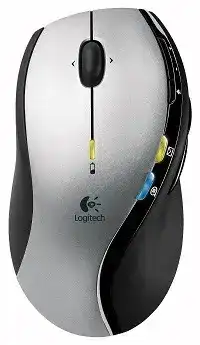
When the pointer works but the illuminated message buttons, volume controls, or navigation keys remain inactive, the Logitech MX 610 Left-Hand Cordless Laser Mouse Driver supplies the older SetPoint functions behind those extras. Windows may recognise the basic mouse without loading its full control panel. This left-handed model uses a dedicated USB radio receiver, not Bluetooth, Unifying, or Logi Bolt.
The MX 610 has ten controls arranged around its sculpted left-hand body. Along with ordinary clicks and scrolling, it carries browser navigation, volume, mute, email, and instant-message functions. Several of those features were built around desktop programs from the mouse’s original era. A modern computer may therefore handle pointer movement while leaving some specialised buttons unavailable or only partly functional.
Logitech MX 610 Left-Hand Windows Driver Download
| Driver Name | Description | Supported OS | File Size | Download |
|---|---|---|---|---|
| SetPoint Software 64-bit | Full offline package for mouse button settings, tracking speed, hot-keys, battery status, and device-specific controls. | Windows 64-bit | 68.13 MB | |
| SetPoint Software 32-bit | Complete offline installer for configuring mouse buttons, pointer speed, keyboard indicators, and supported Logitech device functions. | Windows 32-bit | 65.59 MB | |
| Logitech Connection Utility | Restores communication between compatible Logitech devices and their non-Unifying USB receivers when the original connection is lost. | Windows 11, Windows 10 32-bit/64-bit, Windows 8 32-bit/64-bit, Windows 7 32-bit/64-bit | 1.04 MB |
Email and instant-message lights never turn on
The illuminated notification keys depended on SetPoint communicating with supported mail and messaging programs. They were not general notification lights for every webmail tab, chat service, or modern desktop application. Install SetPoint before judging the hardware, then check whether the program exposes notification options for the MX 610. A working button with no light often reflects software compatibility rather than a failed LED.
Older notification integration centred on applications such as Microsoft Outlook and the messaging clients available when the mouse launched. Browser-based email and newer communication tools may never pass the required status to SetPoint. In that case, assign the key to open a useful program or command instead of repeatedly reinstalling the package in an attempt to restore unsupported alerts.
The volume buttons move the wrong control or do nothing
Test volume up, volume down, and mute while a normal Windows audio device is selected. Some media programs maintain their own volume level, so the mouse may change the system mixer without noticeably affecting that application. Open the Windows volume panel while pressing the buttons. Movement there confirms that SetPoint receives the command even when a particular player ignores it.
If nothing changes, open SetPoint and restore the media keys to their default assignments. Custom keystrokes left from an earlier installation can replace the original volume actions. Close other keyboard or mouse utilities during the test because global shortcut programs sometimes capture media commands before SetPoint can send them to Windows.
Back and forward keys fail in a web browser
Some older SetPoint releases had trouble passing browser navigation commands to certain browser versions. Update to the most suitable SetPoint release offered for the MX 610 rather than relying only on the software CD. After installation, return the two thumb controls to Back and Forward, close every browser window, and reopen the browser before testing.
Check the buttons in File Explorer as well. If they navigate folders there but not web pages, the receiver and switches are functioning. The conflict sits between the assigned command and the browser. A keyboard-shortcut assignment for browser back or forward can sometimes work where the named SetPoint action does not.
Getting SetPoint to Recognise the Left-Hand MX 610
The Logitech MX 610 Left-Hand Cordless Laser Mouse Driver should show model-specific tabs after the matching receiver has registered through USB. A blank SetPoint panel usually means Windows sees only a generic pointing device or the receiver sits behind hardware that changes how it identifies itself. Solve that detection problem before changing wheel, button, or notification assignments.
SetPoint shows only a standard mouse
Plug the receiver straight into a USB port. One documented MX 610 recognition problem disappeared as soon as the receiver was removed from a USB extension and PS/2 conversion arrangement. The pointer had worked through that path, yet SetPoint could not identify the model. A direct USB connection gave the software the hardware details it needed.
Avoid the supplied USB-to-PS/2 adapter when model-specific controls matter on a computer that already has usable USB ports. PS/2 operation may preserve basic movement and clicks while hiding information expected by SetPoint. Restart Windows after moving the receiver, then reopen the Logitech control panel and look for the MX 610 image or named device page.
Several Logitech programs are installed together
This mouse belongs to the SetPoint generation. Logitech Options, Options Plus, Unifying Software, and the Bolt application target different product families and do not add modern receiver compatibility to the MX 610. Keeping several control utilities active can also create duplicate startup processes or conflicting button assignments.
Remove programs that were installed only while searching for the mouse. Restart, connect the original receiver, and install one appropriate SetPoint package. The Logitech MX 610 Left-Hand Cordless Laser Mouse Driver should then manage the model without another Logitech application trying to claim the same buttons.
SetPoint settings disappear after every restart
First change one button assignment and close SetPoint normally. Restart Windows and check whether that single change survived. When every preference returns to default, reinstalling over the existing copy may preserve the damaged configuration. Remove SetPoint, restart the computer, and install it again so the program can create a fresh settings profile.
Security software and restricted user accounts can also stop older utilities from saving configuration files. Run SetPoint once with normal administrator approval, make the changes, and close it. Do not leave the program permanently elevated unless the computer requires it. The aim is to let the initial profile save, not to weaken normal account protection.
Receiver Dropouts and Laser Tracking Faults
The MX 610 communicates through its own 2.4 GHz cordless receiver and uses laser tracking beneath the shell. These two systems can fail in different ways. A radio interruption usually affects movement and buttons together, while a surface or sensor problem may disturb the pointer even though clicks continue to register.
The pointer freezes while buttons still click
Place the mouse on a plain, non-reflective pad before changing software. Laser tracking works on a wider range of surfaces than many older optical sensors, but polished glass, mirrors, glossy patterns, and uneven desks can still produce poor readings. Clean the sensor opening with dry air and a soft brush without touching the lens.
Lower Windows pointer speed briefly and turn off enhanced pointer precision for comparison. High acceleration can magnify a tiny tracking error into a large jump. If movement becomes predictable on another surface, keep the software unchanged. The original fault came from the sensor’s view of the desk, not from the SetPoint installation.
Movement pauses near wireless equipment
Move the receiver away from external drives, crowded USB hubs, Wi-Fi equipment, and large metal surfaces. The mouse was designed for a generous cordless range, but nearby radio activity and poor receiver placement can shorten that distance considerably. A short USB extension may improve the path when it carries only the receiver and does not use a PS/2 converter.
Compare a different USB port, especially when the current socket sits beside several active devices. Keep the receiver visible above the desk where practical. If the interruption occurs at the same physical location every time, change the receiver position before replacing batteries or altering pointer options.
The mouse will not reconnect after the receiver was moved
Switch the MX 610 off, connect its receiver, wait for Windows to finish registering the USB device, and turn the mouse on again. If the hardware has connection buttons, use the receiver control first and the mouse control second. Keep the two parts close during this attempt rather than testing from across the room.
Do not substitute a receiver merely because its casing resembles the original one. The MX 610 predates Unifying and Bolt technology, and those receivers cannot be converted through software. A replacement must match the older radio system. Windows recognising a substitute dongle does not prove that the mouse can pair with it.
When Physical Controls Begin Acting Their Age
The wheel scrolls backward or changes direction
Open a long document and rotate the wheel slowly. If the page repeatedly moves one notch in the opposite direction, debris around the wheel encoder may be disturbing its signal. Switch off the mouse and clear loose dust around the wheel with dry air. Spin it gently several times, then retest before altering software.
SetPoint scrolling options can produce a different symptom: movement that is consistently too fast, too slow, or unusual in one program. Compare the same document with SetPoint closed. If the random reverse movement remains on another computer, the wheel encoder is likely worn rather than incorrectly configured.
A thumb button works only after a hard press
Return that control to a simple Back command and test it in File Explorer. A delayed response across several programs points toward the physical switch. A normal response in Explorer but failure in one application points toward its shortcut handling. This distinction prevents unnecessary SetPoint reinstalls when the button mechanism itself has weakened.
Do not spray cleaner through the gaps or flood the switch area. Wipe the exterior with the mouse turned off and use only dry air around the seam. Internal switch replacement requires disassembly and soldering, so it belongs with an experienced repairer rather than a software troubleshooting session.
Single clicks turn into double-clicks
Lower the Windows double-click speed slightly and use the built-in folder test. An overly fast setting can make deliberate double-clicking difficult, but it does not normally create extra clicks from one press. Check the same primary button on another computer with SetPoint absent. Repeated duplication there usually reveals mechanical switch wear.
The left-handed shell reverses the physical ergonomics, but Windows can still swap primary and secondary actions. Confirm which physical button Windows treats as the primary click before diagnosing it. A changed handedness setting may make the opposite switch appear faulty when the user is simply pressing a different assigned control.
Battery changes produce only a brief light
The MX 610 runs on two AA batteries. Install two cells of the same type and age, following the polarity marks inside the compartment. Move the power switch fully off before inserting them, close the cover, and switch the mouse back on. A short indicator flash may be normal during startup, so judge the result by connection and movement.
Clean dusty battery contacts with a dry lint-free swab. Do not bridge the terminals with metal or add packing material that could shift inside the compartment. If pressure on the cover makes power return, a contact may have weakened. That physical interruption cannot be corrected by downloading another software package.
Preserving the Functions That Still Matter
The MX 610 remains unusual because its body, thumb area, and control placement were built specifically for the left hand. Its original message lights may no longer integrate with current communication services, yet the navigation, volume, mute, wheel, and general button assignments can still be useful when SetPoint recognises the receiver and saves its profile.
Decide which features work on the present computer before pursuing every historical function. Basic clicks and movement come through standard operating-system input support. SetPoint adds access to the specialised controls, but newer Windows releases and modern applications may not reproduce every behaviour from the mouse’s launch period.
For a final comparison, connect the original receiver directly, use two known-good AA batteries, test on a plain surface, and run only the Logitech MX 610 Left-Hand Cordless Laser Mouse Driver software intended for this product generation. Working movement with missing notification lights indicates an application limitation. Failure across multiple computers points instead to the receiver, battery contacts, switches, or ageing radio hardware.