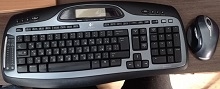
A keyboard that reconnects slowly, an MX 1000 mouse that will not wake, or an LCD that stops updating can make this older Bluetooth desktop look completely dead even when part of the hardware still works. The Logitech Cordless Desktop MX 5000 Laser Driver package centers on SetPoint, Bluetooth communication, keyboard display functions, media controls, and the rechargeable MX 1000 Laser mouse rather than a modern Unifying or Bolt receiver system.
Logitech Cordless Desktop MX 5000 Windows Driver Download
| Driver Name | Description | Supported OS | File Size | Download |
|---|---|---|---|---|
| SetPoint 64-bit Software | Full 64-bit SetPoint package for offline setup, with controls for mouse buttons, tracking speed, hot-keys, device settings, and battery status. | Windows 11, Windows 10 64-bit, Windows 8 64-bit, Windows 7 64-bit | 80.45 MB | |
| SetPoint 32-bit Software | Complete 32-bit SetPoint installer for offline installation, including hot-key configuration, mouse tracking options, and Caps Lock or Num Lock status features. | Windows 11, Windows 10 32-bit, Windows 8 32-bit, Windows 7 32-bit | 78.04 MB | |
| SetPoint Smart Installer | Small SetPoint web installer that requires an internet connection during installation to obtain the required software components and device-specific settings. | Windows 11, Windows 10 32-bit/64-bit, Windows 8 32-bit/64-bit, Windows 7 32-bit/64-bit | 4.61 MB |
Logitech Cordless Desktop MX 5000 Laser Driver After Bluetooth Pairing Breaks
The MX 5000 is unusual among Logitech desktop sets because both its keyboard and MX 1000 Laser mouse use Bluetooth. Logitech supplied a Bluetooth 2.0 EDR wireless hub mini-receiver with the desktop, and the keyboard can also pair through a compatible Bluetooth system built into a computer. That distinction matters when a replacement PC suddenly sees the keyboard differently or refuses to restore the original connection.
The keyboard asks for a passkey and then stops connecting
Pairing problems often begin after someone presses the Connect control and starts a fresh Bluetooth association. A computer may then display a passkey that must be entered from the MX 5000 keyboard. If that process fails, remove the incomplete keyboard pairing from the operating system’s Bluetooth list and start discovery again instead of repeatedly entering another code into the existing failed session.
Keep a wired keyboard nearby when recovering a badly broken pairing, especially on an older Windows installation. Once the computer begins the new discovery, put the MX 5000 keyboard into its connection state and complete the passkey exchange exactly as the Bluetooth dialog requests. Do not treat the included Logitech Bluetooth hub as a Unifying receiver; the two technologies use different pairing systems and are not interchangeable.
Keyboard and mouse work before Windows but fail after login
The Logitech hub has an embedded mode that lets its keyboard and mouse provide basic input even before the full Bluetooth software loads. That is why a keyboard may respond during startup yet behave differently after Windows reaches the desktop. When this happens, look at the Bluetooth stack and SetPoint installation rather than assuming that the keyboard electronics failed between the boot screen and the Windows desktop.
If the PC already has another Bluetooth adapter or built-in Bluetooth, avoid leaving several competing Bluetooth configurations active while diagnosing the set. Decide whether you want to use the original Logitech hub or the computer’s own compatible Bluetooth radio, remove stale pairings for the other route, restart, and pair through the chosen connection again.
When the LCD, Smart Keys, and Media Panel Lose Their Functions
The keyboard display is not merely a battery indicator. The MX 5000 LCD was built to receive information from the computer, including time and date, Caps Lock and F Lock status, volume information, notifications, media data, and other supported functions. This two-way communication makes the display a useful clue: normal typing can survive even when the software-fed LCD information has stopped.
Time and date disappear or stop updating
The keyboard does not require a separate clock-setting procedure for normal computer synchronization. Its time and date come from the PC. If those fields freeze while ordinary keys still type, first confirm that SetPoint is running and that the Bluetooth connection has completed after login. Restarting only the keyboard may restore input without restoring the software channel that supplies the display.
A blank or permanently corrupted LCD needs a different diagnosis. Power-cycle the keyboard and test it with known-good batteries, but do not assume SetPoint can repair a display with an internal hardware fault. If the LCD remains physically blank while keyboard input, Bluetooth communication, and other controls continue normally, repeated application reinstalls provide little evidence that the software is responsible.
F9 to F12 assignments no longer launch the saved item
The MX 5000 includes Smart Keys that can store shortcuts to applications, folders, documents, or websites. When regular typing works but those saved actions disappear, check SetPoint before rebuilding the Bluetooth pairing. The Logitech Cordless Desktop MX 5000 Laser Driver software is relevant here because standard Windows keyboard input does not reproduce every programmable function that Logitech added to this desktop.
SetPoint itself can also become the weak link on a modern or heavily modified Windows system. If a custom key stops working after the software closes or crashes, reopen SetPoint and check whether the assignment still exists. Test the shortcut with an ordinary local program before blaming the Bluetooth connection. A working letter key alongside a failed programmed Smart Key usually points toward customization rather than complete wireless loss.
The touch-sensitive media controls react inconsistently
The left side of the keyboard carries touch-sensitive media controls rather than ordinary mechanical media buttons. These include transport controls along with sliding areas for functions such as volume and zoom. Because their response depends on the keyboard’s additional control features, a media strip that stops changing volume while ordinary typing continues should lead you toward SetPoint and application compatibility first.
Older MX 5000 media integration targeted software from its own era. Modern music players do not necessarily interpret every original playlist, notification, radio, or media command the way Windows Media Player, iTunes, Musicmatch, and Logitech’s older media software did. Test basic volume and playback commands separately from legacy LCD playlist features; one can work while an obsolete application-specific feature no longer does.
MX 1000 Laser Mouse Charging and Wake Problems
The mouse bundled with this desktop is the Bluetooth version of the rechargeable Logitech MX 1000 Laser. It charges in its cradle rather than using replaceable AA batteries. A failing rechargeable pack, dirty charging contact, poor cradle connection, or Bluetooth wake problem can therefore produce similar symptoms. Separate charging from wireless communication before changing software.
The mouse sits in the cradle but does not gain charge
Reseat the mouse so its charging contacts meet the cradle contacts cleanly. Check the cradle’s power connection as well; the original charging arrangement requires power even though the mouse communicates with the computer wirelessly. Logitech specified roughly four hours for a full charge when the battery system was new, while a short charging session could provide useful operating time.
Age matters greatly with an MX 1000 that has survived many years. If the charge indicator rises but the mouse runs for only a few minutes after removal from the cradle, the rechargeable battery may have lost much of its original capacity. Software cannot restore worn battery chemistry. Conversely, if the mouse holds power but disappears only after Windows sleeps, investigate Bluetooth reconnection instead.
The pointer returns only after the Bluetooth adapter is reconnected
Sleep and resume failures have followed this generation of Bluetooth hardware on some systems. If both devices work after a cold start but one disappears following standby, restart the Bluetooth path before resetting every keyboard preference. Disconnecting and reconnecting the original USB Bluetooth hub can force the operating system to enumerate the adapter again and may restore the paired HID devices.
Also check Windows power management around the USB controller when the hub repeatedly vanishes after sleep. The key distinction is timing: a mouse that dies gradually during use suggests charge or hardware trouble, while a mouse that fails immediately after resume but returns when Bluetooth restarts points toward the host connection.
SetPoint, Built-In Bluetooth, and Modern Windows Compatibility
The original desktop was designed around Windows software and Logitech SetPoint. SetPoint handled keyboard personalization and many of the advanced functions that go beyond normal HID typing and pointer movement. Logitech has since ended maintenance for SetPoint, so the Logitech Cordless Desktop MX 5000 Laser Driver environment is now a legacy setup rather than a current Logi Options+ product path.
SetPoint cannot find the MX 5000 even though typing works
Basic Bluetooth HID operation and full Logitech feature detection are separate layers. A laptop with built-in Bluetooth may pair the keyboard well enough for ordinary typing while SetPoint fails to expose the expected LCD or programmable controls. The original documentation specifically accounted for compatible built-in Bluetooth stacks, but current Bluetooth drivers are many generations newer than the environment for which this desktop was developed.
When SetPoint cannot detect the set, avoid installing several Logitech utilities over one another. Remove an incomplete SetPoint installation, restart Windows, and then install the version intended for the operating system you are using. Pairing should already be stable before you spend time testing programmable functions. If ordinary Bluetooth input itself fails, solve that connection first.
Lag appears after the keyboard or mouse wakes
A short pause after inactivity can come from power saving, Bluetooth reconnection, or the computer itself being under load. First determine whether both devices hesitate together. When they do, check the Bluetooth adapter and host system. If only the MX 1000 pauses while keyboard input remains immediate, verify its remaining charge and let it reconnect before disturbing the keyboard pairing.
Bluetooth uses the 2.4 GHz radio band, so desk position and nearby wireless equipment can also influence an old link. Keep the supplied hub where the computer can communicate with the desktop without burying it behind dense metalwork or a cluster of other radio and USB equipment. This set was designed for Bluetooth operation, so there is no receiver-mode conversion to Unifying or Bolt.
Built-in Bluetooth works but advanced MX 5000 features do not
Direct Bluetooth pairing can provide keyboard and mouse HID functions without using the original Logitech mini-receiver, provided the computer offers the required Bluetooth input profile. That does not guarantee every historical hub feature or SetPoint integration will survive. The original Logitech hub also acted as a broader Bluetooth control center, so bypassing it changes more than the physical location of the radio.
For a dependable Logitech Cordless Desktop MX 5000 Laser Driver installation, judge each layer separately. First establish consistent Bluetooth typing and pointer control. Then verify MX 1000 charging, followed by SetPoint detection, Smart Keys, media controls, and LCD synchronization. This order prevents a failing rechargeable mouse, an incomplete Bluetooth pairing, or obsolete media integration from being mistaken for one large driver failure.