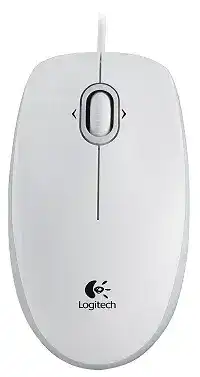
When ordinary pointing works but horizontal scrolling remains unavailable, the Logitech Mouse M110 Driver adds the software layer required by this older corded model. The M110 uses optical tracking, a scroll wheel, and a wired connection, so it avoids batteries, wireless pairing, and receiver problems. Depending on the original package and regional version, the mouse connects through USB or the supplied PS/2 adapter.
Windows, macOS, and Linux normally recognize the basic buttons, pointer, and vertical wheel through their built-in HID support. Extra software is not necessary for simple movement and clicking. However, the original Windows software can expose side-to-side wheel scrolling and additional mouse preferences that a standard operating-system profile may not display.
This distinction matters when choosing a download. A missing pointer rarely means that SetPoint alone will solve the fault because the operating system should first detect the physical connection. Confirm the port, cable, optical sensor, and device entry before installing anything. Use the software package afterward for supported wheel behavior and control-panel adjustments.
Logitech Mouse M110 Windows Driver Download
| Driver Name | Description | Supported OS | File Size | Download |
|---|---|---|---|---|
| SetPoint Software 64-bit | Full offline package for configuring mouse buttons, tracking speed, hot-keys, device-specific settings, and status indicators. | Windows 11, Windows 10 64-bit, Windows 8 64-bit, Windows 7 64-bit | 80.45 MB | |
| SetPoint Software 32-bit | Complete offline installer for adjusting button assignments, pointer tracking, keyboard hot-keys, battery information, and lock-key notifications. | Windows 11, Windows 10 32-bit, Windows 8 32-bit, Windows 7 32-bit | 78.04 MB | |
| SetPoint Smart Installer | Compact installer that requires an internet connection to download the SetPoint components needed for mouse and keyboard customization. | Windows 11, Windows 10 32-bit/64-bit, Windows 8 32-bit/64-bit, Windows 7 32-bit/64-bit | 4.61 MB |
Logitech Mouse M110 Mac OS Driver Download
| Driver Name | Description | Supported OS | File Size | Download |
|---|---|---|---|---|
| Logitech Control Center | Provides Mac-based access to mouse button assignments, scrolling preferences, pointer controls, and supported device settings. | macOS 11, macOS 10.15, macOS 10.14, macOS 10.13 | 17.76 MB | |
| Logitech Control Center | Enables button configuration, cursor adjustments, scrolling options, and model-specific controls on compatible Mac OS X releases. | Mac OS X 10.13, Mac OS X 10.12, Mac OS X 10.11 | 17.15 MB | |
| Logitech Control Center | Manages supported mouse functions on earlier Mac systems, including button actions, pointer movement, and scrolling behavior. | Mac OS X 10.11, Mac OS X 10.10, Mac OS X 10.9, Mac OS X 10.8 | 17.06 MB |
The USB connection produces no pointer movement
Disconnect the M110, restart the computer, and attach it to a different USB port after the desktop appears. Use a port built directly into the computer during diagnosis. Keyboard sockets, monitor ports, docking stations, and unpowered hubs may fail to supply a steady connection or may not pass the device through correctly.
Watch Device Manager while reconnecting the cable. A new HID-compliant mouse entry means Windows sees the hardware even if the pointer does not move. An unknown USB device or repeated connect-and-disconnect sound points toward the port, cable, USB controller, or plug rather than missing Logitech control software.
The PS/2 adapter does not work after plugging it in
A PS/2 connection usually needs to be present before the computer starts. Shut the computer down completely, attach the mouse through the correct adapter and mouse port, and then switch the system on. Connecting a PS/2 device while Windows is already running may leave it undetected until the next full startup.
Do not force the round plug into the socket. Align its pins carefully because a bent pin can stop detection and damage the connector. When USB works but the PS/2 route does not, keep using USB unless the computer specifically requires the older interface. An adapter cannot repair a damaged PS/2 controller.
The mouse disappears when connected through a hub
Remove the hub from the test and connect the M110 straight to the computer. A corded mouse needs little bandwidth, but a crowded or unstable hub can still reset its USB devices. External drives, webcams, and other equipment on the same hub may make the failure appear random.
If a powered hub is essential, test it after the mouse works correctly from a direct port. Reconnect the other devices one at a time. This method reveals whether one peripheral, an overloaded power supply, or the hub itself triggers the dropouts. Changing the Logitech package will not stabilize a failing USB hub.
Bring Back the M110 Wheel Functions
The original wheel can handle vertical movement through standard operating-system controls. The product documentation also describes side-to-side scrolling, which requires the appropriate Logitech software on supported Windows releases. Install the Logitech Mouse M110 Driver when the wheel tilts correctly but horizontal navigation never appears in compatible spreadsheets, image views, or wide documents.
Vertical scrolling stops in every program
Begin with the wheel opening rather than the software. Disconnect the mouse and rotate the wheel while using a soft brush or brief bursts of air around its edges. Dust and fine fibres can obstruct the encoder inside. Keep liquids away from the opening because residue can make wheel movement less consistent.
Reconnect the device and compare scrolling in several programs. A browser, Windows Settings page, and document viewer provide useful checks. When the wheel fails everywhere, reinstall the HID device or test the mouse on another computer. A failure that follows the M110 usually indicates wear or contamination inside the wheel mechanism.
The wheel scrolls vertically but not sideways
First confirm that the application has content extending beyond the visible width. Horizontal wheel input has no effect when the window lacks a horizontal scroll area. Try a wide spreadsheet or a zoomed image, then tilt the wheel left and right rather than rotating it.
Open SetPoint after installation and check whether it identifies the M110 and offers horizontal scrolling. Restore the wheel assignments if another command has replaced them. Some programs ignore horizontal mouse messages or use their own navigation rules, so successful movement in one suitable application confirms that the hardware and software path works.
Pages jump too many lines with one wheel movement
Open the operating system’s mouse preferences and reduce the number of lines scrolled per wheel notch. Avoid changing several controls together. Test one value, apply it, and return to the same document so the result remains easy to compare.
A page that jumps only inside one program may use its own scrolling preference. Check that application before reinstalling the Logitech software. Smooth-scrolling extensions, accessibility utilities, and browser options can override the global wheel value and create a different response from the rest of the system.
Scrolling reverses briefly after the wheel stops
Unwanted movement in the opposite direction often comes from an ageing or dirty wheel encoder. Cleaning around the wheel may remove loose debris, but no driver preference can correct unstable pulses from worn internal contacts. Test slowly in a long document to separate occasional application animation from repeated physical reversal.
If the same back-and-forth movement appears on another computer, the fault sits inside the mouse. Replacing the device is generally safer than opening it, especially while warranty coverage remains. Internal repair involves small parts and may damage the quiet, even feel of the wheel.
Separate Pointer Problems from Driver Problems
Optical tracking depends on the desk surface and a clear sensor opening. The Logitech Mouse M110 Driver can change pointer speed and other supported preferences, but it cannot make the sensor read transparent glass, mirrored material, or a strongly reflective pattern. A plain mouse pad provides the fastest way to test tracking without altering Windows.
The pointer freezes or jumps across the screen
Turn the mouse over and inspect the optical opening for hair, dust, or lint. Disconnect the USB plug before clearing debris with a dry, soft swab. Do not press against the lens or pour cleaner into the sensor recess. Reconnect the M110 and test it on a matte, single-colour surface.
When the cursor still jumps, close programs that are also running slowly. A busy computer can delay pointer updates even though the mouse continues sending movement. If applications respond normally while only the cursor stalls, try another USB port and then another computer to narrow the fault to the M110 or the original system.
The cursor feels too slow or too fast
Adjust pointer speed through the operating system before adding acceleration utilities. Move the slider in small amounts and keep pointer precision at its current value during the first comparison. Changing speed and acceleration together makes it difficult to identify which control produced the unwanted feel.
A display-resolution change can make the same physical movement seem different. Larger or multiple screens require more cursor travel, while a small display may feel overly sensitive. Choose a speed that lets the pointer cross the active desktop without sacrificing accurate selection around small buttons and text fields.
Dragging releases files before the button is lifted
Test dragging in several places, such as moving a desktop icon and selecting text. If the held item releases in every program, the primary switch may have developed an intermittent contact. Changing the double-click speed will not usually repair a button that cannot maintain a continuous press.
Confirm the symptom on a second computer before blaming Windows. A stable drag elsewhere suggests a local accessibility option, ClickLock preference, or software conflict. Disable ClickLock during the test unless you intentionally use it. When the release follows the mouse, replacement is more practical than repeated driver installation.
Single presses open items twice
Lower the double-click speed temporarily and test deliberate clicks on folders or the control-panel test icon. This can reveal a preference set too aggressively. It cannot stop an electrical switch from sending two signals during one press, so compare the behaviour across several applications.
Repeated double activation on another computer strongly suggests switch wear. The left and right buttons are standard controls with no software repair for worn contacts. Avoid registry changes or unofficial filtering tools that hide extra clicks, since they can delay legitimate input without fixing the physical source.
Use SetPoint Only for Features the M110 Actually Exposes
The Logitech Mouse M110 software belongs to an earlier generation of Windows mouse utilities. It does not turn this corded model into a Bluetooth, Unifying, Bolt, rechargeable, gaming, or multi-device product. Its useful role is narrower: identifying supported hardware, managing available wheel actions, and presenting compatible pointer or button preferences.
SetPoint installs but shows no M110 controls
Restart Windows with the mouse connected directly to USB. Then open the Logitech panel and check whether Windows still lists the M110 as a functioning HID device. If Windows cannot see the hardware, SetPoint has nothing to manage. Return to the port and cable checks instead of reinstalling the same package repeatedly.
A SetPoint version intended for a different operating-system generation may install without fully supporting the device. Use the release listed for the current download and system architecture. Remove unrelated Logitech mouse utilities if they add duplicate startup components but never identify this model. The M110 does not require modern Options or Options+ features.
Left and right clicks feel reversed
The full-size shape suits either hand, but the operating system decides which physical button acts as the primary control. Open mouse preferences and choose the intended primary button. This adjustment does not require a hardware reset and can be changed again whenever another person uses the computer.
If the buttons reverse only inside one application, inspect that program’s shortcuts or accessibility configuration. Global mouse settings should affect the whole desktop. A program-specific reversal points to local input handling rather than a damaged switch or incorrect Logitech installation.
The middle click has no effect
Press the wheel in an application that clearly accepts middle-button input. Browsers may open a link in another tab or activate automatic scrolling, while some office programs assign no action at all. Lack of a visible response in one program does not prove that the wheel switch has failed.
Where SetPoint provides a wheel-button assignment, return it to the standard middle-click function and reopen the application. If the button remains silent everywhere while wheel rotation still works, the internal wheel switch may be worn. Software cannot restore a contact that no longer registers pressure.
Windows starts using generic HID support after an update
Basic movement, clicks, and vertical scrolling can continue under the Windows HID driver. That behaviour is normal for a plug-and-play corded mouse. Reinstall the Logitech Mouse M110 Driver only when a supported SetPoint feature, particularly side-to-side scrolling, disappeared after the update.
Before reinstalling, remove the incomplete Logitech entry through normal application removal and restart Windows. Keep the M110 connected during the next startup, then install the matching package. Confirm the wheel functions afterward rather than judging success only by an installer message or a new control-panel icon.
Finish the Diagnosis at the Cable and Wheel
After software checks, inspect the parts that move during normal use. A cable can fail near the USB plug or where it enters the shell, while a wheel encoder and button switches wear after repeated operation. Brief disconnections when the cable bends usually indicate a physical break, not an operating-system preference.
Place the cable loosely on the desk and avoid pulling it tight around a monitor stand or laptop edge. If Windows repeatedly plays its USB removal sound when the cable shifts, stop using the mouse. An intermittent cable may interrupt work without warning and cannot be made dependable through SetPoint.
Use the Logitech Mouse M110 Driver for its verified software functions, especially supported horizontal wheel control, after the computer consistently detects the device. For unresolved clicking, dragging, tracking, or scrolling faults, compare the M110 on another port and another computer. A symptom that follows the hardware after those tests gives a clearer answer than another installation attempt.