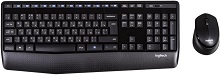
When the keyboard changes computers but the mouse stays on another channel, the Logitech MK850 Performance Wireless Keyboard and Mouse Combo Driver becomes only one part of the fix. The MK850 combines the K850 keyboard with the M720 mouse, and both devices can connect through the supplied Unifying USB receiver or Bluetooth Low Energy. Each device also has Easy-Switch controls, so channel selection, pairing state, receiver placement, and software configuration can all affect how the combo behaves.
Logitech MK850 Wireless Keyboard and Mouse Combo Windows Driver Download
| Driver Name | Description | Supported OS | File Size | Download |
|---|---|---|---|---|
| Logitech Options Software | Provides keyboard and mouse customization for shortcuts, button assignments, scrolling behavior, pointer settings, and device-specific controls. | Windows 11, Windows 10 32-bit/64-bit | 245.76 MB | |
| Logi Options Plus Software | Enables customization of mouse buttons, pointer behavior, scrolling, keyboard shortcuts, gestures, and supported device settings. | Windows 11, Windows 10 32-bit/64-bit | 43.1 MB |
Logitech MK850 Wireless Keyboard and Mouse Combo Mac OS Driver Download
| Driver Name | Description | Supported OS | File Size | Download |
|---|---|---|---|---|
| Logi Options Plus Software | Offers configurable mouse buttons, scrolling, pointer behavior, keyboard shortcuts, gestures, and compatible device preferences on recent macOS releases. | macOS 26, macOS 15, macOS 14 | 19.54 MB | |
| Logitech Options Software | Supports button configuration, scrolling adjustments, shortcuts, pointer controls, and other keyboard and mouse settings across the listed macOS versions. | macOS 15, macOS 14, macOS 13, macOS 12, macOS 11 | 238.52 MB | |
| Logi Options Plus Software | Manages supported mouse and keyboard functions on macOS 13, including shortcuts, gestures, scrolling preferences, and device customization. | macOS 13 | 19 MB | |
| Logi Options Plus Software | Allows compatible Logitech controls to be adjusted on macOS 12, covering button actions, pointer response, scrolling, gestures, and shortcuts. | macOS 12 | 18.65 MB | |
| Logi Options Plus Software | Provides device customization on macOS 11 for supported keyboard and mouse features such as buttons, scrolling, pointer controls, gestures, and shortcuts. | macOS 11 | 17.51 MB |
Logitech MK850 Performance Wireless Keyboard and Mouse Combo Driver When Easy-Switch Stops Matching
A confusing MK850 problem appears when the keyboard responds on one computer while the mouse controls another. This often happens after one device changes Easy-Switch channels without the other. The keyboard and mouse keep their own channel selections, so switching one does not automatically guarantee that the second device follows it.
Keyboard and mouse land on different computers
Check the illuminated Easy-Switch channel on each device and select the channel assigned to the computer you want to control. If that channel no longer connects, hold its Easy-Switch control for about three seconds to enter pairing mode, then reconnect it through Bluetooth or the compatible Unifying receiver. Work with one device at a time so an existing channel does not get overwritten accidentally.
The MK850 can work with as many as three devices, which makes an old pairing easy to overlook. A channel previously assigned to another laptop may still be remembered even after that computer is no longer nearby. Re-pairing only the affected channel usually makes more sense than clearing every connection and rebuilding the entire multi-device arrangement.
Easy-Switch flashes but pairing never completes
A flashing channel light shows that the selected device is ready for a connection, but the computer still needs to finish its side of the pairing. With Bluetooth, remove a stale MK850 entry from the operating system when repeated attempts fail, start pairing again, and select the keyboard or mouse when it reappears. Avoid trying to pair several channels at once.
For a Unifying connection, use a compatible Unifying receiver rather than a Bolt receiver or an unrelated Logitech dongle. The MK850 was built around Logitech Unifying and Bluetooth Low Energy. Receiver families are not interchangeable merely because their USB plugs look identical.
One Receiver Works Until Typing and Pointer Movement Begin to Lag
The supplied Unifying receiver can carry both the K850 keyboard and M720 mouse, which keeps the installation compact. Trouble often shows up as delayed typing, missing keystrokes, a pointer that pauses, or both devices dropping for a moment. When the keyboard and mouse fail together, investigate the shared wireless path before treating them as two unrelated hardware faults.
Lag starts after using a dock or crowded USB area
Move the receiver out of a congested USB cluster and test it directly in another computer port. USB hubs, docks, nearby wireless adapters, computer cases, and other electronics can make a 2.4 GHz connection less forgiving. If performance improves after changing the receiver position, keep the dongle in the location that gives it a clearer path to the keyboard and mouse.
Do not assume a port is ideal simply because Windows recognizes the receiver there. USB detection only confirms that the computer can see the dongle. It does not prove that the radio location is good. This distinction matters when the pointer pauses and typed characters arrive late even though neither device disappears from the operating system.
The combo disconnects and then returns by itself
When both devices briefly disappear, unplugging and reconnecting the Unifying receiver can force the computer to reload the connection. Another useful test is removing the receiver entry from Windows device settings, disconnecting the dongle, then inserting it again so Windows detects it anew. Use this only for a persistent shared connection problem rather than as a routine maintenance step.
If the keyboard alone drops while the mouse remains responsive, check the K850 battery condition and its selected Easy-Switch channel. If only the mouse fails, treat the M720 separately. A shared receiver does not mean every failure has the same cause.
Bluetooth Connections That Work and Then Disappear
The MK850 also supports Bluetooth Low Energy, which makes it possible to reserve the Unifying receiver for another computer or avoid using a USB port. Bluetooth creates a different troubleshooting path. Repeated disconnects, devices that remain listed but will not respond, and pairing attempts that never finish usually call for clearing the old Bluetooth relationship rather than changing the Logitech MK850 Performance Wireless Keyboard and Mouse Combo Driver repeatedly.
A saved Bluetooth entry refuses to reconnect
Turn Bluetooth off and back on at the computer first. If the keyboard or mouse remains unavailable, remove that individual MK850 device from the Bluetooth list. Select an Easy-Switch channel, hold it until the pairing indicator starts flashing, and add the device again. Reconnect the keyboard and mouse separately because each appears as its own Bluetooth peripheral.
This matters after changing operating systems, replacing a Bluetooth adapter, or reusing a channel that belonged to another computer. The Logitech hardware may still remember the channel while the computer holds an incomplete or outdated pairing record. Creating a fresh relationship on that channel clears both sides of the mismatch.
Removing Bluetooth leaves no working keyboard or mouse
Do not remove both active Bluetooth pairings at the same time unless another input method is ready. If the MK850 is your only keyboard and mouse, reconnect one device before deleting the second pairing. The Unifying receiver also provides a practical fallback when it is already paired with the combo.
That detail becomes especially important while troubleshooting Windows because removing the active keyboard and mouse together can leave no convenient way to finish the repair. Keep one input path operating while you rebuild the other.
Logitech MK850 Performance Wireless Keyboard and Mouse Combo Software and Control Problems
The M720 mouse and K850 keyboard offer more than basic typing and pointing, so Logitech software matters when custom actions stop behaving as expected. Current Logitech software can expose supported device controls, while older installations may leave confusing duplicates or fail to recognize hardware after an operating-system change. The Logitech MK850 Performance Wireless Keyboard and Mouse Combo Driver package should therefore match the software currently intended for the devices and operating system.
The devices work but custom actions are missing
First separate detection from customization. If typing, clicks, and pointer movement already work, the wireless connection itself is probably intact. Open the supported Logitech control software and confirm that both the keyboard and mouse appear. If only one appears, reconnect that device through its current Unifying or Bluetooth path instead of pairing the already working device again.
After moving from an older Logitech application to Logi Options+, remove software conflicts when two control programs compete for the same hardware. Restart the computer after the change and then check the assignments again. A software migration should not require clearing all three Easy-Switch channels unless the wireless pairings themselves have also failed.
Mouse buttons perform an unexpected command
The M720 includes additional controls beyond ordinary left and right clicks, and supported Logitech software can assign actions to them. If a thumb control suddenly opens the wrong function or behaves differently in one application, inspect its assignment before changing the receiver. Application-specific profiles can produce different behavior while the physical button remains healthy.
Test the same control on the desktop and in another program. A button that works elsewhere points toward an application assignment or permission problem rather than a failed wireless link. Reset only the affected control when possible instead of discarding every customization.
Function keys perform the opposite action
The K850 combines standard function-key commands with media and system actions. If pressing an F-key gives the alternate command, check the keyboard’s function-key mode and the relevant Logitech preference. This symptom is different from a dead key because the keyboard still transmits an intentional command; it is simply using the other function layer.
Before reinstalling anything, try the Fn-key behavior and confirm whether the expected F1 through F12 command returns. A setting that changes function-key priority can make a healthy keyboard appear incorrectly configured.
Wheel, Keystroke, and Battery Symptoms Need Separate Tests
Some MK850 faults look like wireless trouble even when the receiver remains stable. The M720 has a scroll wheel with selectable scrolling behavior, while the keyboard and mouse use replaceable batteries. Separating mechanical controls and power symptoms from connection faults prevents needless re-pairing.
The mouse wheel feels loose or scrolls too quickly
The M720 includes a wheel-mode control that changes how freely the wheel rotates. If scrolling suddenly becomes much faster than expected, check that mode before assuming the encoder or software has failed. Switching the wheel back to the preferred mode can immediately restore the familiar resistance and page movement.
If scrolling jumps in opposite directions rather than simply moving too fast, test several applications and inspect the wheel opening for debris. Consistent reversal across programs points more toward the wheel mechanism, while one misbehaving application suggests its own scrolling configuration.
Keys repeat, vanish, or respond intermittently
Repeated letters and missing keystrokes deserve a wireless test first when they happen across many keys. Change the receiver location or temporarily compare Bluetooth behavior. If the keyboard shows the same problem through another connection and on another computer, inspect power and individual key behavior rather than continuing to alter the receiver arrangement.
A single troublesome key has a different diagnostic path. Check around that key for debris and compare nearby keys. One key failing while all other input remains normal does not match a broad radio dropout, especially when the mouse continues to respond without interruption.
Battery trouble appears as random connection trouble
The K850 uses two AAA batteries, while the M720 uses one AA battery. Their battery systems are independent, so one device can lose power while the other keeps working normally. When only half of the combo becomes unreliable, check that device’s batteries and contacts before rebuilding the shared receiver connection.
Logitech rates the keyboard and mouse for long battery life, but actual replacement timing varies with use and battery condition. Long published battery life should not rule out a weak cell. A known-good replacement set is a quick way to distinguish a power problem from pairing or software behavior.
Match the Symptom to the Side of the MK850 That Actually Failed
The quickest way to narrow down an MK850 fault is to notice whether the keyboard, mouse, or both fail at the same moment. Simultaneous lag points toward the shared Unifying path or the computer. A single-device failure points more strongly toward that device’s Easy-Switch channel, battery, Bluetooth relationship, software controls, or hardware.
If switching computers is the problem, line up the Easy-Switch channels first. If both devices hesitate together, change the receiver environment. For a stale Bluetooth connection, remove and pair only the affected entry. When ordinary input works but customized actions disappear, check the Logitech MK850 Performance Wireless Keyboard and Mouse Combo Driver and control software rather than rebuilding otherwise healthy wireless connections.
This approach also protects multi-device pairings that already work. The MK850 was made to move among as many as three computers through Unifying and Bluetooth connections, so wiping every channel can create more work than the original fault. Repair the part that matches the symptom and leave functioning channels, assignments, and connections alone.