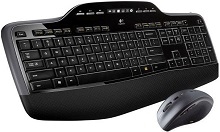
When the keyboard loses function keys, the mouse stops responding, or the control panel no longer shows the expected options, the Logitech Wireless Desktop MK710 Driver is only one part of the diagnosis. This desktop set combines a full-size wireless keyboard and a programmable wireless mouse through a Logitech Unifying receiver. Its older SetPoint-era controls, shared receiver, LCD dashboard, programmable keys, tilt wheel, and dual-mode scrolling create several failure patterns that need different fixes.
Logitech Wireless Desktop MK710 Windows Driver Download
| Driver Name | Description | Supported OS | File Size | Download |
|---|---|---|---|---|
| SetPoint 64-bit Software | Full 64-bit SetPoint package for offline setup, with controls for mouse buttons, tracking speed, keyboard hot-keys, device settings, battery status, Caps Lock, and Num Lock. | Windows 11, Windows 10 64-bit, Windows 8 64-bit, Windows 7 64-bit | 80.45 MB | |
| SetPoint 32-bit Software | Complete 32-bit SetPoint installer for offline installation, providing access to keyboard hot-keys, mouse tracking options, button assignments, and device-specific status information. | Windows 11, Windows 10 32-bit, Windows 8 32-bit, Windows 7 32-bit | 78.04 MB | |
| SetPoint Smart Installer | Compact SetPoint installer that downloads the required software components during setup, so an active internet connection is required for installation. | Windows 11, Windows 10 32-bit/64-bit, Windows 8 32-bit/64-bit, Windows 7 32-bit/64-bit | 4.61 MB | |
| Logitech Unifying Software | Utility for pairing compatible Logitech wireless keyboards and mice with a Logitech Unifying USB receiver. | Windows 11, Windows 10 32-bit/64-bit | 3.96 MB |
Logitech Wireless Desktop MK710 Driver When SetPoint Loses the Keyboard or Mouse
The MK710 has an unusual software detail that can make a successful installation look incomplete. Inside SetPoint, the keyboard appears as MK700 and the supplied mouse appears as M705. Seeing those names does not mean Windows has substituted unrelated hardware. They are the device identities Logitech uses for customization within this desktop package.
My Mouse or My Keyboard tabs disappear
SetPoint normally exposes separate areas for the keyboard and mouse. If one or both tabs vanish, reinstalling SetPoint is more useful than repeatedly reconnecting the receiver. Remove the damaged installation, restart Windows, and install the compatible package again. Once detection works, look for MK700 under keyboard controls and M705 under mouse controls rather than searching only for the MK710 name.
This is also a case where ordinary typing and pointer movement can continue while customization remains unavailable. Windows can handle basic input without exposing Logitech’s programmable functions. The Logitech Wireless Desktop MK710 Driver and SetPoint components become relevant when programmable F-keys, mouse assignments, battery information, or device-specific controls disappear even though the hardware still communicates.
Customized keys suddenly return to their original actions
Check the SetPoint assignment before treating the key itself as defective. The MK710 keyboard has programmable controls, and a damaged or reset software profile can return them to default behavior. Recreate the affected assignment and test it outside the program where the problem first appeared. If the custom action works elsewhere, an application-specific shortcut conflict is more likely than a wireless fault.
One Unifying Receiver Has to Maintain Two Connections
The keyboard and mouse share Logitech Unifying technology, so a single compatible receiver can handle both devices. That makes the desktop tidy, but it also means a receiver problem may affect the whole set. When both stop at nearly the same moment, investigate the common receiver path before assuming that two separate pieces of hardware failed together.
The mouse works but the keyboard does not
Do not automatically replace the receiver when one half of the set still functions. Open the Unifying pairing utility and reconnect the keyboard to the existing compatible receiver. Follow the pairing process through the power-cycle request and confirm that the utility recognizes the keyboard. If the mouse remains responsive throughout, the USB link itself already has useful evidence in its favor.
Perform the reverse test when typing works but the M705 mouse does not. Pair the mouse again rather than disturbing the keyboard connection unnecessarily. A Unifying receiver can hold several compatible Logitech devices, so losing one pairing does not mean every stored connection must disappear.
A replacement receiver does not recognize either device
The replacement must carry Logitech Unifying compatibility. A Logitech-branded USB dongle from another wireless family is not automatically interchangeable. With a genuine compatible receiver attached, run the pairing utility and add the keyboard and mouse individually. Simply inserting another dongle does not transfer the pairings stored in the receiver that originally came with the desktop.
This distinction becomes particularly important with second-hand MK710 sets, where the keyboard, M705, and receiver may have come from different packages. The hardware can still form a working desktop as long as each device belongs to the Unifying family and the receiver accepts them through the pairing process.
When Typing and Pointer Movement Break Up Together
Delayed letters followed by sudden bursts of text, repeated keystrokes, and a mouse cursor that pauses at the same time usually point toward the shared wireless route rather than a defective key switch. Start by changing where the Unifying receiver sits. A direct computer USB connection is a useful comparison when the receiver currently passes through a dock or an unpowered hub.
Lag begins after adding USB hardware
Move the receiver to another USB location and separate it from busy external storage devices, wireless adapters, or other equipment clustered around the computer. If a desktop chassis shields the dongle beneath a desk, a USB extension can place the receiver in a less obstructed position. The goal is not maximum physical distance from the computer; it is a clearer radio path to the keyboard and mouse.
When removing and reinserting the receiver temporarily cures severe lag, let Windows rediscover the USB hardware before changing SetPoint. If the delay soon returns in the original port but not another one, receiver position or the USB environment deserves more attention than another Logitech Wireless Desktop MK710 Driver installation.
Letters repeat or arrive several seconds late
First compare the keyboard with the mouse. If the pointer hesitates during the same period, treat the symptom as a connection problem. If mouse movement stays completely normal while only a few keyboard keys repeat, inspect those keys for debris and test ordinary text input after restarting the keyboard. Two symptoms occurring together and one isolated key behaving badly lead to very different conclusions.
Keyboard Display, Batteries, and Function Keys Can Fail Independently
The MK710 keyboard includes an LCD dashboard that displays status information such as Caps Lock, Scroll Lock, Num Lock, and battery condition. A display complaint therefore does not always mean the computer has stopped receiving keystrokes. Test typing first, then compare the lock indicators and battery information instead of treating a dark or unusual display as proof of a lost receiver connection.
The keyboard appears dead while the mouse still works
Check the keyboard’s batteries and their contact points before changing software. Remove and reseat the cells, confirm their orientation, and try known-good replacements when the keyboard will not wake. The supplied mouse has its own power source, so normal mouse operation says little about the remaining battery power inside the keyboard.
After restoring power, give the keyboard a short test with ordinary letters, the number pad, and a lock key. If basic typing returns but programmable functions remain missing, move back to SetPoint rather than continuing with battery changes. Power and customization are separate layers on this desktop.
Function keys trigger the wrong command
The programmable F-key behavior belongs in Logitech’s keyboard controls. Open SetPoint and inspect the assignment for the affected key. Remember that the keyboard may appear there as MK700. Resetting one troublesome assignment is preferable to wiping every customization, particularly when multimedia keys and the rest of the keyboard already behave normally.
If the expected action never reaches a particular application, test the same assignment with another destination. Some programs reserve their own shortcut combinations. A control that responds elsewhere has already shown that the keyboard, receiver, and key switch can communicate.
Mouse Scrolling Problems Need a Different Test From Wireless Dropouts
The included M705 provides programmable controls, a tilt wheel, and dual-mode scrolling. A button near the wheel changes between precise ratcheted scrolling and a freely spinning hyper-fast mode. A wheel that suddenly feels loose may therefore be in the other mechanical mode rather than broken, especially when scrolling still moves the page normally.
The wheel spins freely when line-by-line scrolling was expected
Press the wheel-mode control and test it again. The change happens at the mouse, so reinstalling the Logitech Wireless Desktop MK710 Driver will not restore the ratcheted feel when the wheel has simply been switched to free-spin mode. Use the controlled mode for short lists and the free-spinning mode when moving rapidly through long pages or documents.
Horizontal scrolling or thumb controls stop doing what they used to
The mouse has software-configurable extra controls, including its tilt-wheel functions. If basic left click and pointer motion still work, inspect the M705 assignments in SetPoint before repairing hardware. Reassign the affected action and test it in more than one program because horizontal scrolling and special commands do not behave identically in every application.
When the physical wheel movement becomes erratic in all programs, power the mouse off and clear loose debris around the wheel opening without adding liquid. A software assignment cannot fix mechanical contamination. Conversely, a clean wheel that performs correctly in one application but not another points back toward software behavior or that application’s own scrolling rules.
The mouse cursor stalls while the keyboard remains normal
Try the M705 on a plain, non-reflective surface and check its battery condition before changing the shared receiver. The mouse uses its own tracking hardware and power supply, so an isolated pointer problem can occur while the keyboard continues typing perfectly. Testing those mouse-specific causes preserves a working keyboard pairing and narrows the fault more quickly.
Match the Symptom to the Part of the MK710 That Controls It
The strongest clue with this desktop is whether a fault affects one device, one programmable feature, or both wireless devices at once. Missing SetPoint tabs call for software attention. One lost pairing points toward reconnecting that device. Simultaneous keyboard and mouse lag shifts attention to the Unifying receiver path, while isolated display, battery, scrolling, or tracking symptoms belong to the individual hardware.
That separation also prevents unnecessary resets on an older desktop with several configurable controls. Keep the MK700 and M705 names in mind when opening SetPoint, use a compatible Unifying receiver for pairing, and treat hyper-fast wheel behavior as a selectable mouse mode rather than a driver fault. Those details matter more on the MK710 than repeatedly removing every input device from Windows whenever one function changes.