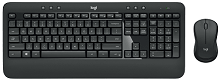
When the keyboard stops typing while the mouse still moves, or both devices begin dropping input through the shared USB connection, the Logitech MK540 ADVANCED Wireless Keyboard and Mouse Combo Driver software is useful for checking device recognition, key behavior, and the Unifying connection. This combo uses a 2.4 GHz Logitech Unifying receiver rather than Bluetooth. The package contains the K540 keyboard and M310 mouse, so troubleshooting needs to separate a receiver problem from a fault affecting only one part of the combo.
Logitech MK540 ADVANCED Wireless Keyboard and Mouse Combo Windows Driver Download
| Driver Name | Description | Supported OS | File Size | Download |
|---|---|---|---|---|
| Logi Options+ Software | Customizes supported mouse buttons, pointer behavior, scrolling, shortcuts, gestures, and device settings. | Windows 11, Windows 10 32-bit/64-bit | 43.1 MB | |
| Logitech Options Software | Provides controls for compatible device functions, including button assignments, scrolling preferences, shortcuts, and other customization options. | Windows 10 32-bit/64-bit, Windows 8 32-bit/64-bit, Windows 7 32-bit/64-bit | 187.71 MB |
Logitech MK540 ADVANCED Wireless Keyboard and Mouse Combo Driver When One Device Stops Responding
A particularly confusing failure happens when the M310 mouse continues working but the K540 keyboard becomes unresponsive. A working mouse proves that the computer can still communicate with the Unifying receiver, but it does not prove that the keyboard remains paired or powered correctly. Switch the keyboard off, wait briefly, switch it on again, and watch its power indicator. If the keyboard still gives no input, check its two AA batteries before changing software.
Keyboard powers on but does not type
If the keyboard light reacts when you switch it on yet no keys register, reconnecting the receiver is worth trying before removing applications. Unplug the Unifying receiver, restart Windows, and insert the receiver directly into another USB port. Give Windows time to recreate its USB and human-interface entries. This can clear a receiver entry that appears present in Device Manager while input from one or both devices remains unreliable.
When the mouse works normally after that test but the keyboard still does not, re-pairing becomes more relevant than repeatedly changing USB ports. The MK540 uses Logitech Unifying technology, so a compatible Unifying pairing method can associate the K540 and M310 with the receiver again. Keep both devices switched on during the pairing process and avoid pairing an unrelated Logitech receiver that does not use the Unifying protocol.
Both keyboard and mouse disappear together
If typing and pointer movement fail at the same moment, concentrate on the shared wireless path. Remove the receiver and connect it to a direct USB port rather than a dock, monitor hub, extension, or switching device while testing. A computer that recreates the receiver successfully after reinsertion may recover without any application reinstall. If neither device works on another computer with that receiver, the receiver itself deserves closer attention.
The Logitech MK540 ADVANCED Wireless Keyboard and Mouse Combo Driver setup should not be treated as a separate low-level driver for every key and mouse movement. Windows handles normal keyboard and pointer input through its standard device system. Logitech software adds configuration and device-management functions, while the Unifying receiver carries the wireless connection for both parts of the set.
Fix Lag, Missed Keystrokes, and Delayed Mouse Movement
Intermittent lag often looks different from complete disconnection. A letter may appear late, several keystrokes may arrive together, or the M310 pointer may hesitate and then jump forward. Before changing keyboard repeat options or pointer speed, test the wireless route. The MK540 uses 2.4 GHz wireless through one USB receiver, so receiver position and nearby USB equipment can affect both devices at once.
Input becomes erratic near USB equipment
Move the receiver to a different USB port and temporarily disconnect nearby high-speed USB storage devices while testing. Wireless peripherals operating around 2.4 GHz can suffer interference around some USB 3.x equipment and poorly positioned hubs. The useful clue is that both keyboard and mouse become erratic together. If the problem disappears with another port or with nearby USB hardware removed, software replacement is unlikely to be the main cure.
Desk layout also matters. Do not hide the receiver behind a metal desktop computer, densely packed cable bundle, or other equipment when another USB location gives it a clearer wireless path. Logitech specifies the combo around its Unifying connection, so there is no Bluetooth mode to switch to when reception becomes poor. Improving the existing receiver path is the appropriate test for this model.
Windows keeps a bad receiver entry
When moving the receiver changes nothing, inspect Windows Device Manager for a receiver or human-interface entry showing an error. Removing the faulty entry and then unplugging and reinserting the receiver lets Windows enumerate the hardware again. This approach is more targeted than deleting every keyboard and mouse entry. Once Windows detects the receiver again, check ordinary typing and pointer movement before adding Logitech customization software.
Logitech MK540 ADVANCED Wireless Keyboard and Mouse Combo Software for Function Keys
The K540 has shortcut and function-key behavior that can feel like a keyboard failure when its Fn preference changes. For example, F1 through F12 may trigger enhanced functions unless Fn is held, while a program that expects a standard F-key appears to ignore the key. The keyboard also provides convenient access to functions such as media controls, calculator commands, and battery checking.
F1 to F12 suddenly behave like shortcut keys
Open Logi Options+ and inspect the keyboard function-key preference rather than looking for a physical Fn-lock switch that may not solve the behavior you see. Logitech allows supported K540 function keys and hotkeys to be personalized, including changing whether enhanced functions or conventional F1-F12 actions take priority. After changing the preference, close the application you were testing and reopen it before judging the result.
This issue can show up after installing Logitech software because the configured top-row behavior may differ from what you previously used. It does not mean that Windows has lost the keyboard. If letters, numbers, and navigation keys still respond, but combinations such as Alt plus an F-key behave unexpectedly, check the function-key mode first.
Logitech Options does not find the keyboard
Older documentation for the MK540 refers to Logitech Options, which was the supported application around the product’s release. Logitech now directs supported devices toward Logi Options+ as older utilities reach end of maintenance. If an older Logitech Options installation cannot detect the K540 or gives you no useful controls, install the current Logi Options+ package and check the device there rather than assuming the receiver has failed.
For current Windows installations, the Logitech MK540 ADVANCED Wireless Keyboard and Mouse Combo Driver page should therefore distinguish ordinary input from customization. The keyboard and mouse can provide standard input through the receiver without every optional control feature being configured, while Logi Options+ provides access to supported keyboard personalization. A software-detection problem and a total wireless failure are not the same fault.
Power Problems That Look Like Receiver Failure
The K540 keyboard uses two AA batteries, while the M310 mouse uses one AA battery. Each device also has its own power control. That separation explains why one item can stop responding while the other continues normally. If only the keyboard fails, changing the mouse battery or repairing Windows mouse entries adds noise to the diagnosis. Work on the device that actually lost power or communication.
Keyboard starts briefly and then goes dead
Remove the two keyboard batteries and inspect the compartment for contamination or a contact that no longer presses firmly against the battery terminal. Fit known-good AA batteries with the polarity marked in the compartment, close the cover, and cycle the keyboard power switch. Do not use improvised metal packing or other conductive material inside the battery compartment; damaged contacts call for proper hardware service rather than a makeshift electrical connection.
The power indicator gives another clue. A brief light response shows that the keyboard received power at that moment, but it does not establish that the battery contacts remain dependable while typing. If several known-good battery sets produce the same intermittent shutdown and the mouse remains solid through the shared receiver, the evidence points more strongly toward the keyboard than toward Windows.
Mouse moves badly even though its connection remains active
The included M310 uses Logitech Advanced Optical Tracking and a ratcheted scroll wheel. If pointer movement becomes inconsistent while keyboard typing stays normal, try the mouse on a plain, non-reflective surface before changing receiver configuration. Also check its single AA battery. A problem limited to pointer tracking has a different pattern from wireless interruptions that affect the K540 and M310 at the same time.
If the pointer works but the middle click or wheel response becomes unreliable, first check whether the wheel turns freely and remove loose debris around it without dismantling the mouse. Then test the middle click in more than one ordinary application. A failure that follows the mouse across computers is more likely to involve the wheel or switch than the Logitech software package.
Restore the Shared Unifying Connection Without Mixing Receivers
The MK540 was built around one Logitech Unifying USB receiver for its K540 keyboard and M310 mouse. A Unifying receiver can pair with multiple compatible Logitech devices, but that does not mean every Logitech USB dongle is interchangeable. If the original receiver is lost or replaced, verify that the replacement carries the Unifying technology required by this combo before spending time on pairing attempts.
When a compatible receiver is present but one part of the combo has lost its association, pair that device again rather than trying to connect the keyboard to two receivers simultaneously. The keyboard and mouse follow the receiver pairing stored for the connection; installing the Logitech utility on a second computer does not make one receiver remain plugged into another computer. Move the paired receiver with the computer that needs to use the combo.
For the Logitech MK540 ADVANCED Wireless Keyboard and Mouse Combo Driver configuration, the most useful final test is simple: connect the verified Unifying receiver directly to the computer, power the K540 and M310 from known-good AA batteries, confirm ordinary typing and pointer movement, and then open Logi Options+ for supported keyboard preferences. If only one component still fails after the other works consistently through the same receiver, troubleshoot that component instead of rebuilding the entire Windows input system.