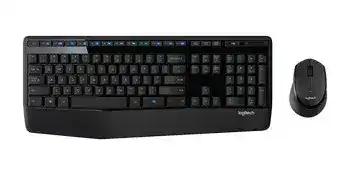
When the keyboard stops typing but the mouse still moves, searching for the Logitech MK345 Wireless Combo Driver can seem like the obvious next move. The MK345 is a full-size wireless keyboard and right-handed mouse that share a 2.4 GHz USB receiver connection. With this combo, however, power, receiver position, USB detection, and the individual keyboard or mouse often tell you more about the fault than a software reinstall.
Logitech MK345 Wireless Combo Windows Driver Download
| Driver Name | Description | Supported OS | File Size | Download |
|---|---|---|---|---|
| Logitech Options 64-bit | Customizes supported mouse buttons, pointer behavior, scrolling, shortcuts, and device settings on 64-bit Windows systems. | Windows 11, Windows 10 64-bit | 245.76 MB | |
| SetPoint 64-bit | Full 64-bit package for offline setup of keyboard hot-keys, device-specific controls, battery status, Caps Lock, and Num Lock indicators. | Windows 11, Windows 10 64-bit, Windows 8 64-bit, Windows 7 64-bit | 80.45 MB | |
| SetPoint 32-bit | Full 32-bit installer for offline configuration of mouse buttons, tracking speed, keyboard hot-keys, and supported device settings. | Windows 11, Windows 10 32-bit, Windows 8 32-bit, Windows 7 32-bit | 78.04 MB | |
| SetPoint Smart Installer | Small SetPoint installer that downloads the required components during setup, so an internet connection is required. | Windows 11, Windows 10 32-bit/64-bit, Windows 8 32-bit/64-bit, Windows 7 32-bit/64-bit | 4.61 MB | |
| Logitech Options | Handles supported mouse customization such as button assignments, scrolling behavior, shortcuts, gestures, and pointer preferences. | Windows 10 32-bit/64-bit, Windows 8 32-bit/64-bit, Windows 7 32-bit/64-bit | 187.71 MB |
Logitech MK345 Wireless Combo Mac OS Driver Download
| Driver Name | Description | Supported OS | File Size | Download |
|---|---|---|---|---|
| Logitech Options | Adjusts compatible device controls on Mac, including mouse buttons, scrolling, shortcuts, gestures, and other supported preferences. | macOS 15, macOS 14, macOS 13, macOS 12, macOS 11 | 238.52 MB |
Logitech MK345 Wireless Combo Driver When Only Half of the Combo Works
One of the more confusing MK345 failures happens when the computer still responds to the mouse while every keyboard key appears dead. Because both pieces belong to the same wireless combo, a working mouse shows that the computer can still communicate through the USB receiver. That makes the keyboard itself, its power supply, or its wireless link the more useful place to investigate first.
The keyboard suddenly stops responding
Start with the keyboard power rather than Windows. Battery trouble can appear abruptly, even when the keyboard worked normally the day before. Try another known-good set rather than assuming recently fitted batteries still have enough charge. If a second set changes nothing, inspect the battery contacts for dirt or poor contact before moving on to USB troubleshooting.
After restoring power, disconnect the receiver for a moment and insert it directly into another computer USB port. Then test several normal keys rather than relying only on a media key. An MK345 keyboard that returns after the receiver changes ports points more toward the wireless or USB path. If the mouse continues working but the keyboard remains completely silent, test the whole combo on another computer.
The mouse is dead while the keyboard still types
The opposite symptom needs a slightly different check. Confirm that the mouse power switch is on, then examine its battery condition. Logitech rates the MK345 mouse for long battery life, but actual runtime changes with use. A depleted mouse battery does not prevent the keyboard from communicating through the shared receiver, so a working keyboard does not rule out a simple mouse power problem.
If the mouse powers up yet the pointer does not move, change the surface before altering software. The MK345 uses an optical mouse, and reflective, transparent, glossy, or unusually patterned surfaces can make tracking appear intermittent. A plain desk surface or mouse pad gives a much better comparison. Test clicks and scrolling as well; working buttons with poor movement narrow the fault toward tracking rather than the entire wireless connection.
The USB receiver deserves attention before software
MK345 communication runs over a 2.4 GHz wireless link through its USB receiver, with Logitech specifying an operating range of up to 10 metres under suitable conditions. Range figures do not mean every desk gives the same result. A metal computer case, crowded USB area, nearby wireless hardware, or a receiver hidden behind a desktop can turn a normally responsive combo into one that pauses or misses input.
Typing pauses or the pointer hesitates
Plug the receiver directly into the computer while diagnosing dropouts. USB hubs, KVM switches, docks, and extenders add variables that make intermittent faults harder to isolate. If the receiver currently sits behind a desktop tower, try a more exposed USB position. The aim is not simply to shorten the distance; it is to remove physical obstacles between the receiver, keyboard, and mouse.
Wireless interference can look surprisingly similar to a failing mouse. If the pointer begins jumping only after other wireless equipment was added nearby, temporarily move that equipment or change the receiver position. Test normal typing at the same time. When both keyboard and mouse improve together, the shared wireless path is a stronger suspect than two separate hardware failures happening at once.
Nothing happens after the receiver is inserted
Move the receiver to another direct USB port and give the operating system time to recognize the USB input hardware. If the combo was working before a sleep, docking, or USB change, unplugging and reconnecting the receiver can force a fresh detection cycle. Avoid making several software changes at the same time; first establish whether another USB port restores keyboard or pointer response.
If no part of the combo responds, move the receiver and both devices to a second computer. That test is unusually useful with the MK345 because it moves the entire wireless set away from the original system at once. If it works elsewhere, investigate the first computer’s USB detection and power behaviour. If neither keyboard nor mouse works on the second machine, the shared receiver path deserves closer attention.
Logitech MK345 Wireless Combo software without unnecessary installs
The current product support page does not list a product-specific download for the MK345. That matters when looking for a Logitech MK345 Wireless Combo Driver because installing unrelated Logitech utilities will not repair a weak battery, hidden receiver, damaged USB connection, or unresponsive piece of the combo. Let the symptom decide whether software belongs in the diagnosis at all.
Windows shows input devices but nothing responds
If the receiver appears to be detected while input remains absent, reconnect it through another port before removing devices from Windows. A temporary USB enumeration problem may clear as soon as the receiver enters a different port. Restarting Windows with the receiver disconnected, then reconnecting it after startup, is also a reasonable comparison when the failure began immediately after an update or power-state change.
Device Manager becomes more useful when the receiver repeatedly fails only on one computer. Look for USB or human-interface entries that show an error rather than deleting every keyboard and mouse entry without distinction. If Windows detects the hardware normally on another machine, concentrate on the first computer instead of trying to change anything inside the MK345 combo.
Media keys behave differently from normal typing
The keyboard has a full-size layout, number pad, F-keys, and easy-access media controls. When letters and numbers work but a media function does not behave as expected, do not treat that as the same failure as a completely dead keyboard. Check the application and Windows function first. A working main keyboard confirms that receiver communication and basic keyboard input are already present.
Power problems can imitate receiver faults
Logitech quotes up to 36 months of keyboard battery life and up to 18 months for the mouse, but those figures vary with use and computing conditions. Long estimated life sometimes makes battery failure easy to overlook. When one half of the MK345 stops while the other half remains normal, testing power on the failed device is quicker and more informative than rebuilding the computer’s input configuration.
A new battery does not always settle the question
If a newly installed battery gives no response, try another known-good one before concluding that the keyboard or mouse has failed. Check that the contacts actually meet the battery terminals and that no residue interferes with them. A battery can also be weak straight from storage. The useful test is a verified working cell, not simply one that came from an unopened package.
Intermittent power can cause a device to reconnect unpredictably, which resembles wireless interference from the user’s side. If touching or moving the keyboard changes its behaviour, inspect the battery compartment before changing USB ports repeatedly. For the mouse, confirm its power switch remains firmly in the on position during testing.
Pointer and keyboard symptoms that need separate tests
A shared receiver does not mean every fault must affect both devices. The right-handed MK345 mouse has its own optical tracking and scroll hardware, while the keyboard has its own keys, media controls, power source, and internal electronics. Treating them as two input devices that happen to share one wireless path makes unusual symptoms much easier to sort out.
The mouse feels rough or less precise than before
First clean the area around the optical sensor gently and move the mouse to a plain, non-reflective surface. Then compare movement with the receiver in a clear USB position. If motion becomes uneven only at greater distance or in one desk arrangement, look at the wireless path. If the same rough tracking follows the mouse to another computer and surface, the problem is more likely local to the mouse.
Keys repeat, lag, or miss occasional presses
Do not immediately group missed keystrokes with a permanently dead keyboard. Intermittent typing can appear when the wireless signal is obstructed or the keyboard has marginal power. Put the receiver where the computer chassis does not block it, remove nearby interference as a test, and verify the keyboard battery condition. If only one particular key misbehaves while every other key remains consistent, the wireless link is less likely to be responsible.
The scroll wheel works but movement is inconsistent
Compare scrolling in more than one ordinary application. A page that scrolls strangely in one program does not necessarily point to the MK345 mouse. If the wheel behaves the same way everywhere, inspect it for debris and test the mouse on another computer. Keep this test separate from pointer tracking; scrolling and optical movement use different parts of the mouse.
Use the working half of the MK345 as a diagnostic clue
The Logitech MK345 Wireless Combo Driver search becomes much easier when you identify exactly what still works. A live mouse with a dead keyboard means the USB receiver has not simply vanished from the computer. A working keyboard with a dead pointer shifts attention toward mouse power and tracking. When both fail together, the receiver, USB port, interference, and computer detection move much higher on the list.
That distinction also prevents needless software changes. Test power on the failed device, expose the 2.4 GHz receiver to a clearer wireless path, connect it directly to another USB port, and compare the combo on another computer when the cause remains uncertain. Those checks separate individual keyboard or mouse trouble from a shared connection failure and give a much clearer reason for whatever repair or replacement comes next.