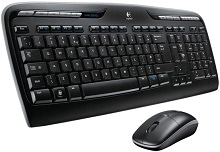
When the keyboard pauses, the mouse stutters, or both parts of the combo disappear at once, the Logitech Wireless Combo MK330 Driver is only one part of the diagnosis. The MK330 uses a shared USB wireless connection, so power, receiver placement, battery condition, Windows HID handling, and Logitech software can all affect what happens on screen. Treating the keyboard and mouse as one wireless system usually reveals the fault faster than troubleshooting them separately.
Logitech Wireless Combo MK330 Windows Driver Download
| Driver Name | Description | Supported OS | File Size | Download |
|---|---|---|---|---|
| Logi Options+ Software | Customizes supported device settings, including buttons, shortcuts, scrolling, pointer behavior, and other available controls. | Windows 11, Windows 10 32-bit/64-bit | 43.1 MB | |
| SetPoint Software 64-bit | Full 64-bit SetPoint package for offline setup, with access to hot-key controls, device-specific settings, battery status, Caps Lock, and Num Lock information. | Windows 11, Windows 10 64-bit, Windows 8 64-bit, Windows 7 64-bit | 80.45 MB | |
| SetPoint Software 32-bit | Full 32-bit SetPoint installer for offline installation, providing hot-key configuration, battery monitoring, and keyboard-specific control options. | Windows 11, Windows 10 32-bit, Windows 8 32-bit, Windows 7 32-bit | 78.04 MB | |
| SetPoint Smart Installer | Small SetPoint installer that downloads the required software components during setup, so an internet connection is required for installation. | Windows 11, Windows 10 32-bit/64-bit, Windows 8 32-bit/64-bit, Windows 7 32-bit/64-bit | 4.61 MB |
Logitech Wireless Combo MK330 Mac OS Driver Download
| Driver Name | Description | Supported OS | File Size | Download |
|---|---|---|---|---|
| Logitech Control Center Software | Provides Mac software support for configuring compatible Logitech device controls and adjusting available device-specific preferences. | Mac OS X 10.14, Mac OS X 10.13, Mac OS X 10.12, Mac OS X 10.11 | 16.89 MB |
Logitech Wireless Combo MK330 Driver When Both Devices Stop Responding
If the keyboard and mouse fail at exactly the same time, begin with the USB receiver rather than either input device. Remove the receiver, leave it disconnected briefly, and insert it directly into another working USB port. Windows should reload the input hardware automatically. A failure that affects both devices together often sits somewhere between the receiver and the computer rather than inside two pieces of hardware at once.
The receiver is detected but typing and movement still freeze
Windows can show the USB receiver as present even while keyboard strokes arrive late or pointer movement becomes erratic. Reconnecting the receiver can rebuild the active USB connection. If that temporarily clears the fault, try a different port and avoid routing the receiver through a monitor, KVM switch, dock, or passive hub while testing. A direct computer connection removes several extra points where communication can become unstable.
Do not add several Logitech utilities at the same time in an attempt to force detection. The keyboard and mouse provide their ordinary functions through standard HID support in Windows. The Logitech Wireless Combo MK330 Driver page is more useful for obtaining compatible Logitech software when extra control is needed than for replacing the operating system’s normal keyboard and mouse handling.
A replacement receiver does not automatically restore the combo
Receiver compatibility matters with this model. Logitech sells a USB nano receiver specifically for several desktop combos including the MK330, so a visually similar dongle from another wireless product should not be treated as interchangeable. If the original receiver has been lost or damaged, use a receiver listed for the combo and follow the matching Logitech connection method rather than repeatedly plugging in unrelated dongles.
Typing Delays Often Point to the Wireless Path Before the Keyboard
A particularly frustrating MK330 symptom is delayed typing while the mouse still seems usable. Letters may appear seconds later, several keystrokes may arrive together, or part of a sentence may vanish. In that situation, changing the keyboard layout or reinstalling every Windows keyboard entry is rarely the best first move. Start by changing the physical position of the receiver and reducing nearby radio noise.
Keyboard characters arrive late or in a burst
Place the receiver where the computer case, monitor, and desk do not form a barrier between it and the keyboard. A short USB extension can also help when the available ports leave the dongle hidden behind a large desktop tower. The aim is not simply to shorten distance. It is to give the 2.4 GHz connection a clearer path and move the receiver away from electronics that can disturb the signal.
USB 3.0 equipment can be another factor when wireless input suddenly becomes poor near certain ports or external drives. Keep the MK330 receiver separated from active USB 3.0 devices where possible. If the computer offers several ports, compare positions rather than assuming every socket will give identical wireless performance. This change can make a large difference when typing delay occurs only at one desk or with one hardware arrangement.
One keyboard section works while normal letters do not
When volume or media controls respond but ordinary typing appears dead, unplugging and reinserting the receiver is worth trying before replacing the keyboard. This symptom can occur when the connection or Windows input state becomes confused even though some commands still pass through. Restart the computer after reconnecting if normal keys remain inactive, then check the keyboard on another machine before deciding that the key matrix has failed.
Keys repeat without being held down
Repeated letters can come from delayed wireless transmission, but they can also come from a sticking key. Compare several keys before blaming software. If only one character repeats, inspect that key for dirt or physical resistance. If many unrelated keys repeat during periods of lag, return attention to receiver position, batteries, nearby interference, and the USB connection rather than adjusting the Windows repeat rate first.
Battery Checks Are Different for the MK330 Keyboard and Mouse
The keyboard and mouse do not use the same batteries. The MK330 keyboard takes two AAA alkaline batteries, while its mouse uses one AA alkaline battery. Logitech lists battery life of up to 24 months for the keyboard and up to 12 months for the mouse, although actual life varies with use. This distinction matters when only one half of the combo begins disconnecting or responding slowly.
The mouse fails while the keyboard remains normal
Start with the AA cell in the mouse because a shared receiver does not mean shared power. Fit the battery according to the markings inside the compartment and make sure the contacts touch firmly. If a new battery changes nothing, switch the mouse off and on, then test it near the receiver. A keyboard that remains responsive at the same time shows that the USB receiver itself is still communicating.
Pointer trouble can also come from the surface under the optical sensor. Try a plain, non-reflective surface and inspect the sensor opening for loose dust. If movement is poor on one surface but normal elsewhere, changing Logitech software will not address the cause. If the mouse fails on several computers after a known-good battery and suitable surface test, the fault is increasingly likely to be in the mouse hardware.
The keyboard loses power sooner than expected
With the keyboard, replace both AAA cells as a pair rather than mixing a new battery with an older one. Check that each battery follows the polarity markings. Battery contacts should remain dry and free from residue. If the keyboard wakes only after repeated key presses or begins missing characters as the batteries age, a matched pair of alkaline cells gives a cleaner test than trying software changes first.
SetPoint has historically provided battery information for the MK330 as well as customization controls. Logitech now marks SetPoint as unsupported and no longer maintained, so it should not be treated as a current general-purpose fix for every modern Windows problem. Its presence on older systems can still explain why an existing installation shows MK330 battery or keyboard controls.
Logitech Wireless Combo MK330 Software, Hotkeys, and Windows Control
The MK330 has more keyboard functions than a plain office keyboard, including multimedia and shortcut controls. Logitech documented SetPoint customization for the combo, and newer Logi Options+ release information has included MK320 and MK330 support on Windows. This makes software relevant when the wireless connection works but programmable or special controls do not behave as expected. It is a different problem from a completely dead keyboard or mouse.
Normal typing works but multimedia keys do not
First separate a hotkey problem from a connection problem. Type continuously for a minute and move the mouse at the same time. If both basic functions remain responsive, the receiver path is probably not the main issue. Check whether the key performs a different command in another program, then review the Logitech control software available for the MK330 rather than repeatedly removing the receiver.
Software assigned functions may also behave differently after a Windows upgrade or after legacy SetPoint components have been left behind. If you are moving to a supported Logitech application, avoid running overlapping customization tools for the same combo. Restart Windows after changing the control software so the keyboard hooks and background processes load from a known state rather than carrying an older session forward.
Scroll Lock seems missing or difficult to identify
The MK330 has documented Scroll Lock behavior, and Logitech’s older SetPoint software could display an on-screen confirmation when that state changed. This can matter in spreadsheet programs where arrow keys suddenly move the worksheet instead of the selected cell. Before treating the keyboard as defective, check the Scroll Lock state and the application itself. A state toggle can easily look like a navigation fault.
Windows sees the combo but Logitech software does not
Basic keyboard and mouse operation can continue even when a Logitech control application fails to identify the hardware, because Windows supplies native HID handling for ordinary input. Confirm that both devices actually work before reinstalling anything. Then disconnect other unnecessary Logitech receivers, restart the application, and reconnect the MK330 receiver directly to the computer. This gives the Logitech Wireless Combo MK330 Driver and control software a simpler hardware path to examine.
Separate a Radio Problem from a Failing Keyboard or Mouse
Intermittent faults become easier to judge when you compare what fails together. If both devices lag at the same moment, inspect receiver position, the USB port, nearby electronics, and the computer’s USB state. If only the mouse fails, work through its AA battery, optical surface, power switch, and hardware. If only the keyboard fails, test its two AAA batteries, individual keys, and typing behaviour separately.
Distance should also remain reasonable even though Logitech wireless equipment is intended to operate several metres from the receiver. A clear path at a shorter distance is a useful diagnostic test. If the combo works perfectly near the computer but becomes erratic from its normal desk position, changing drivers is unlikely to solve the underlying radio environment. Rearranging the receiver is the more relevant correction.
Another useful comparison is a second computer. Move the receiver and both devices together rather than borrowing a different Logitech dongle. If the same keyboard delay or mouse fault follows the MK330, the evidence shifts toward batteries, receiver condition, interference near the devices, or hardware wear. If the combo behaves normally elsewhere, focus on the first computer’s USB configuration and installed Logitech software.
A dependable MK330 installation should not require constant receiver removal, frequent application reinstallations, or repeated battery changes. Once the Logitech Wireless Combo MK330 Driver environment is settled, both halves of the combo should share the receiver without regular intervention. Persistent simultaneous failures deserve attention at the receiver and USB level, while an isolated keyboard or mouse symptom should stay focused on that device instead of turning into a full software rebuild.