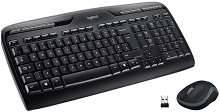
A working USB receiver can still leave the keyboard silent, the mouse frozen, or only half of the combo responding. The Logitech Wireless Desktop MK320 Driver setup is tied closely to the receiver version and the hardware revision supplied with this long-running desktop set. The MK320 uses a 2.4 GHz USB nano receiver rather than Bluetooth, while different production versions have appeared with M-R0013 or M-R0061 mice.
Logitech Wireless Desktop MK320 Windows Driver Download
| Driver Name | Description | Supported OS | File Size | Download |
|---|---|---|---|---|
| Logitech Unifying Software | Utility for pairing compatible Logitech wireless keyboards and mice with a Unifying receiver and managing connected devices. | Windows 11, Windows 10 32-bit/64-bit | 3.96 MB | |
| Logitech Connection Utility | Connection tool used to restore communication between compatible Logitech devices and supported non-Unifying wireless receivers. | Windows 11, Windows 10 32-bit/64-bit, Windows 8 32-bit/64-bit, Windows 7 32-bit/64-bit | 1.04 MB |
Logitech Wireless Desktop MK320 Driver When Only Half the Combo Works
When the mouse moves normally but the keyboard will not type, avoid treating the receiver as completely dead. The two devices share the wireless connection, yet either one can lose power or communication separately. Switch the keyboard off and on, check its two AAA batteries, and make sure the cells sit firmly against the contacts. Then try normal letter keys before changing anything in Windows.
Keyboard stops typing while the mouse remains active
Battery trouble is easy to miss because a keyboard may become intermittent before it stops altogether. Remove both AAA cells and check the polarity marks inside the compartment. If the contacts look dirty, clean only the accessible contact surfaces carefully and let them dry before fitting batteries again. A keyboard that returns immediately after this check does not need a new receiver or a software reinstall.
If power looks normal, unplug the nano receiver and connect it directly to another USB port on the computer. Avoid a hub, KVM switch, monitor USB socket, or dock while diagnosing the fault. Direct connection removes another layer between Windows and the MK320 receiver and makes it easier to tell whether the problem sits with the keyboard or the USB path.
Mouse is dead but the keyboard still types
The MK320 mouse uses one replaceable AA battery and has its own on/off switch. Turn it off, remove the battery, fit the cell according to the markings, and turn the mouse on again. If the keyboard continues to work through the receiver, concentrate on mouse power, tracking, and its wireless link rather than deleting the keyboard from Windows.
The combo has shipped with more than one mouse revision, so check the model number printed underneath before looking for replacement hardware. M-R0013 and M-R0061 are both documented with MK320 packages. That detail matters because software and receiver information can differ between production versions even though the retail combo carries the same MK320 name.
Receiver Problems That Look Like a Windows Driver Failure
Neither keyboard nor mouse responds after plugging in the receiver
If both devices fail together, start at the USB connection. Remove the nano receiver, restart the computer if necessary, and insert the receiver into a direct USB port. Give Windows time to load its standard keyboard and mouse support. The MK320 is a plug-and-play combo for ordinary input, so basic typing and pointer movement should not depend on opening a control application first.
A receiver that works in one USB socket but not another points toward the computer rather than the keyboard-and-mouse set. The same distinction applies if the combo works on a second computer. Testing another machine is particularly useful after a Windows update, sleep problem, or USB controller issue because it separates an operating-system fault from failed Logitech hardware.
Input freezes for a second and then returns
Short pauses, delayed keystrokes, and uneven mouse response often come from the wireless path. Keep wireless speakers, phones, and other radio devices away from the receiver while testing. A metal desk or a computer chassis between the receiver and keyboard can also weaken communication. Changing where the tiny receiver sits may solve an intermittent problem without touching the Logitech Wireless Desktop MK320 Driver package.
Distance matters too. The MK320 is intended for a wireless range of up to about 10 metres under suitable conditions, but walls, desk construction, nearby electronics, and computer hardware can reduce that range. If the problem disappears when the devices are closer, improve receiver placement instead of assuming that the mouse sensor or keyboard electronics have failed.
The combo fails after sleep or waking Windows
A computer can wake with the receiver powered differently from the way it was before sleep. First unplug and reconnect the receiver. If this happens repeatedly on Windows, inspect the computer’s USB power-management behaviour rather than repeatedly removing Logitech software. USB selective-suspend settings and motherboard USB drivers can affect devices that disappear or respond late after the system wakes.
Background Windows updates can also cause temporary input delay. If the MK320 suddenly becomes sluggish while the computer is installing updates or doing heavy background work, finish the update and restart before making permanent changes. A problem that disappears after the restart was probably not a pairing failure.
Know Which MK320 Receiver and Software Version You Have
The Logitech Wireless Desktop MK320 Driver history is less straightforward than that of a single-revision keyboard. One documented MK320 configuration uses the M-R0013 mouse with receiver model C-U0007 and listed SetPoint 6.20 as its software at release. Another configuration uses the M-R0061 mouse with receiver C-U0010 and was documented with Logitech Options. The receiver type should therefore be checked before choosing an old pairing or customization utility.
Replacement receiver does not connect to the existing devices
A USB receiver is not interchangeable merely because it fits the port and carries the Logitech name. Look at the receiver and the model numbers under the keyboard or mouse before buying or attempting to pair a replacement. Some MK320 packages use a non-Unifying receiver configuration, while other documentation covers an earlier Unifying-related configuration. The receiver logo and hardware number are better guides than the combo name alone.
For a non-Unifying receiver, Logitech’s connection guidance treats replacement pairing differently from normal Unifying pairing. The older Logitech Connection Utility was used with compatible non-Unifying replacement receivers. That utility is now listed as no longer maintained, so it should not be confused with a current general-purpose app that automatically works with every MK320 revision.
Modern Logitech software cannot find the combo
Do not use software detection as the first test. Open a document and type, then move and click the mouse. If those basic actions work, the USB receiver and standard input path are already functioning. A newer Logitech application may simply lack support for the specific MK320 hardware revision even though Windows continues to handle normal keyboard and mouse activity.
Older MK320 documentation names SetPoint for one version and Logitech Options for another. Logitech no longer maintains several legacy utilities, and its current MK320 download page may show no product-specific download for a selected system. Match any archived package to the hardware and operating system rather than installing several Logitech programs together in the hope that one detects the combo.
Hotkeys, Scroll Lock, and Mouse Behaviour Need Different Fixes
Media keys work differently from the main keyboard
The MK320 is a full-size keyboard with a number pad and dedicated hotkeys for common media and computer functions. If ordinary typing works while volume, playback, browser, or another shortcut behaves differently, the wireless connection itself is probably still active. Check what Windows does with that particular command before replacing batteries or moving the receiver.
A shortcut can also depend on the application that currently has focus. Test volume controls against normal system audio and test media controls with an application that accepts those commands. This separates a keyboard fault from software that ignores a particular multimedia key.
Scroll Lock seems to have disappeared
On the MK320 keyboard, Scroll Lock is handled through a key combination rather than a separate conventional key in some layouts. Press Fn together with Pause/Break to toggle the Scroll Lock function. This becomes especially noticeable in spreadsheet programs, where the arrow keys may begin moving the worksheet instead of moving between cells.
Reinstalling software will not normally fix a Scroll Lock state that was switched on accidentally. Toggle it first and check the application again. A keyboard can otherwise appear to have an arrow-key problem even though the keys themselves are registering correctly.
Mouse movement is uneven although clicks still work
The MK320 mouse uses Logitech Advanced Optical Tracking and a standard 2D scroll wheel. When clicks register but movement feels erratic, try another ordinary, non-reflective surface before changing Windows pointer options. Highly reflective, transparent, or unusual surfaces can interfere with optical tracking even while every other part of the wireless connection remains intact.
Then inspect the sensor opening for visible dust and wipe the exterior gently. If cursor behaviour improves on another surface, the USB receiver was not the cause. If both movement and keyboard input break up at the same moments, return to receiver position and radio conditions because simultaneous symptoms point elsewhere.
Battery Life Can Hide an Intermittent MK320 Fault
Devices work after restarting but fail again later
The keyboard uses two AAA alkaline batteries and is rated for long battery life, while the mouse uses one AA cell and has a shorter rated operating period. Those figures are estimates rather than a guarantee for every desk. Heavy use, battery quality, storage conditions, and long service life can change when a device begins showing low-power symptoms.
Do not assume that batteries are healthy simply because they are relatively new. If one half of the combo repeatedly drops while the other remains steady, substitute known-good cells in the affected device. This quick test is more useful than changing Windows settings when the failure follows only the keyboard or only the mouse.
Keyboard delays appear only after long periods of use
Intermittent keystrokes can come from battery condition and wireless reception at the same time. Test the keyboard nearer the receiver with known-good batteries. If either change removes the delay, keep that variable fixed while testing the other. Changing batteries, USB ports, Windows options, and software all at once makes the original cause difficult to identify.
The Logitech Wireless Desktop MK320 Driver should be considered only one part of the troubleshooting path. Windows can provide basic keyboard and mouse operation, while older Logitech packages add functions for specific hardware revisions. Power and the 2.4 GHz receiver still determine whether input reaches the computer in the first place.
Separate Hardware Trouble from Receiver Trouble
When the MK320 becomes unreliable, use the two devices to diagnose each other. A working keyboard tells you the receiver is still communicating with the computer, while a working mouse gives the same clue in reverse. When both stop together, inspect the receiver, USB port, computer power behaviour, and nearby wireless conditions before blaming two sets of batteries at once.
For a fault that follows one device to another computer, concentrate on that keyboard or mouse. For a fault that appears only on one PC, investigate its USB ports and Windows behaviour. And when replacement receiver pairing becomes necessary, identify the exact receiver and mouse revision first. That approach fits the MK320’s multiple hardware versions far better than treating every Logitech nano receiver or software package as interchangeable.