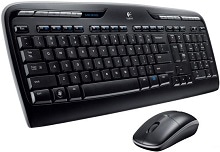
When the keyboard stops typing, the mouse loses movement, or the extra keyboard functions no longer respond, the Logitech Wireless Desktop MK300 Driver setup needs more than another USB reconnect. This older wireless keyboard-and-mouse set uses its matching USB receiver and can run basic input functions through Windows HID support. Logitech SetPoint adds access to the MK300 keyboard shortcuts, programmable F-keys, mouse adjustments, and battery information.
Logitech Wireless Desktop MK300 Windows Driver Download
| Driver Name | Description | Supported OS | File Size | Download |
|---|---|---|---|---|
| SetPoint 64-bit Software | Full 64-bit SetPoint package for offline setup, with access to mouse button settings, tracking speed, keyboard hot-keys, and device-specific controls. | Windows 11, Windows 10 64-bit, Windows 8 64-bit, Windows 7 64-bit | 80.45 MB | |
| SetPoint 32-bit Software | Full 32-bit SetPoint package for offline installation, including keyboard hot-key controls, battery status information, and Caps Lock or Num Lock notifications. | Windows 11, Windows 10 32-bit, Windows 8 32-bit, Windows 7 32-bit | 78.04 MB | |
| SetPoint Smart Installer | Small SetPoint installer that downloads the required software components during setup, so an internet connection is required while installing. | Windows 11, Windows 10 32-bit/64-bit, Windows 8 32-bit/64-bit, Windows 7 32-bit/64-bit | 4.61 MB |
Logitech Wireless Desktop MK300 Driver When Both Devices Stop Responding
A failure that affects the keyboard and mouse at the same time usually points toward the shared receiver path rather than two devices failing together. Check that the MK300 receiver has a firm USB connection before changing software. Move it to another working USB port and give Windows a moment to detect the input hardware again. A hub or poorly seated connection can make the whole desktop set appear dead.
Reconnect the keyboard and mouse to the original receiver
The MK300 has a hardware connection procedure that is useful when batteries have been changed or either device loses communication. Press the Connect button on the receiver first. Then quickly press the Connect button underneath the mouse for about half a second. Repeat the receiver-button action before briefly pressing the Connect button on the underside of the keyboard.
The mouse indicator should blink during the connection attempt. Do not hold its Connect button for several seconds because the original procedure calls for a quick press. Work with one device at a time, starting each attempt at the receiver. This method is more relevant to the MK300 than installing unrelated modern pairing applications because the set predates newer Logitech receiver systems.
Change receiver position when input cuts in and out
If keystrokes disappear occasionally or mouse movement pauses, look at the physical path between the desktop devices and the receiver. Bring the keyboard or mouse nearer while testing. Keep the receiver away from electrical equipment and do not leave it resting directly against a large metallic surface. A different USB position can change reception even when Windows already recognizes the receiver.
This is also worth checking when the Logitech Wireless Desktop MK300 Driver appears to be working normally but both devices behave badly at the same desk. Software cannot repair a poor radio path. Once movement and typing become consistent at shorter range, reposition the receiver rather than repeatedly removing and reinstalling Windows input components.
Battery and Wake Problems on the MK300 Desktop Set
Mouse powers on but stops again soon afterward
The MK300 mouse has a power slider on its underside and a battery indicator on the upper case. Switch the mouse off and back on while watching that light. A green light for about ten seconds indicates usable battery power, while a blinking red indicator warns that the remaining charge is low. Weak batteries can produce intermittent symptoms before the mouse stops completely.
Check how the cells sit in the compartment as well. The MK300 mouse can operate with only one battery, although battery life becomes much shorter, so an apparently empty battery position does not automatically mean something is missing. For normal long-term use, fit the batteries as shown inside the compartment and make sure the contacts are touching firmly.
Keyboard battery status does not appear
The keyboard has a Battery Status Check hotkey, but its detailed battery reading depends on SetPoint. With the matching software running, pressing that key opens the keyboard battery information. If the ordinary letter and number keys work while the battery-status command does nothing, the wireless link may already be fine; the missing part can simply be the SetPoint function behind that special key.
The keyboard and mouse also enter a low-power sleep state after several minutes without activity. They are meant to resume when used again. If one device consistently fails after sitting idle, first confirm its battery condition and then reconnect that specific device to the receiver. A normal sleep period by itself does not require another driver installation.
Logitech Wireless Desktop MK300 Software for Hotkeys and F-Key Functions
Basic typing, pointer movement, left click, right click, and ordinary scrolling do not depend entirely on a separate Logitech package because Windows provides standard Human Interface Device support. The original customization software for this model is Logitech SetPoint. That distinction matters when choosing a Logitech Wireless Desktop MK300 Driver download: SetPoint extends the controls rather than replacing every native Windows keyboard or mouse function.
Media and application keys work differently from ordinary keys
The MK300 keyboard has dedicated controls for functions such as email, web browsing, search, media playback, volume, calculator access, and battery checking. It also uses enhanced F-key commands. Some of these functions depend on SetPoint and on the applications installed in Windows. If normal typing works but a special key does not, treat it as a customization problem rather than a lost wireless connection.
The enhanced F-keys use the Fn key together with F1 through F12. The productivity commands include document, spreadsheet, presentation, and calendar functions, while F5 through F8 can hold favorite application, folder, or website assignments. SetPoint provides the My Keyboard controls used to change supported assignments instead of forcing every F-key to keep its original secondary task.
SetPoint cannot see the keyboard or mouse controls
First confirm that both devices can communicate with the receiver before troubleshooting SetPoint. If Windows receives ordinary keystrokes and mouse clicks, close and reopen the Logitech software and check its My Keyboard and My Mouse areas. A software reinstall is useful only after the physical wireless connection has been proven. Reinstalling while neither device talks to the receiver usually leaves the original fault untouched.
The MK300 is an older product, and Logitech now lists no current downloads on its main product-support page. That does not change the software identified in the original MK300 documentation: SetPoint was the package supplied for keyboard and mouse customization. Avoid assuming that newer Logitech applications support this desktop simply because they support current products with similar functions.
Mouse Movement, Scrolling, and Click Response
Cursor becomes slow or jerky on certain desks
When the mouse still clicks but the cursor crawls, jumps, or pauses, change the surface before changing any software. The MK300 documentation specifically points to surface choice when cursor motion becomes slow or uneven. Deep or very dark surfaces can affect tracking. Try an ordinary mouse pad or another non-reflective desk area and compare the result before blaming the receiver.
If a surface change makes no difference, test receiver position next. A tracking problem that disappears when the mouse is near the receiver has a different cause from one that follows the mouse onto every surface. Keeping these tests separate makes it easier to identify whether the optical tracking surface or wireless communication needs attention.
Wheel speed feels wrong after SetPoint changes
The MK300 mouse uses a standard scroll wheel, and SetPoint provides mouse controls that include scrolling preferences such as speed and acceleration. If scrolling becomes unexpectedly fast or slow after software changes, open the My Mouse section and review those values. Restore ordinary values before reinstalling anything, then compare scrolling in more than one Windows program to rule out an application-specific behavior.
The mouse has left click, right click, and the wheel rather than a modern collection of programmable side controls. Keep troubleshooting matched to that hardware. Instructions written for newer Logitech mice can introduce menus, wireless technologies, or button features that the MK300 mouse does not have and may send the diagnosis in the wrong direction.
When the Keyboard Alone Loses Functions
Typing works but Fn commands no longer launch programs
This symptom separates the Windows keyboard connection from the SetPoint layer. If letters, numbers, Enter, and other standard keys still reach Windows, reconnecting the receiver may accomplish nothing. Open SetPoint and check the F-key assignment area instead. The software lets supported F-keys launch tasks, and saved assignments can behave differently when the target application or file location has changed.
Some original MK300 shortcuts also target functions that made more sense on computers of its era. For example, one enhanced F-key command was intended to open or close a CD or DVD tray. A modern computer without an optical drive cannot perform that action, so the absence of a result does not prove that the keyboard, receiver, or software has failed.
One device works while the other does not
A working mouse proves that the receiver has power, but it does not prove that the keyboard still has its own wireless connection. The reverse is also true. Check the unresponsive device’s batteries and then run the receiver Connect procedure for that device. This is especially useful after a battery change when the other half of the desktop set continues working normally.
Do not disturb the working device unless necessary. Re-establish communication with the failed keyboard or mouse first, then test ordinary input before opening customization software. That order keeps a simple device-to-receiver problem from becoming mixed with shortcut assignments or Windows application behavior.
Keep the MK300 Matched to Its Original Hardware
The most useful Logitech Wireless Desktop MK300 Driver troubleshooting starts by treating the MK300 as the older receiver-based keyboard-and-mouse system it is. Verify power, USB detection, receiver position, and the hardware Connect process before changing software. Once ordinary typing and mouse movement return, SetPoint becomes relevant for battery information, enhanced keyboard commands, F-key assignments, and mouse preferences.
If problems continue, separate the symptoms instead of changing several things together. Test the mouse on another surface when movement is poor, check batteries when either device wakes unreliably, and reconnect only the device that has lost communication. When ordinary input works but extra keyboard functions are absent, concentrate on SetPoint rather than the wireless link. That division makes this older desktop set much easier to diagnose.