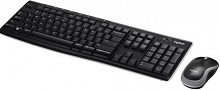
Delayed letters, repeated keystrokes, or a mouse that pauses for a moment can make the Logitech Wireless Combo MK270 Driver look like the first thing to replace, yet MK270 faults often come from its shared 2.4 GHz USB connection. Current MK270 revisions use a Logitech nano receiver and do not use Bluetooth. The K270 keyboard and compact mouse also have separate batteries and power switches, so a problem affecting one device needs a different test from a failure affecting the whole combo.
Logitech Wireless Combo MK270 Windows Driver Download
| Driver Name | Description | Supported OS | File Size | Download |
|---|---|---|---|---|
| SetPoint 64-bit Software | Full 64-bit SetPoint package for offline setup, with controls for hot-keys, device-specific settings, battery status, Caps Lock, and Num Lock. | Windows 11, Windows 10 64-bit, Windows 8 64-bit, Windows 7 64-bit | 80.45 MB | |
| SetPoint 32-bit Software | Full 32-bit SetPoint installer for offline use, providing hot-key configuration, battery information, and keyboard status settings. | Windows 11, Windows 10 32-bit, Windows 8 32-bit, Windows 7 32-bit | 78.04 MB | |
| SetPoint Smart Installer | Compact SetPoint installer that downloads required components during setup and needs an active internet connection. | Windows 11, Windows 10 32-bit/64-bit, Windows 8 32-bit/64-bit, Windows 7 32-bit/64-bit | 4.61 MB | |
| Logitech Unifying Software | Utility for pairing compatible Logitech Unifying keyboards and mice with a Unifying USB receiver. | Windows 11, Windows 10 32-bit/64-bit | 3.96 MB |
Logitech Wireless Combo MK270 Driver for Typing Lag and Repeated Keys
One of the more distinctive MK270 complaints is a keyboard that types normally for a while and then pauses, repeats a character, or releases several delayed keystrokes at once. Installing SetPoint alone does not necessarily cure this behavior. When the problem changes between computers, or appears only with a particular USB arrangement, investigate the receiver location before treating the keyboard as defective.
USB 3.x equipment can change wireless behavior
Try the nano receiver in a USB 2.0 port when the computer provides one. MK270 owners have traced severe K270 lag to receiver placement beside USB 3.x ports or equipment, with normal typing returning after changing the USB connection. This is especially worth testing when the keyboard behaves perfectly on one computer but hesitates on another while using the identical batteries.
If no USB 2.0 port is available, change the physical position of the nano receiver. A short USB extension or a different computer-side port can place it away from a crowded group of high-speed USB cables, storage devices, monitors, and power wiring. The purpose is not to add another hub permanently. It is to find out whether the delay follows the wireless environment rather than the K270 itself.
A brief freeze while gaming or under load
A K270 can appear to hold a key during a game even though Windows shows no obvious processor or memory spike. Test the keyboard outside the game before adjusting repeat rate. Type continuously in an ordinary document and watch whether letters pause or arrive in a burst. If the symptom occurs everywhere, continue with the USB and wireless checks. If it happens in one program only, investigate that program’s input configuration instead.
Changing Windows keyboard repeat delay will not repair packet loss between the keyboard and its nano receiver. Repeat controls affect how Windows handles a key that remains pressed; they do not explain several missing characters followed by a sudden group of characters. That difference can save a great deal of unnecessary software tweaking.
When the Mouse Works but the K270 Keyboard Does Not
The two parts of the MK270 share the computer-side receiver but operate as separate wireless devices. Therefore, a moving pointer does not prove that the keyboard has adequate power or that its link is healthy. If only typing disappears, leave the working mouse alone. Switch the K270 off, check its batteries, power it on again, and then test the Caps Lock indicator along with ordinary letter keys.
No response after changing keyboard batteries
Current MK270 specifications call for two replaceable AAA alkaline batteries in the keyboard. Check the polarity markings inside the compartment rather than copying the orientation of the batteries you removed. Poor contact can also create an intermittent keyboard that starts and then disappears. Remove visible contamination from the battery area carefully and make sure each cell sits firmly against its contacts before returning to software troubleshooting.
Battery life figures are estimates, not a guarantee that every pair will last for the full advertised period. A keyboard used heavily or stored with aging cells can fail earlier. If the keyboard powers up with another known-good pair and the mouse never stopped working, there is little reason to rebuild the mouse configuration or remove every USB input device from Windows.
Receiver removal changes what Windows sees
If the K270 has power but remains silent, unplug the nano receiver, restart the computer, and reconnect it directly to a functioning USB port. Windows normally supplies the underlying keyboard and mouse HID handling automatically. Reconnecting the receiver gives the operating system a chance to enumerate that hardware again when its previous USB state became stuck or incomplete.
Do not confuse this with Bluetooth recovery. MK270 uses its 2.4 GHz USB receiver and has no normal Bluetooth pairing mode. Searching the Windows Bluetooth menu for the K270 or the included mouse therefore sends troubleshooting in the wrong direction.
Receiver Replacement Is More Complicated Than the MK270 Name Suggests
MK270 has existed in more than one hardware revision. Logitech documents current combinations with a non-Unifying 2.4 GHz nano receiver, while older MK270 variants were sold with Unifying hardware. That distinction matters when a receiver has been lost. A replacement bearing a Logitech logo is not automatically compatible, and advice written for an older MK270 can be wrong for a newer Y-R0042 keyboard.
Check the hardware revision before attempting pairing
Look at the model information on the keyboard, mouse, and receiver. Logitech lists Y-R0042 keyboard revisions with receivers such as C-U0010 or CU0023 under its non-Unifying 2.4 GHz protocol. Those current revisions should not be treated as ordinary Unifying products merely because older K270 or MK270 documentation mentions the orange Unifying symbol and Unifying Software.
This also changes how you should approach the Logitech Wireless Combo MK270 Driver and receiver tools. Legacy MK270 hardware that genuinely carries the Unifying technology may follow the older pairing workflow. A current non-Unifying set depends on its compatible nano receiver instead. Verify the markings first rather than repeatedly running pairing utilities that were written for another revision.
The combo stopped after moving its dongle to another PC
When both keyboard and mouse worked before the receiver was moved, start with the receiver itself on the second computer. Connect it directly, wait for the operating system to finish identifying the USB input hardware, then switch both peripherals off and back on. If they immediately work when the receiver returns to the original computer, the evidence points toward the second computer’s USB environment rather than simultaneous keyboard and mouse failure.
Mouse Tracking, Wheel Response, and Separate Power Faults
The MK270 mouse uses one replaceable AA battery and Logitech optical tracking. A pointer problem that leaves the keyboard completely unaffected deserves a mouse-specific test. Change the surface first. Highly reflective, transparent, or unusual desk materials can produce erratic optical tracking, while a plain opaque surface gives a better comparison without changing drivers or receiver software.
Pointer movement becomes jerky but typing stays normal
Check the mouse power switch and AA battery before changing Windows pointer speed. A marginal battery may produce intermittent behavior even though the computer continues to recognize the receiver. Then try another surface and shorten the distance between the mouse and receiver for the test. If the keyboard remains responsive throughout, concentrate on the mouse rather than treating the shared receiver as the only possible cause.
When both devices become erratic together, the diagnosis changes. Nearby wireless equipment, monitor electronics, power supplies, dense USB cabling, and the physical position of the receiver can disturb the 2.4 GHz path. Logitech’s own connection guidance also favors attaching the receiver directly to the computer during troubleshooting instead of placing it behind an unsupported switching device.
Wheel scroll works but middle click does not
The included mouse provides ordinary vertical scrolling and a wheel that can act as a middle button. It does not provide horizontal tilt scrolling. When vertical movement works but pressing the wheel fails, try the middle click in another program because applications can assign different actions to it. If the click fails across computers while scrolling remains normal, the symptom points more toward the wheel switch than toward wireless reception.
Software Choices for the MK270 Across Different Revisions
Logitech documentation lists SetPoint support for the K270 keyboard and Logitech Options for some MK270 mouse revisions at launch. Those packages served customization rather than replacing the standard USB keyboard and mouse handling built into the operating system. Logitech has since retired maintenance for several older utilities, so software availability can differ from what appears in an older MK270 manual or troubleshooting article.
Media buttons work differently from ordinary keys
The K270 includes eight shortcut controls for functions such as play or pause, mute, volume adjustment, Internet home, email, sleep, and calculator access. If normal letters work but one shortcut does nothing, do not diagnose a lost receiver immediately. First try another supported shortcut. Some commands depend on the operating system or the application associated with that function, while a complete connection loss would normally affect regular typing as well.
For older Windows installations, SetPoint may appear in historical Logitech instructions for keyboard configuration. Installing software solely because one media command opens an unexpected application may not solve the underlying association. Check the operating system’s default application behavior as well, particularly for email and browser-related shortcuts.
Windows recognizes the combo without Logitech software
This is normal. The Logitech Wireless Combo MK270 Driver software does not have to provide every ordinary keystroke or pointer movement itself. Windows can identify the receiver and load its standard input support, which explains why an MK270 may begin working as soon as the nano receiver is inserted. Optional Logitech utilities add functions appropriate to particular hardware revisions rather than acting as a prerequisite for basic typing.
If software installation finishes but neither device responds, return to the physical connection. Verify the receiver, USB port, power switches, and batteries. A control application cannot restore communication when the computer never sees the receiver or when a peripheral has no power.
Separate a Computer Problem from an MK270 Hardware Problem
The quickest useful comparison at the end of a difficult MK270 fault is to change only one part of the environment at a time. Take the combo and its own nano receiver to another computer. If typing and pointer movement immediately become normal there, investigate USB placement, nearby interference, and operating-system recognition on the first machine rather than replacing both peripherals.
If the Logitech Wireless Combo MK270 Driver environment changes but exactly one component continues to fail everywhere, follow that component. For the K270, verify its two AAA cells, power switch, key response, and battery contacts. For the mouse, use a known-good AA cell and a suitable tracking surface. When both fail only with one receiver, identify the receiver revision before looking for a replacement, because MK270 generations do not all use the same receiver technology.
That revision check is particularly valuable with the MK270. The product name has remained familiar while the receiver implementation has changed over its long life. Reading the hardware markings prevents an older Unifying solution from being applied blindly to a current non-Unifying set, and it gives lag, lost-input, battery, and receiver faults a much clearer path to diagnosis.