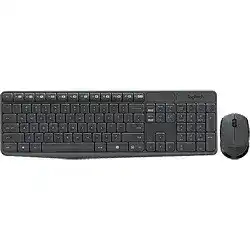
Delayed letters, repeated keystrokes, and a cursor that pauses together usually point to the shared wireless path rather than two separate hardware failures. The Logitech MK235 Wireless Mouse and Keyboard Driver relies on the computer’s standard USB and human-interface support because this plug-and-play combo has no required product download. Troubleshooting should begin with its original USB receiver, battery power, receiver position, and nearby interference.
The MK235 package includes a full-size K235 keyboard, an ambidextrous wireless mouse, and one small receiver for both devices. Plug that receiver into a working USB port and Windows should detect the combo automatically. Bluetooth menus do not apply to this model, and the keyboard cannot connect directly through a computer’s built-in Bluetooth radio.
Logitech MK235 Wireless Mouse and Keyboard Windows Driver Download
| Driver Name | Description | Supported OS | File Size | Download |
|---|---|---|---|---|
| Logitech Options | Customizes mouse buttons, pointer behavior, scrolling, shortcuts, and supported device settings. | Windows 11, Windows 10 32-bit/64-bit | 245.76 MB | |
| Logitech Options | Adjusts button assignments, scrolling preferences, pointer response, and device-specific controls on older Windows systems. | Windows 10 32-bit/64-bit, Windows 8 32-bit/64-bit, Windows 7 32-bit/64-bit | 187.71 MB | |
| SetPoint 64-bit | Full offline package for configuring mouse buttons, tracking speed, hot-keys, battery status, Caps Lock, and Num Lock indicators. | Windows 11, Windows 10 64-bit, Windows 8 64-bit, Windows 7 64-bit | 80.45 MB | |
| SetPoint 32-bit | Complete offline installer for mouse button settings, pointer speed, keyboard hot-keys, and device status notifications. | Windows 11, Windows 10 32-bit, Windows 8 32-bit, Windows 7 32-bit | 78.04 MB | |
| SetPoint Smart Installer | Small universal installer that downloads the required SetPoint components during setup and requires an internet connection. | Windows 11, Windows 10 32-bit/64-bit, Windows 8 32-bit/64-bit, Windows 7 32-bit/64-bit | 4.61 MB |
Logitech MK235 Wireless Mouse and Keyboard Mac OS Driver Download
| Driver Name | Description | Supported OS | File Size | Download |
|---|---|---|---|---|
| Logitech Options | Manages mouse button customization, pointer behavior, scrolling, shortcuts, gestures, and supported device preferences. | macOS 15, macOS 14, macOS 13, macOS 12, macOS 11 | 238.52 MB | |
| Logitech Options Driver | Provides device support for adjusting pointer movement, scrolling behavior, button functions, and application shortcuts. | macOS 11, macOS 10.15, macOS 10.14 | 124.29 MB |
Typing appears several seconds late
Move the receiver away from crowded USB areas before changing Windows files. External drives, wireless adapters, docking stations, and other equipment near the dongle can disturb the 2.4 GHz link. A short USB extension cable can place it on the desk with a clearer path to the keyboard and mouse.
When the computer sits under a desk or behind a television, metal panels and furniture can reduce the practical range. Test the combo close to the receiver. If the delay disappears at a shorter distance, reposition the dongle rather than repeatedly removing keyboard entries from Device Manager.
Letters repeat or disappear while typing
Repeated characters can occur when the wireless connection drops briefly and then resumes. Replace the keyboard batteries as a matched pair, even when some keys still respond. Remove the batteries for a short period, press several keys to discharge remaining power, reinstall them with the marked polarity, and test again.
Windows accessibility controls can create a similar symptom. Open the keyboard accessibility page and check Filter Keys, Sticky Keys, and related typing delays. Turn off any feature that was enabled accidentally. This matters when ordinary letters seem ignored while modifier keys, shortcuts, or long key presses behave differently.
The cursor stutters at the same time
When keyboard delay and pointer stutter happen together, focus on the receiver and computer rather than the mouse sensor alone. Try another direct USB port, preferably one separated from storage devices and high-traffic hubs. Restart the computer after moving the receiver so Windows rebuilds its active USB connection cleanly.
Test the mouse on a plain, non-reflective surface after the wireless path improves. Glossy desks, glass, and strongly patterned materials can add tracking trouble without affecting the keyboard. A sheet of plain paper offers a quick comparison when no mouse pad is nearby.
When the Keyboard Stops but the Mouse Still Works
The two MK235 devices share one receiver, yet each has its own batteries and internal wireless connection. This explains why the mouse may continue moving while the keyboard produces nothing. The Logitech MK235 Wireless Mouse and Keyboard Driver entry in Windows does not prove that both parts have adequate power or an active link.
No keys respond after changing batteries
Remove both keyboard batteries and inspect the compartment markings rather than relying on their previous direction. Wipe dry dust from the metal contacts with a clean cloth. Install two suitable batteries from the same pack, then use the keyboard near the receiver before returning it to its normal position.
Check the keyboard’s power control and allow a moment for reconnection. Type into a plain document instead of testing only a shortcut or sign-in field. If Caps Lock, number entry, and normal letters all fail, connect the combo to another computer. That comparison separates a keyboard fault from a Windows configuration problem.
Only certain keys have stopped working
A wireless fault usually affects whole keystrokes unpredictably, not the same physical key every time. Test the failed key in several programs and with both Shift states where relevant. If one key never responds while surrounding keys remain normal, gently clear loose debris around its edges with compressed air or a soft brush.
Do not pour cleaner beneath the keycaps. The MK235 uses a low-profile membrane keyboard, and liquid can spread across its internal layers. A cluster of dead keys after a spill or years of use usually indicates physical damage rather than missing computer software.
Numbers work differently than expected
The full-size keyboard includes a numeric keypad. Press Num Lock once and test the number block again. When those keys move the cursor or perform navigation instead of entering digits, Windows has usually changed the keypad state rather than lost the wireless connection.
Also verify the selected keyboard layout in the operating system. A language or regional layout change can move punctuation and symbols while the hardware remains healthy. Choose the layout printed on the keycaps and remove unused layouts that switch through an accidental shortcut.
Shortcut keys open the wrong action
The K235 includes easy-access shortcut functions, but their result still depends on the operating system and active application. Test ordinary F1 through F12 behaviour before treating one media or navigation action as a connection failure. Another application may have captured the same shortcut for its own command.
Close utilities that create global keyboard shortcuts, then test again. Graphics control panels, screen recorders, communication tools, and game overlays can intercept key combinations. If only one program responds incorrectly, change that program’s shortcuts rather than reinstalling every USB keyboard component.
Original Receiver Problems and Replacement Confusion
The MK235 arrives as a pre-connected combo and normally starts working as soon as its receiver enters a USB port. Its supplied dongle serves both the keyboard and mouse. Do not assume that a receiver from another Logitech mouse will also operate the keyboard simply because the connector looks identical.
The receiver appears to be missing from the box
Inspect the mouse battery compartment before concluding that the dongle was left out. Logitech stores the receiver inside the mouse compartment on some combo packages for shipping. Remove it carefully, install the mouse battery if needed, close the compartment, and place the receiver in the computer.
A different Logitech receiver moves only the replacement mouse
The MK235 combo uses a product-specific receiver arrangement rather than Bluetooth. A receiver supplied with a separately purchased mouse may recognise that mouse but leave the K235 keyboard silent. Matching logos, dimensions, or model families do not guarantee that two receivers use the same pairing system.
Keep the original MK235 dongle with the set and avoid mixing it with similar adapters. Label it when several Logitech products share a workspace. If the original receiver is lost or physically damaged, confirm exact compatibility before buying another adapter. A generic nano receiver cannot automatically restore the complete combo.
The USB receiver is detected but neither device reacts
Unplug the dongle, shut down the computer fully, and remove power from both peripherals. After restarting, insert the receiver into another direct USB port. Turn on the mouse, restore the keyboard batteries, and allow Windows time to enumerate the composite input connection.
Open Device Manager only after this power cycle. Look for warnings under Keyboards, Mice and other pointing devices, Human Interface Devices, and USB controllers. Remove a failed or unknown entry only when it clearly appears and returns after reconnecting the MK235 receiver. Avoid deleting unrelated laptop keyboards or touchpads.
The combo works on one computer but not another
A successful test elsewhere confirms that the receiver, mouse, and keyboard can still communicate. On the affected computer, update its USB controller and chipset components through the computer manufacturer, then restart. Windows Update may also supply standard input corrections, but the MK235 itself does not require a separate feature application for ordinary use.
Mouse Clicks, Scrolling, and Wake-Up Behaviour
The compact mouse uses one replaceable AA battery and an optical tracking system. Its standard controls should operate through built-in operating-system support. The Logitech MK235 Wireless Mouse and Keyboard Driver does not add gaming profiles, programmable side controls, Bluetooth switching, or rechargeable-battery functions that this basic combo does not contain.
The pointer moves but clicks fail
Test left click, right click, and wheel press in more than one program. A frozen application may ignore clicks while the pointer continues moving. When all programs show the same failure, replace the mouse battery and test the device on another computer with the original MK235 receiver.
Adjust Windows double-click speed when folders open inconsistently or a normal double click rarely registers. If one press creates two clicks across different computers, the internal switch may be worn. Software changes cannot permanently correct a mechanical switch that has begun bouncing.
Scrolling moves in bursts
Reduce the number of lines assigned to each wheel notch in the Windows mouse page. Then turn the wheel slowly through a long document. Clear loose dust around the wheel with a dry brush or short compressed-air bursts if the page jumps forward and backward from one direction of rotation.
A program can apply its own scrolling behaviour, especially in spreadsheets, remote desktops, and browsers with extensions. Compare the wheel in another application before changing system-wide values. A fault limited to one program belongs in that program’s preferences or extension list.
The mouse takes time to wake
The mouse conserves battery power during inactivity. Move it and click once, then wait briefly before unplugging the receiver. A long or frequent wake delay can indicate weak AA power, poor contact inside the battery compartment, or a marginal wireless path.
Clean the battery contacts with a dry cloth and make sure the cell sits firmly. Do not bend the contacts aggressively. If movement returns only when the battery is pressed or the mouse is shaken, the compartment or internal connection needs physical attention.
A Better Way to Isolate MK235 Faults
Divide the combo into three areas: the shared receiver path, the keyboard, and the mouse. When both devices fail together, investigate the USB port and radio environment. When only the keyboard fails, check its two batteries, key behaviour, and accessibility controls. When only the mouse fails, inspect its AA battery, tracking surface, clicks, and wheel.
Use the exact Logitech MK235 Wireless Mouse and Keyboard Driver wording when locating the correct support page, but expect plug-and-play guidance rather than a large customization package. The operating system supplies the essential keyboard, mouse, HID, and USB components. Installing unrelated Unifying, Bolt, Bluetooth, gaming, or button-control software will not convert the combo to those technologies.
Keep the supplied receiver stored with the mouse whenever the set travels. At a fixed desk, give the dongle an open position away from busy USB hardware. Those two habits address the most disruptive MK235 failures: a lost product-specific receiver and intermittent input caused by an obstructed or noisy wireless route.