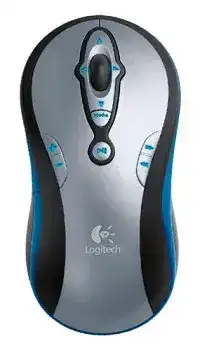
Music may keep playing while the illuminated controls stop responding, which makes the Logitech MediaPlay Cordless Mouse Driver more important than an ordinary pointer package. This older optical model combines desktop navigation with dedicated playback, volume, track, and media-launch controls. Windows can often move the pointer without Logitech software, but the extra controls depend more heavily on SetPoint and the active media application.
The MediaPlay communicates through its original radio-frequency mini receiver rather than Bluetooth, Unifying, or Logi Bolt. Its package also included a desktop USB stand, allowing the receiver to sit away from the computer case. That placement matters because the device was intended to work both on a desk and as a handheld media remote from across a room.
Begin by checking which functions have failed. Pointer movement with dead media keys usually indicates a software or application problem. No movement, no clicks, and no illuminated controls point toward batteries or power. Lights that still react while every command fails suggest that the receiver link, USB connection, or internal electronics need attention.
Logitech MediaPlay Cordless Windows Driver Download
| Driver Name | Description | Supported OS | File Size | Download |
|---|---|---|---|---|
| SetPoint Full Installer 64-bit | Full offline package for configuring mouse buttons, tracking speed, hot-keys, battery status, and device-specific settings. | Windows 64-bit | 77.85 MB | |
| SetPoint Full Installer 32-bit | Complete offline setup for adjusting button assignments, pointer response, keyboard indicators, and supported mouse preferences. | Windows 32-bit | 75.81 MB | |
| SetPoint Smart Installer | Compact SetPoint installer that requires an internet connection to download the necessary customization components during setup. | Windows | 3.5 MB | |
| Flow Scroll Full Installer | Full installation package for adding smoother scrolling behavior to compatible applications without downloading setup files online. | Windows | 17.38 MB | |
| Flow Scroll Smart Installer | Small web installer that retrieves the required Flow Scroll components while the installation is running. | Windows | 3.91 MB |
Playback keys work in one program but not another
Older SetPoint releases recognized the media applications available during this mouse’s original support period. A current streaming program or browser may not accept the same play, pause, previous, and next commands. Test the controls with a local media player before changing the receiver connection. Success there shows that the wireless link works and the failure belongs to the other application.
Close competing players during the test. Two programs can both register for global media commands, leaving the button press with the wrong window or no visible result. Reopen only the program you intend to control, start a track manually, and try the illuminated playback controls again.
Volume changes but play and pause do nothing
Windows usually handles volume and mute commands at the system level, while playback commands pass to an active media program. That difference explains why only part of the control panel may work. Start playback inside the desired application first, keep it running in the background, and then test play or pause from the mouse.
Browser-based audio adds another layer. The browser, website, and operating system must agree on which tab owns the media session. Try one tab with one active stream. When the controls remain inactive only in that browser, review its media-key preference or test another supported player rather than rebuilding the cordless connection.
Restore the Original Receiver Link Before Changing Software
The Logitech MediaPlay Cordless Mouse Driver cannot communicate with a receiver that has lost synchronization. Connect the original mini receiver directly to the computer, place the mouse nearby, and use the connection controls on the receiver and device according to their markings. Give the link a few seconds to settle before moving the mouse or pressing several buttons.
This receiver predates Logitech Unifying technology. A modern Unifying or Bolt dongle cannot replace it, even though the plug looks similar. An unrelated receiver from another older Logitech product may also use a different radio pairing. Keep the receiver supplied with the MediaPlay whenever possible, including its USB stand and any original adapter still used by the computer.
The receiver appears in Windows but the mouse stays inactive
Unplug the mini receiver, wait briefly, and reconnect it through another direct USB socket. Avoid an unpowered hub during diagnosis. Windows may recognize the USB portion while the radio side remains out of sync with the mouse. Reconnect the pair only after the receiver finishes appearing in the operating system.
The desktop stand can improve more than convenience. A metal computer enclosure, furniture, and nearby cables may weaken the older cordless signal when the receiver sits behind the tower. Put the receiver in the stand and position it on the desk with a clearer path toward the mouse.
Movement becomes choppy before the connection disappears
Intermittent movement often appears before weak batteries fail completely. The buttons may still illuminate because a brief light requires less sustained power than continuous optical tracking and radio transmission. Install two matching AA batteries, confirm the polarity inside the compartment, and reconnect the mouse before assuming that its sensor has failed.
Radio conditions can produce a similar pattern. Move wireless routers, cordless equipment, and other transmitters farther from the receiver during testing. Shorten the distance between the mouse and its desktop stand. If movement immediately improves, keep the receiver in the open rather than buried among cables behind the computer.
The mouse stopped after moving the receiver
Changing USB sockets can make Windows create another hardware entry, especially on an older installation. Wait for detection to finish instead of pressing every media key during that process. Restart Windows if the receiver appears but input never begins, then repeat the hardware connection with the mouse close to the receiver.
A USB-to-PS/2 adapter was supplied with some packages for older computers, but current systems should use a direct USB connection. Do not add an adapter unless the machine genuinely has the matching legacy port and operating-system support. Extra conversion hardware only adds another failure point on a modern PC.
SetPoint Controls for the MediaPlay Cordless Mouse
SetPoint is the model’s control software for assigning buttons, adjusting pointer behavior, and showing device information. The Logitech MediaPlay Cordless Mouse Driver may therefore include more than the standard Windows HID files. Without a compatible SetPoint installation, ordinary movement can continue while the distinctive media panel loses assignments or falls back to limited system commands.
Choose SetPoint rather than Logitech Options, Options Plus, G HUB, Unifying Software, or the Bolt application. Those newer tools target different product families and will not convert this receiver into a supported modern connection. Installing several Logitech control suites at once may also leave duplicate background services competing for mouse events.
SetPoint installs but does not show the MediaPlay
First confirm that Windows recognizes the receiver and that normal pointer movement works. SetPoint cannot repair a missing USB device. Once the mouse moves, close SetPoint from the notification area and reopen it. A restart after installation may also be necessary because its background service must load before the control panel can identify supported hardware.
If the program still displays only generic options, remove newer Logitech utilities that do not serve another connected device. Restart, then reinstall the compatible SetPoint package. Avoid repeatedly overwriting one release with another because old components can remain active even when the visible control panel looks new.
Installation fails on a current Windows version
This model and its original software come from an earlier Windows generation. A legacy installer may reject a newer 64-bit system, fail to register its service, or complete without exposing every function. Run only a package that explicitly includes the MediaPlay model and matches the operating-system architecture. Do not force an installer made solely for a different Windows release.
When current Windows already provides pointer movement, decide whether the media keys justify retaining old software. Basic clicks and scrolling may remain usable through the built-in HID driver. The extra illuminated controls are the part most likely to lose customization as compatibility moves farther from the product’s original support period.
Button assignments return to their defaults
SetPoint stores custom actions in the user profile. A damaged profile, cleanup utility, or software update can reset those assignments. Open the control panel, assign one media control, save it, and restart Windows as a test. Rebuild the remaining assignments only after that single change survives the restart.
Application-specific commands may also fail after the target program moves or updates. Assign standard media actions where possible instead of linking buttons to an old executable path. General play, pause, volume, and track commands have a better chance of continuing across player updates.
Separate Wheel and Click Wear from Wireless Faults
The scroll wheel moves but pages do not scroll
Check more than one program before touching the software. A spreadsheet, browser, media library, and settings window may interpret wheel input differently. When scrolling fails everywhere but clicking the wheel still produces a middle-button action, Windows or SetPoint may have the wheel assigned incorrectly. Return that control to normal scrolling and retest.
Dust around the wheel can interrupt its internal encoder. Disconnect the mouse, remove the batteries, and clear loose debris from the opening with gentle air and a dry brush. Do not pour cleaner through the wheel gap. A wheel that continues skipping on another computer probably has mechanical wear rather than a driver fault.
A single press creates two clicks
Reduce the double-click sensitivity from the Windows mouse control panel and test again. This setting can make deliberate single presses feel unreliable when it sits at an extreme value. Try opening folders, selecting text, and dragging an item. Different behavior after adjustment points toward software timing rather than the receiver.
When one physical press still creates two actions on another computer, the switch may be worn. Reinstalling SetPoint will not restore a worn contact. The same conclusion applies when the button must be pressed unusually hard or held at an angle while all other controls remain steady.
The media lights work but the pointer does not move
Illumination confirms some battery power, not complete optical operation. Clean the sensor window with a dry, soft cloth and test on plain paper or a matte mouse pad. Glass, polished furniture, and reflective surfaces can prevent the optical sensor from reading movement even though buttons continue sending commands.
If a better surface changes nothing, reconnect the receiver and test the device on another computer. A second machine does not need full SetPoint support merely to check basic movement. Failure there after new batteries and a fresh receiver connection suggests sensor or internal circuit damage.
Use Its Remote Controls Without Losing Desktop Response
The MediaPlay was built to leave the desk and control music from a short distance, but room layout affects an older radio link. Pointing accuracy is less important while using playback keys, yet the receiver still needs a clear signal. Keep its stand above floor level, away from the computer’s metal case, and within the practical range of the room.
Do not judge battery condition only while sitting beside the receiver. Weak cells may appear acceptable at close range and fail when the device is carried across the room. Test volume, mute, track changes, and play or pause from the intended listening position after every battery replacement or receiver move.
For the most useful Logitech MediaPlay Cordless Mouse Driver arrangement, reserve SetPoint for its confirmed button controls and let Windows manage the USB receiver connection. Keep the original receiver paired, avoid unsupported modern Logitech utilities, and test media commands in one active player. This approach preserves the model’s unusual remote-control purpose without treating every application problem as a broken mouse.