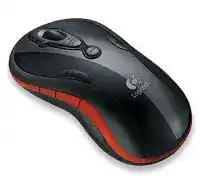
Media keys that do nothing while the pointer still moves can make the Logitech MediaPlay Cordless Mouse Driver more important than a normal mouse download. This older Logitech model was built as a cordless optical mouse with extra media controls, so Windows may handle basic movement before it understands the special buttons.
The mouse uses a USB receiver rather than Bluetooth, and it depends on Logitech software for many of its extra controls. That difference matters when the device appears connected, yet play, pause, volume, or application controls fail inside media software. A plain Windows mouse profile usually gives only movement, left click, right click, and wheel scrolling.
Use this page when the mouse responds partly, loses its receiver link, scrolls badly, ignores media commands, or wakes with choppy movement. The fixes below focus on the older cordless design, the receiver connection, two AA batteries, SetPoint-era button control, and problems that appear after Windows changes or software cleanup.
Logitech MediaPlay Cordless Windows Driver Download
| Driver Name | Description | Supported OS | File Size | Download |
|---|---|---|---|---|
| SetPoint Full Installer 64-bit | Full SetPoint package for offline setup with mouse button settings, tracking speed, hot-key options, and device status features. | Windows 64-bit | 77.85 MB | |
| SetPoint Full Installer 32-bit | Offline SetPoint installer for configuring device-specific settings, button behavior, battery status, Caps Lock, and Num Lock alerts. | Windows 32-bit | 75.81 MB | |
| SetPoint Smart Installer | Small SetPoint installer that requires internet access during installation for mouse settings, hot-keys, and device configuration tools. | Windows | 3.5 MB | |
| Flow Scroll Full Installer | Full Flow Scroll package for adding smoother scrolling support on compatible Logitech mouse software setups. | Windows | 17.38 MB | |
| Flow Scroll Smart Installer | Compact Flow Scroll installer for downloading required setup components while installing smooth scrolling support. | Windows | 3.91 MB |
Why normal Windows detection is not enough
Windows can recognize many Logitech mice without a separate package, but that does not mean every control will work. MediaPlay has more controls than a basic optical mouse, so the operating system may treat it like a simple HID device until Logitech software adds the button layer.
Install the Logitech MediaPlay Cordless Mouse Driver after the receiver appears in Windows, not before you have checked power and connection. That order avoids chasing a software issue when the mouse has actually lost its cordless link or has weak batteries.
Get the USB Receiver Link Back Before Changing Software
The receiver connection deserves the first check because this model does not use Bluetooth pairing. A missing receiver, an incompatible replacement, or a poor USB position can stop the mouse before the driver package gets a chance to help. Keep the original receiver with the mouse when possible, especially on older Logitech cordless products.
Receiver lights but the pointer does not move
Start with the receiver in a direct USB port and keep it away from crowded hubs during testing. The mouse and receiver need a clear cordless path, and older 2.4 GHz devices can react badly when the receiver sits behind a desktop tower, under a desk, or beside noisy USB equipment.
Press the connect control on the receiver, then press the connect or reset control on the mouse if your unit has one. Do this with good batteries already fitted. A quick reconnect often works better than repeated driver installs because the software cannot repair a lost radio link by itself.
The mouse worked for years, then suddenly stopped
A long-running MediaPlay mouse can fail in stages. The pointer may become uneven, pause for a few seconds, then stop responding. Before you decide the hardware has died, remove the batteries, unplug the receiver, restart the computer, and reconnect everything after a short power break.
Fit two known-good AA batteries and check the battery contacts for dirt or flattening. Do not scrape the contacts hard. A dry cloth or a careful cotton swab is enough for light residue. If the contacts no longer press firmly against the cells, the mouse can cut out when you move it.
Receiver works in one port but fails in another
Older cordless receivers often behave differently from modern nano receivers. A port that handles storage drives or webcams may still give poor results with a wireless mouse receiver. Test a front or side USB port, then compare it with a powered hub only after the direct connection works.
If a desktop computer sits under the table, move the receiver to a port with a better line of sight. This is not about speed. It is about the radio path between the receiver and the mouse. A small change in position can stop pauses during media playback or pointer movement.
Logitech MediaPlay Cordless Mouse Software for Extra Controls
The media buttons are the reason many people still look for Logitech MediaPlay Cordless Mouse software instead of using only the Windows mouse panel. SetPoint-era Logitech software can expose controls that Windows leaves hidden, especially media keys and application-specific actions on older models.
Media buttons do not control the player
After installing the Logitech MediaPlay Cordless Mouse Driver, open the Logitech mouse software and check whether the device appears by name or by a close Logitech cordless profile. If the software sees only a generic mouse, reconnect the receiver and restart Windows before changing button assignments.
Test play, pause, volume, and track controls in a standard media app before blaming one program. Some media players intercept keyboard shortcuts differently, and a button that works in one player may need a different assignment in another. Keep the test simple until the mouse software confirms the command.
Button assignments disappear after a Windows update
Windows updates can keep basic pointer movement while breaking older control software. When that happens, remove duplicate Logitech mouse utilities and reinstall only the package that matches the MediaPlay generation. Mixing newer control apps with older SetPoint-era devices can leave the mouse visible but the extra controls inactive.
Restart after the install even when Windows does not demand it. The Logitech service and button control layer may not load fully until the next session. After restart, open the mouse panel again and confirm that the chosen button actions still appear.
Volume buttons move the wrong control
Media buttons can follow the active application instead of the program you expected. Click once inside the media player, then test the buttons again. If the system volume changes but the player does not respond, the mouse may be sending a general media command while the app ignores it.
Change the assigned action in Logitech software only after you confirm the button itself works. Do not map every button at once. Change one control, apply it, test it, and then continue. That method makes it easier to find the assignment that caused a conflict.
Pointer, Wheel, and Click Problems on an Older Cordless Mouse
This model has enough age that not every symptom comes from software. The receiver, batteries, wheel opening, desk surface, and click switches can all affect behavior. A careful hardware check saves time when the mouse moves badly even before Logitech software opens.
Movement feels choppy during normal use
Choppy movement usually points to power, surface, or receiver position before it points to the driver. Try a plain mouse pad or a sheet of matte paper. Glossy, glassy, or patterned surfaces can confuse older optical sensors more than newer sensors.
Lower the pointer speed temporarily in Windows and test small movements across the screen. If slow movement looks steady but fast movement jumps, the surface or wireless path may need attention. If both slow and fast movement fail, check the receiver link and battery contacts again.
Scroll wheel moves one way or skips lines
Dust around the wheel can make scrolling look like a driver fault. Turn off the mouse, remove the batteries, and blow gently around the wheel opening. Rotate the wheel several times while the mouse has no power. This can loosen debris without opening the shell.
After cleaning, restore power and test scrolling in a local document or settings window. Browser pages can add their own scroll behavior, so they make poor first tests. If the wheel click works but rolling still jumps, the internal wheel encoder may have wear.
Clicks register twice or miss the first press
Double-click trouble can come from Windows click speed, tired switches, or uneven pressure on the button shell. Open the Windows mouse settings and slow the double-click speed slightly. Then test with normal pressure, not a hard press, because extra force can hide a weak switch for a short time.
If one button misses clicks across different computers, the problem likely sits inside the mouse rather than the driver. Software can adjust timing and assignments, but it cannot restore a worn mechanical switch. Use the driver package only after you separate click timing from hardware wear.
Battery and Wake Behavior That Looks Like a Driver Fault
Because the mouse uses two AA batteries, weak cells can create confusing symptoms. The pointer may return after a shake, media keys may stop first, or the mouse may work for a few minutes after new software loads. These symptoms often come from voltage drop, dirty contacts, or sleep recovery.
Mouse wakes slowly after sitting idle
A short wake delay can happen with cordless mice, but a long delay points to battery strength or receiver communication. Replace both batteries as a pair and avoid mixing old and new cells. The mouse may power the sensor with weak cells, yet fail when the radio link needs a stronger burst.
If the wake delay continues, unplug the receiver, restart the computer, and plug the receiver back in after Windows loads. This refreshes the USB device path without changing every mouse setting. Then test the first movement after five or ten minutes of idle time.
Battery changes do not improve anything
Check the battery door fit and the spring contact pressure. A loose door or compressed contact can break power for a split second when you lift or angle the mouse. That short break can look like a receiver failure because the pointer stops and returns unpredictably.
Do not bend contacts aggressively. Gentle adjustment may help if a contact has flattened, but heavy force can damage the battery compartment. If the mouse loses power when tapped lightly, treat the issue as a power contact problem before reinstalling software.
Finish With the Controls That Made MediaPlay Different
The Logitech MediaPlay Cordless Mouse Driver makes the most sense when the receiver link already works and the basic pointer feels steady. After that, focus on the media keys, scroll behavior, and button actions. This order gives you a clearer answer than reinstalling software every time a media command fails.
Keep the original USB receiver with the mouse, use two matched AA batteries, and avoid stacking several Logitech utilities on the same Windows install. When extra buttons stop working, confirm the mouse appears inside the Logitech software before editing assignments. When movement fails first, check receiver placement and power before the control app.
This model can still work well for basic navigation and media control, but it belongs to an older Logitech cordless generation. Treat the receiver, batteries, and SetPoint-style software as one system. When those three pieces match, the MediaPlay controls have a much better chance of working as intended.