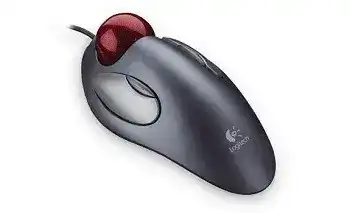
The pointer may work as soon as the USB cable is connected, yet the two smaller buttons can remain fixed to unwanted actions. The Logitech Marble Mouse Driver provides the legacy SetPoint controls used to change button assignments and pointer behaviour on supported Windows versions. This wired trackball has four buttons, an optical tracking system, and no physical scroll wheel.
Windows can operate the main buttons and ball through its standard HID support. That basic connection does not guarantee access to every configurable function. SetPoint was the original Logitech software for this model, although Logitech no longer maintains it. On newer systems, normal tracking may continue even when the old control panel cannot detect the device.
Logitech Marble Mouse Windows Driver Download
| Driver Name | Description | Supported OS | File Size | Download |
|---|---|---|---|---|
| SetPoint 64-bit Full Installer | Full offline package for configuring mouse buttons, tracking speed, hot-keys, device settings, and status indicators on 64-bit systems. | Windows 11, Windows 10 64-bit, Windows 8 64-bit, Windows 7 64-bit | 80.45 MB | |
| SetPoint 32-bit Full Installer | Complete offline setup for adjusting mouse controls, pointer tracking, button assignments, battery status, Caps Lock, and Num Lock alerts. | Windows 11, Windows 10 32-bit, Windows 8 32-bit, Windows 7 32-bit | 78.04 MB | |
| SetPoint Smart Installer | Small universal installer that downloads the required SetPoint components during setup and requires an active internet connection. | Windows 11, Windows 10 32-bit/64-bit, Windows 8 32-bit/64-bit, Windows 7 32-bit/64-bit | 4.61 MB |
Logitech Marble Mouse Mac OS Driver Download
| Driver Name | Description | Supported OS | File Size | Download |
|---|---|---|---|---|
| Logitech Options | Customizes mouse buttons, pointer behavior, scrolling, shortcuts, gestures, and other device settings on supported macOS releases. | macOS 15, macOS 14, macOS 13, macOS 12, macOS 11 | 238.52 MB | |
| Logitech Control Center Full | Provides a complete control package for assigning mouse actions and managing device-specific behavior on compatible macOS versions. | macOS 11, macOS 10.15, macOS 10.14, macOS 10.13 | 17.76 MB | |
| Logitech Control Center | Supports mouse button assignments, scrolling preferences, pointer controls, and model-specific settings on older Mac systems. | Mac OS X 10.13, Mac OS X 10.12, Mac OS X 10.11 | 17.15 MB | |
| Logitech Control Center Full Installer | Installs the full legacy control software for configuring mouse functions and navigation settings across supported Mac OS X releases. | Mac OS X 10.11, Mac OS X 10.10, Mac OS X 10.9, Mac OS X 10.8 | 17.06 MB |
The trackball works but SetPoint shows no device
Connect the Marble Mouse directly to the computer before opening SetPoint. Older Logitech software can miss hardware attached after the control panel has already started. Close the application completely, reconnect the USB plug, and launch it again. A Windows restart may also restore the device tab after the first installation.
Remove incomplete or duplicate SetPoint installations when the panel opens without any button pages. Restart Windows after uninstalling, then install one suitable package rather than layering several releases. The Logitech Marble Mouse Driver should match the operating system architecture. A 64-bit Windows installation needs the 64-bit package, while a 32-bit system needs its corresponding edition.
The small buttons only go Back and Forward
The two narrow controls beside the large buttons commonly act as browser navigation keys. Open SetPoint and assign each one separately when you need middle click, application switching, keystrokes, or another listed command. Apply the change before testing. Some programs capture their own shortcuts, so compare the result in more than one application.
Restore the standard Back or Forward action first if a custom command stops responding. Confirm that the physical control still sends an input, then create the new assignment again. This separates a failed switch from a profile that the active program ignores.
Scrolling Without a Physical Wheel
The Marble Mouse does not contain a scroll wheel or scroll ring. Installing software cannot reveal a hidden wheel function. Scrolling must come from a button assignment, operating-system feature, application command, or ball-based emulation configured by suitable software.
SetPoint offers Universal Scroll but it feels awkward
Assign Universal Scroll to one of the smaller buttons when that choice appears in the SetPoint menu. Hold the assigned control and roll the ball to move through a page. Release it to return the ball to pointer movement. A slow initial ball movement gives better control than a fast sweep across a long document.
Universal Scroll does not behave identically in every program. Some modern applications process scrolling differently from older desktop software, while certain games ignore it completely. Test the assignment in a browser, a document window, and the program where the problem occurs before changing the entire configuration.
Linux detects four buttons but will not scroll
Linux usually recognises the Marble Mouse as a standard USB input device, but ball scrolling often needs manual configuration. Desktop environments that expose button-based scroll emulation can use one of the small controls as a modifier. Hold that control and move the ball vertically or horizontally to generate scroll movement.
Configuration methods differ between X11 and Wayland sessions. An older Xorg rule may have no effect under Wayland, while a desktop settings page may not expose every libinput option. Confirm the session type before editing input settings. Also verify the numeric button assignment because left-handed mapping can change which physical control matches a software button number.
Scrolling works vertically but not sideways
Horizontal movement requires both scroll emulation and application support. Test it in a spreadsheet or another window with a visible horizontal bar. A narrow webpage may have nowhere to move. When vertical scrolling works but horizontal movement never appears, inspect the emulation settings for axis locking or vertical-only behaviour.
When the Ball Feels Heavy or the Cursor Wanders
A trackball gathers dust differently from a conventional mouse. Skin oil and lint collect around the exposed ball and on the small support points inside the cup. The result can feel like software lag even though the USB connection remains healthy. Physical cleaning should come before repeated driver changes when rolling becomes rough.
The ball sticks at the start of a movement
Lift the ball from its socket and wipe it with a clean, dry, lint-free cloth. Remove visible debris from the support points inside the cup with a soft swab or brush. Do not pour cleaner into the housing. Residue on the ball or bearings can create the same stop-and-go feeling after the liquid dries.
Return the ball only after the socket is dry. Roll it in several directions before judging the result. A trackball that moves freely in one direction but drags in another usually still has dirt on one support point or around the edge of the opening.
The cursor jumps even after cleaning
Inspect the optical window inside the ball cavity. A hair crossing the sensor area can produce sudden movement or short freezes. Use gentle air or a soft brush to clear loose material. Avoid touching the sensor surface with a sharp object, since scratches can permanently affect tracking.
Then connect the trackball to another direct USB port. Hubs, extension leads, monitor sockets, and KVM switches add extra hardware between the device and computer. Testing through a port on the machine helps distinguish optical trouble from interrupted USB communication.
Fine movement is too fast
Reduce pointer speed in SetPoint or the operating-system mouse panel. Trackball movement comes from finger rotation rather than arm travel, so a speed that suits an ordinary mouse may feel overly sensitive here. Change one control at a time and test small selections around text, window edges, and drawing tools.
Windows pointer acceleration can make the cursor travel farther when the ball turns quickly. Disable Enhance Pointer Precision temporarily if slow and fast movements feel inconsistent. Keep it disabled only when the more direct response suits your work. The best choice depends on control preference rather than a hardware requirement.
USB Detection, KVM Switches, and Wake Problems
The Logitech Marble Mouse Driver cannot correct a USB path that repeatedly disconnects. This model uses a fixed wired connection, with no Bluetooth channel, wireless receiver, battery, or pairing process. Detection problems should therefore be traced through the cable, USB port, operating system, and any switch or hub placed between them.
Nothing happens after reconnecting the cable
Try a different direct port and wait a few seconds for the operating system to enumerate the device. If it still does not appear, open Device Manager and inspect the Mouse, Human Interface Device, and USB sections. An unknown USB item or warning symbol points to a detection failure rather than a missing button assignment.
Remove only the failed hardware entry, restart the computer, and reconnect the Marble Mouse after Windows returns. Do not remove every USB controller merely to repair one input device. Broad controller changes can temporarily disable keyboards, storage devices, and other attached hardware.
The trackball fails after switching computers through a KVM
Some KVM switches emulate a basic mouse instead of passing the complete USB identity to each computer. This can leave the main buttons working while SetPoint loses access to the additional controls. Connect the trackball directly to each computer as a comparison. If full functions return, the switch is limiting or altering the USB connection.
Use a KVM port intended for transparent USB devices when the switch provides one. A general peripheral port may pass the Marble Mouse more accurately than a dedicated keyboard-and-mouse emulation socket. Restarting or reconnecting the KVM can restore detection, but repeated failures usually indicate a compatibility problem between the switch and the older USB hardware.
The pointer does not return after sleep
Disconnect and reconnect the USB plug once. When that wakes the trackball, review the computer’s USB power-saving behaviour rather than reinstalling SetPoint immediately. Windows may suspend a hub during sleep and fail to restore one attached device cleanly.
Test another port controlled by a different internal hub. Desktop front ports and rear ports may use separate controllers. Also compare the result with hubs and KVM equipment removed. A direct connection that wakes consistently identifies the added USB hardware as the stronger suspect.
Clicks, Dragging, and Four-Button Layout Problems
Mechanical switches can wear after years of use. Software may alter click timing or assignments, but it cannot restore contacts that release during a drag. Test click faults with SetPoint closed and then on another computer. Repeated behaviour in both places gives a clearer answer than another installation attempt.
A single press produces two clicks
Open the operating-system mouse properties and adjust the double-click speed away from either extreme. Use its test area several times. If a single physical press still opens items twice, the switch may be bouncing electrically. The symptom often becomes easier to reproduce with light presses near one edge of the large button.
Clear loose debris from the gap with a soft brush or brief, controlled air. Avoid spraying liquid into the shell. Persistent duplicate clicks require hardware repair or replacement; changing the Logitech Marble Mouse Driver cannot permanently correct a worn switch.
Dragging releases before the button is lifted
Drag a desktop item slowly while holding the large button at steady pressure. If the item drops without your finger releasing, repeat the test on another computer. A broken hold signal across systems usually indicates switch wear. When it happens in only one program, inspect that program’s input or accessibility options first.
Left-handed use feels incorrectly mapped
The symmetrical trackball body suits either hand, but changing the primary button in Windows may also alter how other software describes button numbers. Set the primary click first, then reopen SetPoint and review both small-button assignments. Do not rely on their previous labels after swapping left and right.
Test all four physical controls in a neutral application before building shortcuts. Confirm primary click, secondary click, and both navigation controls independently. This prevents a left-handed operating-system setting from being mistaken for a defective side control.
Decide Whether the Fault Comes from Software or Wear
Use the Logitech Marble Mouse Driver when Windows already recognises the wired trackball but the extra buttons or legacy scrolling assignment remain unavailable. Start with direct USB detection, then configure SetPoint only if the package still works with the installed operating system. Newer Windows releases may continue providing basic HID operation even when the older control panel has limited compatibility.
Rough ball movement calls for cleaning around the support points and optical window. Lost clicks, duplicate presses, and interrupted dragging need cross-testing because they often come from aged switches. KVM-only failures belong to the USB switching path, while missing wheel behaviour reflects the model’s wheel-free design rather than a broken component.
The most revealing check is a direct connection on a second computer. It separates operating-system configuration from cable, sensor, and switch faults without changing several variables at once. Once the cause is clear, keep only the software functions that remain useful and let the Marble Mouse handle ordinary pointing through the system’s built-in USB support.