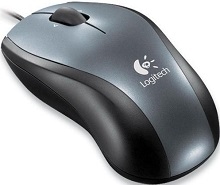
A dead USB port, a pointer that suddenly stops after sleep, or clicks that no longer behave normally can make a very simple wired mouse surprisingly troublesome. The Logitech M90 Driver is mainly the operating system’s standard mouse support rather than a special package that the M90 needs for normal operation. This model connects directly by USB and uses optical tracking, so troubleshooting should begin with the USB path, sensor, cable, and physical controls.
Logitech M90 Windows Driver Download
| Driver Name | Description | Supported OS | File Size | Download |
|---|---|---|---|---|
| SetPoint 64-bit Software | Full 64-bit SetPoint package for offline setup, with controls for mouse button settings, tracking speed, and device-specific preferences. | Windows 11, Windows 10 64-bit, Windows 8 64-bit, Windows 7 64-bit | 80.45 MB | |
| SetPoint 32-bit Software | Full 32-bit SetPoint package for offline installation, providing access to mouse controls, hot-keys, and device-specific settings. | Windows 11, Windows 10 32-bit, Windows 8 32-bit, Windows 7 32-bit | 78.04 MB | |
| SetPoint Smart Installer | Small SetPoint installer that requires an internet connection during installation and can configure mouse settings such as buttons and tracking speed. | Windows 11, Windows 10 32-bit/64-bit, Windows 8 32-bit/64-bit, Windows 7 32-bit/64-bit | 4.61 MB |
Logitech M90 Driver When Windows Does Not Recognize the USB Mouse
The M90 is a wired plug-and-play device. Under normal conditions, Windows detects it as a standard Human Interface Device when you insert the USB plug. Logitech does not require a separate application before ordinary pointer movement, left click, right click, or wheel use can begin. If nothing happens after connection, downloading several Logitech programs is therefore unlikely to solve the first problem.
Mouse appears as an unknown USB device
Move the plug to another direct USB port before changing software. A port can still work with a flash drive yet fail to initialize another USB device correctly. Disconnect the M90, restart Windows, and reconnect it after the desktop loads. If Device Manager shows an unknown USB device or a descriptor error, remove that failed entry and let Windows detect the hardware again after a restart.
The Logitech M90 Driver normally comes through Windows HID support, so a Code 43 or repeated USB recognition error points more strongly toward the USB controller, port, cable, or mouse hardware than toward a missing Logitech package. Testing the M90 on another computer gives a useful dividing line. If it fails there as well, concentrate on the mouse rather than repeatedly changing the first computer.
It works through one port but not another
Port-specific behavior deserves attention. Plug the M90 directly into the computer instead of routing it through an unpowered hub, monitor, keyboard, or docking device while diagnosing the fault. If one USB port works consistently, compare that result with the failing port. Updating the computer manufacturer’s USB or chipset components may help when several USB peripherals show similar detection trouble.
Wake Problems, Cable Interruptions, and Sudden Disconnects
The pointer disappears after sleep or lock
An M90 can appear healthy at startup and then stop responding after a laptop sleeps or locks. First unplug and reconnect the cable after the computer wakes. If that restores operation, investigate the computer’s USB power management rather than searching for wireless or pairing controls; the M90 has neither a wireless receiver nor Bluetooth pairing to restore.
Windows power-saving options can temporarily shut down USB hardware on some systems. Check the USB controller and hub power-management properties if the fault happens only after suspend or sleep. On Linux laptops, the same symptom can involve USB autosuspend or machine-specific power management. Change only the relevant power option and test again instead of altering several system settings at once.
Movement cuts out when the cable shifts
A wired connection also introduces a fault that wireless troubleshooting pages do not cover: cable wear. If the pointer disconnects when the cable bends near the USB plug or where it enters the mouse, stop treating the issue as a software failure. Try another port and another computer without twisting the lead. Repeatable dropouts at the same cable position strongly suggest physical wear.
Keep the lead free from sharp bends and avoid pulling the M90 from a port by its cable. A software reinstall cannot repair a damaged conductor or loose internal connection. When the mouse disconnects on several machines while the cable moves, replacement or professional hardware repair is more sensible than repeated driver removal.
Logitech M90 Software and Pointer Tracking Problems
For normal operation, Logitech presents the M90 as a plug-and-play USB mouse that does not need a download before use. Its current support download page also lists no dedicated product download. That distinction matters because a Logitech M90 Driver search can lead to utilities made for other Logitech products even though they are unnecessary for this three-control wired design.
Pointer movement is rough on one desk surface
The M90 uses optical tracking, so the surface under the sensor can change how the cursor behaves. Before altering Windows or replacing hardware, test the mouse on a clean, plain, non-reflective surface. Glass, highly reflective material, dirt, or an uneven patterned area can make optical tracking look like a USB or software problem even while clicks continue to work normally.
Turn the mouse over and inspect the sensor opening for dust or fibres. Clean the area gently without scratching the lens. Then compare movement on another surface. If the pointer becomes normal immediately, there is little reason to change system files. If tracking remains erratic on several suitable surfaces and computers, the sensor or cable becomes a more likely suspect.
The cursor feels too fast or too slow
A speed complaint does not necessarily mean the sensor has failed. The M90 provides ordinary optical pointer input, while the operating system controls everyday cursor speed and acceleration behaviour. Adjust the mouse pointer speed in the operating system in small amounts, then test ordinary desktop movement. Avoid installing gaming utilities or looking for onboard DPI profiles that this model does not provide.
Clicks and the Scroll Wheel Need Hardware-Oriented Checks
One click becomes two
If a single press begins opening folders twice, selecting text badly, or releasing a drag too soon, first compare left-click behaviour in several programs. Also check the operating system’s double-click speed so an extreme setting does not confuse the diagnosis. When the same unwanted extra click appears on another computer, worn switch behaviour becomes much more likely than a Logitech M90 Driver problem.
Do not rely on aggressive switch tricks, liquids, unofficial modifications, or repeated hard pressing as a permanent repair. Those methods can damage the mechanism further. A mouse that consistently produces extra clicks across different computers has moved beyond ordinary software troubleshooting. If it remains under warranty, use the warranty route; otherwise replacement is often the practical choice for this basic model.
Dragging releases before the button is lifted
A worn click switch does not always show itself as an obvious double-click. It may break a drag operation halfway across the screen or release selected text while the button is still held. Test by dragging a window slowly for several seconds. If the hold repeatedly releases on different computers, changing pointer speed or USB software will not correct the switch contact.
The wheel jumps, reverses, or stops scrolling
Scroll trouble should be separated from pointer trouble because the optical sensor can work perfectly while the wheel mechanism has a fault. Test several documents or pages first. If only one program scrolls strangely, inspect that program’s own behaviour. If the wheel skips or reverses everywhere, remove visible dust from around the wheel and compare the mouse on another computer.
Older M90 units can develop physical wheel or encoder wear after long use. When scrolling remains erratic across machines, there is no special wheel-mode utility to switch and no hyper-fast scroll setting to reset. Hardware service or replacement becomes the safer conclusion once basic cleaning and cross-computer testing rule out software.
Separate an M90 Hardware Fault from a Computer Fault
The fastest diagnosis comes from changing one part of the path at a time. A failure limited to one USB port points toward that port or its controller. A problem that follows the M90 to another computer points back toward the cable, switch, wheel, or optical hardware. A fault that appears only after sleep suggests power management rather than a missing mouse package.
Keep the model’s simplicity in mind while troubleshooting. There is no receiver to pair, battery to change, Bluetooth record to delete, or wireless channel to repair. Those steps belong to other Logitech mice and only add confusion here. The M90 gets its connection and power through its fixed USB cable, while normal mouse functions rely on the operating system’s standard HID support.
For that reason, use the Logitech M90 Driver search mainly to confirm compatibility and obtain the appropriate support information rather than expecting a required standalone installer. Once Windows recognizes the USB HID device, concentrate on what the symptom actually shows: USB detection for a dead mouse, surface and sensor condition for poor tracking, or the physical switch and wheel when clicks and scrolling fail across more than one computer.