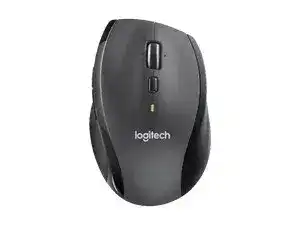
Logitech M705 Marathon Mouse software lets the computer use more than basic left click, right click, and pointer movement. The mouse can work through its USB Unifying receiver without a large setup, but the Logitech package gives better control over button actions, scrolling behavior, and device recognition.
This model is a right-handed wireless mouse made for office work, browsing, documents, spreadsheets, and long pages. It uses optical tracking, a USB receiver, dual-mode scrolling, tilt-wheel horizontal scrolling, and back and forward buttons. Some versions also allow button customization through Logitech software.
The right download matters because M705 versions do not all use the same utility. Older units may need SetPoint, while newer units commonly use Logitech Options or the newer Logitech app when the device appears there. Choosing the matching package avoids missing tabs, lost button assignments, and scroll settings that do not stay saved.
Here you will get the latest Logitech M705 Marathon Mouse driver and software that support Windows and Mac OS.
Logitech M705 Marathon Mouse Windows Driver Download
| Driver Name | Description | Supported OS | File Size | Download |
|---|---|---|---|---|
| Logitech Unifying Software | Pairs and manages compatible Logitech Unifying receivers for the M705 Marathon Mouse. | Windows | 3.96 MB | |
| SetPoint Smart Installer | Installs SetPoint with internet access and supports mouse button settings, tracking speed, and device controls. | Windows | 4.61 MB | |
| SetPoint Full Installer 32-bit | Full offline SetPoint package for configuring mouse buttons, hot-keys, battery status, Caps Lock, and Num Lock alerts. | Windows 32-bit | 78.04 MB | |
| SetPoint Full Installer 64-bit | Complete 64-bit SetPoint setup for offline installation with device-specific settings and pointer control options. | Windows 64-bit | 80.45 MB | |
| Firmware Update Tool 32-bit | Updates compatible Logitech mouse firmware on 32-bit Windows systems when a supported device is connected. | Windows 32-bit | 11.24 MB | |
| Firmware Update Tool 64-bit | Checks and applies available firmware updates for supported Logitech devices on 64-bit Windows computers. | Windows 64-bit | 14.81 MB |
Logitech M705 Marathon Mouse Mac OS Driver Download
| Driver Name | Description | Supported OS | File Size | Download |
|---|---|---|---|---|
| Logitech Control Center | Adds Mac control features for Logitech mouse buttons, scrolling behavior, and connected device preferences. | Mac | 17.8 MB | |
| Logitech Options Installer | Customizes mouse buttons, pointer behavior, scrolling direction, shortcuts, and device settings on Mac. | Mac | 293.35 MB | |
| Firmware Update Tool | Scans supported Logitech devices on Mac and installs available firmware improvements when required. | Mac | 26.53 MB |
Set Up the M705 Package Without Losing Button Controls
Start by checking the mouse itself before installing anything. Turn the power switch on, insert the AA batteries with the right polarity, and plug the Unifying receiver into a direct USB port. If the pointer does not move, try a port closer to the mouse before changing software.
Choose the matching Logitech utility
The M705 has more than one hardware revision, so one software name may not fit every unit. If Logitech Options does not show the same button choices you expected, check whether your mouse needs SetPoint instead. This matters most for older M705 units with button programming that worked before.
After installing the utility, restart Windows or macOS before judging the result. Some users install the package but open it too soon, so the mouse tabs do not appear. A clean restart often lets the software load the receiver service and show the mouse correctly.
Pair the receiver and avoid weak USB placement
The M705 uses a USB Unifying receiver, not Bluetooth. If the receiver changed, pair the mouse again with the Logitech utility that supports Unifying devices. Do not expect the mouse to connect through Bluetooth settings, because this model relies on the small USB receiver.
If movement feels delayed or button actions fail, move the receiver away from crowded rear ports. A front USB port or short USB extension can help when the computer case, monitor, or nearby wireless devices weaken the signal. Then test the mouse on the desktop before opening large programs.
Remove old entries before reinstalling
When button assignments keep disappearing, remove older Logitech software entries first. Then restart the computer and install the matching package again. This works better than installing one utility over another, because mixed SetPoint, Options, and receiver components can confuse the saved button profile.
After setup, open the Logitech utility and assign only the buttons that the software shows for your exact M705. Then test back, forward, middle click, tilt scroll, and the wheel mode button in a browser or simple document. This makes it easier to find whether the issue comes from software, receiver placement, or the mouse hardware.
M705 Problems That Usually Need a Software or Receiver Fix
Most M705 issues come from the receiver, the wrong Logitech utility, saved button profiles, battery contact, or scroll mode confusion. The fixes below focus on practical checks that match this wireless mouse and its confirmed features.
Pointer does not move after plugging in the receiver
First check the power switch and battery direction. Then plug the Unifying receiver into another USB port, preferably one closer to the mouse. If the mouse still does not move, replace the batteries with fresh AA cells and test again before reinstalling software.
When a different receiver is in use, pair the mouse again through the Logitech utility. A receiver from another Logitech product may not control the M705 until you add the mouse to that receiver.
Logitech software does not show the M705
This often happens when the wrong utility is installed for the mouse revision. Older M705 units commonly work better with SetPoint, while later versions may appear in Logitech Options. Remove the mismatched utility, restart the computer, and install the package that matches the device.
Also avoid opening the settings app before the restart finishes. The receiver service may need a fresh boot before it lists the mouse and shows the available button controls.
Back and forward buttons stop working
If the side buttons work for a while and then stop, reload the Logitech utility and reconnect the receiver. Some systems lose the custom button layer even though normal pointer movement continues. Unplugging the receiver and plugging it back into a better USB port can restore the controls.
If the issue returns, remove old Logitech entries and install the matching software again. Then create a simple profile first, because complicated app-specific assignments can make troubleshooting harder.
Button programming options are missing
Missing button choices usually point to a software mismatch or a different M705 revision. Do not assume every M705 has the same programmable controls. Check which buttons the installed utility shows, then use that list instead of forcing options from another model.
For older units, SetPoint may expose controls that Logitech Options does not show. For newer units, Options may fit better. Switching to the right utility usually fixes missing tabs and unavailable button assignments.
Scroll wheel moves too fast or feels uncontrolled
The M705 has a wheel mode button that switches between free-spinning scrolling and click-to-click scrolling. If pages fly too quickly, press the mode button near the wheel and return to the precise scrolling mode. This is a hardware mode, not only a software setting.
After that, adjust scroll speed in the Logitech utility or operating system mouse settings. Test with a long web page and a document, because some apps handle wheel speed differently.
Middle click triggers horizontal scroll by mistake
The wheel can tilt left and right for horizontal scrolling, so a side press may trigger tilt instead of middle click. Press the wheel straight down in the center and avoid pushing it sideways. This small habit change fixes the issue for many users.
If the Logitech utility allows it for your revision, change the tilt-wheel actions or reduce the function you do not use. Then test closing a browser tab or opening a link with middle click.
Pointer lags, jumps, or freezes for a moment
Lag often comes from receiver distance, USB interference, weak batteries, or the surface under the sensor. Move the receiver closer, avoid crowded rear ports, and use the mouse on a plain surface. Then test with a fresh pair of AA batteries.
If the pointer works well on another computer, focus on the first computer’s USB port and software. Remove duplicate Logitech utilities and reconnect the receiver after the restart.
Single clicks turn into double clicks
Start with the safe checks. Adjust double-click speed in the operating system, remove the batteries, switch the mouse off, and press the buttons several times before putting the batteries back. This can reduce minor contact or static-related behavior.
If the same button still double-clicks often, the switch may have worn out. Software reinstalling rarely fixes a worn click switch, so warranty service or replacement becomes the cleaner option.
Custom buttons fail inside one program only
If button assignments work in a browser but not in one work app, check the app-specific profile inside Logitech software. Remove the custom profile and test a plain keystroke assignment. Then run the target program normally and test again.
Some programs capture mouse buttons differently from normal desktop apps. In that case, use simple keyboard shortcuts in the Logitech utility instead of complex actions, because those usually work across more programs.
Settings break after a system or app update
After a Windows or macOS update, open the Logitech utility and confirm that the M705 still appears. If custom scrolling or buttons stopped working, update the Logitech app manually, then restart the computer. Do not rely only on the old background updater when the app itself will not open.
On macOS, also check that the Logitech app has the permissions it asks for. Without those permissions, normal movement may continue, but custom buttons and scroll changes may fail.