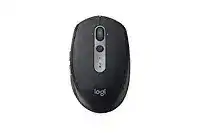
Logitech M590 Driver software gives this silent wireless mouse the extra control features that Windows and macOS do not always provide by default. The pointer can work with a basic system mouse driver, but the Logitech utility adds button mapping, Flow setup, device switching, and better control over the wheel and side buttons.
The Logitech M590 is a multi-device wireless mouse with Bluetooth Smart and a Logitech Unifying 2.4 GHz receiver. It uses one AA battery, has an on and off switch, an Easy-Switch button, a tilt wheel with middle click, two thumb buttons, and optical tracking. It fits office work, browsing, documents, and quiet desk use.
Use the software package when you want to pair the mouse again, connect it to a replacement Unifying receiver, customize buttons, or run Logitech Flow between two computers. Also keep the utility updated when button actions, scrolling, or device detection stops after a system update.
Logitech M590 Multidevice Silent Windows Driver Download
| Driver Name | Description | Supported OS | File Size | Download |
|---|---|---|---|---|
| Logi Options Plus Software | Software for customizing mouse buttons, pointer behavior, scrolling actions, shortcuts, and device settings on Windows. | Windows 11, Windows 10 32-bit/64-bit | 43.09 MB |
Logitech M590 Multidevice Silent Mac OS Driver Download
| Driver Name | Description | Supported OS | File Size | Download |
|---|---|---|---|---|
| Logi Options+ Software | Utility for adjusting mouse button controls, scrolling preferences, pointer movement, shortcuts, and connected device options. | macOS 12 | 18.65 MB | |
| Logi Options Plus Software | Application for setting mouse functions, shortcut actions, wheel behavior, pointer response, and supported device controls. | macOS 13 | 19 MB | |
| Logi Options Plus Software | Customization package for managing mouse buttons, gestures, scrolling direction, pointer speed, and device-specific settings on newer macOS versions. | macOS 26, macOS 15, macOS 14 | 19.44 MB | |
| Logitech Options Software | Mac software for configuring mouse buttons, scrolling controls, pointer options, workflow shortcuts, and available device preferences. | macOS 15, macOS 14, macOS 13, macOS 12, macOS 11 | 238.52 MB |
Setting Up the Logitech M590 Without Connection Trouble
Start by choosing how you want to connect the Logitech M590. You can use Bluetooth or the Unifying USB receiver. The receiver usually gives a simple plug-and-use connection, while Bluetooth keeps the USB port free. However, custom button control still needs the Logitech software on Windows or macOS.
Pairing with the Unifying receiver
Remove the receiver from the battery compartment, insert the AA battery in the right direction, and turn the device on. Then open the Logitech utility and add a Unifying device. Short press Easy-Switch to choose the channel, then hold Easy-Switch for about three seconds so the light starts blinking for pairing.
If pairing times out, unplug the receiver and try another USB port. Also turn the mouse off and on before starting the pairing screen again. Many connection problems clear after the receiver gets a fresh USB handshake and the mouse enters pairing mode on the right channel.
Pairing with Bluetooth
For Bluetooth, select a channel with the Easy-Switch button and hold it until the channel light blinks quickly. Then open Bluetooth settings on the computer and add the Logitech M590 from the device list. If the old pairing still appears, remove it first and pair again from the beginning.
When Bluetooth does not show the mouse, switch Bluetooth off and on, restart the computer if needed, and keep the mouse close during pairing. On laptops, weak batteries can make the device appear once and then disappear, so test with a fresh AA battery before changing software.
Choosing the Logitech utility
Logitech Options is the common utility for this model’s button control and Flow features. On newer systems, Logitech may direct users to Logi Options Plus when the device and operating system support it. Avoid running several old Logitech utilities together because duplicate background services can stop detection or button mapping.
After installation, restart the computer and test the pointer in a simple app before changing buttons. Then test the side buttons in a browser, check the tilt wheel, and confirm the Easy-Switch channels. If you use Flow, install the Logitech utility on both computers and connect both systems to the same network.
Fixes for Logitech M590 Software and Connection Problems
The problems below focus on issues that commonly appear with this model and similar Logitech Unifying or Bluetooth mice. Most fixes involve pairing mode, receiver placement, battery contact, software permissions, or old utility conflicts.
M590 does not pair with the Unifying receiver
Pairing usually fails when the mouse stays on the wrong Easy-Switch channel or does not enter pairing mode. Select the channel you want, then hold Easy-Switch until the light blinks fast. After that, start the Unifying pairing screen and turn the mouse off and on when the utility asks.
If the receiver appears in the software but the mouse never connects, unplug the receiver and use a different USB port. A direct USB port works better than a hub, dock, or monitor port during pairing. Once pairing finishes, you can move the receiver again if the connection stays stable.
Bluetooth pairing shows once and then disappears
This often happens after a failed pairing attempt or after the computer keeps an old Bluetooth record. Remove the Logitech M590 from Bluetooth settings, restart Bluetooth, and pair again while the channel light blinks. Also make sure you did not pair the same channel to another nearby computer.
On Linux desktops, the basic pointer may work through Bluetooth, but custom Logitech software features usually stay limited. If the mouse stops appearing after one disconnect, test another Easy-Switch channel or use the Unifying receiver to confirm the hardware still responds.
Logitech Options does not detect the mouse
When the pointer moves but the Logitech utility shows no device, the connection and the software layer may not be talking to each other. First, confirm the mouse works through Bluetooth or the receiver. Then close the Logitech utility, restart the computer, and open the utility again after the mouse reconnects.
On macOS, allow the Logitech app in Input Monitoring, Accessibility, and Bluetooth permissions when those prompts appear. If the app still cannot see the mouse, remove the app, install the current Logitech utility again, and reconnect the mouse when the setup screen asks for it.
Pointer lag or random stutter
Stutter usually comes from wireless interference, not from the pointer driver itself. Rear USB ports near Wi-Fi antennas, USB 3 devices, or metal desktop cases can weaken the Unifying signal. Move the receiver to a front USB port or use a short USB extension cable to bring it closer.
Also test with Bluetooth and then with the receiver. If one connection works cleanly and the other skips, you have narrowed the problem. Keep the receiver away from external drives, USB hubs, and crowded wireless dongles. A fresh AA battery can also remove short freezes.
Side buttons do not go back and forward
The thumb buttons need the Logitech utility for reliable custom actions. Install the matching utility, open the device screen, and check the button assignments. For normal browsing, set the side buttons to Back and Forward, then test them in a browser instead of a game or remote desktop window.
If the buttons work in one app but not another, check app-specific settings inside the Logitech utility. Some programs block extra mouse buttons or treat them as horizontal scroll commands. Change the assignment to a simple keystroke only when the normal Back and Forward actions fail in that app.
Scroll wheel or tilt action feels wrong
The M590 uses a mini ratchet tilt wheel with middle click. If vertical scrolling works but horizontal tilt does not, open the Logitech utility and check the wheel assignments. Also test in a web page or spreadsheet because not every app reacts to horizontal wheel input.
Dust around the wheel can also make scrolling jump or miss clicks. Turn the mouse off, remove the battery, and clean around the wheel with a dry brush or compressed air. Do not use liquid cleaner inside the wheel area. Then turn it on and test again.
Flow does not move between two computers
Flow needs the Logitech utility on both computers. Pair the M590 to each computer on separate Easy-Switch channels, then enable Flow inside the utility. Both computers should use the same local network, and security software should not block local device discovery.
If the Flow screen keeps loading, turn the mouse off and on, then reopen the utility. Also confirm each computer can use the mouse on its own channel before enabling Flow. Flow cannot fix an unfinished Bluetooth or Unifying pairing, so solve the basic connection first.
Click opens items twice
A double-click problem can come from software timing, a weak battery, dirt near the button, or worn switch hardware. Start with the safe checks first. Replace the AA battery, clean around the buttons with a dry microfiber cloth, and adjust double-click speed in the operating system mouse settings.
After that, test the M590 on another computer. If it double-clicks there too, the problem likely sits inside the button hardware. Avoid risky repair steps unless you have proper tools and accept the damage risk. For many users, warranty service or replacement makes more sense.
Mouse powers on but stops again
Intermittent power often points to battery direction, battery quality, or contact pressure. Open the battery cover and check the AA battery position. Remove any pull tab if the mouse is new. Then insert a known good alkaline AA battery and make sure the cover closes without pushing the battery loose.
If the LED flickers when you move the mouse, clean the battery contacts gently with a dry cloth. Do not scrape hard or use wet cleaner. Also use the on and off switch to reset the device before pairing again, because a low-power state can make the connection look broken.
Easy-Switch controls the wrong computer
The Easy-Switch button changes between paired channels. If the pointer moves on the wrong computer, short press the button and watch the channel light. Pair each channel only to the computer you want. Channel one can use the receiver, while channel two can use Bluetooth, or both can use supported connection methods.
When the channels become confusing, remove the mouse from Bluetooth on both computers and unpair it from the receiver inside the Logitech utility. Then pair one channel at a time. Test each channel before adding Flow or custom button actions, because clear channel pairing prevents most switching mistakes.