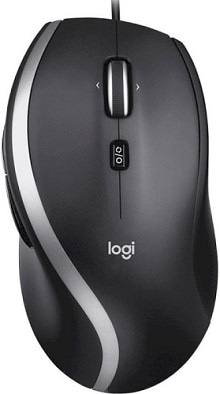
Windows may move the pointer normally while Logitech software still says that no supported device is present. For this wired model, the Logitech M500S ADVANCED Corded Mouse Driver package matters mainly when you want access to its adjustable pointer response, seven configurable buttons, and other enhanced controls. The mouse itself connects directly through USB, so a software-detection failure needs different troubleshooting from a mouse that receives no USB response at all.
Logitech M500S ADVANCED Windows Driver Download
| Driver Name | Description | Supported OS | File Size | Download |
|---|---|---|---|---|
| Logi Options Plus | Customizes mouse buttons, pointer behavior, scrolling, shortcuts, gestures, and device-specific settings. | Windows 11, Windows 10 32-bit/64-bit | 43.1 MB |
Logitech M500S ADVANCED Mac OS Driver Download
| Driver Name | Description | Supported OS | File Size | Download |
|---|---|---|---|---|
| Logi Options Plus | Provides mouse button customization, scrolling controls, pointer adjustments, shortcuts, gestures, and device settings. | macOS 26, macOS 15, macOS 14 | 19.54 MB | |
| Logi Options Plus | Manages configurable mouse controls, pointer preferences, scrolling behavior, gestures, and application shortcuts. | macOS 13 | 19 MB | |
| Logi Options Plus | Enables personalized button assignments, pointer settings, scrolling options, shortcuts, and supported mouse gestures. | macOS 12.0 | 18.65 MB |
Logitech M500S ADVANCED Corded Mouse Driver When Options+ Cannot See the Mouse
The M500s can provide ordinary pointer and click input as soon as you plug its cable into a USB port. That plug-and-play behavior creates an odd symptom: Windows sees a working mouse, yet Logi Options+ may not display it. Current Logitech software support includes the M500s, so an empty Options+ window does not automatically mean that this model lacks customization support.
The pointer works but Options+ shows no device
First confirm that the M500s works through a direct computer USB port, then close and reopen Logi Options+. If an older Logitech Options installation remains on the computer, avoid switching back and forth between several generations of Logitech utilities while diagnosing the problem. Logitech has moved supported devices toward Logi Options+, and the M500s was added to Options+ support after the product originally used Logitech Options.
If the application remains empty, restart Windows with the mouse attached and open Options+ again. A software problem is more likely when Windows consistently accepts left click, right click, scrolling, and pointer movement but the Logitech application alone cannot find the hardware. Reinstalling Options+ becomes reasonable after this distinction is clear, rather than using an application reinstall as the first answer to every mouse fault.
Customization vanishes after a software change
An M500s that still clicks normally after Logitech software removal has not necessarily lost its USB driver. What disappears are the controls supplied by the customization application. Install the current Logi Options+ version when you need supported assignments again, then review each programmable control instead of assuming that an older profile transferred exactly. This is especially useful after moving from Logitech Options to Options+.
The Logitech M500S ADVANCED Corded Mouse Driver software should therefore be treated as the customization layer around a USB mouse that already has basic operating-system input support. That distinction can save a lot of unnecessary Device Manager work when the actual complaint is missing button assignments or unavailable pointer adjustments rather than total USB failure.
The Wheel Has Two Very Different Personalities
The M500s uses a hyper-fast scroll wheel with both fast free-spinning movement and a click-to-click mode. A physical wheel-mode control changes how the wheel turns. This can make an unfamiliar M500s seem defective when a page suddenly travels far beyond the intended position, particularly if the wheel has been left in its fast mode after moving through a long document.
Pages continue moving after a quick wheel spin
Press the wheel-mode control and compare the behavior in both modes. For ordinary line-by-line browsing, the click-to-click position gives more restrained movement. Hyper-fast mode is intended for covering long pages and documents rapidly, so considerable travel after a strong spin can be expected. Testing both positions also separates normal free-wheel behavior from unwanted scrolling that happens while the wheel remains physically still.
If content moves without you touching the wheel, try several programs before changing system-wide scroll preferences. A problem confined to one application may come from that program’s scrolling behavior. Movement that appears across unrelated applications in both wheel modes points more toward the wheel mechanism or its input signal. Carefully remove loose dust around the wheel without opening the mouse before deciding that software caused the symptom.
Middle click feels different from ordinary scrolling
The wheel also acts as a clickable control, and the M500s supports left and right wheel tilt. These actions sit close together mechanically. Press the wheel downward deliberately when testing middle click so that a sideways tilt does not become the input you send instead. This matters in CAD, browser, and productivity programs where middle click and horizontal wheel actions can perform completely different jobs.
If middle click fails in only one application, inspect its own control assignments before altering every M500s button. When middle click behaves incorrectly everywhere, temporarily restore its normal assignment in Logi Options+ and test again. That removes a custom action from the equation and shows whether the application is receiving a standard middle-button command.
Side Buttons, Tilt Actions, and Click Combinations
Seven configurable buttons are one of the M500s features that depend most on Logitech’s customization software. Back and forward actions can be changed for other tasks, and the wheel’s horizontal actions can also be useful in programs that work with wide documents. Problems often begin after the controls have been reassigned rather than when the USB connection itself fails.
A side button performs the wrong command
Open Logi Options+ and inspect the action assigned to the control that misbehaves. Return it temporarily to a familiar navigation command and try it in more than one program. If it behaves there, the hardware is responding and the trouble lies with the assigned action or the application receiving it. Rebuild the custom assignment only after the standard action works consistently.
This method is particularly useful when a forward or back control starts launching an unexpected shortcut after a profile change. The mouse has enough configurable inputs that it is easy to troubleshoot the wrong control. Make one change at a time and verify which physical button generated the command before altering another assignment.
Clicks appear to remain held while another button is pressed
Some multi-button workflows expose a different problem: combining a side control, middle click, and another mouse button may produce a held-click effect inside certain applications. When that happens only while Logitech customization software runs, first return the involved controls to their defaults. Complex reassignment can change how a program interprets simultaneous button actions even though each control works normally by itself.
For CAD or other software that depends on holding middle click while pressing another button, test the same gesture before and after disabling custom assignments. If the normal configuration restores the expected gesture, keep the controls involved in that combination on standard mouse functions and move shortcuts to buttons that the program does not use for navigation.
USB Detection and Pointer Movement Need Separate Tests
A completely dead M500s calls for a much shorter diagnosis. It has a corded USB connection and does not depend on wireless pairing, a receiver, charging, or replaceable batteries. Connect it directly to another USB port on the computer. Logitech specifically recommends bypassing a USB hub when an M500 or M500s does not work, because the problem may lie in the USB path rather than the mouse software.
No light response, pointer, or clicks after connecting
Disconnect the mouse from a dock or hub and plug its USB connector into the computer itself. Try another direct port if the first one gives no response. Then test the M500s on another computer if one is available. A mouse that fails at the USB level on more than one machine presents a very different case from one that works everywhere except through a particular hub.
The Logitech M500S ADVANCED Corded Mouse Driver installation cannot repair a cable or USB hardware failure. If Windows never reacts to the connection, concentrate first on the physical USB path. If another computer detects the mouse immediately, return to the original system and investigate its USB port, hub, or Windows device handling instead of changing button profiles.
The cursor moves but feels too slow or too fast
The M500s provides adjustable tracking from 400 to 4000 DPI, with Logitech software used to tune pointer response. Options+ may present this through a pointer-speed style control rather than the exact numbered DPI interface someone expects from gaming software. That difference can cause confusion when a specification lists a DPI range but the application presents adjustment in a simpler form.
Change the Logitech pointer control gradually and test movement at the screen resolution you normally use. Avoid changing the Windows pointer slider and the Logitech control repeatedly at the same time, because two simultaneous adjustments make it difficult to tell which one produced the improvement. Set one layer, test it for a while, then adjust the other only if necessary.
Tracking becomes uneven on one desk surface
The M500s uses adjustable optical tracking and is intended to provide precise cursor control on many everyday surfaces, but surface condition still matters. Wipe dust from the sensor opening with a dry, soft method and compare the mouse on a plain mouse pad or another non-glossy surface. If the hesitation disappears immediately, leave software settings alone and address the surface instead.
Match the Fix to the Control That Actually Failed
The useful dividing line with this model is physical USB input versus enhanced control behavior. A mouse that vanishes completely needs USB-port testing. A mouse that moves correctly but loses assignments points toward Logi Options+. Overscrolling calls for a wheel-mode check, while incorrect horizontal or middle-button actions deserve an assignment test before any application reinstall.
For the Logitech M500S ADVANCED Corded Mouse Driver configuration, finish by checking the controls that make this model different from an ordinary wired mouse: the two wheel modes, configurable buttons, tilt actions, and adjustable pointer response. Test each function independently before rebuilding personalized shortcuts. That makes it much easier to tell whether a remaining fault belongs to the USB connection, the physical control, the Logitech application, or one particular program.