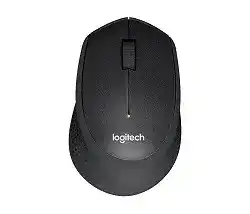
The Logitech M330 SILENT Plus Mouse is a right-hand wireless mouse made for quiet clicking, everyday browsing, office work, and study use. It connects through a 2.4 GHz USB receiver, so it does not need Bluetooth pairing. Windows, macOS, and Linux usually detect the device with a basic mouse driver after you plug in the receiver.
A separate model driver is not always required for normal pointer movement, left click, right click, middle click, and line-by-line scrolling. However, Logitech software can still matter when you need to pair the device with a compatible Unifying receiver, check receiver detection, or fix a connection that stopped after changing computers.
This page focuses on the software, receiver setup, battery checks, and the small fixes that often solve M330 connection, scrolling, pointer, and click behavior. It avoids Bluetooth steps because this model works through its USB wireless receiver.
Logitech M330 SILENT Plus Mouse Windows Driver Download
| Driver Name | Description | Supported OS | File Size | Download |
|---|---|---|---|---|
| Logitech Options Software | Customize mouse buttons, pointer behavior, scrolling, shortcuts, and device settings for supported Logitech mice. | Windows 10 32-bit/64-bit, Windows 8 32-bit/64-bit, Windows 7 32-bit/64-bit | 187.71 MB | |
| Logitech Options Software | Manage mouse controls, scrolling preferences, pointer options, and shortcut assignments on newer Windows systems. | Windows 11, Windows 10 32-bit/64-bit | 245.76 MB |
Logitech M330 SILENT Plus Mouse Mac OS Driver Download
| Driver Name | Description | Supported OS | File Size | Download |
|---|---|---|---|---|
| Logitech Options Software | Adjust mouse button actions, pointer response, scrolling behavior, shortcuts, and Logitech device settings on macOS. | macOS 15, macOS 14, macOS 13, macOS 12, macOS 11 | 238.52 MB |
Setting Up Logitech M330 SILENT Plus with the Right Receiver Software
Start with the receiver that came with the mouse. Plug it directly into a USB port on the computer, then switch the mouse on from the bottom. After that, move the mouse on a plain desk or mouse pad and wait a few seconds. The pointer should start moving without a separate installer in most systems.
Windows driver detection and receiver pairing
On Windows 11, Windows 10, and older supported Windows versions, the system normally loads a standard USB mouse driver. If the pointer does not move, remove the receiver, wait a short moment, and plug it into another USB port. Then turn the mouse off and on again so the receiver can detect it cleanly.
If you use a Unifying receiver instead of the original receiver, install the Logitech Unifying utility or the current Logitech utility that handles Unifying pairing. The M330 mouse itself can work with a Unifying receiver when the device version supports that feature. During pairing, keep the receiver close, switch the mouse off, then switch it on when the utility asks.
macOS and Linux setup behavior
On macOS, the M330 works as a plug-and-play USB wireless mouse for basic control. If the system asks for permission while using Logitech software, allow the needed input control permission, then restart the app. If the pointer works but a utility cannot find the receiver, test the receiver in another USB port before changing software.
Linux normally handles the pointer, clicks, and wheel through built-in input support. If scrolling stops after sleep, unplugging and reconnecting the USB receiver often restores the wheel. Also avoid weak USB hubs when the signal drops, because a direct USB port gives the receiver a cleaner connection.
Before changing software or replacing hardware
Remove older Logitech utilities only when they conflict with the receiver tool or no longer detect the device. Then restart the computer and install the matching Logitech utility for the receiver type you use. Do not install random mouse drivers from unknown pages, because the M330 does not need special gaming or Bluetooth software.
Before you assume the mouse has failed, replace the AA battery, check the battery direction, and clean the battery contacts gently with a dry cloth. Then test the device on another computer. This quick test separates a receiver or software issue from a worn button, dirty sensor, or weak battery problem.
Logitech M330 SILENT Plus Pointer, Receiver, Wheel, and Click Behavior
Most M330 faults come from receiver pairing, USB signal quality, battery contact, surface tracking, or software confusion after changing receivers. The fixes below keep the steps simple and match the actual features of this USB receiver mouse.
Mouse does not respond after plugging in the receiver
First, check the power switch under the mouse and confirm the AA battery faces the right direction. Then plug the receiver into a different USB port. A front or side port on the computer often works better than a rear port when the desk, monitor, or metal case blocks the wireless signal.
If you use a USB hub, bypass it and connect the receiver directly to the computer. After that, turn the mouse off and on again. This resets the short receiver handshake without changing drivers or removing working system files.
The receiver appears as the wrong type of device
The M330 receiver may confuse some people because it is wireless, but it is not a Bluetooth adapter. Do not try to pair the mouse from the Bluetooth menu. Instead, use the USB receiver connection. If the original receiver is missing, a normal Bluetooth dongle will not replace it.
For a replacement path, use a compatible Logitech receiver only when the mouse and receiver support the same pairing system. If you choose a Unifying receiver, pair it through the Logitech Unifying process. A random receiver from another non-Unifying mouse may not pair with this model.
Pointer moves slowly, jumps, or stops on some surfaces
The M330 uses optical tracking, so the surface still matters. Glass, shiny tables, patterned cloth, and dusty mouse pads can make the pointer jump. Try a plain mouse pad or a matte desk surface. Then wipe the sensor window gently with a clean dry cloth.
Also look around the receiver area. Metal objects, large speakers, external drives, and crowded USB devices can weaken the 2.4 GHz signal. Move the receiver closer to the mouse or use a short USB extension if your computer sits under the desk.
Scroll wheel stops working after sleep or restart
When the wheel stops but the pointer still moves, remove the receiver and plug it back in. Then test scrolling in a browser and in a simple document. This often restores the wheel after sleep because the system reloads the receiver input state.
On Linux, sleep and wake behavior can sometimes leave the wheel slow or inactive. A direct USB port usually works better than a hub. If the issue repeats after every wake, restart once with the receiver unplugged, then plug it in after the desktop loads.
Middle click works in one app but not another
The scroll wheel also acts as a middle button, but each app handles that button differently. Test middle click in a browser tab first. A working middle click should open links in a new tab or close a tab, depending on where you click.
If it works in the browser but not in one program, check that program’s mouse shortcuts or control settings. If it fails everywhere, unplug the receiver, restart the computer, and test again. A wheel button that still fails after testing may have physical wear.
Clicks register twice or feel inconsistent
If a single click opens files like a double click, first check the double-click speed in the operating system mouse settings. Set it to a comfortable middle value, then test with folders or browser tabs. A weak battery can also make clicks feel unreliable, so replace the AA battery before deeper checks.
If the button still double-clicks after a battery change and system setting check, the switch may have wear. Avoid spraying liquid into the mouse. Clean only the outside and the battery area safely, then test the M330 on another computer to confirm the behavior.
The mouse stops working after pairing with another receiver
The M330 can work with a compatible Unifying receiver, but pairing changes which receiver controls the mouse. If it no longer responds to the old receiver, open the Logitech pairing utility for the receiver you want to use and pair the mouse again.
During the process, keep only the target receiver plugged in. Turn the mouse off, wait a few seconds, and turn it on when the utility asks. This avoids confusion when more than one Logitech receiver sits in nearby USB ports.
Logitech software does not detect the receiver
If the mouse works but the Logitech utility cannot see the receiver, the issue may sit with the utility rather than the mouse. Close the software, unplug the receiver, restart the computer, and connect the receiver again before opening the utility.
Remove duplicate or outdated Logitech utilities when they keep taking control of the same receiver. Then install only the utility that matches your receiver type. For normal pointer and wheel use, the system driver is enough, so do not keep reinstalling software when the mouse already works.
Connection drops when the computer is under the desk
A weak 2.4 GHz signal can make the pointer freeze for a second, especially when the receiver sits behind a desktop tower. Move the receiver to a front USB port or use a short extension cable. Also keep the receiver away from large metal objects and crowded USB hubs.
Battery condition matters here too. The M330 can run for a long time on one AA battery, but a weak cell can make the wireless link unstable before it fully dies. Replace the battery, check the spring contacts, and test again near the receiver.
Mouse wakes slowly after being idle
The M330 enters sleep modes after inactivity to save battery. If the pointer does not move right away, click once or move the device for a moment. A short wake delay can feel like a fault, but it often comes from normal power saving.
If the wake delay becomes long, replace the battery and test on another USB port. Also remove objects between the mouse and receiver. When the device wakes normally on another computer, the first computer’s USB power or sleep setting may need attention.