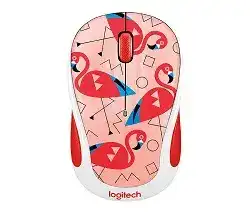
The Logitech M325c is a compact wireless mouse made for everyday laptop and desktop use. It works through a small USB receiver, so it does not need Bluetooth pairing. Windows can usually run it with its built-in mouse driver, but Logitech software may help when you want better control over wheel actions, button behavior, or receiver pairing.
This model uses a battery-powered wireless design with an on and off switch, a scroll wheel, middle-click action, and left or right wheel tilt on supported systems and apps. The wheel matters on this mouse because many people use the M325c for web pages, documents, and long lists where scrolling must feel accurate.
Download the matching Logitech package only when you need pairing help, button control, or wheel configuration. For basic pointer movement and clicking, the receiver and system mouse driver often start working as soon as you plug the receiver into a working USB port.
Logitech M325c Party Collection Mouse Windows Driver Download
| Driver Name | Description | Supported OS | File Size | Download |
|---|---|---|---|---|
| Logi Options+ Software | Customizes mouse buttons, pointer behavior, scrolling, shortcuts, and device settings on Windows. | Windows 11, Windows 10 32-bit/64-bit | 43.09 MB |
Logitech M325c Party Collection Mouse Mac OS Driver Download
| Driver Name | Description | Supported OS | File Size | Download |
|---|---|---|---|---|
| Logi Options+ Installer | Provides mouse button customization, pointer adjustment, scrolling controls, and shortcut setup for supported macOS versions. | macOS 13, macOS 12, macOS 11, macOS 10.15 | 19.44 MB | |
| Logi Options+ macOS 13 Installer | Enables supported Logitech mouse controls, scrolling preferences, pointer settings, and application shortcuts on macOS 13. | macOS 13 | 19 MB | |
| Logi Options+ Latest macOS Installer | Adds device settings management, button assignments, pointer behavior controls, and scrolling options for newer macOS releases. | macOS 26, macOS 15, macOS 14 | 19.44 MB | |
| Logi Options+ Smart Installer | Downloads required setup components during installation while preparing mouse customization and device control features. | macOS 11 | 17.51 MB | |
| Logi Options+ macOS 12 Smart Installer | Sets up Logitech Options+ with online installation support for button controls, scrolling behavior, and shortcut configuration. | macOS 12.0 | 18.65 MB |
Setting Up the M325c Software and Receiver
Start with the receiver before you install extra software. Insert the USB receiver into the computer, switch the M325c on, and wait a few seconds while the system loads the basic mouse driver. A direct USB port works better than a hub, keyboard port, dock, or long extender when the mouse does not wake up.
Use the receiver that belongs with the mouse
The M325c depends on its USB receiver for the wireless link. Keep the receiver close to the computer and avoid mixing it with another Logitech receiver unless the replacement receiver and software clearly match your unit. Some M325 family receivers look similar, but they do not always pair the same way.
If the original receiver went missing, check the receiver type before buying a replacement. A receiver with Logitech’s pairing mark may need Logitech pairing software. A plain receiver normally works only with the device it came with. Pairing guesses waste time, so match the receiver first.
Install only the Logitech utility you need
Windows 10 and Windows 11 normally detect the M325c as a standard HID mouse. Install the Logitech utility when you need wheel tilt settings, middle button behavior, or receiver pairing. If an older Logitech package already sits on the computer, remove it before installing a newer package so both tools do not fight over the same mouse.
Restart the computer after changing Logitech software, especially if the wheel settings do not stay after sleep or after switching apps. Open the Logitech utility once, check the button or wheel page, apply the setting, and test it in a browser before changing more options.
Finish with a simple connection test
Keep the mouse within a short distance of the receiver for the first test. Move metal objects, USB drives, and large speakers away from the receiver. On a tower PC, a front USB port often gives a better signal than a rear port hidden under a desk.
Use a plain document, a browser page, and a folder window for testing. Check pointer movement, left and right clicks, wheel scrolling, middle click, and wheel tilt. This quick test shows whether the problem comes from the device, the app, the USB port, or the software setting.
When the M325c Cursor, Wheel, or Receiver Acts Strange
Most M325c faults come from receiver position, weak battery contact, old Logitech software, dust around the wheel, or a USB port that does not wake the receiver cleanly. Work through the symptom that matches your case instead of reinstalling everything first.
Mouse does not respond after plugging in the receiver
Check the on and off switch first, then remove and reinsert the battery. Make sure the battery faces the right direction inside the compartment. If the light does not come on or the pointer stays dead, try a fresh AA battery before changing software.
Move the receiver to another USB port on the computer. Do not use a hub for this test. If the pointer starts working in a different port, the old port, dock, or hub caused the failure rather than the mouse.
Receiver appears in USB but the pointer does not move
A receiver can get power and still fail to communicate with the mouse. Turn the M325c off, wait a moment, and switch it on again near the receiver. This wakes the wireless link and gives the receiver a clean chance to find the device.
When the receiver type supports pairing, use the matching Logitech pairing utility and follow the on-screen prompt to turn the mouse off and on. Do not try random receiver tools, because some M325c receivers pair only with their original device.
Pointer jumps, freezes, or feels delayed
Signal distance often causes this symptom. Put the receiver in a USB port closer to the mouse, especially on a desktop tower. Rear ports can sit behind metal panels, cables, and the desk, which weakens the small 2.4 GHz signal.
Remove metal objects between the mouse and receiver. Also test with the mouse closer to the receiver for one minute. If the lag disappears, keep the receiver in a better position or use a short USB extension.
Cursor moves badly on one surface
The tracking sensor may struggle on glass, shiny desks, patterned fabric, or uneven surfaces. Try a plain mouse pad or a sheet of white paper. A surface change is a fast way to separate a tracking issue from a receiver or driver issue.
Look under the mouse and clear dust from the sensor window with a dry, soft cloth. Do not scratch the sensor area. After cleaning, test slow movement and small pointer movements around icons.
Scroll wheel does not scroll
Dust around the wheel can stop scrolling even when left and right clicks still work. Blow short bursts of air around the wheel and rotate it several times. Keep the pressure gentle, because the wheel assembly is small.
Test scrolling in more than one app. A browser page, a document, and the system settings window should all react. If only one program fails, that program has the focus or scrolling setting problem.
Wheel scrolls the wrong way or skips lines
When the wheel scrolls up while you roll down, dirt may interrupt the wheel sensor. Turn the mouse off, roll the wheel several times, and clean around both sides of the wheel. This often improves jumpy wheel movement without opening the mouse.
If Logitech software controls wheel behavior on your system, open it and reapply the preferred scrolling setting. Some settings may return to a faster mode after sleep, so test again after waking the computer.
Middle click does not open a browser tab
Middle click depends on the app and operating system. In many Windows browsers, pressing the wheel on a link opens a new tab. If it does nothing, test another browser before blaming the mouse.
Also check whether Logitech software changed the wheel button assignment. Set the wheel click back to middle button or default action, apply the change, and test with a simple web link.
Wheel tilt does not go back or forward
The M325c wheel can tilt left and right, but the result depends on the system, browser, and Logitech settings. In a browser, tilt may work as back and forward. In other apps, it may do nothing unless software assigns an action.
Open the Logitech utility only if your installed package detects the mouse. Choose the wheel tilt action, apply it, and test it in a browser tab with page history. Do not expect every program to react the same way.
Clicks feel too fast or double-click by mistake
If a single click opens files too often, lower the double-click speed in the system mouse settings. This setting matters more on small mice because light clicks can happen quickly without the user noticing.
Clean around the left and right buttons with a dry brush or air. If the click still repeats on another computer with a fresh battery, the button switch may have worn out and software will not repair that hardware fault.
Mouse stops working after sleep or restart
A weak battery, a sleeping USB port, or old Logitech software can make the M325c disappear after wake. Replace the battery first, then move the receiver to another port and restart the computer.
If the issue started after installing or updating Logitech software, remove old Logitech utilities and keep only the package that detects this mouse. After that, restart and test the receiver before adding any other mouse tools.