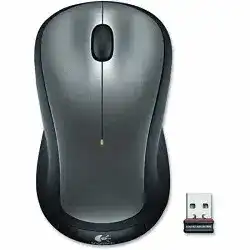
A small USB receiver can appear connected while the pointer stays frozen, and that is where the Logitech Wireless M310 Mouse Driver page should focus first. The M310 is a 2.4 GHz wireless optical mouse with a USB nano receiver, one AA battery, an on and off switch, 1000 DPI tracking, left and right buttons, a scroll wheel, and a full-size ambidextrous shape.
This model is not a Bluetooth mouse, not a Bolt device, and not a rechargeable mouse. It should not be fixed with Bluetooth pairing screens, USB-C charging advice, gaming profile tools, or lighting software. The useful repair path stays with the receiver, battery power, optical tracking, wheel response, click behavior, and the Logitech pairing or control utility that matches this older wireless model.
Most computers can load normal pointer movement after the receiver is recognized. Software becomes important when the receiver needs pairing, the system keeps an old device record, the wheel button loses its action, or the mouse appears in the operating system but still does not move. For that kind of failure, the Logitech Wireless M310 Mouse Driver gives the device a better recovery path than repeated plugging and unplugging.
Logitech Wireless M310 Mouse Windows Driver Download
| Driver Name | Description | Supported OS | File Size | Download |
|---|---|---|---|---|
| Logi Options+ Software | Customizes mouse buttons, pointer behavior, scrolling, shortcuts, and device settings through the newer Options+ app. | Windows 11, Windows 10 32-bit/64-bit | 43.09 MB | |
| Logitech Options Software | Provides mouse button customization, scrolling adjustments, pointer controls, and shortcut setup for supported Logitech devices. | Windows 11, Windows 10 32-bit/64-bit | 245.76 MB |
Logitech Wireless M310 Mouse Mac OS Driver Download
| Driver Name | Description | Supported OS | File Size | Download |
|---|---|---|---|---|
| Logi Options+ Software | Enables mouse button assignments, pointer tuning, scrolling preferences, and device controls on supported macOS systems. | macOS 12.0 | 18.65 MB | |
| Logi Options+ Software | Adds Options+ support for configuring mouse buttons, scroll actions, shortcuts, and device behavior on macOS 13. | macOS 13 | 19 MB | |
| Logi Options+ Software | Supports modern macOS customization for pointer response, button commands, scrolling controls, shortcuts, and device settings. | macOS 26, macOS 15, macOS 14 | 19.44 MB | |
| Logitech Options Software | Manages mouse buttons, scrolling behavior, pointer preferences, shortcuts, and device settings across supported macOS versions. | macOS 15, macOS 14, macOS 13, macOS 12, macOS 11 | 238.52 MB |
First Separate Power Trouble From Receiver Trouble
Many M310 fixes begin with the wrong assumption. The user sees no cursor movement and immediately starts changing software, but the mouse may simply have weak power or a poor battery contact. The M310 uses one AA cell, so the first test should be physical and quick.
Green light flashes but the cursor does not move
A short light response only proves that some power reaches the mouse. It does not prove that the wireless link is active. Turn the mouse off, remove the AA cell, check the metal contact ends, then install a known working cell and switch the mouse on again.
If the light responds but the cursor remains frozen, move to the receiver test. Plug the nano receiver into another direct USB port, wait for the operating system to reload it, and then move the mouse on a plain, firm surface. This test shows whether the power side or the USB side needs attention.
Mouse works for a while, then stops after sitting idle
The M310 sleeps to save battery. A normal wake should happen after movement or a click, but low power can make wake behavior unreliable. If the pointer returns only after switching the mouse off and on, change the AA cell before reinstalling anything.
Check the power switch as well. A loose switch position can make the device look intermittent, especially when the mouse is moved in a bag or drawer. Slide it fully off and fully on, not halfway between the two positions.
Battery compartment looks clean but power still cuts out
A dull battery contact can interrupt power when the mouse is moved. Open the compartment and look for dust, old battery residue, or a contact that no longer presses firmly. Clean the contact area gently with a dry method and avoid liquid inside the shell.
When the same AA cell works in another device but the M310 keeps shutting down, the contact fit deserves more attention than the driver. Software cannot hold a wireless link if the mouse loses power for a split second during movement.
Nano Receiver Detection and Pairing Recovery
The receiver for this model is tiny, so it is easy to lose, mix with another Logitech dongle, or leave in a port that gives poor wireless results. The M310 ships with a nano receiver, and some versions can also be paired with a compatible Logitech Unifying receiver when the proper pairing software is used.
Receiver is missing or replaced with the wrong one
A receiver from another wireless mouse may look nearly identical and still fail. If the original receiver is gone, check whether the replacement is compatible before changing system settings. A receiver that belongs to a non-compatible model will not connect just because it fits into the USB port.
When using a compatible Unifying receiver, pair the M310 through the Logitech Unifying utility. Do not expect the mouse to join by itself after the receiver is inserted. The utility must write the mouse and receiver pairing before normal pointer movement can return.
Windows sees a USB receiver but the mouse does nothing
Windows may show a generic input device even when the M310 is not paired to that receiver. That creates a false clue because the port looks fine while the mouse remains inactive. Run the receiver pairing utility after confirming power, then follow the on-screen off and on prompt.
If pairing fails once, restart the computer before trying again. Old USB input records can stay active until reboot. After restart, insert only the receiver needed for the M310 and keep other unused wireless dongles out of the test.
Receiver works better in one USB port than another
Port position changes wireless behavior. A receiver hidden behind a metal desktop case, pressed into a crowded hub, or placed near noisy USB devices can make the cursor pause or disappear. Use a front or side port when the computer layout blocks the receiver.
For a desktop under a table, a short USB extension can place the receiver above the desk without changing the mouse. Test movement before and after the port change. If the pointer becomes steady after moving the receiver, the download was not the main fix.
Logitech Wireless M310 Mouse Software for Wheel and Click Behavior
The M310 is a simple three-button mouse, but the scroll wheel still has two jobs. It scrolls pages and also works as a middle button when pressed. If pointer movement is normal but wheel click or scrolling feels wrong, the Logitech Wireless M310 Mouse Driver package and matching mouse software can help with assignments and system recognition.
Scroll wheel moves the page unevenly
Uneven scrolling can come from the wheel, the surface under the mouse, or an application setting. Test the wheel in a long document and a browser page. If one app behaves badly while another scrolls normally, adjust that app before blaming the mouse.
Dust around the wheel slot can also cause skipped scroll steps. Rotate the wheel several times and clear loose debris from around the opening. Do not pour cleaner into the wheel area. If the wheel misses steps on more than one computer, the hardware may be worn.
Middle click stops opening links
The wheel button should act as a middle click in many browsers. If left and right click work but middle click does nothing, check the mouse button assignment in Logitech software or the operating system. The M310 does not need advanced gaming software for this check.
A simple browser test is useful here. Open a page with links and press the wheel on a link. If the link opens in a new tab on another computer but not on the main one, the issue is likely software or browser behavior, not the wheel switch.
Double-click happens from a single click
A single click that opens files twice can come from two different causes. The system double-click speed may be too sensitive, or the left button switch may be worn. Change the double-click speed first, then test with folders and desktop icons.
If the M310 double-clicks on several computers with different settings, the switch is probably the problem. A driver download cannot correct a worn click switch. Software is worth trying only when the problem appears on one computer or after a settings change.
Pointer Lag, Surface Tracking, and 2.4 GHz Interference
The M310 uses optical tracking, so the surface under it matters. Glass, glossy white tables, reflective plastic, uneven fabric, and dirty mouse pads can make the pointer drift or pause. Use a matte surface before changing pointer speed or installing more software.
Pointer jumps while the receiver is close
A close receiver does not remove every tracking issue. Clean the sensor window on the underside and test on a plain mouse pad or matte paper. If the cursor calms down on that surface, the optical sensor was struggling with texture or reflection.
Pointer speed settings can make small tracking errors look worse. Lower the pointer speed slightly and turn off acceleration only if movement feels hard to control. Keep one change at a time, because changing speed, surface, and software together makes the real fix harder to identify.
Lag appears near wireless keyboards, routers, or hubs
The M310 uses a 2.4 GHz connection, so nearby wireless traffic and USB noise can affect response. Move the receiver away from packed USB hubs and large metal objects. Also test with other unused wireless receivers removed from the same computer.
If the lag appears only in one room or one desk layout, treat the environment as part of the fault. The Logitech Wireless M310 Mouse Driver can restore software recognition, but it cannot overcome a blocked or noisy wireless path by itself.
Mouse works on Windows but feels different on Mac or Linux
Basic movement usually works through normal system input support, but scroll speed and pointer acceleration can feel different between systems. Adjust the operating-system mouse settings first. Then install Logitech software only if the available package gives a control that the system settings do not provide.
On Linux and ChromeOS, the M310 may behave as a standard USB receiver mouse without extra Logitech controls. That is normal for basic movement. Pairing changes still require a compatible receiver utility on a supported system when the receiver and mouse are not already matched.
Use the Download After the Simple M310 Checks
The download belongs in the repair process after the power, receiver, and surface tests are clear. The Logitech Wireless M310 Mouse Driver is most useful when the nano receiver needs recognition, a compatible Unifying receiver needs pairing, or wheel and middle-click behavior need software attention.
Keep the fix matched to the hardware. Do not use Bluetooth instructions, Bolt pairing, rechargeable battery steps, USB-C charging checks, side-button mapping, or gaming utilities for this model. The M310 has a receiver, one AA battery, optical tracking, standard clicks, and a scroll wheel.
After installing the software, test the mouse in a practical order that matches the common failures. Confirm power, move the receiver to a better port, pair the receiver if needed, check pointer movement on a matte surface, then test left click, right click, wheel scrolling, and middle click.
If the M310 works on another computer with the same receiver, the first computer likely has a USB or settings conflict. If it fails everywhere with known good power and a compatible receiver, the fault is probably hardware. That final split saves time because it stops a driver search from turning into a loop.