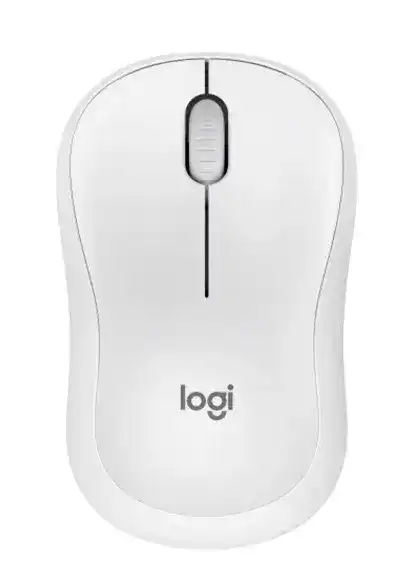
A mouse that appears in the Bluetooth list but refuses to finish pairing often needs more than another click on Add device. The Logitech M240 Bluetooth Mouse Driver works through Logi Options+ for pointer speed, scroll direction, middle-button actions, application-specific controls, and low-battery notices. The M240 uses Bluetooth Low Energy only, so no USB receiver, Unifying software, or Bolt pairing tool belongs in its setup.
Logitech M240 Bluetooth Mouse Windows Driver Download
| Driver Name | Description | Supported OS | File Size | Download |
|---|---|---|---|---|
| Logi Options+ Smart Installer | Online installer for adjusting mouse buttons, pointer behavior, scrolling, shortcuts, and device settings. | Windows 11, Windows 10 32-bit/64-bit | 43.21 MB |
Logitech M240 Bluetooth Mouse Mac OS Driver Download
| Driver Name | Description | Supported OS | File Size | Download |
|---|---|---|---|---|
| Logi Options+ for macOS 26, 15 and 14 | Customization software for mouse controls, scrolling behavior, shortcuts, gestures, and device preferences on newer macOS releases. | macOS 26, macOS 15, macOS 14 | 19.56 MB | |
| Logi Options+ for macOS 13 | Configures button actions, pointer response, scrolling options, application shortcuts, and other mouse-specific settings. | macOS 13 | 19 MB | |
| Logi Options+ for macOS 12 | Manages supported mouse functions such as button assignments, pointer movement, scrolling controls, and custom shortcuts. | macOS 12 | 18.65 MB | |
| Logi Options+ for macOS 11 | Provides access to mouse button customization, pointer preferences, scroll adjustments, gestures, and device controls. | macOS 11 | 17.51 MB |
Logitech M240 Bluetooth Mouse Driver for Pairing That Will Not Complete
Start with the button on the underside of the mouse. Switch the M240 on, then hold the Bluetooth button until its indicator begins flashing quickly. A brief light does not always mean the mouse has entered discovery mode. Keep the button pressed for several seconds before opening the computer’s Bluetooth menu and searching for the M240 again.
The computer sees M240 but says try connecting again
Delete the existing M240 record before making another attempt. Windows can keep an incomplete pairing entry after a failed connection, and selecting that damaged record usually returns the same error. Open Bluetooth and devices, remove the M240, turn the mouse off, wait a few seconds, then switch it on and hold the pairing button until the light flashes rapidly.
Do not press the mouse name repeatedly while Windows is still processing the first request. Let the failed message close, remove the stored entry, and begin again from a fresh discovery screen. Restarting Bluetooth after deletion can also clear a connection that remains visible but never reaches the connected state.
M240 does not appear in the Bluetooth search
Check that the computer actually has Bluetooth enabled and that airplane mode is off. A desktop computer may need a separate Bluetooth adapter even when it has Wi-Fi. Test whether another Bluetooth accessory appears in the search. If no nearby device is found, repair the computer’s Bluetooth service or adapter before changing anything on the mouse.
The M240 should stay close to the computer during initial pairing. Move phones, wireless speakers, and other active Bluetooth accessories away for the first connection. Once pairing finishes, normal operating distance can be tested. A crowded desk can make discovery inconsistent even when the mouse later works at the same location.
Old pairing returns after a Windows reinstall
The mouse may remember the previous computer identity while the rebuilt Windows installation treats itself as a new Bluetooth host. Remove any greyed or duplicated M240 entries, power-cycle the mouse, and enter pairing mode again. The Logitech M240 Bluetooth Mouse Driver cannot repair an obsolete Bluetooth trust record by itself; Windows must create a new pairing first.
Fix Disconnects, Sleep Delays, and Sudden Cursor Loss
The M240 saves power when idle, and a short wake delay can occur before movement returns. One click or a small movement should wake it. Repeated ten-second delays, frequent dropouts during use, or a mouse that never reconnects point toward battery condition, Bluetooth power management, or a stale pairing rather than normal sleep behavior.
Mouse disconnects after sitting idle
Wake the computer fully before testing the mouse. Some systems reduce power to the Bluetooth adapter during sleep and fail to restore it cleanly. On Windows, install the Bluetooth driver supplied by the computer manufacturer instead of relying only on a generic update. Also check whether the adapter disappears or shows an error in Device Manager after the computer wakes.
If the M240 reconnects after Bluetooth is toggled off and on, the computer’s radio is the stronger suspect. Remove the pairing only after checking that pattern. Re-pairing can refresh the link, but it will not cure an adapter that repeatedly shuts down or fails after every sleep cycle.
Pointer stops during use even with a new battery
Test the mouse with another Bluetooth-capable computer, tablet, or phone. A second device quickly separates a local computer problem from a fault in the mouse. When the M240 works normally elsewhere, update the original system’s Bluetooth software, remove duplicate mouse entries, and check whether another connected accessory is causing heavy wireless traffic.
When the same dropout follows the mouse to several devices, inspect the battery compartment. Clean dry contacts gently and confirm that the AA cell sits firmly between them. A battery can test as new yet lose contact when the mouse moves if a terminal is dirty, flattened, or not holding the cell tightly.
Cursor moves only after turning the mouse off and on
A power cycle forces the M240 to restart its Bluetooth connection, which can temporarily hide the real cause. Use that result as a clue. If the problem returns only on one computer, rebuild the pairing there. If it returns everywhere, test another AA battery from a different pack before considering hardware service.
The M240 can run for many months from one battery, but that estimate varies with use and operating conditions. A cell that has spent a long time installed may have enough charge to light the indicator yet fail when the radio reconnects. Logi Options+ can show a low-battery warning before complete loss of movement.
Logitech M240 Software for Pointer and Scroll Behaviour
The operating system can move the pointer without Logi Options+, but the control app adds adjustments that basic Bluetooth support does not provide. The Logitech M240 Bluetooth Mouse Driver package can change pointer speed, scrolling speed, wheel direction, middle-click behaviour, and actions that apply only inside selected programs.
Pointer feels too slow or too fast
Open Logi Options+ and adjust pointer speed in small steps. Then compare that result with the operating system’s own mouse-speed control. Raising both settings too far can make movement feel jumpy, while lowering both can make the pointer seem delayed. Change one control at a time so the source of the difference stays clear.
Surface choice also matters. The M240 uses optical tracking and works best on a clean, non-reflective desk or mouse pad. Glass, polished stone, mirrored material, and strongly patterned surfaces can produce hesitation or uneven travel. Test plain paper beneath the mouse before changing software again.
Scroll direction feels reversed
Logi Options+ includes a control for scroll-wheel direction. Check that option before changing application preferences or system-wide accessibility settings. A reversed direction may appear only after software migration, account restoration, or a preference imported from another Logitech mouse.
macOS also has its own natural-scrolling preference, which can affect several pointing devices together. Decide whether the change should apply only to the M240 or to every connected mouse and trackpad. Use the Logitech control when the M240 alone needs a different direction.
Scrolling is slow, uneven, or skips lines
Adjust scrolling speed first, then test in more than one program. A browser, spreadsheet, document editor, and settings window may process wheel movement differently. When only one application scrolls badly, reset that program’s zoom, extension, or scrolling preferences rather than treating the mouse as faulty.
If the wheel behaves badly everywhere, turn the mouse off and clear dust from the gap around the wheel with short bursts of compressed air. Rotate the wheel while the mouse remains off. Persistent missed steps on several computers indicate a mechanical wheel problem, especially when software changes make no difference.
Middle click does nothing
Pressing the wheel acts as the M240’s third button. Logi Options+ can assign another action to it, including different commands for different applications. Check the global assignment first, then inspect any application profile that may override it. A browser tab may close correctly while another program ignores the same command because its profile uses a different action.
Return the middle button to its default action when testing. If the click fails in every program and on another computer, clean around the wheel and check whether the button feels stuck or unusually soft. Software cannot restore a worn physical switch.
When Logi Options+ Opens but Cannot Control the Mouse
The M240 works, but the app shows no device
Confirm that the mouse is paired and currently connected before opening Logi Options+. A remembered device can remain listed in Windows or macOS while its live connection is missing. Move the mouse, verify that the pointer responds, then restart the app. Rebooting after a new installation also lets its background components load normally.
Remove older Logitech Options only when it conflicts with Options+ or leaves duplicate services running. The M240 belongs in Logi Options+, not SetPoint, Unifying Software, or a receiver connection utility. Installing several generations of Logitech software can make detection less predictable without adding any useful M240 feature.
Settings change but return later
Check whether an application-specific profile is replacing the main preference. Logi Options+ can assign a middle-button command or other behaviour to one program while keeping a different global action. Delete an unwanted profile or edit it directly instead of changing the default control each time the application opens.
On macOS, allow the permissions requested by Logi Options+ and reopen it after changing privacy controls. A blocked background component can prevent custom actions from reaching the active application even though the mouse continues to point and click normally through Bluetooth.
The app reports the wrong battery state
Move the mouse for several seconds so it sends a fresh status update, then reopen its page in Logi Options+. Battery information may not refresh while the device sleeps. If the reading remains unchanged after installing another AA cell, restart the app and reconnect the mouse before judging the battery indicator.
Quiet Clicks, Double Clicks, and Physical Response
The M240 uses SilentTouch technology, so its left and right buttons sound much quieter than those on many standard mice. A softer sound is normal. It should still produce a clear physical response. A button that sticks, fires twice, or works only when pressed at one edge needs a different check from a click that merely sounds subdued.
One press opens two files or selects twice
Reduce the operating system’s double-click speed and test again. A very slow double-click threshold can interpret two separate presses as one pair, while a failing switch can send two signals from a single press. Try the M240 on another computer with default mouse settings to tell those situations apart.
Blow dry compressed air around the affected button while the mouse is off. Do not pour cleaner beneath the shell. When one press continues to register twice across several devices, the button switch may be worn and software adjustment will not provide a lasting repair.
Clicks feel delayed while movement remains normal
Close any application that intercepts mouse actions, including remote-control tools, accessibility utilities, or button remappers. Restore the M240’s middle-button assignment to default and compare left, right, and wheel clicks in different programs. A delay limited to one application usually comes from that program rather than the Bluetooth link.
When every click pauses but pointer movement stays fluid, disconnect other heavily used Bluetooth devices for a brief test and restart the computer’s adapter. The Logitech M240 Bluetooth Mouse Driver should control software preferences, but the operating system still carries each Bluetooth input event. A healthy final setup has one current M240 pairing, a firmly seated AA battery, and only the Logi Options+ profiles that are actually needed.